When using MS Excel to store data for business purposes, it is important that the data is available when needed. However, corruption errors in an Excel file may prevent you from accessing the data and affect business continuity.
While Excel provides the built-in ‘Open and Repair’ command to fix corrupted files, it may fail to repair a severely corrupted workbook. In that case, you can use Microsoft suggested workarounds to recover data from a corrupted workbook. Applying all the workarounds can take time and may result in some data loss.
A better alternative is to use an Excel file repair tool that helps fix common Excel file corruption errors and recover data in minimum possible time. But before we discuss the solution, let’s first learn about some of the most common corruptions errors that you may encounter as an Excel user.
Most Common Corruption Errors in MS Excel
- The file is corrupt and cannot be opened

This is the most commonly encountered error message when an Excel file gets corrupt. This error usually occurs while attempting to open an Excel file downloaded as an attachment. You can try to fix it by unchecking all the options under Protected View in the Trust Center Settings in an Excel file.
- The file is not in a recognizable format
This is another common Excel error you may receive when opening a file. It may occur because of wrong file extension in the file name. To avoid this, ensure that Excel can open the file format. If there is no problem with the format, the file may be damaged.

- Excel cannot open the filename.xlsx because the file format or file extension is not valid. As the error message suggests, it is caused due to an invalid file format or extension. To resolve this issue, ensure that the file is compatible with your Excel application. If it is not, rename the file extension.

Irrespective of the error message you receive due to corruption in an Excel file, the result is the same – the Excel file turns inaccessible and you may lose data
All-in-One Solution to Fix the Most Common Corruption Errors in MS Excel
You can use an Excel file repair tool such as Stellar Repair for Excel to fix the corruption errors in an XLS/XLSX file. The software serves as an all-in-one solution for the Excel file repair and recovery needs.
The software user interface is easy to use, allowing the users to repair their corrupt Excel files in just a few seconds. Also, the tool helps retrieve all the data from the corrupt file, including tables, pivot tables, cell comments, charts, formulas, etc.
You can use the free demo version of the Excel file repair tool to repair a corrupt file and preview its recoverable data. The preview feature is helpful in validating accuracy of the data recovered. After verifying the data, you can activate the licensed version of the software to save the data.
Once you have downloaded and installed the software, follow these steps to repair your corrupt Excel file:
- Run Stellar Repair for Excel software.
- Select the corrupt Excel file you want to repair by clicking the Browse or Search button.

- Start the repair process.
- On completion of the repair process, preview the recoverable data.
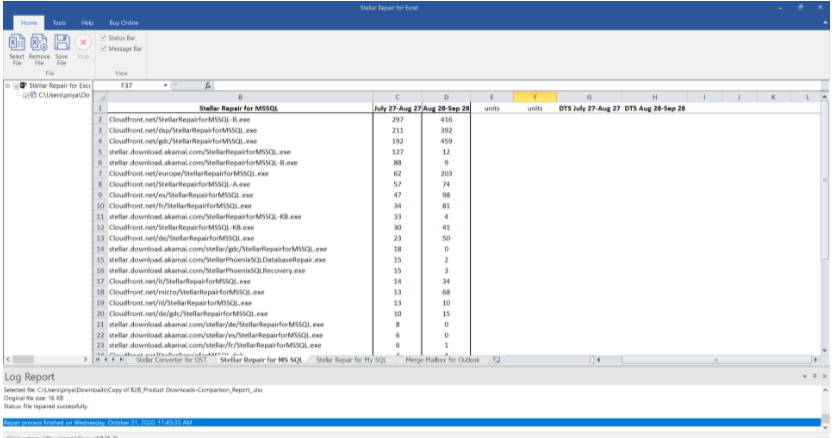
- After verifying the data, click Save File on the File menu for saving the repaired file. Choose the location to save the file and click OK.
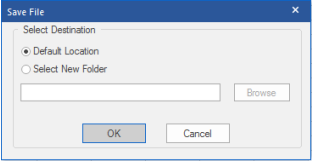
The repaired file will get saved in the selected location.
End Note
Corruption in an Excel file can happen anytime, preventing you from accessing the file. Also, the more time you take to repair the file, the more is the data loss risk. This is where an Excel file repair tool comes in handy. It provides all-in-one solution that fixes the most common corruption errors in MS Excel. In addition, it helps get back all the data from the corrupted file while preserving data integrity.