• Send Us A Tip
  • Calling all Tech Writers
  • Advertise
Thursday, September 24, 2026
  • Login
TechStory
  • News
  • Crypto
  • Gadgets
  • Memes
  • Gaming
  • Cars
  • AI
  • Startups
  • Markets
  • How to
No Result
View All Result
  • News
  • Crypto
  • Gadgets
  • Memes
  • Gaming
  • Cars
  • AI
  • Startups
  • Markets
  • How to
No Result
View All Result
TechStory
No Result
View All Result
Home How to

How to export chrome bookmarks

by Shivya Sethi
June 20, 2023
in How to, Tech
Reading Time: 3 mins read
0
How to export chrome bookmarks
TwitterWhatsappLinkedin

Chrome bookmarks are a convenient way to save and organize your favorite websites. They allow you to quickly access your most visited sites with just a few clicks. However, there may be times when you need to export your bookmarks, whether it’s for backup purposes or to import them into another browser or device. In this article, we will guide you through the process of exporting Chrome bookmarks.
You might also like

UI Design Company vs Local Product Design Firms

Best Video Downloaders 2026: Top Tools to Save Your Favorite Videos

Discord Reveals Age-Check Rollout With Major Changes to How It Works

How to Export, Save, and Import Chrome Bookmarks : HelloTech How
Source: HelloTech

Chrome bookmarks are a valuable feature of the popular web browser developed by Google, known as Google Chrome. They serve as a convenient way to save and organize website links for easy access at a later time. Chrome bookmarks allow users to quickly navigate to their favorite websites, important web pages, or resources they frequently visit, without the need to remember or manually type in the URLs each time.

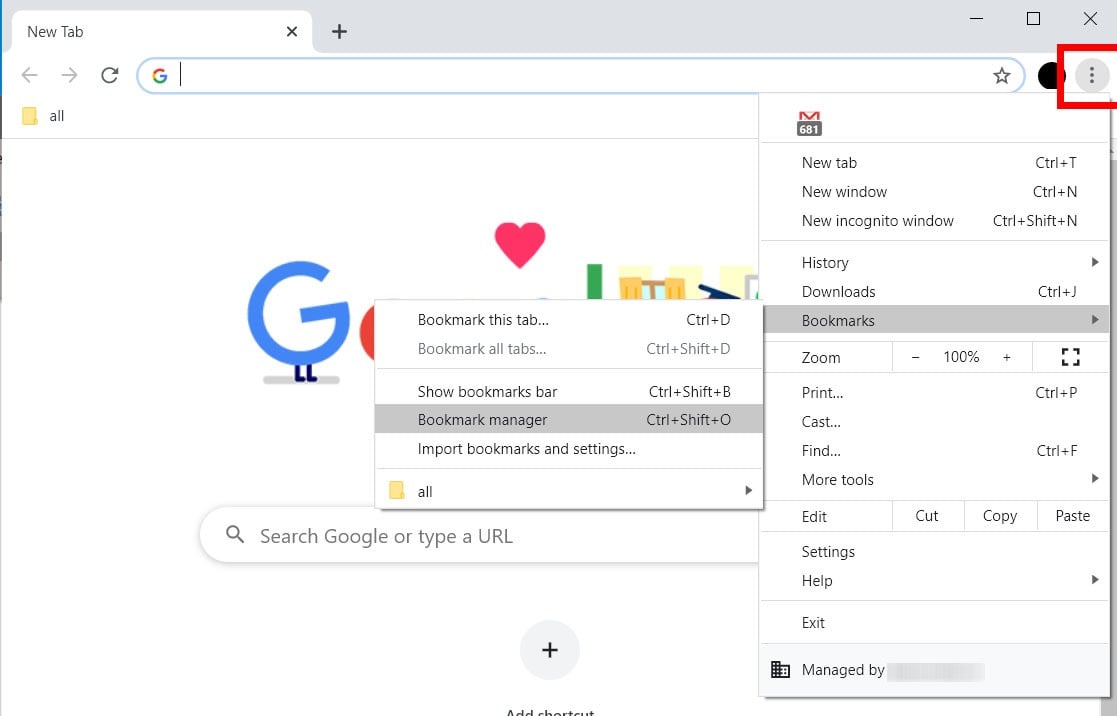
Step 1: Open Chrome’s Bookmark Manager
From the dropdown menu, select “Bookmarks” and then “Bookmark Manager.” Alternatively, you can use the keyboard shortcut Ctrl+Shift+O (Windows) or Command+Shift+O (Mac) to directly open the Bookmark Manager.

Step 2: Access the Bookmark Export Options
In the Bookmark Manager window, you will see a variety of options for managing your bookmarks. At the top-right corner of the Bookmark Manager, you will find a three-dot menu icon. From this menu, select “Export bookmarks.” A file explorer window will open, allowing you to choose the location where you want to save the exported bookmarks file.

Step 3: Choose the Export Location
In the file explorer window, navigate to the directory where you want to save the exported bookmarks file. Choose a location that is easily accessible and memorable, such as your desktop or a dedicated folder. Once you have selected the desired location, click on the “Save” button to proceed.

Step 4: Confirm the Export
After you have chosen the export location, Chrome will automatically save your bookmarks as an HTML file with the name “bookmarks.html.” You can change the filename if you prefer, but make sure to keep the .html extension intact. This file format ensures compatibility with most browsers and bookmark managers. Confirm the export by clicking on the “Save” button in the file explorer window.

Step 5: Verify the Exported Bookmarks
To ensure that the export process was successful, navigate to the location where you saved the exported bookmarks file. Double-click on the file, and it will open in your default web browser. The bookmarks file will display all your saved bookmarks in a user-friendly format, organized by folders and subfolders, if you have any.

Step 6: Optional – Importing Bookmarks to Another Browser
If you want to import the exported Chrome bookmarks into another browser, the process may vary slightly depending on the browser you are using. Most modern browsers provide an option to import bookmarks from an HTML file. Here’s a general guide:

Start the browser you want to use to import your bookmarks.
Access the browser’s bookmarks or favorites manager. Look for an option like “Import bookmarks” or “Import favorites.”
Choose the option to import from an HTML file.
Navigate to the location where you saved the exported bookmarks file (bookmarks.html).
Select the file and click on the “Import” or “Open” button.
The browser will then process the bookmarks file and import all the saved bookmarks into the new browser.

Conclusion
Exporting your Chrome bookmarks allows you to create backups and transfer your bookmarks to other browsers or devices. The process is straightforward and can be completed within a few simple steps. By following the guide outlined in this article, you can effortlessly export your Chrome bookmarks and ensure that your valuable website links are accessible whenever and wherever you need them.


Tags: Chromechrome bookmarksexport bookmarksexport chrome bookmarksGoogle
Tweet55SendShare15
Previous Post

Intel Announces Record-Breaking $33 Billion Investment in Germany’s Expansion Endeavor

Next Post

Most Anticipated Smartphones of 2023: A Technological Marvel Awaits

Shivya Sethi

Shivya Sethi is an aspiring advocate. She is an assertive and outspoken young lad. She channelizes her energy into writing. Tech is what keeps her brain gear oiled for what comes on her plate every other day. Writing and helping tech - tortured people gets her adrenaline rush.

Recommended For You

UI Design Company vs Local Product Design Firms

by Rohan Mathawan
September 24, 2026
0
UI Design Company vs Local Product Design Firms

One option sells depth in interface craft. The other sells breadth and easy access. The right choice depends on which gap your team can't cover itself. Two proposals...

Read more

Best Video Downloaders 2026: Top Tools to Save Your Favorite Videos

by Rohan Mathawan
September 24, 2026
0
Best Video Downloaders 2026: Top Tools to Save Your Favorite Videos

Introduction: The Growing Trend of Video Downloading in 2026 Video consumption has changed dramatically over the past few years, and by 2026 streaming platforms, short video apps, and...

Read more

Discord Reveals Age-Check Rollout With Major Changes to How It Works

by Shailja Jha
September 24, 2026
0
Discord Reveals Age-Check Rollout With Major Changes to How It Works

Discord is rolling out a new age-checking system that will change how the platform determines a user's age and controls access to certain features and content. The company...

Read more
Next Post
Most Anticipated Smartphones of 2023: A Technological Marvel Awaits

Most Anticipated Smartphones of 2023: A Technological Marvel Awaits

Please login to join discussion

Techstory

Tech and Business News from around the world. Follow along for latest in the world of Tech, AI, Crypto, EVs, Business Personalities and more.
reach us at info@techstory.in

Advertise With Us

Reach out at - info@techstory.in

Aviator Game India 2026

BROWSE BY TAG

#Crypto #howto 2024 acquisition AI amazon Apple Artificial Intelligence bitcoin Business China cryptocurrency e-commerce electric vehicles Elon Musk Ethereum facebook funding Gaming Google India Instagram Investment iPhone IPO Market Markets Meta Microsoft News OpenAI samsung Social Media SpaceX startup startups tech Tech news technology Tesla TikTok trend trending twitter US

© 2025 Techstory.in

No Result
View All Result
  • News
  • Crypto
  • Gadgets
  • Memes
  • Gaming
  • Cars
  • AI
  • Startups
  • Markets
  • How to

© 2025 Techstory.in

Welcome Back!

Login to your account below

Forgotten Password?

Retrieve your password

Please enter your username or email address to reset your password.

Log In
Are you sure want to unlock this post?
Unlock left : 0
Are you sure want to cancel subscription?