Friday Night Funkin’ (FNF) has captivated players with its rhythmic gameplay and vibrant characters. Whether you’re aiming to play as a different character or introduce new ones into the game, understanding the process can enhance your gaming experience. This guide will walk you through the steps to change characters in FNF, covering both in-game selections and modding techniques.
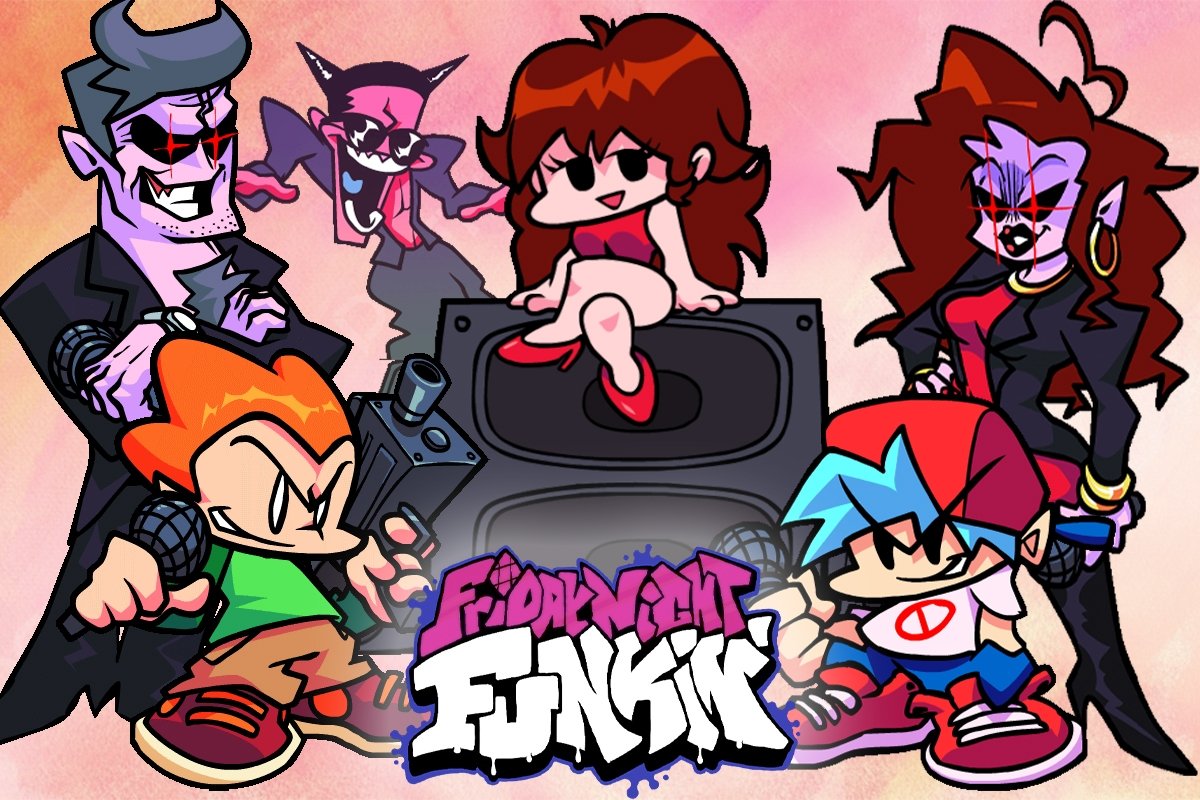
In the latest versions of FNF, a character select screen has been introduced, allowing players to choose their preferred character directly within the game. To access this feature:
- Navigate to Freeplay Mode: From the main menu, select ‘Freeplay’ to view the list of available songs.
- Open Character Select Screen: Press the Tab key while in the Freeplay menu. This action will bring up the character selection interface.
- Choose Your Character: Use the arrow keys to navigate through the available characters. Characters that are locked will appear grayed out or have a lock icon. Once you’ve highlighted your desired character, press Enter to select them.
It’s worth noting that not all characters may be available immediately. Some require unlocking by achieving specific milestones or completing certain levels within the game.
Modding to Change Characters
For those looking to customize their FNF experience further, modding offers a pathway to add or replace characters. This process involves modifying the game’s files and should be approached with caution. Here’s a step-by-step guide:
- Prepare Your Tools:
- Text Editor: Software like Notepad++ or Visual Studio Code will allow you to edit game files effectively.
- Image Editing Software: Programs such as Adobe Photoshop or GIMP are useful for creating or modifying character sprites.
- Locate the Game’s Assets:
- Navigate to the assets folder within your FNF directory. This folder contains all the game’s visual and data files.
- Understand Character Files:
- Each character in FNF has associated files, including spritesheets and data files.
- Spritesheets: These are large images containing all the frames of a character’s animations. They are typically accompanied by a data file (like an XML or JSON) that defines the coordinates of each frame.
- Data Files: Located in the data/characters directory, these JSON files contain information about the character’s animations, offsets, and other properties.
- Replacing an Existing Character:
- Create or Obtain New Assets: Design your new character sprites or download them from reputable sources. Ensure they match the dimensions and style of FNF’s existing assets.
- Match File Names: Rename your new character’s files to match those of the character you’re replacing. For instance, if you’re replacing ‘Boyfriend,’ your new spritesheet should have the same name as the original Boyfriend’s spritesheet.
- Overwrite Files: Place your new files into the appropriate directories, replacing the existing ones. It’s advisable to back up the original files before doing this.
- Adding a New Character Without Replacement:
- Import Assets: Place your new character’s spritesheet and data files into the respective assets/images/characters and assets/data/characters directories.
- Define the Character:
- Open the characters JSON file located in the data/characters directory.
- Add a new entry for your character, specifying details such as the character’s name, asset paths, and animation data.
- Integrate into the Game:
- To make your new character playable, you’ll need to modify the week’s data files to include your character in specific songs or create new weeks dedicated to them.
- Adjusting Character Offsets:
- Misaligned characters can disrupt gameplay. To fix this:
- Access the Animation Editor: Launch FNF and press the ~ key to open the Debug menu. Select ‘Animation Editor.’
- Load Your Character: Choose your character from the list.
- Adjust Offsets: Use the provided tools to align your character’s animations properly. Once satisfied, save the adjustments.
- Misaligned characters can disrupt gameplay. To fix this:
Popular Character Mods
The FNF community has developed numerous mods that introduce new characters or alter existing ones. One notable example is the Gender Swap Mod Pack, which swaps the genders of the main characters, offering a fresh perspective on the game’s narrative. Exploring such mods can provide inspiration and insight into the modding process.