• Send Us A Tip
  • Calling all Tech Writers
  • Advertise
Sunday, July 12, 2026
  • Login
TechStory
  • News
  • Crypto
  • Gadgets
  • Memes
  • Gaming
  • Cars
  • AI
  • Startups
  • Markets
  • How to
No Result
View All Result
  • News
  • Crypto
  • Gadgets
  • Memes
  • Gaming
  • Cars
  • AI
  • Startups
  • Markets
  • How to
No Result
View All Result
TechStory
No Result
View All Result
Home How to

How to pin an app to the desktop?

by Afeefa Ansari
May 3, 2025
in How to
Reading Time: 3 mins read
0
Desktop

Credits - wired.com

TwitterWhatsappLinkedin

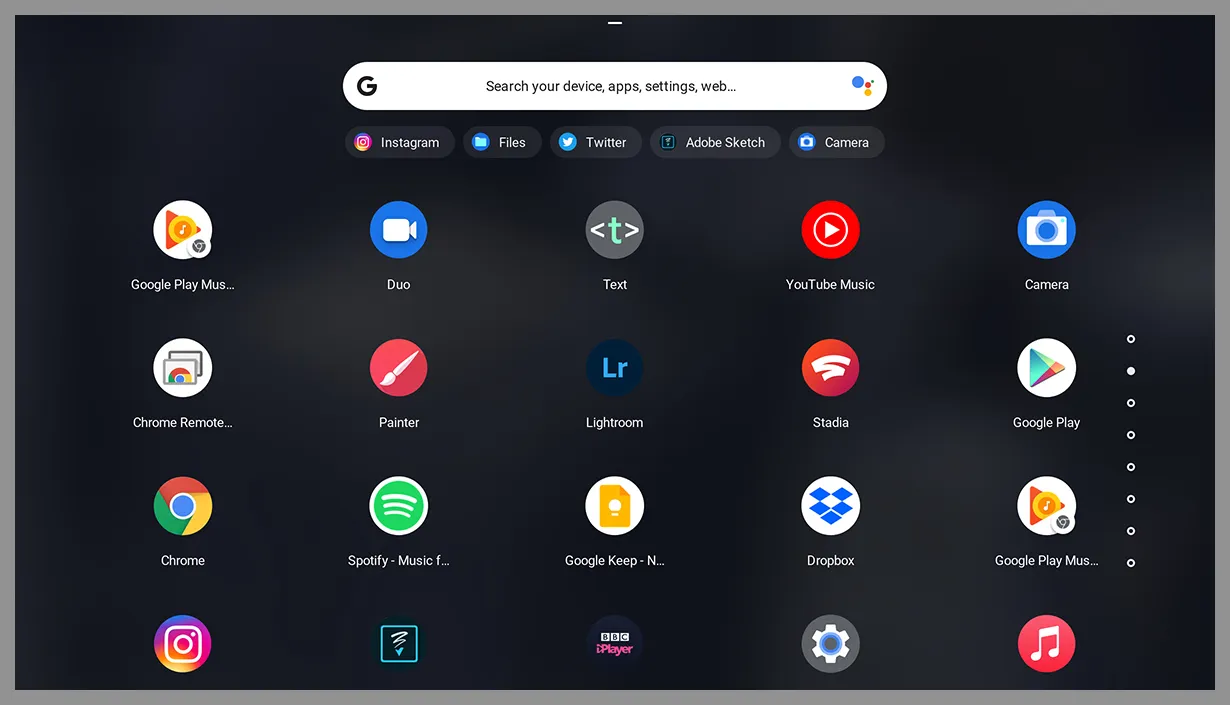
Have you ever liked an application so much that you start spending more time on it than the rest of the apps? Or if not this, then how about an app you need more frequently during the day than the other apps? Isn’t it easy if we don’t have to look for these apps but find them right on the home screen? Well, to tackle this situation we are here with this guide. Let us discuss how one can pin an app to their desktop and save time that they used to spend looking for it. Let us begin. 

You might also like

How to beat Mega Mewtwo X in Pokémon Go?

How to delete a TikTok account?

How to get Zeraora in Pokémon Go?

What happens when you pin an app to the desktop?

When you “pin” an app to the desktop, you are essentially creating a shortcut to that application on your device. An icon representing the application appears on your desktop. This icon allows you to quickly identify and launch the app.  Pinning frequently used applications to your desktop provides a convenient and immediate way to access them, streamlining your workflow and saving time. You can arrange these pinned app icons anywhere on your desktop, allowing you to personalize your digital workspace for better organization and efficiency. However, it may create confusion so let us be clearer. Pinning an app to the desktop only creates a shortcut. The actual application files remain in their original installation location on your computer. Deleting the desktop shortcut will not uninstall or remove the application itself.

How to pin an app to the desktop?

Now that we know what pinning an ap to the desktop does and how can it help, let us cover the steps where we can actually learn how to do so –

  • Open your PC and click on the start button. 
  • Now find the app that you want to add to the desktop. Even if it is at a slightly inconvenient spot, don’t worry and look for it. 
  • Now right-click on the app and choose ‘More Options’.
  • Now choose ‘Open File Location’ and then right-click on the app. Here you can choose to click on the ‘Send to’ option which will take you further ahead. 
  • As the next option, choose ‘Desktop’.

This will create a shortcut to the app and it will be added to the desktop where you can access it more easily. You can repeat this process for as many apps as you like, depending on their usage and their accessibility on the desktop. Or you can simply do that because you like to. 

How do shortcut apps help on desktops?

Shortcuts provide a direct link to applications, files, folders, or websites, allowing you to open them with a simple double-click without navigating through menus or file explorers. This saves valuable time and effort. Pinning frequently used apps to the desktop can help keep your Start Menu and taskbar cleaner, making it easier to find less frequently used programs. Moreover, it gives a neater look to your window and your desktop, helping you organise windows and applications in a way that you prefer.

Tags: #howtocreate a shortcut app on desktopDesktopshortcup appsshortcuts
Tweet58SendShare16
Previous Post

Malaysian Police Dismantle Crypto Mining Syndicate in Power Theft Raid

Next Post

Best Crypto Pre-sales: DexBoss— A New Era of Decentralised Finance Is Here!!

Afeefa Ansari

Recommended For You

How to beat Mega Mewtwo X in Pokémon Go?

by Afeefa Ansari
July 12, 2026
0
Pokemon-Go-Mega-Mewtwo X

Want to beat Mega Mewtwo X in Pokémon Go? Follow the guide to know how you can make it happen and knock out this strong Pokémon. So, let's...

Read more

How to delete a TikTok account?

by Afeefa Ansari
July 12, 2026
0
TikTok

Do you have a TikTok account you would like to delete? That happens. Let's help you do so and get one thing off your mind. It will be...

Read more

How to get Zeraora in Pokémon Go?

by Afeefa Ansari
July 12, 2026
0
Zeraora

Are you looking for Zeraora in Pokémon Go? Here is all you need to know about it, along with the steps that can help you find one. So,...

Read more
Next Post
Best Crypto Pre-sales: DexBoss— A New Era of Decentralised Finance Is Here!!

Best Crypto Pre-sales: DexBoss— A New Era of Decentralised Finance Is Here!!

Please login to join discussion

Techstory

Tech and Business News from around the world. Follow along for latest in the world of Tech, AI, Crypto, EVs, Business Personalities and more.
reach us at info@techstory.in

Advertise With Us

Reach out at - info@techstory.in

Aviator Game India 2026

BROWSE BY TAG

#Crypto #howto 2024 acquisition AI amazon Apple Artificial Intelligence bitcoin Business China cryptocurrency e-commerce electric vehicles Elon Musk Ethereum facebook funding Gaming Google India Instagram Investment ios iPhone IPO Market Markets Meta Microsoft News OpenAI samsung Social Media SpaceX startup startups tech technology Tesla TikTok trend trending twitter US

© 2025 Techstory.in

No Result
View All Result
  • News
  • Crypto
  • Gadgets
  • Memes
  • Gaming
  • Cars
  • AI
  • Startups
  • Markets
  • How to

© 2025 Techstory.in

Welcome Back!

Login to your account below

Forgotten Password?

Retrieve your password

Please enter your username or email address to reset your password.

Log In
Are you sure want to unlock this post?
Unlock left : 0
Are you sure want to cancel subscription?