

• Send Us A Tip
  • Calling all Tech Writers
  • Advertise
Monday, June 22, 2026
  • Login
TechStory
  • News
  • Crypto
  • Gadgets
  • Memes
  • Gaming
  • Cars
  • AI
  • Startups
  • Markets
  • How to
No Result
View All Result
  • News
  • Crypto
  • Gadgets
  • Memes
  • Gaming
  • Cars
  • AI
  • Startups
  • Markets
  • How to
No Result
View All Result
TechStory
No Result
View All Result
Home How to

How to use GIFs on an iPhone?

by Afeefa Ansari
June 26, 2025
in How to
Reading Time: 2 mins read
0
GIFs

Credits - macworld.com

TwitterWhatsappLinkedin

Bored with the dry texts? Brighten them up with some GIFs. In this guide, we shall discuss how you can get GIFs on your iPhone and use them with your friends. It is really simple and can help communicate better with any kind of expression that you want to make. So, let us begin!

You might also like

How to freeze your credit for free?

How To Optimize Windows For Gaming

How To Increase Steam Download Speed

What are GIFs?

GIFs, or Graphics Interchange Format, are short, animated images that loop continuously till you have them on screen. They are basically tiny, silent video clips, but without the audio. They’re widely used on the internet to express emotions, share quick snippets of entertainment, or demonstrate something visually in a concise and better way. Unlike regular images, they move, and unlike videos, they’re typically much smaller in file size don’t require a separate player, and don’t take a lot of your storage space even if you have them downloaded. They’re used from social media to messaging apps, adding a dynamic and often humorous element to online communication and now you can use them too!

Steps to get GIFs on an iPhone

If you are an iPhone user and want to get and use GIFs, don’t worry. We’ve got you covered. Follow the given steps to be able to do so –

By using the built-in GIF search in Messages

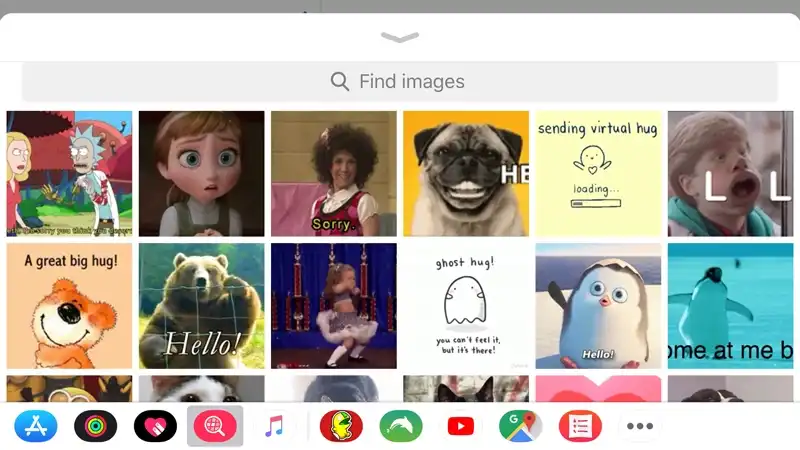
  • Open the Messages app and start a new conversation or open an existing one you already have going on.
  • Tap the App Store icon which is located next to the text input field.
  • If you don’t see the respective icon, then tap the three-dot icon and then select it to go on.
    Now you can browse trending GIFs or use the search bar to find specific ones. Tap a GIF to add it to your message and click on ‘send’.

Now it will be sent to the person you enter the chat with.

Saving GIFs from websites or apps

  • When you see a GIF you like on a website or in an app, long-press on it.
  • Now a menu will pop up. Here, you need to look for an option like “Save Image,” “Add to Photos,” or “Save to Camera Roll.”
  • Finally, tap on that. The GIF will then be saved to your Photos app on the phone.

Using third-party apps

  • Download a GIF keyboard app like Giphy or Tenor from the App Store. Or you can download an app that looks reliable and promises to allow you to download GIFs.
  • After downloading, go to Settings > General > Keyboard > Keyboards > Add New Keyboard. Here you can select your new GIF keyboard.
  • Now, when you’re typing, you can switch to this keyboard by clicking on the keyboard area only and easily search and insert GIFs into the apps that allow it.

You can follow these methods and their respective steps to stay ahead of your friends in making a conversation more fun. Gladly it is not restricted to any particular app, and you can use them wherever you want to. If you use WhatsApp and apps like that, there will always be a perennial source of GIFs provided solely by the platforms for the purpose to be used there. So, you have multiple ways and need not worry.

Tags: #howtoGIFshow to download GIFshow to use GIFs in an iPhonetech guide
Tweet59SendShare16
Previous Post

How to Increase Facility Connection Levels in Death Stranding 2

Next Post

How to appear offline on Fortnite?

Afeefa Ansari

Recommended For You

How to freeze your credit for free?

by Afeefa Ansari
June 22, 2026
0
Freeze credit

Do you want to freeze your credit for free? Here is how you can do it in no time at all! It is a simple process that lets...

Read more

How To Optimize Windows For Gaming

by Khilav Jadav
June 20, 2026
0
Microsoft’s 10-Year Call of Duty Deal Raises Questions About Performance Parity

Modern Windows computers are powerful enough to run demanding games, but poor settings and unnecessary background tasks can still affect performance. A few simple adjustments can help improve...

Read more

How To Increase Steam Download Speed

by Khilav Jadav
June 20, 2026
0
How to Link EA Account to Steam

Steam is one of the most popular platforms for PC gaming, but slow download speeds can quickly become frustrating. Whether you are downloading a new title, updating an...

Read more
Next Post
Fortnite

How to appear offline on Fortnite?

Please login to join discussion

Techstory

Tech and Business News from around the world. Follow along for latest in the world of Tech, AI, Crypto, EVs, Business Personalities and more.
reach us at info@techstory.in

Advertise With Us

Reach out at - info@techstory.in

Aviator Game India 2026

BROWSE BY TAG

#Crypto #howto 2024 acquisition AI amazon Apple Artificial Intelligence bitcoin Business China cryptocurrency e-commerce electric vehicles Elon Musk Ethereum facebook funding Gaming Google India Instagram Investment ios iPhone IPO Market Markets Meta Microsoft News OpenAI samsung Social Media SpaceX startup startups tech technology Tesla TikTok trend trending twitter US

© 2025 Techstory.in

No Result
View All Result
  • News
  • Crypto
  • Gadgets
  • Memes
  • Gaming
  • Cars
  • AI
  • Startups
  • Markets
  • How to

© 2025 Techstory.in

Welcome Back!

Login to your account below

Forgotten Password?

Retrieve your password

Please enter your username or email address to reset your password.

Log In
Are you sure want to unlock this post?
Unlock left : 0
Are you sure want to cancel subscription?