You open WhatsApp expecting to find an important photo, chat, or voice note—and it’s gone. No backup. No easy “undo” button. Now what?
Losing WhatsApp data does not necessarily mean that it is gone for good. It depends on how it was lost and on what access you have left to the phone or account; you may have some possible solutions to try out before giving up.
This guide explains the practical steps to check first, how to recover WhatsApp data without a backup, and what to do if your backup is on Google Drive or your phone is damaged, and you have to rely on a Google account. Let’s get started!
Alt: recover whatsapp data without backup
Part 1. Checks to Make Before Using Recovery Software
Take a step back from your computer and don’t go for the Android data recovery program just yet. A quick couple of checks might save you from wasting time or even making it harder to recover.
- Stop using WhatsApp: No messaging, downloading media, or new files creation should be done at this stage. New data can overwrite deleted ones and render them irrecoverable.
- Look at WhatsApp folders on your phone: Check your phone’s internal memory for those WhatsApp media or database files you might still have.
- Find backups if any: Check your device’s WhatsApp settings and, if it was enabled, your Google account, to see if you have any recent backup.
- Avoid recovery apps: Every software is not going to do a safe recovery of WhatsApp data. Use one that is compatible with your Android system and is appropriate for the method of recovery.
- Is the phone still working? If the phone can turn on and you are able to unlock it, you will have more recovery options than in the case of a fully locked phone.
Part 2. Recovering WhatsApp Data Without a Backup
Deleted a WhatsApp chat and realized there’s no backup to restore? How do you retrieve deleted WhatsApp messages on android?
That’s where a direct device scan can be worth trying.
Wondershare Dr.Fone Data Recovery software can scan compatible Android smartphones to locate recoverable WhatsApp data, and the software allows for a free scanning and preview before the actual data recovery is done.
This tool handles not just WhatsApp but WhatsApp Business too, with support for 14+ types of files and 6000+ models of Android smartphones. Through this software you have data of various chats, photos, videos, audio, and attachments.
Dr.Fone supports recovery from multiple sources, including phone storage, Google Drive, and supported broken phones, with feature availability depending on the device, Android version, and recovery method.
How to Recover WhatsApp Data Without a Backup
Step 1. Begin Data Recovery
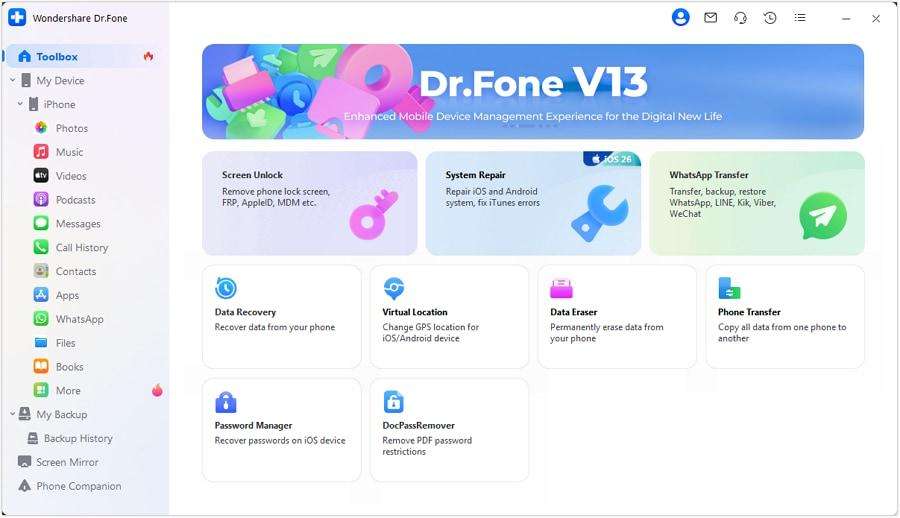
Open the Wondershare Dr.Fone Software on your PC and access the Toolbox > Data Recovery section. Android should be your device option here.
 Step 2. Connect Your Android Phone
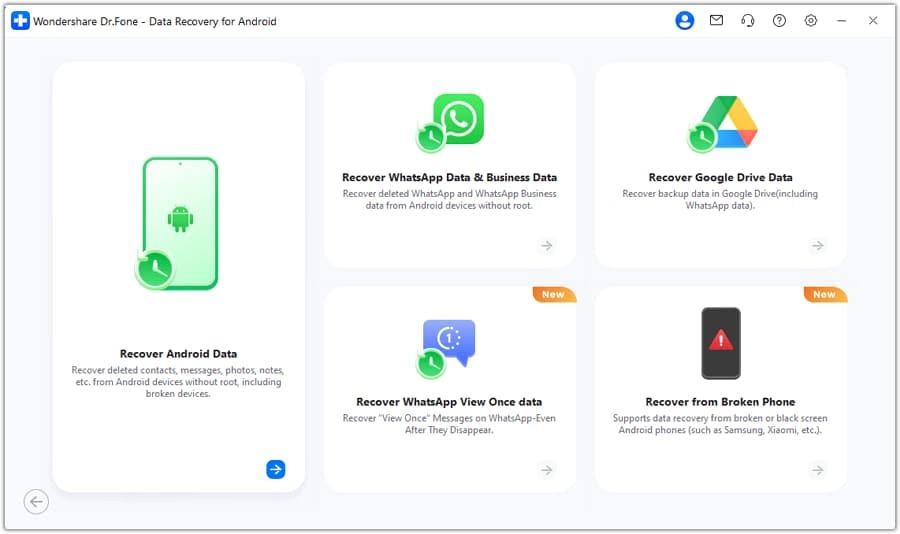
Click the option Recover Android Data and then attach your Android phone to the PC by means of a USB cable. The software Dr.Fone should be able to find your device soon.
 Step 3. Pick and Scan Data
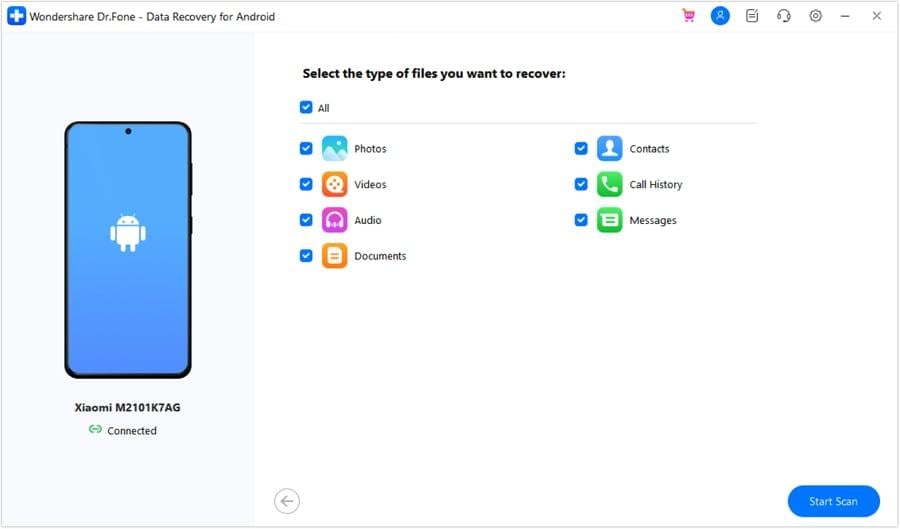
Select the data types you want to recover, including WhatsApp data, and click the Start Scan button. The software will scan and present you with the data that is still recoverable for previewing.
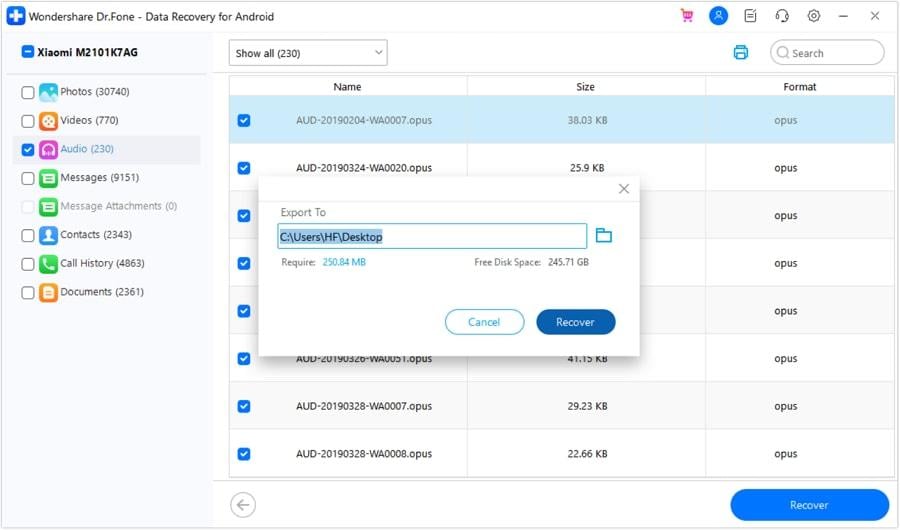
 Step 4. Preview and Recover
Pick the files or chats you require and click on “Recover”, locate the folder on your computer and finally recover the lost data.
Part 4. WhatsApp Business and View Once Recovery
WhatsApp recovery is not limited to regular chats alone. Dr.Fone supports WhatsApp Business recovery too, meaning that it can recover important conversations or attachments if they were stored in the business account. It can recover various data types, mainly chats, photos, videos, audio and other attachments, subject to device and recovery method limitations.
Dr.Fone can help recover View Once media from supported WhatsApp and WhatsApp Business data, provided the recovery feature is enabled. Still, View Once content imposes much stricter limitations than normal media, which means recovery cannot be achieved for each item.
Part 5. Preview, Selective Export, and Recovery Limits
The fact that the Dr.Fone Data Recovery tool won’t push you to recover everything is one of its great features. With it, you can scan, view, and then choose files or data types needed. This lets you concentrate on important conversations, pictures, videos, audio, and attachments instead of exporting your whole device.
Still, there are also some limitations; for example, to some extent, the recovery results can be influenced by the Android version, device model, storage conditions, and time passed after deleting the data. Dr.Fone is compatible with 6,000+ Android models, but there might be devices and files that cannot be recovered. In the case of Google Drive and supported phone recovery methods, getting root access is not necessary.
Closing Words
No backup doesn’t always mean no chance.
Once you lose WhatsApp chats, check all the phone devices first, along with the possibility of getting a backup, before trying any recovery software. If the data still isn’t restored through these methods, a tool like Dr.Fone Data Recovery may come in handy. It can scan Android phones and allow you to visually check for the files you can recover while also being able to save the ones you choose to your computer.
Most importantly, you’ll have to rush and do nothing on/with the phone to minimize the risk of overwriting the deleted data. The longer the lost file lies there without being accessed by you, the higher the chance of it getting overwritten so that you won’t be able to get it back easily.