

Forgot your Apple ID password just when you need to turn off Find My iPhone? Whether you’re preparing an old iPhone for resale, switching devices, or dealing with a forgotten account password, this security feature can become an unexpected obstacle.
Can you turn off Find My iPhone without the Apple ID password? Yes, there are possible alternatives, but success depends on your device’s security settings, account access, and eligibility. Apple’s standard method requires your Apple Account password. If you’ve forgotten it, you can try resetting the password on a trusted device or explore a desktop tool such as AnyUnlock.
If you’d rather avoid repeated account recovery attempts and prefer a clear, step-by-step process, AnyUnlock offers a dedicated Turn Off Find My iPhone feature with guided instructions on your computer. Instead of navigating multiple recovery options on your own, you can follow a structured workflow to check whether your device is supported and attempt to disable Find My iPhone, subject to device compatibility and security restrictions.
Here’s how the available options compare, when AnyUnlock may be worth trying, and which approach best fits your situation.
Method 1: Use AnyUnlock to Turn Off Find My iPhone Without Apple ID Password
When the usual Settings method isn’t available, AnyUnlock – iPhone Password Unlocker offers a dedicated Turn Off Find My iPhone feature for users who cannot provide their Apple ID password and want a more straightforward, guided approach.
Developed by iMobie, AnyUnlock brings multiple iPhone unlocking and account-management tools together in one desktop application. Instead of spending time switching between different troubleshooting methods or figuring out complicated procedures, you can select the relevant feature and follow the on-screen instructions. This makes it a practical option for users who prefer a clear, step-by-step workflow, provided their device meets the supported requirements.
Why Choose AnyUnlock to Turn Off Find My iPhone?
AnyUnlock’s main advantage is convenience: a dedicated Find My iPhone feature, beginner-friendly guidance, and multiple iPhone unlocking utilities in one place. For users who don’t want to keep troubleshooting different solutions on their own, it offers a more organized way to explore available options.
Here’s what makes AnyUnlock worth considering:
- Dedicated Turn Off Find My iPhone feature: Access a tool specifically designed for this task instead of relying on a generic reset or unrelated workaround. Availability and results depend on device compatibility and security conditions.
- Beginner-friendly, guided process: Follow clear on-screen prompts without needing advanced technical knowledge, making the process easier to understand and navigate.
- Works on Windows and Mac: Use the desktop application on either platform, so you can choose the computer that’s most convenient for you.
- All-in-one iPhone unlocking toolkit: Beyond Find My iPhone, AnyUnlock includes utilities for screen passcodes, Apple ID-related issues, Screen Time restrictions, and Activation Lock, with separate eligibility requirements for each feature.
- Clear compatibility requirements: Review supported devices, iOS versions, and applicable restrictions before proceeding, helping you determine whether the feature is suitable for your situation.
If you’re looking for a guided desktop solution rather than repeatedly trying different troubleshooting methods, AnyUnlock is a convenient option to evaluate. Its combination of a dedicated Find My iPhone feature, accessible instructions, and additional iPhone unlocking tools makes it especially appealing to users dealing with multiple device-access issues.
Before getting started, check the latest compatibility requirements and limitations for your specific iPhone model and iOS version. Not every device or account situation is supported, and a successful outcome is not guaranteed.
How to Turn Off Find My iPhone Using AnyUnlock
If you own the device or have permission to manage it, here’s how to get started.
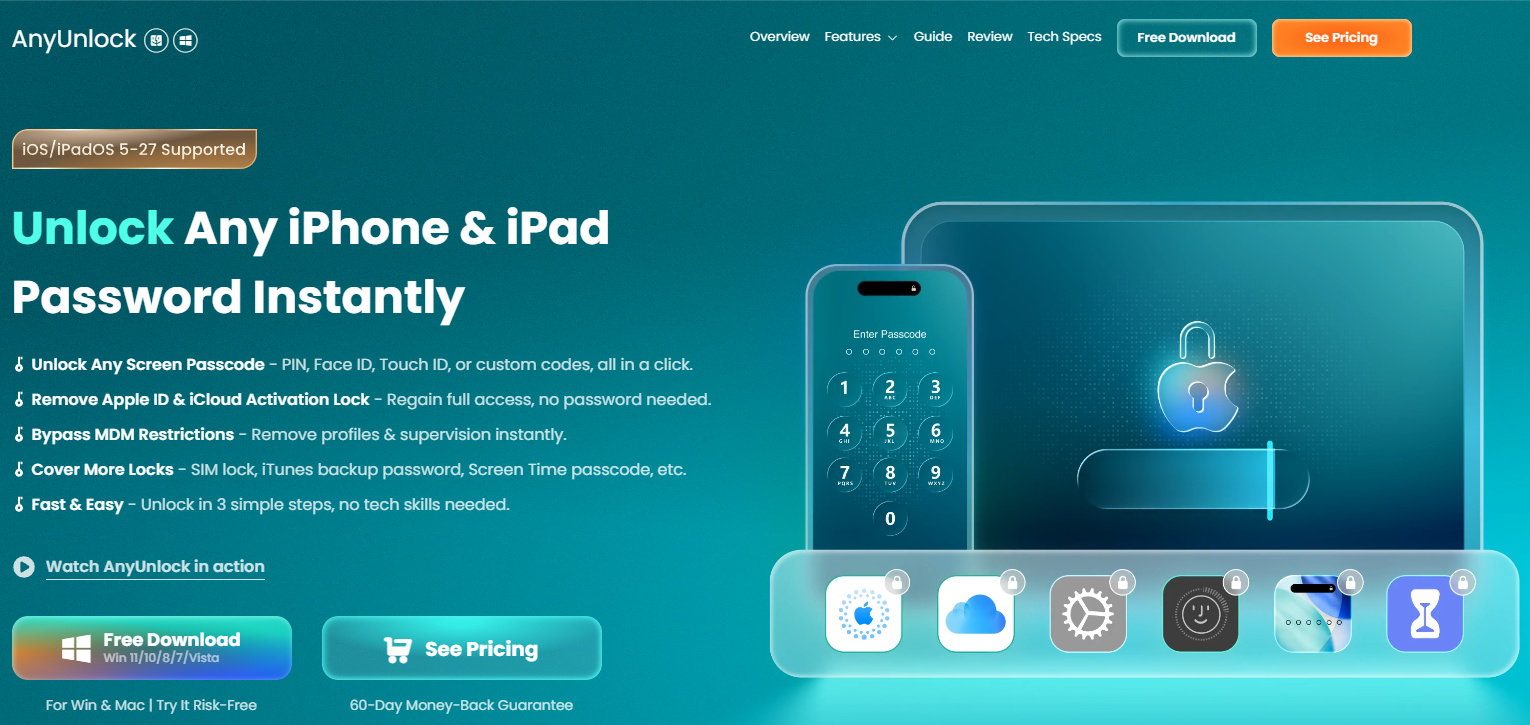
Step 1: Download and install AnyUnlock
Visit the official AnyUnlock website and install the appropriate Windows or Mac version.
Step 2: Select Turn Off Find My iPhone
Launch the software and locate the Turn Off Find My iPhone option on its main interface.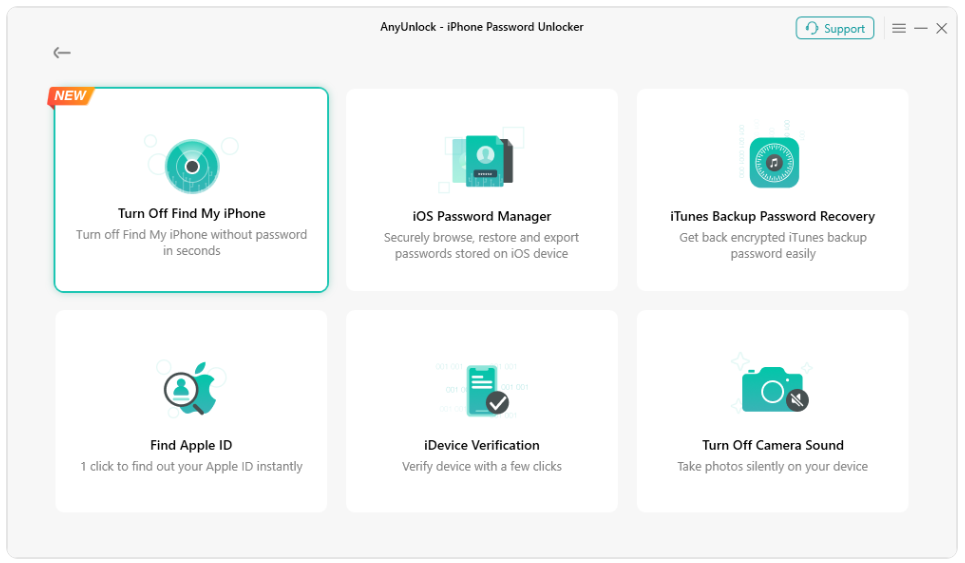
Step 3: Connect your iPhone
Use a compatible USB cable to connect your iPhone to the computer. Unlock the device and approve any required trust prompts.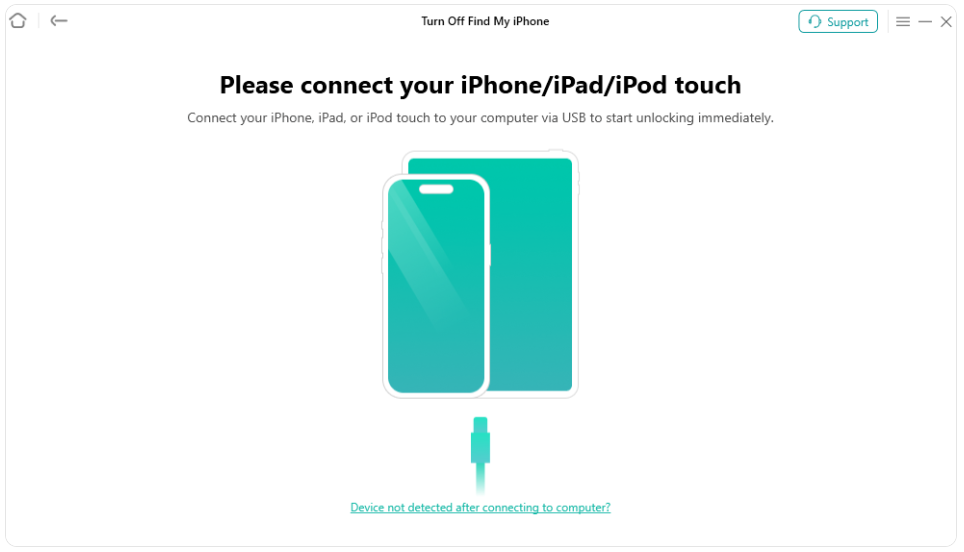
Step 4: Check compatibility and warnings
Before proceeding, make sure your device meets AnyUnlock’s requirements:
- Device and iOS compatibility: AnyUnlock lists support for iPhone models across iOS 5–27, but this is the toolkit’s overall compatibility range. Confirm that your specific iPhone and iOS version are supported by the Turn Off Find My iPhone feature.
- Computer requirements: You’ll need a compatible Windows PC (Windows 7–11, 64-bit) or Mac (macOS 10.13 or later), along with a USB connection to your iPhone.
Also review any on-screen warnings about data loss or security restrictions before continuing. General AnyUnlock compatibility does not guarantee that Find My iPhone can be disabled on every device.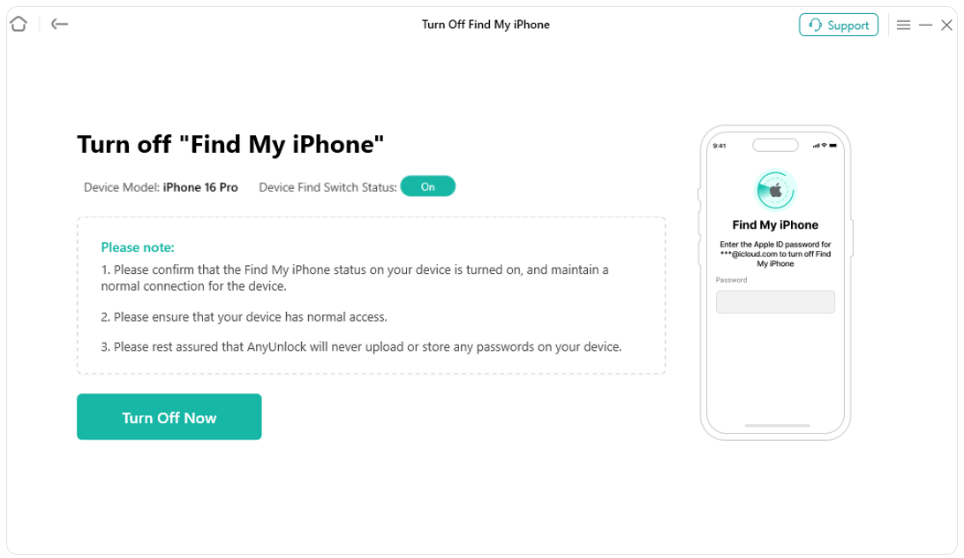
Step 5: Follow the guided procedure
If your device is supported, follow the software’s prompts. Read any warnings about data deletion or device changes before authorizing the process. The available actions may vary by device and software version.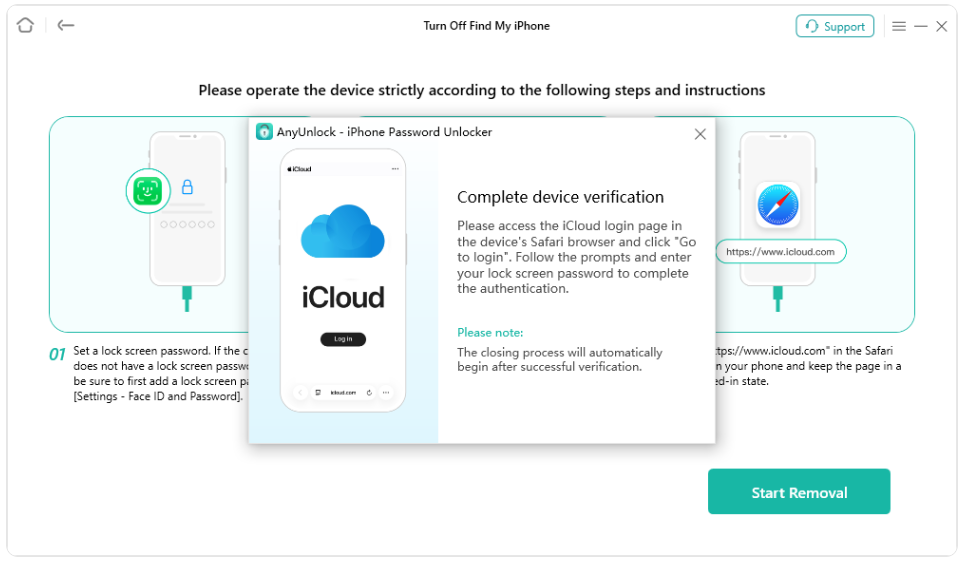
Step 6: Verify the result
After completion, check the Find My status and whether the device can be removed from your Apple Account through Apple’s supported process. Do not assume that a successful software message automatically means Apple’s server-side Activation Lock has been removed.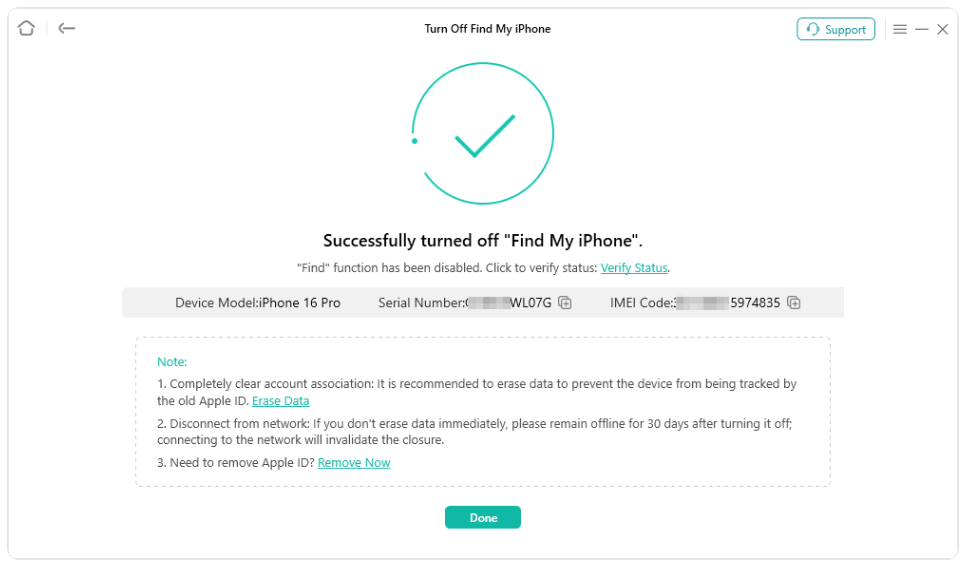
Is AnyUnlock Worth Trying?
AnyUnlock’s biggest advantage is convenience: a dedicated Turn Off Find My iPhone feature, a guided desktop workflow, and multiple iPhone unlocking utilities in one place. For users who prefer clear, step-by-step instructions over repeatedly troubleshooting different methods, it offers a more straightforward way to explore available solutions.
While AnyUnlock cannot guarantee success on every device, its beginner-friendly interface and dedicated tools make it an appealing option when standard Apple Account recovery hasn’t worked. Keep in mind that full functionality may require a paid license, compatibility varies by device and iOS version, and certain operations may result in data loss.
My recommendation: If Apple’s official account recovery process hasn’t resolved your issue, AnyUnlock is one of the software solutions worth considering early, especially if you want a guided approach instead of continuing to troubleshoot manually. Just confirm that your iPhone meets the feature’s requirements before purchasing.
Ready to explore AnyUnlock? Check the official AnyUnlock website for compatibility details, or download the software to review its available features and supported device requirements before deciding whether to purchase.
Method 2: Reset Your Apple ID Password in Settings
If your iPhone is already signed into your Apple Account and is recognized as a trusted device, resetting your password is often the simplest approach.
Here’s what to do:
- Open Settings on your iPhone.
- Tap your name at the top.
- Select Sign-In & Security.
- Tap Change Password.
- Enter your device passcode if prompted.
- Follow the instructions to create a new Apple Account password.
After successfully changing your password, return to Settings > [Your Name] > Find My > Find My iPhone. Turn off the feature using your new password.
This method is free and normally doesn’t require erasing your data.
Important: If Stolen Device Protection is enabled, additional biometric authentication or a security delay may apply. Apple does not allow Find My to be disabled while that protection remains enabled.
Method 3: Contact Apple Support
If you cannot reset your password or use a compatible third-party solution, Apple’s support channels are another option.
Start with Apple Account recovery. If your situation involves Activation Lock, Apple also provides a support-request process for eligible devices with valid proof of purchase.
Keep your original receipt or other accepted purchase documentation available.
This route may take additional time, but it is particularly relevant when account recovery and ownership verification are required.
Which Method Should You Choose?
| Method | Best For | Main Consideration |
| AnyUnlock | Users seeking a guided desktop alternative | Paid features, compatibility and possible data loss |
| Apple Settings | Trusted-device owners who can reset their password | May require extra security verification |
| Apple Support | Account recovery and eligible ownership cases | Documentation and review requirements |
For users who still have access to a trusted iPhone, Apple’s built-in password reset is a convenient, free option that generally preserves existing data. If that method is unavailable or unsuccessful, AnyUnlock offers a guided desktop alternative worth exploring, with a dedicated Turn Off Find My iPhone feature for supported devices. Be sure to check compatibility and security requirements before proceeding.
But if that route doesn’t work, AnyUnlock deserves consideration for its accessible interface and dedicated Find My feature. It’s a more approachable option than attempting unfamiliar technical procedures without guidance.
What If Your iPhone Is Already Activation Locked?
Turning off Find My iPhone and removing an existing Activation Lock are two different situations. Before choosing a method, check whether you can still access your iPhone’s Settings or whether the device is stuck on the “iPhone Locked to Owner” screen.
If you can access your iPhone normally but have forgotten your Apple Account password, the Turn Off Find My iPhone methods discussed above may be relevant. However, if your iPhone is already showing an Activation Lock screen during setup, you’ll need a different approach.
Here’s how to tell the difference:
| Turn Off Find My iPhone | Activation Lock | |
| Typical situation | Forgot Apple Account password while trying to disable Find My | iPhone is linked to an Apple Account during activation |
| Screen or message | Password requested in Find My settings | “iPhone Locked to Owner” or Activation Lock |
| Can access Settings? | Usually yes | Generally no |
| Relevant AnyUnlock feature | Turn Off Find My iPhone | Bypass iCloud Activation Lock |
| Key requirement | Supported device, iOS version, and access conditions | Separate device and iOS compatibility requirements |
Can AnyUnlock Help With Activation Lock?
If your own iPhone is stuck on the Activation Lock screen and conventional account recovery hasn’t worked, AnyUnlock also offers a separate Bypass iCloud Activation Lock feature designed for this situation.
Unlike its Turn Off Find My iPhone feature, which addresses disabling Find My on a supported device, the Activation Lock utility focuses on devices that cannot complete activation because of an existing account-linked lock.
The main benefits include:
- Dedicated Activation Lock utility: A separate feature for devices stuck at the activation stage, rather than the regular Find My settings workflow.
- Guided desktop process: On-screen instructions help you check requirements and follow the supported procedure.
- Windows and Mac availability: The software provides desktop options for both operating systems.
- Compatibility information: The official Activation Lock page currently lists iPhone 5s through the iPhone 17 series and iOS 12 through iOS 26.1, although individual device-and-version combinations may have additional restrictions.
Important limitations: Some older devices may require jailbreaking, certain operations may erase data, and successful activation or unrestricted access to Apple services is not guaranteed. Full unlocking functionality may also require a paid license. Always verify the requirements for your exact device before purchasing.
For second-hand iPhones still linked to another person’s account, contact the previous owner and ask them to remove the device through Apple’s official process. If you have valid proof of purchase, you can also request Activation Lock assistance from Apple.
My recommendation: If your device is already Activation Locked, don’t follow the regular Turn Off Find My iPhone steps. Use Apple’s ownership-verification options first, and consider AnyUnlock’s dedicated Activation Lock utility for your own eligible device if account recovery hasn’t resolved the problem.
Want to see whether your device is supported? Check AnyUnlock Activation Lock compatibility to review device requirements, limitations, and available download options before making a purchase.
Frequently Asked Questions
Can I turn off Find My iPhone without an Apple ID password?
You may be able to reset your forgotten password using a trusted device, then disable Find My normally. AnyUnlock also offers a dedicated feature for compatible devices, but results depend on the device’s conditions.
Does AnyUnlock erase iPhone data?
Some AnyUnlock operations can erase device data. Back up important files beforehand and review the warnings for the specific feature you’re using.
Can I turn off Find My iPhone with only my screen passcode?
Not directly through Apple’s normal Find My settings. Your device passcode may help you reset your Apple Account password on a trusted device, subject to additional security requirements.
Can AnyUnlock help with a second-hand iPhone?
It offers several device-management and unlocking features. However, a second-hand iPhone linked to someone else’s Apple Account should first be addressed through the previous owner or Apple’s official support process.
Final Verdict
Turning off Find My iPhone without remembering your Apple ID password isn’t always straightforward, but the right solution depends on your device’s current status and available account recovery options.
If you can reset your password through Apple Settings, that’s a convenient, free option. However, if official account recovery is unavailable or unsuccessful, AnyUnlock is one of the software alternatives worth considering early, thanks to its dedicated Turn Off Find My iPhone feature, beginner-friendly desktop workflow, and additional iPhone unlocking utilities.
My recommendation: If you prefer a guided solution instead of repeatedly troubleshooting different methods, AnyUnlock is worth evaluating for your own compatible device. Just review the supported iPhone models, iOS versions, security restrictions, and potential data-loss risks before purchasing.
Ready to find the right solution for your iPhone?
- Still able to access your iPhone but can’t turn off Find My? Check AnyUnlock Turn Off Find My iPhone compatibility to review supported devices and explore its guided desktop solution.
- Seeing “iPhone Locked to Owner” or stuck on the Activation Lock screen? Check AnyUnlock Activation Lock compatibility to learn about its separate Activation Lock utility, eligibility requirements, and limitations.
The key is choosing the feature that matches your situation. Turn Off Find My iPhone and Activation Lock are different issues, and neither feature guarantees success on every device. Checking compatibility first can help you avoid purchasing a solution that doesn’t support your iPhone.