When your device on Windows encounters some issues and becomes inaccessible, you can go to the Device Manager to check the device status. Usually, you can see an error message with an error code that can help you find solutions.
This Device Cannot Start. (Code 10) is a very common issue that can appear on USB and audio devices. When this issue happens, you will be unable to use the device successfully. What should you do then?
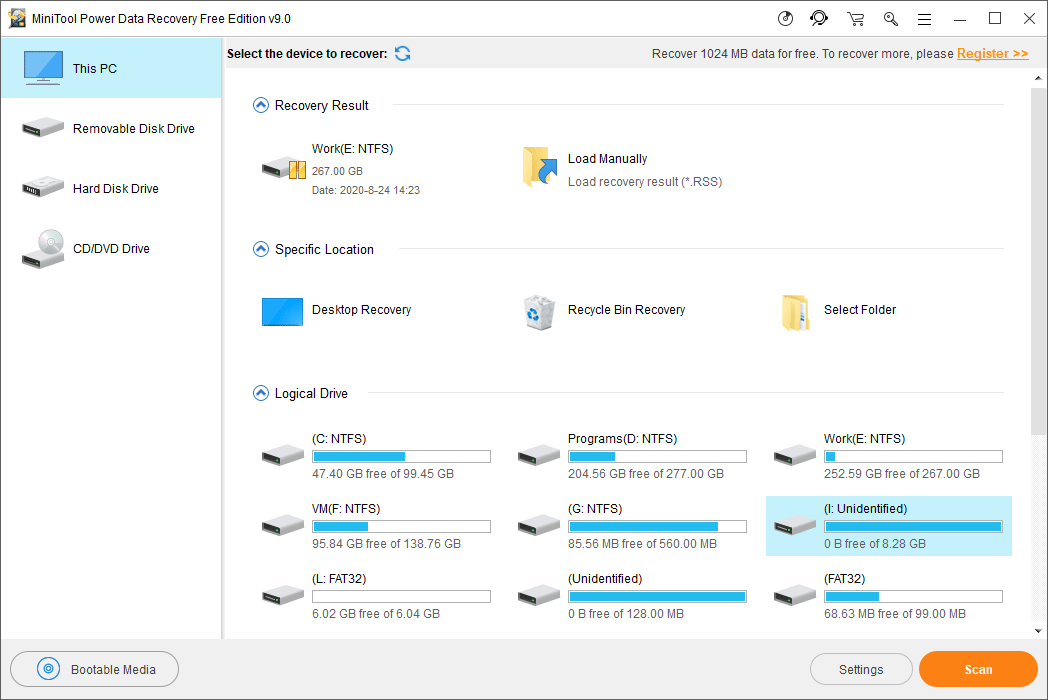
If your USB data storage device encounters this error 10 error and there are some important files on it, you’d better use MiniTool Power Data Recovery, free data recovery software, to rescue them before fixing the issue.
This free file recovery tool can recover data from different kinds of data storage devices including internal hard drives, external hard drives, USB drives, memory cards, SD cards, etc. even they are inaccessible. You can go to the MiniTool download center to get the free edition of this software.
Next, you can open this software and select the target USB drive to scan. At last, you can select the files you want to rescue from the scan results and recover them to a suitable location. With this freeware, you can recover 1024MB data for free.
How to Fix Device Manager Code 10?
Many methods can be used to solve the code 10 error. We will show you some we know in this post.
Method 1: Restart Your Computer
When your computer is running, it can generate some temporary files that are corrupted or not completely, causing some temporary issues. These files can be causes of This Device Cannot Start. (Code 10). Don’t worry, these issues can disappear after you reboot your PC.
Method 2: Update the Device Driver
An outdated device driver can also cause Device Manager Code 10 on Windows 10. So, you can update your device driver to the latest version to see whether the issue can be fixed.
- Search for Device Manager using Windows Search and select it from the results.
- Extend the Universal Serial Bus Controllers section in Device Manager.
- Right-click the target device driver and then select Update driver software.
- Select Search automatically for updated driver software from the pop-out interface.
- Follow the rest guides to update the device driver.
- Reboot your PC.
Method 3: Undo the Recent Changes to the Device Driver
If you can still see the device cannot start code 10 after rebooting your computer, you should think whether you have made some changes to the device driver. If yes, you can undo the recent changes to have a try. For example, if you have installed a new device on your PC, you can just remove it from your PC and then check whether the issue is fixed.
Method 4: Update Windows
Microsoft keeps updating Windows to fix some reported issues. Perhaps the new version contains a fix for error code 10 in Device Manager. You can go to Start > Settings > Updates & Security > Windows Update > Check for Updates to see whether there are available updates. If yes, the update process will automatically start. You can wait until the update process ends. At last, you’d better restart your computer and then check whether the code 10 error disappears.
Method 5: Try a USB Hub
Your USB device may need more power to function. If it doesn’t get enough power, This Device Cannot Start. (Code 10) can occur. In a situation like this, you can use a powered USB hub for the connection between your USB device and your PC, because a USB hub can let your USB device get enough power.
Method 6: Replace the Faulty Device
If the above methods can’t help you solve the issue, you should consider whether the device is physically damaged. You can replace the faulty device with a new one. After doing this, your issue should be solved.
However, if you can’t solve This Device Cannot Start. (Code 10) by yourself, you can ask a professional for help.