• Send Us A Tip
  • Calling all Tech Writers
  • Advertise
Monday, June 29, 2026
  • Login
TechStory
  • News
  • Crypto
  • Gadgets
  • Memes
  • Gaming
  • Cars
  • AI
  • Startups
  • Markets
  • How to
No Result
View All Result
  • News
  • Crypto
  • Gadgets
  • Memes
  • Gaming
  • Cars
  • AI
  • Startups
  • Markets
  • How to
No Result
View All Result
TechStory
No Result
View All Result
Home Gaming

How to stream any PC game easily to your smartphone for free

by Arya Roy
June 27, 2021
in Gaming, How to, Tech
Reading Time: 2 mins read
0
How to stream any PC game easily to your smartphone for free

Source: https://economictimes.indiatimes.com/industry/media/entertainment/the-long-history-of-video-game-wars-as-playstation-5-and-xbox-series-x-go-head-to-head/the-journey-of-video-games/slideshow/79058608.cms

TwitterWhatsappLinkedin

If you have been wanting to play some of your favourite PC games on your phone instead of your PC, you are not the only one. Some people do not like to be tied to their desk when they are playing games and luckily, you can stream games directly to your phone without any additional investment. This guide does not refer to game streaming over 5G/4G, since that often relies on network conditions and quality. However, if you have a gaming PC/Laptop and a relatively recent smartphone, you can stream games locally on your phone for free.

You might also like

Smart Rings vs Smartwatches: Which Is Best for You?

How to choose the right AI model for Workflow?

How to detect phishing emails?

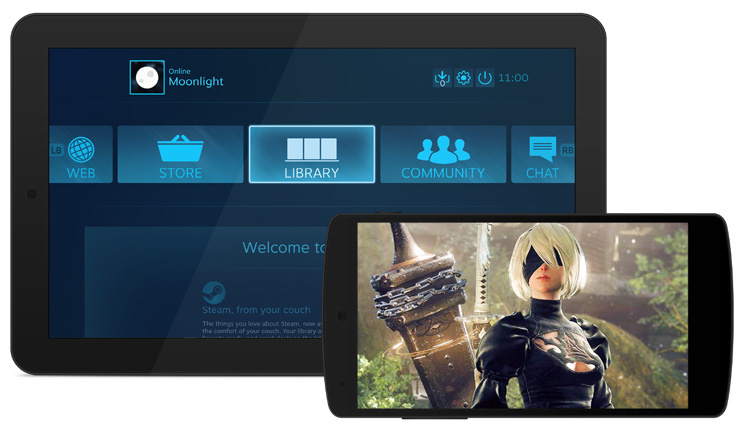
In order to start playing PC games on your smartphone, you will first have to install either Moonlight (NVIDIA GPUs), Steam Link or Parsec. If the majority of your library is on Steam, you will be required to install the Steam Link app on your smartphone. Steam Link is perhaps the smoothest experience you will have for most games, but you can also give Moonlight or AMD link a chance. If you want to make the streaming work, your phone has to be on the same network as your PC/Gaming laptop.
Source: https://www.mensxp.com/technology/how-tos/82894-how-to-stream-pc-games-to-smartphone.html

When you will launch the Steam Link app on your phone, it scans your network for computers that are using Steam. Choose your computer and enter the 4-digit code that appears either on your phone in Steam on your PC. The steam link app will run a short test to see your network quality, and if it is fine, you are ready to go. You can even choose the setting of the video quality between “Fast” or “Beautiful” based on what your bandwidth is.

Moonlight also works in a very similar way. However, it is exclusive only to NVIDIA graphic cards users and requires you to install the Nvidia GeForce Experience on your PC. Then, you will need to open the app on your PC and navigate to settings. Following this, toggle the GameStream switch in the Shield Tab menu.

The next step will need you to install Moonlight on your smartphone. After opening the app, it will show you a list of PCs that have GameStream enabled. Identify and choose your PC. However, instead of this, you can also tap on “Add Host” and enter your PC’s IP address if you are unsure about the previous process. Much like Steam Link, Moonlight will send you a PIN which you will need to enter in the pop-up window that will appear on your PC automatically. Once the PIN has been entered by you, you can start to play games on your smartphone.

Tags: MoonlightSteam LInk
Tweet54SendShare15
Previous Post

How to use Alexa Whisper Mode on Amazon Echo

Next Post

Virgin Galactic(SPCE) stocks shoot up after getting FAA licence

Arya Roy

Hi, this is Arya! Writing has always been a passion of mine, regardless of the topic I choose. Besides that, I am a huge foodie and music lover, whose interests range from world politics to horror films to everything in between.

Recommended For You

Smart Rings vs Smartwatches: Which Is Best for You?

by Sneha Singh
June 29, 2026
0
Smart Rings vs Smartwatches: Which Is Best for You?

The wearable market has experienced a dramatic evolution during the past years. Initially, wearable technologies were limited to fitness trackers that helped people to keep track of their...

Read more

How to choose the right AI model for Workflow?

by Afeefa Ansari
June 29, 2026
0
Workflow

Do you want to pick the perfect model for your workflow? Here is how you can do that! Follow the guide to understand how the workflow works and...

Read more

How to detect phishing emails?

by Afeefa Ansari
June 29, 2026
0
Phishing

Do you want to detect an incoming phishing email? With this becoming a more common phenomenon, it is important that we learn to understand how it works and...

Read more
Next Post
Virgin Galactic

Virgin Galactic(SPCE) stocks shoot up after getting FAA licence

Please login to join discussion

Techstory

Tech and Business News from around the world. Follow along for latest in the world of Tech, AI, Crypto, EVs, Business Personalities and more.
reach us at info@techstory.in

Advertise With Us

Reach out at - info@techstory.in

Aviator Game India 2026

BROWSE BY TAG

#Crypto #howto 2024 acquisition AI amazon Apple Artificial Intelligence bitcoin Business China cryptocurrency e-commerce electric vehicles Elon Musk Ethereum facebook funding Gaming Google India Instagram Investment ios iPhone IPO Market Markets Meta Microsoft News OpenAI samsung Social Media SpaceX startup startups tech technology Tesla TikTok trend trending twitter US

© 2025 Techstory.in

No Result
View All Result
  • News
  • Crypto
  • Gadgets
  • Memes
  • Gaming
  • Cars
  • AI
  • Startups
  • Markets
  • How to

© 2025 Techstory.in

Welcome Back!

Login to your account below

Forgotten Password?

Retrieve your password

Please enter your username or email address to reset your password.

Log In
Are you sure want to unlock this post?
Unlock left : 0
Are you sure want to cancel subscription?