
• Send Us A Tip
  • Calling all Tech Writers
  • Advertise
Friday, September 4, 2026
  • Login
TechStory
  • News
  • Crypto
  • Gadgets
  • Memes
  • Gaming
  • Cars
  • AI
  • Startups
  • Markets
  • How to
No Result
View All Result
  • News
  • Crypto
  • Gadgets
  • Memes
  • Gaming
  • Cars
  • AI
  • Startups
  • Markets
  • How to
No Result
View All Result
TechStory
No Result
View All Result
Home Gadgets

How to add new languages on Mac

by Arya Roy
July 3, 2021
in Gadgets, How to, Tech
Reading Time: 2 mins read
0
How to add new languages on Mac

Source: https://www.lifewire.com/what-is-a-mac-4155662

TwitterWhatsappLinkedin

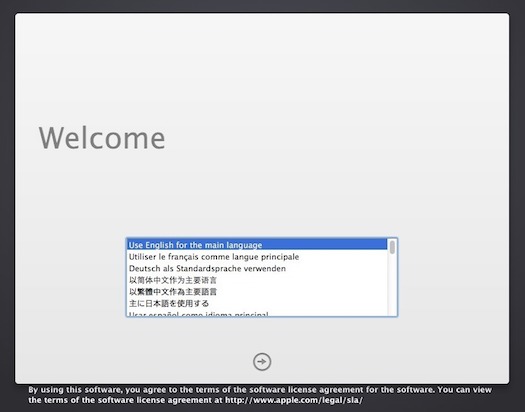
Your Mac is set to display the system language in the region or country where it was purchased by default. However, you can change this if you want to. You can also change the language based on the apps that you use. Here is a guide that will tell you how to do both.
You might also like

How to Get the Onigiri Sprite in Fortnite

How To Claim Pokemon Go Twitch Drops

How to Get Mega Man Sprite in Fortnite

Source: https://grahamrpugh.com/2017/11/22/language-chooser.html

Changing the system language

  1. Click on the Apple menu, which can be found in the top left of the menu bar.
  2. Choose ‘System Preferences’ > ‘Language & Region’.
  3. Click the ‘+’ on the left side under the ‘Preferred Languages’ list.
  4. From the list, select the new system language based on your preference, then click on ‘Add’.
  5. Confirm the change.

Note that Apple divides the list between languages that fully support macOS and those that do not do so. When chosen by a user, the latter languages might only be displayed on app menus and messages.

Changing the languages for individual apps

This method is applicable if you are only required to change the primary language for a few apps on your Mac. You can do this by bypass making a change system-wide.

  1. Click on the Apple menu, which can be found in the top left of the menu bar.
  2. Choose ‘System Preferences’ > ‘Language & Region’.
  3. Click on the ‘Apps’ tab.
  4. Click the ‘+’ to choose a new app.
  5. From the pop-up that will appear on your screen, choose from the list of installed apps, and then select the language.
  6. Click on ‘Add’.

Keep in mind that not every app will support the different languages. Once you have added an app to this list, you can change the language at any given time you want to. Also, by removing an app from the list, the app will again start to use the default language.

This is how you are able to change the languages used on macOS for both the entire system and only for specific and individual apps.


Tags: #macosAppleMac
Tweet54SendShare15
Previous Post

How to improve your phone’s battery life

Next Post

Journey of Richard Branson with Failures and Successes

Arya Roy

Hi, this is Arya! Writing has always been a passion of mine, regardless of the topic I choose. Besides that, I am a huge foodie and music lover, whose interests range from world politics to horror films to everything in between.

Recommended For You

How to Get the Onigiri Sprite in Fortnite

by Khilav Jadav
September 3, 2026
0
How to Turn on Cross-Platform Play for Fortnite on Xbox

The Onigiri Sprite is one of the newest collectibles in Fortnite Chapter 7 Season 4: Override. Added with the September 3, 2026 update, this small Sprite is shaped...

Read more

How To Claim Pokemon Go Twitch Drops

by Khilav Jadav
September 3, 2026
0
How to Evolve Floette Pokémon GO

Pokémon GO Twitch Drops let you earn special rewards by watching Pokémon broadcasts on Twitch. The broadcast must have an active Drop campaign, and you must complete its...

Read more

How to Get Mega Man Sprite in Fortnite

by Khilav Jadav
September 3, 2026
0
How To Archive Items in Fortnite

The Mega Man Sprite is a new collectible added to Fortnite Chapter 7 Season 4. It arrived with the v42.10 update on September 3, 2026, alongside X-Ray, Onigiri,...

Read more
Next Post
Keeping Fit – Fitness Habits of Some of The Top CEOs !

Journey of Richard Branson with Failures and Successes

Please login to join discussion

Techstory

Tech and Business News from around the world. Follow along for latest in the world of Tech, AI, Crypto, EVs, Business Personalities and more.
reach us at info@techstory.in

Advertise With Us

Reach out at - info@techstory.in

Aviator Game India 2026

BROWSE BY TAG

#Crypto #howto 2024 acquisition AI amazon Apple Artificial Intelligence bitcoin Business China cryptocurrency e-commerce electric vehicles Elon Musk Ethereum facebook funding Gaming Google India Instagram Investment ios iPhone IPO Market Markets Meta Microsoft News OpenAI samsung Social Media SpaceX startup startups tech technology Tesla TikTok trend trending twitter US

© 2025 Techstory.in

No Result
View All Result
  • News
  • Crypto
  • Gadgets
  • Memes
  • Gaming
  • Cars
  • AI
  • Startups
  • Markets
  • How to

© 2025 Techstory.in

Welcome Back!

Login to your account below

Forgotten Password?

Retrieve your password

Please enter your username or email address to reset your password.

Log In
Are you sure want to unlock this post?
Unlock left : 0
Are you sure want to cancel subscription?