• Send Us A Tip
  • Calling all Tech Writers
  • Advertise
Sunday, June 21, 2026
  • Login
TechStory
  • News
  • Crypto
  • Gadgets
  • Memes
  • Gaming
  • Cars
  • AI
  • Startups
  • Markets
  • How to
No Result
View All Result
  • News
  • Crypto
  • Gadgets
  • Memes
  • Gaming
  • Cars
  • AI
  • Startups
  • Markets
  • How to
No Result
View All Result
TechStory
No Result
View All Result
Home Entertainment

How To Set Up Family Sharing in Steam Deck

by Khilav Jadav
January 8, 2023
in Entertainment, Gaming, How to
Reading Time: 4 mins read
0
How To Set Up Family Sharing in Steam Deck

Credit - Amazon

TwitterWhatsappLinkedin

The Steam deck is a popular gaming platform that allows you to purchase, download, and play a wide variety of games on your computer. One useful feature of the Steam deck is the ability to set up family sharing, which allows you to share your games and play them on other devices with your friends and family members.
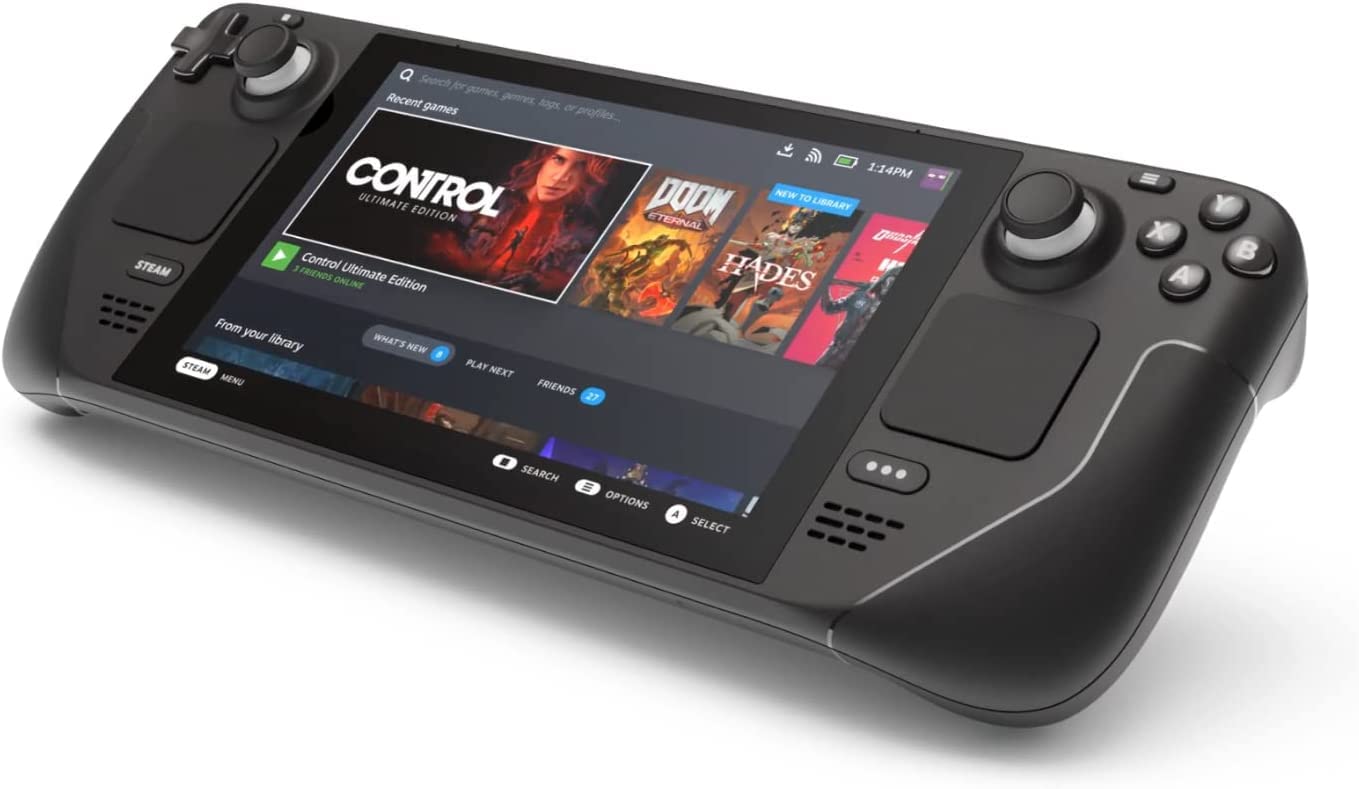
Credit – Amazon

The Steam Family Sharing feature allows you to share your Steam games with up to 5 other people. This can be a great way to share your library of games with friends and family, and it can also be a convenient way to access each other’s games without having to purchase them individually.  In this article, we’ll go over the steps you need to take to set up family sharing on the Steam deck.

  1. Make sure you have a Steam account: In order to set up family sharing on the Steam deck, you’ll need to have a Steam account. If you don’t already have a Steam account, you can create one for free by visiting the Steam website and following the prompts.

  2. Go to your account settings: Once you have a Steam account, log in to the Steam deck and go to your account settings. You can access your account settings by clicking on your username in the top right corner of the Steam deck and selecting “Account Details” from the drop-down menu.

  3. Enable family sharing: In the account settings menu, you’ll see an option to enable family sharing. Click on this option to bring up the family sharing settings.

  4. Add a family member: Once you’ve enabled family sharing, you’ll need to add a family member. To do this, click on the “Add a Family Member” button and enter the email address of the person you want to add. You’ll need to make sure that the person you’re adding has a Steam account, as they’ll need to accept the invitation to become a family member.

  5. Authorize shared devices or games: In addition to adding family members, you’ll also need to authorize any devices or games  that you want to use for family sharing. To do this, click on the “Authorize” button and follow the prompts to complete the authorization process. You can repeat this process for any other devices you want to authorize for family sharing.

  6. Set up parental controls: If you have children in your family, you may want to set up parental controls to restrict their access to certain types of games or content. To do this, click on the “Parental Controls” option in the family sharing settings menu and follow the prompts to set up your desired level of control.

  7. Manage your family library: Once you’ve set up family sharing and added your family members, you’ll be able to manage your family library from the family sharing settings menu. You can see which games are shared with your family members, revoke access to specific games, and set up specific playtime limits for each family member.

In conclusion, setting up family sharing on the Steam deck is a straightforward process that allows you to share your games with your friends and family members. By following the steps outlined above, you’ll be able to set up family sharing on your Steam account and start enjoying your games with your loved ones.

You might also like

How To Optimize Windows For Gaming

How To Increase Steam Download Speed

How To Get The Xenophage Catalyst In Destiny 2


Tags: Family SharingSteamSteam Deck
Tweet61SendShare17
Previous Post

Musk intentionally pushed down Tesla stock, 3rd largest investor claims

Next Post

New York court denies Uber and Lyft drivers wage increases

Khilav Jadav

Content writer at Techstory Media with a passion for gaming and finance. Currently pursuing a degree in data science, exploring the latest gaming titles and analyzing financial trends.

Recommended For You

How To Optimize Windows For Gaming

by Khilav Jadav
June 20, 2026
0
Microsoft’s 10-Year Call of Duty Deal Raises Questions About Performance Parity

Modern Windows computers are powerful enough to run demanding games, but poor settings and unnecessary background tasks can still affect performance. A few simple adjustments can help improve...

Read more

How To Increase Steam Download Speed

by Khilav Jadav
June 20, 2026
0
How to Link EA Account to Steam

Steam is one of the most popular platforms for PC gaming, but slow download speeds can quickly become frustrating. Whether you are downloading a new title, updating an...

Read more

How To Get The Xenophage Catalyst In Destiny 2

by Khilav Jadav
June 20, 2026
0
How To Summon Pauurc in Destiny 2

Destiny 2 players finally have a reason to revisit one of the game's most iconic Exotic heavy weapons. The Xenophage Catalyst has been added, giving the powerful machine...

Read more
Next Post
UBER

New York court denies Uber and Lyft drivers wage increases

Please login to join discussion

Techstory

Tech and Business News from around the world. Follow along for latest in the world of Tech, AI, Crypto, EVs, Business Personalities and more.
reach us at info@techstory.in

Advertise With Us

Reach out at - info@techstory.in

Aviator Game India 2026

BROWSE BY TAG

#Crypto #howto 2024 acquisition AI amazon Apple Artificial Intelligence bitcoin Business China cryptocurrency e-commerce electric vehicles Elon Musk Ethereum facebook funding Gaming Google India Instagram Investment ios iPhone IPO Market Markets Meta Microsoft News OpenAI samsung Social Media SpaceX startup startups tech technology Tesla TikTok trend trending twitter US

© 2025 Techstory.in

No Result
View All Result
  • News
  • Crypto
  • Gadgets
  • Memes
  • Gaming
  • Cars
  • AI
  • Startups
  • Markets
  • How to

© 2025 Techstory.in

Welcome Back!

Login to your account below

Forgotten Password?

Retrieve your password

Please enter your username or email address to reset your password.

Log In
Are you sure want to unlock this post?
Unlock left : 0
Are you sure want to cancel subscription?