Introduction :
LinkedIn has become a treasure trove of professional insights and valuable content. LinkedIn has evolved into more than just a professional networking platform; it’s now a hub of valuable insights and industry knowledge. With so much information flooding our feeds daily, it’s crucial to have a reliable way to save posts for later reference. To ensure you don’t miss out on important posts, LinkedIn offers a convenient feature that allows you to save and revisit content at your convenience. In this blog, we’ll explore the simple steps to save posts on LinkedIn effectively.
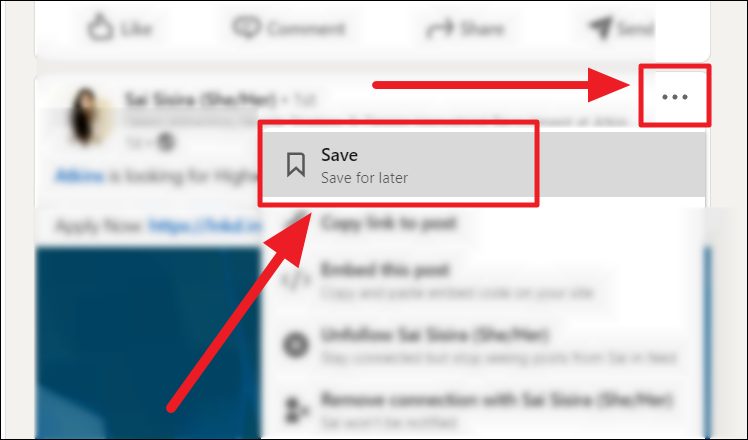
The Basics of Saving Posts:
LinkedIn allows users to save posts that they find interesting or informative. When scrolling through your feed, you can spot the bookmark icon (a small ribbon) located at the bottom right corner of each post. Simply click on this icon to save the post to your personal collection. This action will ensure that you can revisit the content whenever you need it.
Identifying and Saving a Post:
When browsing through your LinkedIn feed, you’ll come across numerous posts that catch your attention. To save a post for later reference, follow these steps:
a. Locate the post that you want to save. It could be an article, a thought-provoking comment, or a useful infographic.
b. Look for the bookmark icon at the bottom right corner of the post. It resembles a small ribbon.
c. Click on the bookmark icon, and you will notice that it changes color, indicating that the post has been saved.
Accessing Your Saved Posts on Desktop:
To find your saved posts using a desktop computer, follow these steps:
a. Sign in to your LinkedIn account and navigate to the top toolbar.
b. Locate the “Me” icon, which will direct you to your profile page.
c. On your profile, find the “More” dropdown menu and select “Posts & Activity.”
d. Within the dropdown, click on “Saved” to access all the posts you have saved.
e. You can now browse through your saved posts and find the information you need.
Organizing Saved Posts
As your collection of saved posts grows, organizing them becomes crucial. LinkedIn provides useful tools to help you manage your saved posts efficiently:
Create collections: LinkedIn allows you to create collections to categorize your saved posts based on themes, topics, or interests. To create a collection, click on the “Create collection” button on the saved posts page, give it a name, and start adding relevant posts.
Add tags: Another way to organize your saved posts is by using tags. You can assign tags to your saved posts, making it easier to search and filter through them in the future. To add tags, click on a saved post, select the “Add tags” option, and enter the relevant keywords.
Remove saved posts: If a saved post is no longer relevant or useful to you, LinkedIn allows you to remove it from your collection. Simply open the saved post and click on the “Remove from saved” option.
Finding Saved Posts on the LinkedIn Mobile App:
If you prefer using the LinkedIn mobile app, follow these steps to access your saved posts on your smartphone or tablet:
a. Launch the LinkedIn app and log in to your account.
b. Tap on the profile icon located at the bottom right corner of the screen.
c. On your profile page, swipe left on the horizontal menu until you see the “Saved” tab.
d. Tap on “Saved” to view all the posts you have saved.
e. You can now scroll through your collection and access the posts you saved earlier.
Conclusion:
With the immense amount of valuable content available on LinkedIn, it’s essential to have a reliable method for finding saved posts. By following the steps outlined in this blog, you can effortlessly retrieve and organize your saved posts, ensuring that you never miss out on important information or inspiration again. Happy saving and exploring!