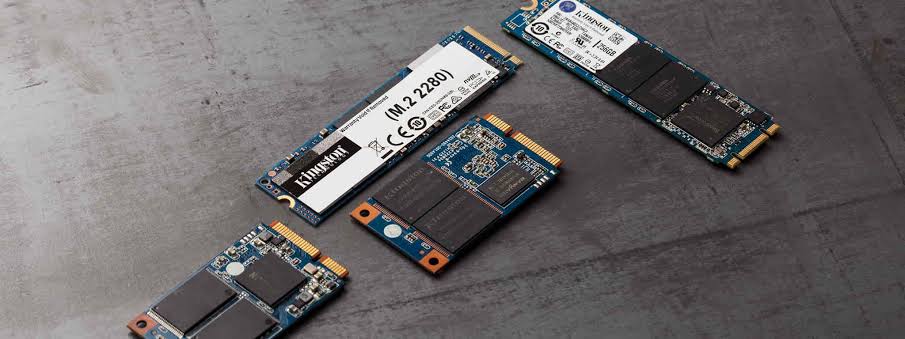
When you install a new Solid-State Drive (SSD), the difference is almost magical. Your computer boots in seconds, applications launch instantly, games load faster, and file transfers feel effortless. Compared to traditional hard disk drives (HDDs), SSDs are one of the most noticeable upgrades you can make to any PC or laptop.
But after months—or years—of daily use, something changes.
Your once lightning-fast SSD starts feeling slower. Large files take longer to copy, applications hesitate before opening, and your system isn’t quite as snappy as it used to be. Naturally, many users wonder whether their SSD is failing or if they’ve done something wrong.
The truth is more reassuring.
SSDs do slow down over time, but not because they’re “wearing out” in the traditional sense. Instead, their performance depends on how flash memory works, how much free storage remains, how the operating system manages deleted files, and how efficiently the SSD organizes its data behind the scenes.
The good news? Most SSD slowdowns are completely manageable. Understanding what happens inside your drive can help you maintain peak performance for years.
Let’s dive into why SSDs slow down—and what you can do to keep yours running like new.
Credits: How-to Geek
Understanding How an SSD Actually Works
Before looking at the reasons behind performance drops, it’s helpful to understand how an SSD stores information.
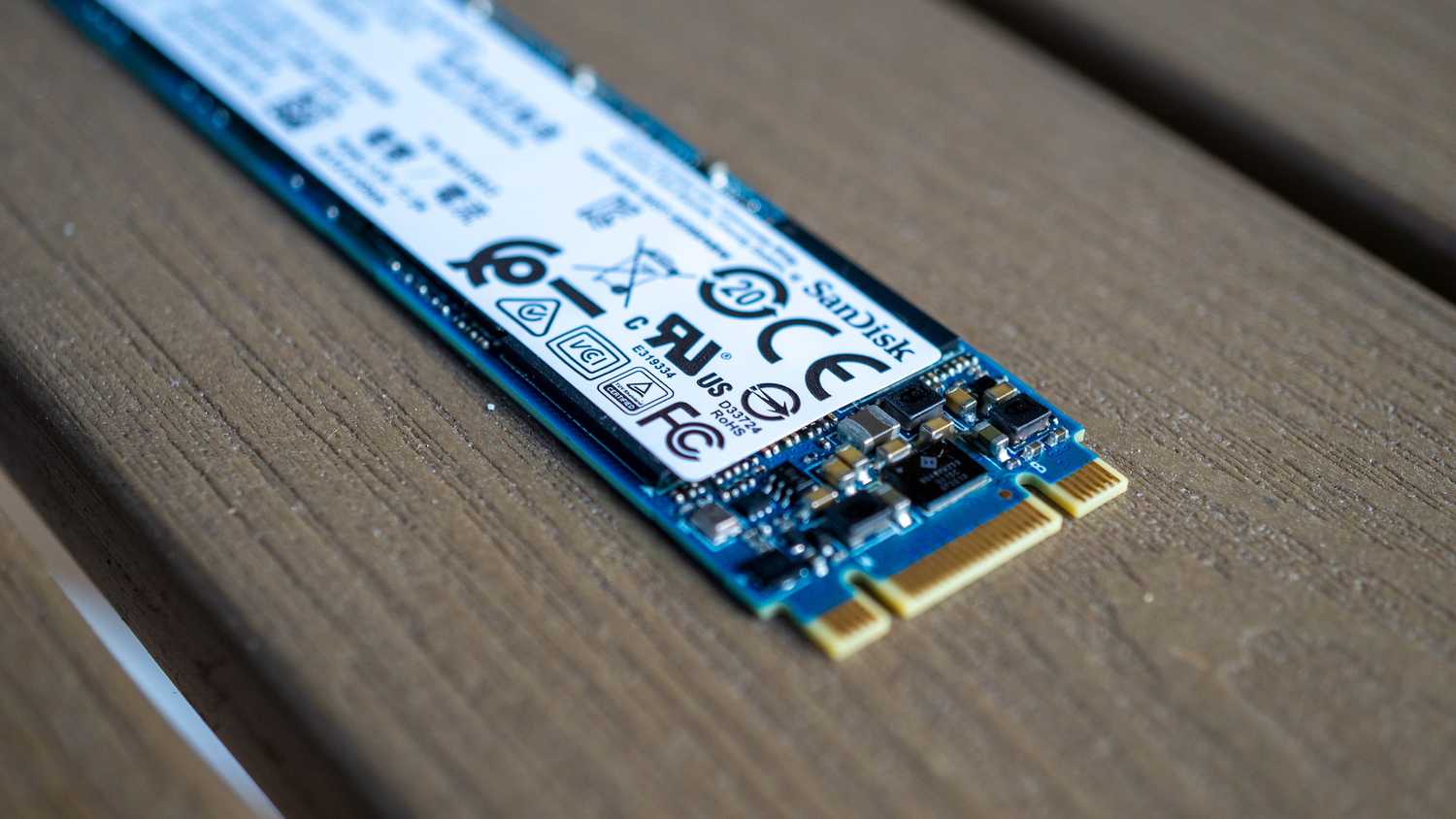
Unlike a hard drive, which reads and writes data using spinning magnetic platters and a moving read head, an SSD stores everything inside tiny memory chips known as NAND flash memory.
This design offers enormous speed advantages because there are no moving parts. However, flash memory has its own rules.
Data is stored inside small units called pages, which are grouped together into larger units called blocks. While writing data to an empty page is incredibly fast, rewriting existing information isn’t quite as simple. The SSD often has to erase an entire block before it can write fresh data.
To make this process efficient, every SSD contains a sophisticated controller that constantly reorganizes information in the background. Most of the time, you never notice this activity—but as your drive fills up and ages, these background tasks become increasingly demanding.
Why SSDs Lose Performance Over Time
One of the biggest reasons SSDs slow down is surprisingly simple: they’re running out of free space.
When an SSD has plenty of empty storage blocks, writing new files is straightforward. The controller simply places the data into available locations.
As the drive becomes 80%, 90%, or even 95% full, finding unused space becomes much more difficult. Instead of writing data immediately, the controller must first move existing information around to create free blocks.
This extra work increases write latency and reduces overall performance.
Think of it like organizing books in a nearly full bookshelf. If several empty shelves exist, adding a new book takes seconds. But if every shelf is packed, you must rearrange dozens of books before finding room for another.
Your SSD faces a similar challenge.
For best performance, experts generally recommend keeping 20–30% of your SSD free. That unused space allows the controller to perform housekeeping without slowing down everyday tasks.
Garbage Collection: The SSD’s Invisible Cleanup Crew
Deleting a file doesn’t actually erase it immediately.
Instead, the operating system simply marks that storage space as available for future use. The SSD still has to clean up those memory blocks before new data can be written there.
This cleanup process is called garbage collection.
During garbage collection, the SSD gathers valid data scattered across partially used blocks, copies it elsewhere, erases old blocks, and prepares them for future writes.
Normally this happens quietly in the background while your computer is idle.
However, if you’re constantly installing games, editing videos, downloading large files, or moving data between drives, garbage collection may struggle to keep up.
When that happens, the SSD must perform cleanup while you’re actively using it, making write speeds noticeably slower.
TRIM: The Feature That Keeps SSDs Fast
One of the most important technologies for SSD performance is the TRIM command.
Whenever you delete files, your operating system sends a TRIM command telling the SSD which blocks are no longer needed.
Instead of waiting until those blocks are reused, the SSD can clean them during idle periods.
Without TRIM, the SSD assumes deleted data might still be important. That means every future write operation becomes slower because the drive must first erase the old data before writing new information.
Fortunately, modern versions of Windows, macOS, and Linux automatically support TRIM for compatible SSDs.
On Windows, you can check whether TRIM is enabled by opening Command Prompt and typing:
If the result is:
DisableDeleteNotify = 0
If it isn’t enabled, enabling it can noticeably improve long-term write performance.
Write Amplification: More Work Than You Think
One of the least understood causes of SSD slowdown is something called write amplification.
Imagine changing a single sentence inside a document.
To you, it seems like only a few bytes were modified.
Internally, however, the SSD may need to move surrounding data, erase an entire memory block, rewrite valid information, and finally save your edited file.
As a result, writing 1 MB of data may require the SSD to actually write several megabytes internally.
This phenomenon is known as write amplification.
The more write amplification occurs, the harder your SSD works.
Consequences include:
- Reduced write speeds
- Increased power consumption
- Faster wear of NAND flash memory
- Lower long-term endurance
Modern SSD controllers use sophisticated algorithms to minimize write amplification, but they can’t eliminate it completely.
Credits: How-to Geek
Flash Memory Doesn’t Last Forever
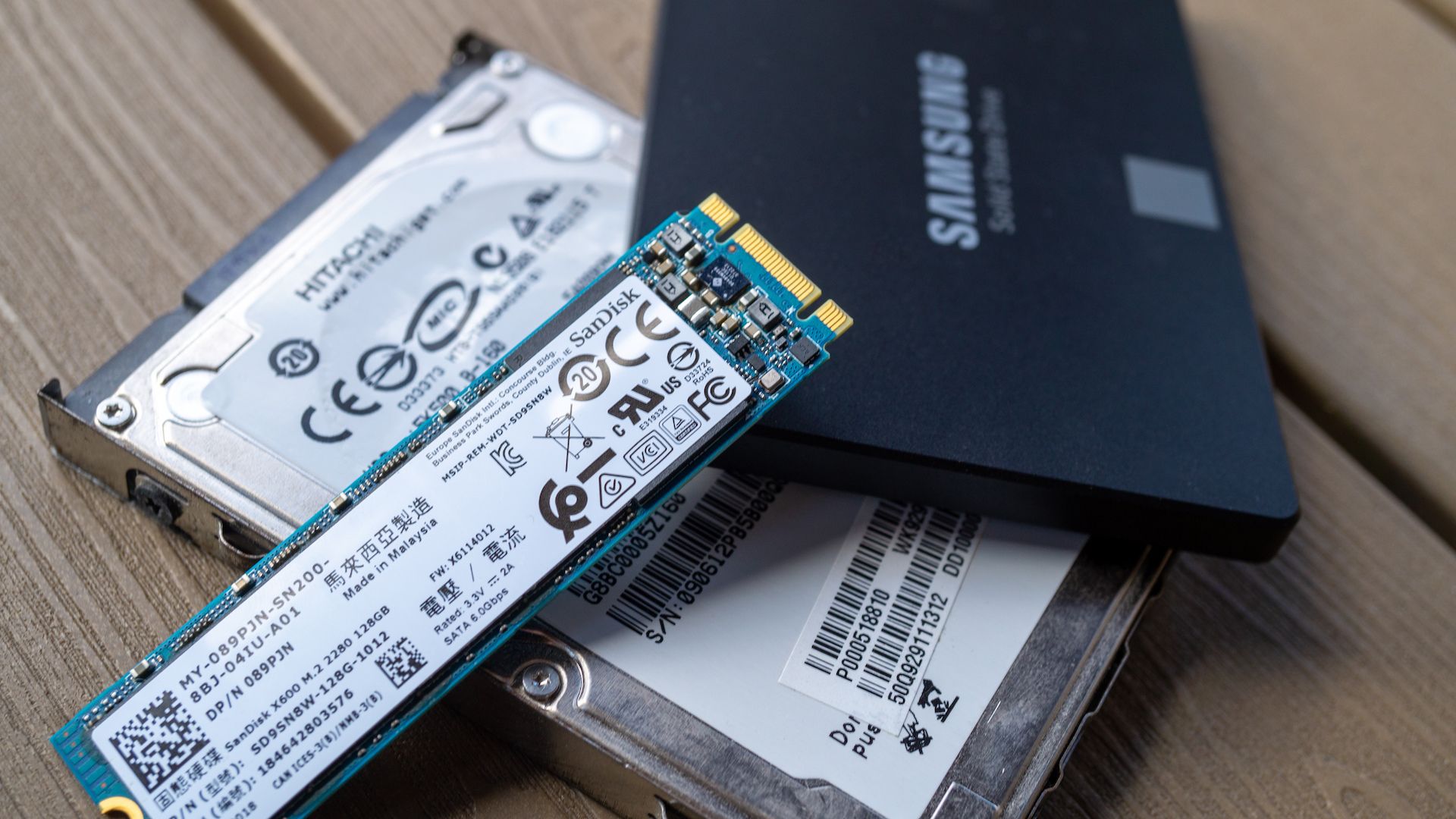
Unlike magnetic hard drives, flash memory has a limited number of program/erase cycles.
Every time data is written and erased, microscopic wear occurs inside the memory cells.
Eventually, those cells reach the end of their usable life.
That doesn’t mean your SSD suddenly dies.
Instead, SSD controllers constantly monitor cell health and replace worn-out memory using spare blocks reserved during manufacturing.
As available spare cells decrease, the controller has fewer options for wear leveling and optimization, which may gradually reduce performance.
Manufacturers estimate SSD lifespan using ratings such as:
- TBW (Total Bytes Written)
- DWPD (Drive Writes Per Day)
Fortunately, modern SSDs are incredibly durable. Even under heavy daily use, many consumer drives can last well over five to ten years.
Common SSD Myths That Refuse to Die
Myth: “It’s Fine to Fill an SSD Completely”
Technically, yes.
Practically, no.
A nearly full SSD has much less working space for internal management, making write operations slower and garbage collection less effective.
Leaving free storage is one of the easiest ways to maintain speed.
Myth: “Formatting an SSD Makes It Faster”
Formatting removes data but doesn’t magically improve SSD health.
In fact, unnecessary formatting generates additional write cycles and contributes to flash wear.
Modern operating systems already perform the maintenance SSDs need.
Myth: “Disabling TRIM Saves Power”
Some users believe disabling TRIM reduces background activity.
The opposite is actually true.
Without TRIM, the SSD has to perform much more work every time new data is written, increasing both workload and energy consumption.
Myth: “Only Storage Capacity Matters”
Many buyers compare SSDs only by price and capacity.
However, performance also depends on:
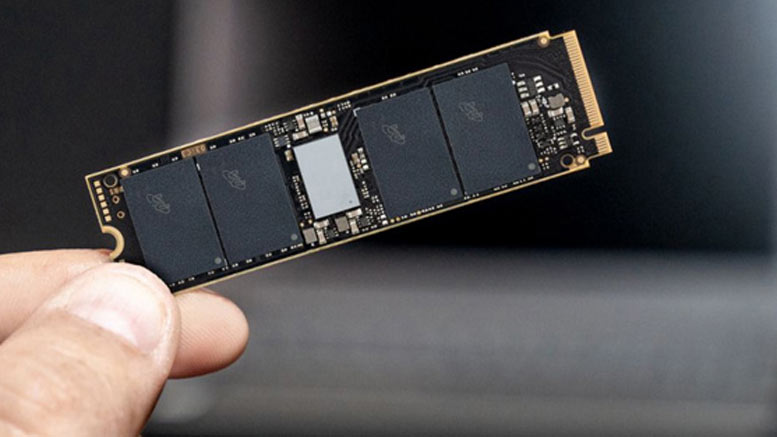
- Controller quality
- NAND flash type
- Firmware optimization
- Cache design
- Thermal management
- Endurance ratings
Two SSDs with the same capacity can deliver dramatically different real-world performance.
Credits: Tom’s Hardware
Practical Tips to Keep Your SSD Running Fast
Leave Plenty of Free Space
Try to keep 20–30% of your SSD empty.
If your drive is nearly full, consider moving photos, videos, or backups to an external drive or cloud storage.
Keep TRIM Enabled
Most operating systems enable TRIM automatically, but it’s worth checking after reinstalling Windows or cloning an existing drive.
It’s one of the simplest ways to maintain long-term write performance.
Update Your SSD Firmware
Manufacturers regularly release firmware updates that fix bugs, improve compatibility, and sometimes increase performance.
Checking for updates every few months is good practice.
Monitor SSD Health
Several free utilities allow you to monitor important SSD statistics.
Popular tools include:
- CrystalDiskInfo
- Samsung Magician
- Kingston SSD Manager
- WD Dashboard
- Crucial Storage Executive
These applications display:
- Drive health
- Temperature
- Total data written
- Remaining lifespan
- SMART status
Monitoring these values helps you identify potential issues before they become serious.
Avoid Unnecessary Writes
Although modern SSDs are built for heavy workloads, reducing unnecessary write activity still helps extend their lifespan.
Simple habits include:
- Deleting duplicate files
- Avoiding repeated large file transfers when unnecessary
- Keeping temporary downloads organized
- Using external storage for long-term archives
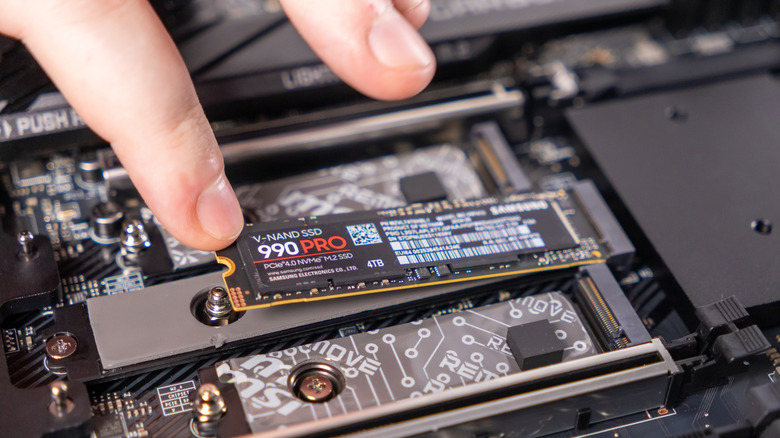
Credits: SlashGear
Invest in a High-Quality SSD
Not all SSDs are created equal.
Premium models generally include better controllers, higher-quality NAND flash, improved thermal management, and firmware optimized for sustained performance.
For example, drives like Oreton’s M.2 NVMe SSD are designed to maintain stable read and write speeds even under demanding workloads while offering advanced thermal control and reliable long-term operation. Similar features are also available in SSDs from other established manufacturers, making it worthwhile to compare specifications rather than focusing solely on storage capacity or price.