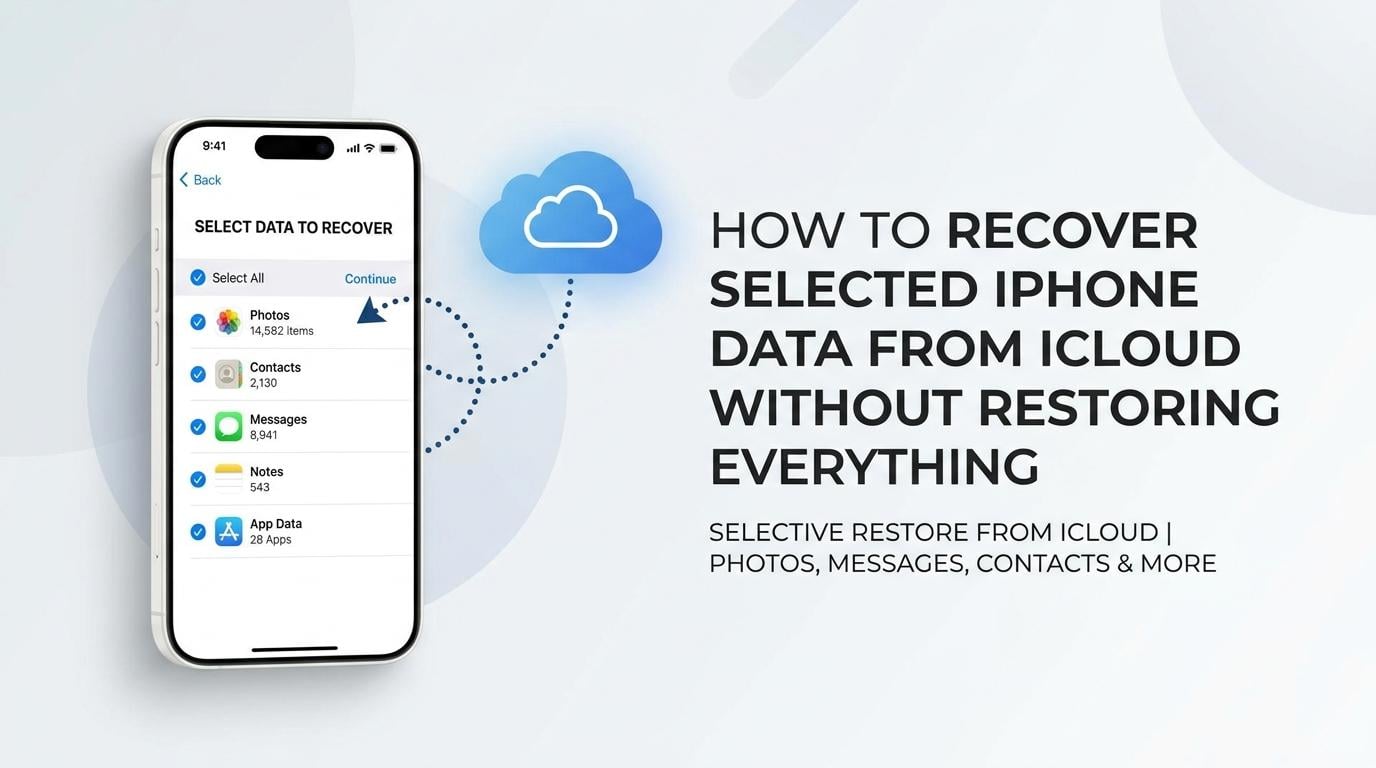
Need Only a Few Files from iCloud? Here’s Why It Matters
What if you only need one photo or a few messages from an old iCloud backup? Do you really need to restore everything just to get them back?
It could be one single photo, messages, or a very important contact only. What’s the point of having all your data back when really what you wanted was just some specific data?
In this guide, we’ll explain how iCloud recovery normally works and how to selectively recover the files you need with Dr.Fone – data recovery software for iPhone.
Part 1. How Standard iCloud Recovery Works?
Typically, with a standard iCloud restore, you restore the backup to your entire iPhone rather than just selecting individual files. That one-step restore method can recover apps, settings, messages, photos, and all other data available from that backup.
This is perfect for restoring your iPhone to an older state. However, if you need only few files, then doing a full restore might be a little “extra” for your needs.
Remember! To restore an iCloud backup to an iPhone, you generally need to reset and erase the device first.
Part 2. Why Recover Only the Files You Need?
Is it necessary to restore the whole backup just to recover a single photo or several messages? Probably not.
You may only want to recover specific files because:
- Certain important files were deleted by mistake.
- The current iPhone has some updates that should not be overwritten.
- There is an option not to reset the device.
- You might need only some of the photos, contacts, messages, or other files found in a previous backup.
A selective recovery option would allow you to get back only the files that you have requested instead of restoring the whole backup.
Part 3. What Data May Be Available from iCloud
To know what items you can recover depends on the iCloud backup that you saved. Based on the backup, it can have different kinds of personal and application data, such as:
- Photos and videos
- Messages and attachments
- Contacts, notes, calendars, and reminders
- Call history, voice memos, and Safari data
- App data and data from supported third-party apps
Note: Some data is only saved through iCloud and might not be part of the iCloud Backup.
Part 4. How to Recover Selected iCloud Data with Dr.Fone
Dr.Fone – Data Recovery (iOS) can be used to access available iCloud backup, preview the supported data, and recover only the files you need. This iPhone data recovery software is able to retrieve more than 35 types of data such as photos, videos, messages, contact lists, notes, call records, voice memos, calendar, reminders, and app data like WhatsApp, Line, Viber, and Kik and so on. Available data types and recovery options vary by source, mode, device, and iOS version.
In addition, this software enables one to retrieve even that data and files which were iCloud-synced and stored in the iCloud Drive.
Standard Recovery offers a free scan and preview of supported data. Advanced Recovery has separate purchase and compatibility requirements. Activation is required to recover, or export found data and restore a backup to a device.
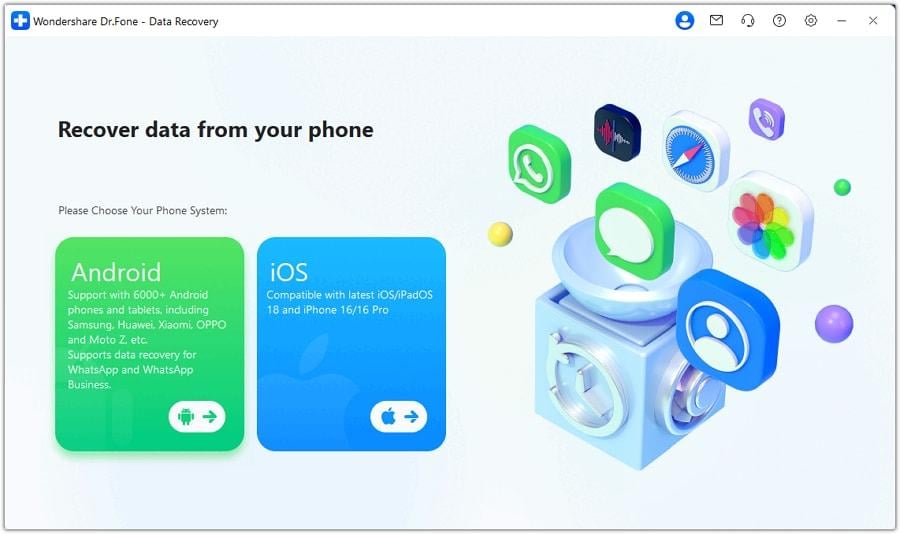
Step 1. Open Dr.Fone and choose iOS Data Recovery
Launch Dr.Fone, go to Toolbox > Data Recovery, and select iOS as the device type.
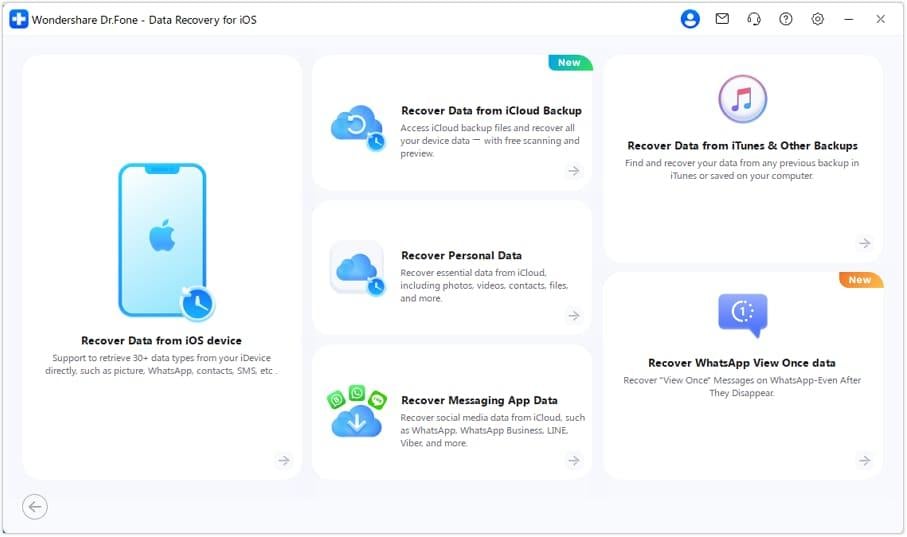
Step 2. Sign in to iCloud
Choose Recover Data from iCloud Backup, sign in to your iCloud account, and complete the required verification.
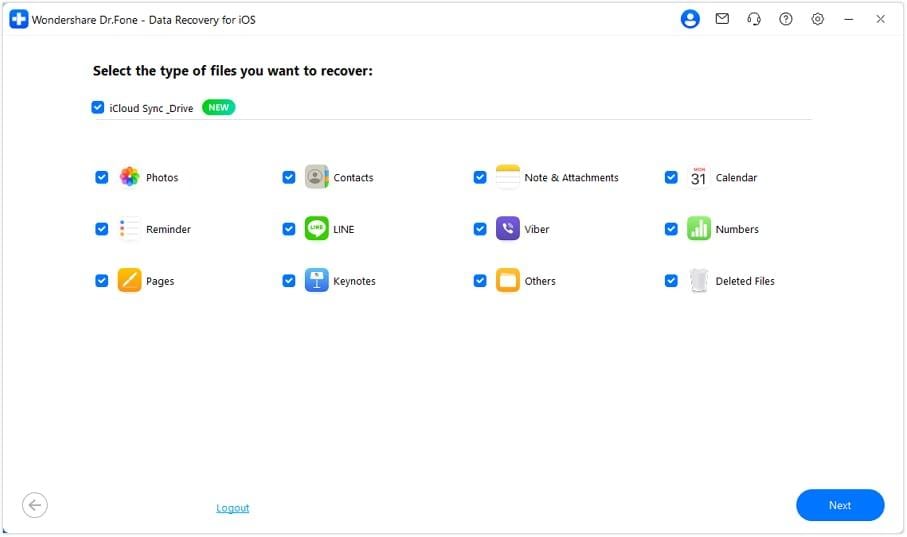
Step 3. Select and scan your data
Choose the file types you want to recover, such as photos, messages, contacts, notes, or app data. Let Dr.Fone download and scan the available iCloud data.
Step 4. Select what you need and recover it
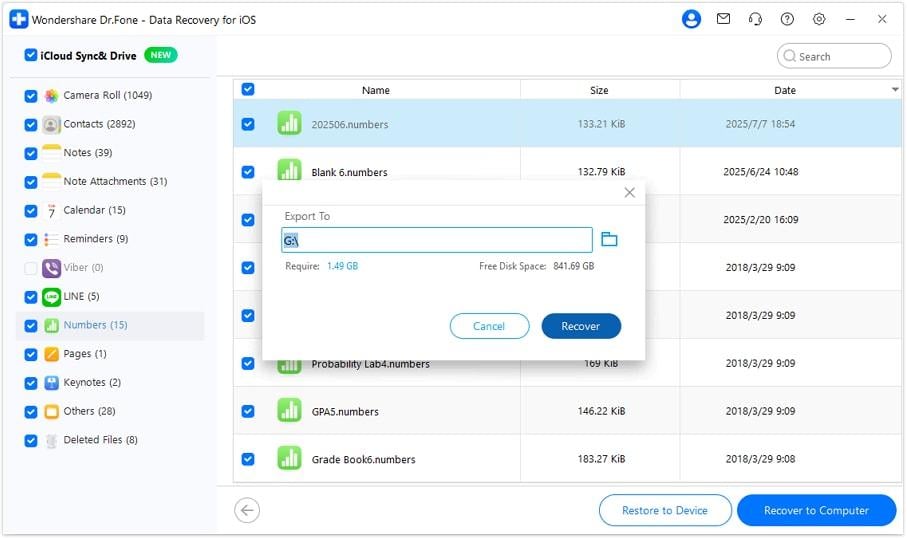
Preview the results. To return supported data to an iOS device, click Restore to Device. To save the selected files locally, click Recover to Computer
Part 5. Restore to iPhone or Recover to Computer
After selecting the files you’ve decided to restore, Dr.Fone iOS data recovery software provides you with two options for retrieving them. If you want to save data onto the iPhone, go for Restore to the Device.
If you want to save the recovered data on your PC, choose Recover to Computer. Select where you want to save the files and start the recovery. It is also a great option for data that cannot be restored directly to an iPhone or iPad.
Conclusion
There’s no need to restore an entire iCloud backup just to get a couple of your lost files. With Dr.Fone – Data Recovery (iOS) it allows you to scan data that is available on iCloud, previewing it so you can only choose the files that you want to get back. You can either put them back on the phone or save them on the computer. So selective recovery is the way to go for you if you want to stay in control of the whole restoration process.