• Send Us A Tip
  • Calling all Tech Writers
  • Advertise
Saturday, October 24, 2026
  • Login
TechStory
  • News
  • Crypto
  • Gadgets
  • Memes
  • Gaming
  • Cars
  • AI
  • Startups
  • Markets
  • How to
No Result
View All Result
  • News
  • Crypto
  • Gadgets
  • Memes
  • Gaming
  • Cars
  • AI
  • Startups
  • Markets
  • How to
No Result
View All Result
TechStory
No Result
View All Result
Home Tech

How to Download YouTube Music to MP3: A Simple Guide

by Rohan Mathawan
October 24, 2026
in Tech
Reading Time: 5 mins read
0
How to Download YouTube Music to MP3: A Simple Guide
TwitterWhatsappLinkedin

YouTube Music is a convenient place to discover new songs, revisit old favorites, and explore playlists for almost any mood. However, streaming isn’t always the most practical option. You might want to listen to music during a flight, keep a personal music collection on your computer, or play your favorite tracks on a device that doesn’t support streaming apps.

You might also like

How Accurate Captions Make Short Mobile Videos More Accessible and Easier to Understand

Google Employees Resign Amid Backlash Over AI Contracts With Military

Multiple Reports Allege Nvidia Fueled Gaming GPU Crisis by Encouraging Big Tech to Stockpile AI Hardware

That’s where MP3 files can come in handy. MP3 is one of the most widely supported audio formats, making it easy to organize and play music across different devices. If you’re wondering how to download YouTube Music to MP3, there are a few things to understand before choosing a method.

Can You Download YouTube Music as MP3?

YouTube Music Premium allows subscribers to download music for offline listening within the app. This is useful when you don’t have a reliable internet connection, but these downloads aren’t ordinary MP3 files. They’re designed for playback within YouTube Music rather than being exported to other music players.

If you want audio files that you can manage locally, you’ll need a different approach. Your options depend on the source of the music, the tools you use, and whether you have permission to save the content in the format you want.

Method 1: Download YouTube Music to MP3 with ViWizard Streaming Audio Recorder

If you want more flexibility when managing your music collection, ViWizard Streaming Audio Recorder offers more than traditional audio recording software. It’s an all-in-one streaming audio downloader and converter that brings multiple music services together in one desktop application. Instead of manually recording songs as they play, you can browse supported platforms through its built-in web player, select the content you want, and download and convert it into a format that suits your needs.
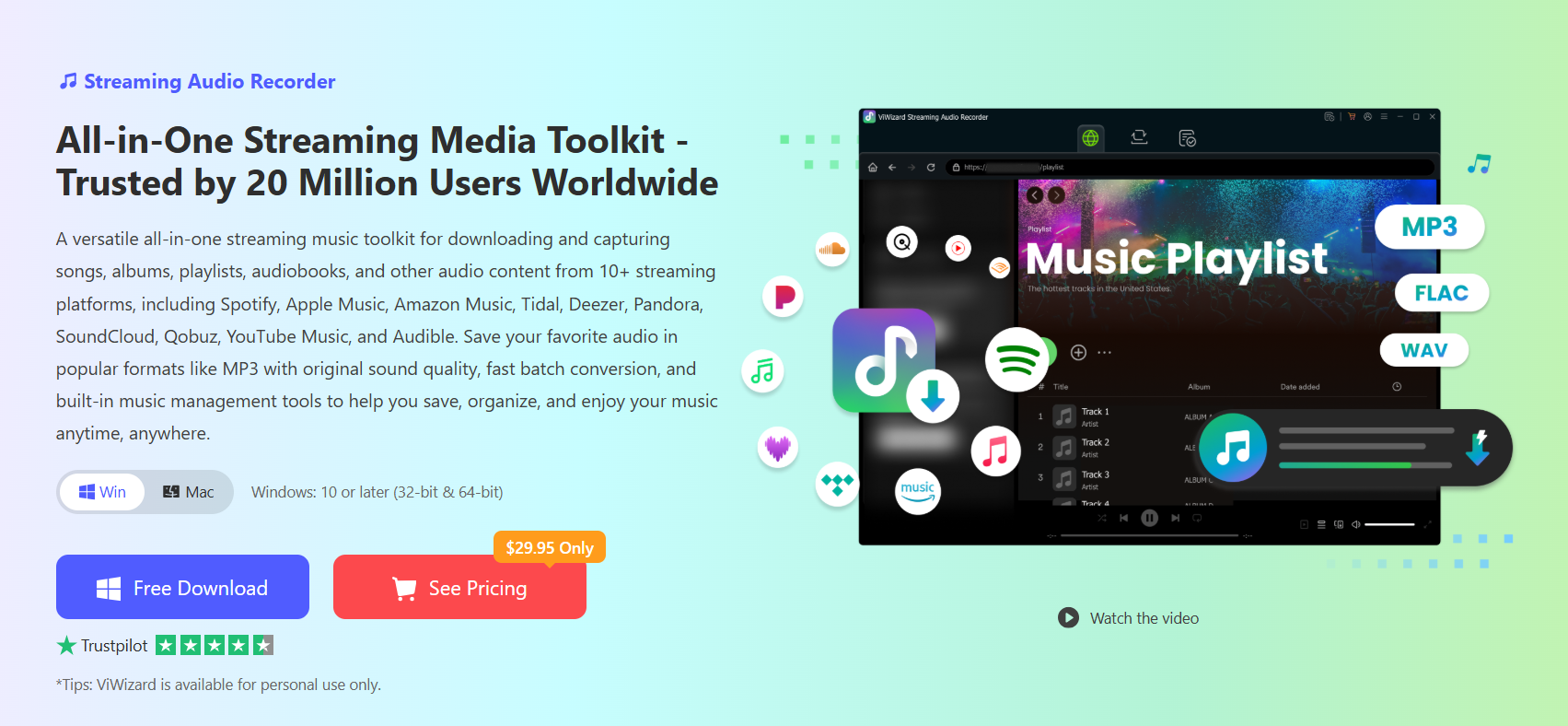
ViWizard supports YouTube Music and other popular streaming services, along with formats such as MP3, FLAC, WAV, M4A, and AIFF. It also supports batch processing, making it easier to handle multiple tracks, albums, or playlists at once. ID3 tags and other metadata can be retained to help keep your downloaded music library organized.

You can explore the features and compatibility details on the official ViWizard Streaming Audio Recorder page.

Steps to Download YouTube Music to MP3

Step 1: Install and launch ViWizard

Download ViWizard Streaming Audio Recorder from its official website and install the version compatible with your Windows or Mac computer. Open the program to access its main interface and available streaming platforms.

Step 2: Select YouTube Music
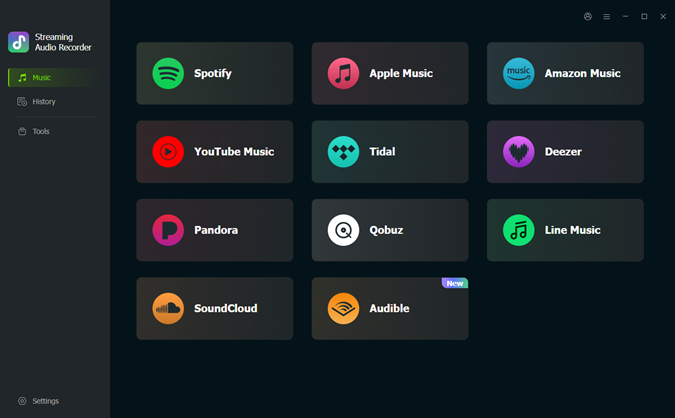
Find YouTube Music in the list of supported services and open it. ViWizard provides an integrated web player, allowing you to browse music within the application rather than switching between separate tools. Sign in to your account if required to access the content you want to download.

Step 3: Choose songs, albums, or playlists
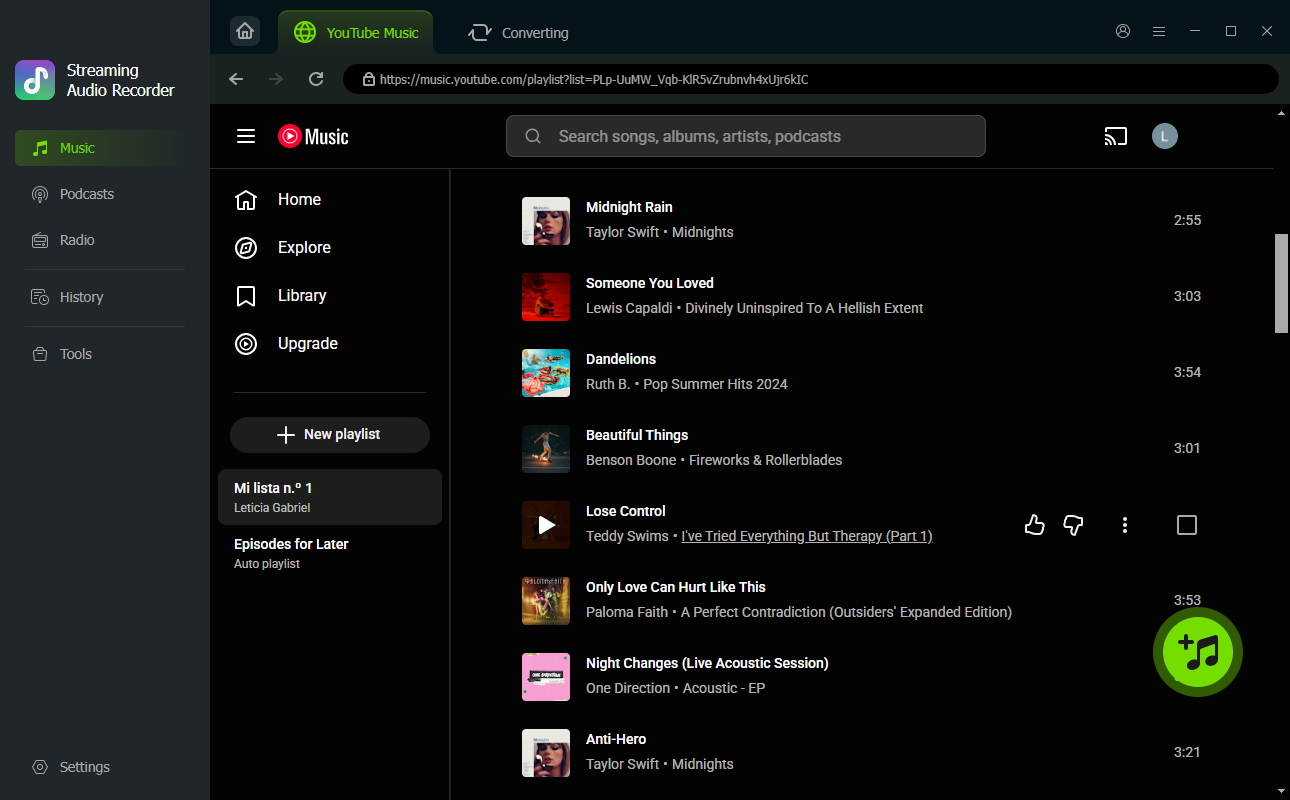
Browse the YouTube Music library and locate the tracks you want to save. You can select individual songs or work with supported albums and playlists. When you’ve found your desired content, use the add-to-list control to place the selected tracks in the conversion queue. Review your selections before moving on.

Step 4: Set MP3 as the output format
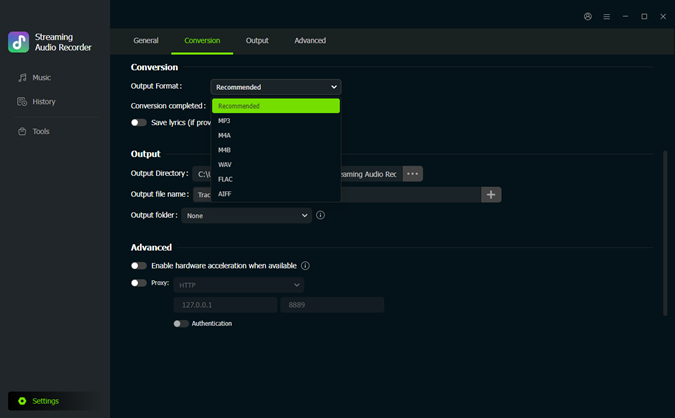
Open the program’s settings and navigate to the conversion options. Choose MP3 as the output format, then adjust the available audio settings, such as bitrate and sample rate, according to your preferences. You can also specify the destination folder and file-naming rules to make your music collection easier to manage.

Step 5: Download and convert your selected music
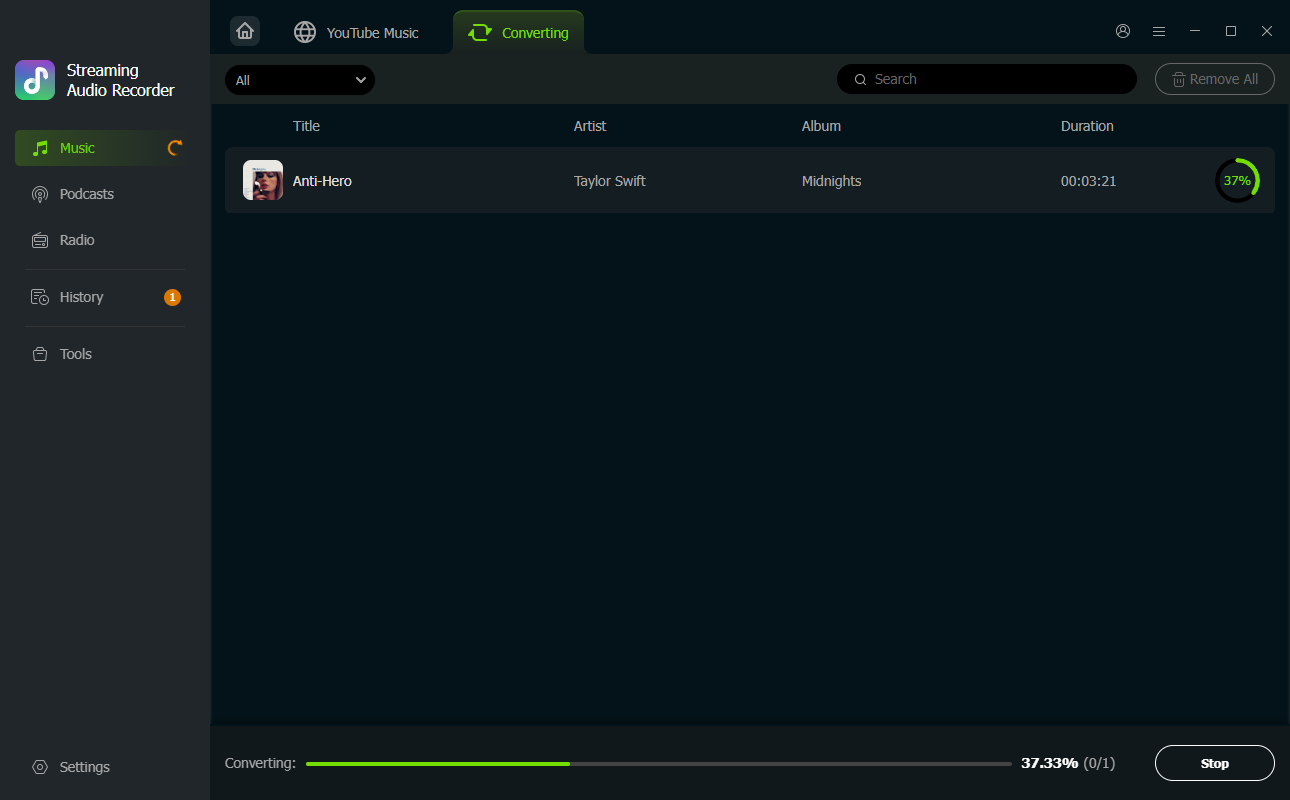
Return to the conversion list and check that the correct tracks are included. Click the Convert button to start processing. ViWizard will download and convert the selected content according to your settings. Batch processing can save time when you’re working with a playlist or multiple tracks.

Step 6: Find and organize your MP3 files
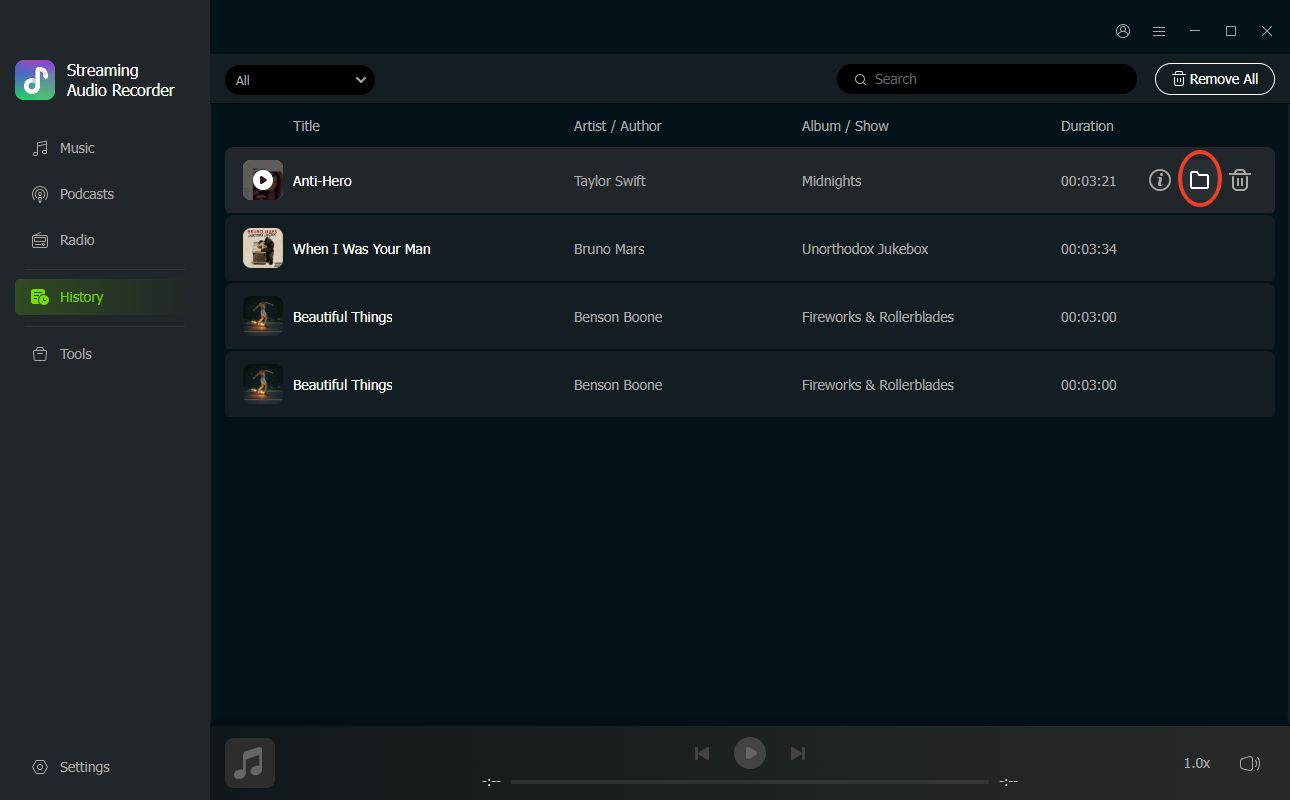
Once the conversion is complete, open the output folder to locate your saved files. Check that the tracks play properly and review their metadata. You can then organize the files in your music library or transfer compatible audio files to your other devices for playback.

Keep in mind that the exact workflow and available options may vary by software version and source. For more information about the topic, see this guide to YouTube Music downloaders.

Method 2: Use YouTube Music’s Official Offline Feature

If your main goal is simply to listen without an internet connection, you may not need MP3 files at all.

With an eligible YouTube Music Premium subscription, you can download supported songs, albums, and playlists directly in the mobile app. Open the content you want, tap the download option, and wait for the download to finish. You can then access your downloaded music from the app’s library.

This is generally the simplest option for everyday offline listening. The trade-off is that the downloaded content remains inside the app and isn’t available as a regular MP3 file for unrestricted use in other players.

Which Method Should You Choose?

The right option depends on what you’re trying to achieve. YouTube Music’s built-in download feature is convenient if you already subscribe to Premium and mainly listen on your phone. It’s straightforward and doesn’t require additional recording software.

On the other hand, a desktop audio recorder may be more suitable if you need to manage audio files locally and want control over output formats. ViWizard Streaming Audio Recorder brings several audio sources and recording features into one application, which can be useful for people who regularly work with different types of audio content.

Final Thoughts

Downloading YouTube Music to MP3 isn’t as simple as pressing the offline button in the official app, because app downloads and standard audio files serve different purposes. For offline listening within YouTube Music, the built-in feature is a convenient choice. For authorized recordings that you want to organize as local audio files, a tool such as ViWizard Streaming Audio Recorder may offer greater flexibility.

Take a moment to compare the available options and choose the method that best fits your listening habits. With the right setup, managing your audio collection can become much more straightforward.

Tweet54SendShare15
Previous Post

How Accurate Captions Make Short Mobile Videos More Accessible and Easier to Understand

Rohan Mathawan

Content Editor at Techstory Media | Technology | Gadgets | Written more than 5000+ articles about different niches from Tech to online real money gaming for reputed brands and companies. Get in touch Email: rohan@techstory.in For Business Enquires related to TechStory Info@techstory.in

Recommended For You

How Accurate Captions Make Short Mobile Videos More Accessible and Easier to Understand

by Rohan Mathawan
October 24, 2026
0
Short videos have become a daily habit for mobile users. People watch clips on buses, in waiting rooms, during breaks, and late at night with the volume turned down. Gaming highlights, creator tutorials, reaction clips, and quick product reviews all compete for a few seconds of attention. In that setting, captions are no longer a bonus feature. They are a core part of how a video communicates. When captions are accurate, they help more people follow along, understand the message, and enjoy the content as the creator intended. When they are careless, they can confuse viewers or leave them out entirely. Why Captions Matter for Mobile Viewers Many creators now rely on a caption generator to turn spoken audio into on screen text quickly, which saves time when they publish several clips each week. The real value of that text, however, depends on how closely it matches what is actually said and heard. For viewers who are deaf or hard of hearing, captions are the main way to access speech, tone, and important sound cues. For other viewers, captions support situations where audio is not practical, such as noisy streets, shared spaces, or quiet environments. A clip with clear and correct text works for all of these people without requiring any extra effort from them. Accessibility Starts with Accuracy Accessibility is about giving every viewer a fair chance to understand the content. Captions that skip words, change meanings, or misspell names can make that difficult. A viewer who relies on text cannot compare it against the audio, so any error becomes part of the message they receive. Accurate captions should include the spoken words, the speaker when it is not obvious, and meaningful sounds such as music cues, laughter, or alerts. For example, in a cooking clip, a caption that reads "add two teaspoons of salt" instead of "add two tablespoons of salt" changes the result of the recipe. Accuracy protects the viewer from small mistakes with real consequences. Comprehension in Fast Moving Gaming Clips Gaming clips move quickly. Players speak fast, use abbreviations, call out locations, and react to events that happen in a split second. Team callouts such as map positions, weapon names, and character abilities often sound similar when heard quickly, which makes accurate text especially useful. A viewer who is new to a game may not recognize a term by ear, but seeing it written correctly helps them learn it. Captions also help when the in game audio, music, and voice chat overlap. Clear text separates the commentary from the background noise, so the viewer can follow what the player is saying without replaying the clip several times. Creator Clips and Clear Communication Creators share advice, tutorials, opinions, and stories in short formats where every second counts. Captions give them a way to reinforce key points without adding extra length. A beauty creator can display product names exactly as spoken, a fitness creator can show the number of repetitions, and a tech reviewer can spell out model names that are easy to mishear. Captions also help viewers whose first language is not the language of the video. Reading along while listening can make unfamiliar accents or fast speech easier to follow. This does not replace translation, but it supports comprehension for people who are still building their listening skills. Common Caption Errors and Their Effects Some caption mistakes appear again and again in short videos. Understanding them helps creators know what to check before publishing. Homophones, such as "their" and "there," or "to" and "two," can change the meaning of a sentence. Proper nouns, including usernames, game titles, brand names, and place names, are often misspelled. Missing punctuation can make a sentence read as a different statement or question. Lines that appear too early or too late can confuse the viewer about who is speaking. Technical terms and slang may be replaced with common words that sound similar but mean something else. Each of these errors is small on its own, but in a clip that lasts under a minute, even a few of them can reduce clarity. Reviewing the text once before posting is a simple habit that keeps these problems from reaching the audience. Practical Tips for Better Captions Creators do not need advanced skills to improve caption quality. A few steady habits can make a visible difference. Record audio as clearly as possible, because clean speech gives any captioning method a better starting point. Read through the full text while listening to the clip, and correct names, numbers, and terms that are specific to the topic. Keep each line short, so viewers can read it comfortably without missing the picture. Add brief descriptions for important sounds, such as "applause" or "game alert," when they affect understanding. Watch the final video on a phone, since that is where most viewers will see it. These steps are practical rather than technical. They focus on the viewer experience and not on any promise of a specific result. Timing, Placement, and Design on Small Screens On a small mobile screen, the look of captions matters almost as much as their wording. Text should appear at a size that is easy to read, with enough contrast against the background. White text with a dark outline or a soft background box is a common choice because it stays readable over changing scenes. Captions should also avoid covering important parts of the video, such as the game interface, a product being demonstrated, or a speaker's face. Timing is equally important. Text that appears just as the words are spoken feels natural, while text that lags behind can make the video feel out of sync. Careful placement and timing help viewers read and watch at the same time without effort. Conclusion Accurate captions make short mobile videos more accessible, easier to follow, and more useful to a wider audience. They support viewers who cannot rely on sound, help new players understand fast gaming clips, and give creators a reliable way to share clear messages in a few seconds. A caption generator can speed up the first step by producing text from speech, but the best results come when creators review the output, correct names and terms, and check timing and readability on a phone. By treating captions as a real part of the video and not an afterthought, creators can make their content welcoming and understandable for more people, one short clip at a time.

Short videos have become a daily habit for mobile users. People watch clips on buses, in waiting rooms, during breaks, and late at night with the volume turned...

Read more

Google Employees Resign Amid Backlash Over AI Contracts With Military

by Shailja Jha
October 24, 2026
0
Google Employees Resign Amid Backlash Over AI Contracts With Military

Google is facing renewed internal criticism over its artificial intelligence contracts with military organizations, with reports of employees resigning in protest against the company's involvement in defense-related projects....

Read more

Multiple Reports Allege Nvidia Fueled Gaming GPU Crisis by Encouraging Big Tech to Stockpile AI Hardware

by Shailja Jha
October 24, 2026
0
Nvidia in Talks to Invest in Athropic’s Mega IPO, Sources Say

Nvidia is facing growing scrutiny over allegations that its artificial intelligence hardware business may be contributing to shortages and rising prices in the gaming graphics card market. Multiple...

Read more
Please login to join discussion

Techstory

Tech and Business News from around the world. Follow along for latest in the world of Tech, AI, Crypto, EVs, Business Personalities and more.
reach us at info@techstory.in

Advertise With Us

Reach out at - info@techstory.in

Aviator Game India 2026

BROWSE BY TAG

#Crypto #howto 2024 acquisition AI amazon Apple Artificial Intelligence bitcoin Business China cryptocurrency e-commerce electric vehicles Elon Musk Ethereum facebook funding Gaming Google India Instagram Investment iPhone IPO Market Markets Meta Microsoft News OpenAI samsung Social Media SpaceX startup startups tech Tech news technology Tesla TikTok trend trending twitter US

© 2025 Techstory.in

No Result
View All Result
  • News
  • Crypto
  • Gadgets
  • Memes
  • Gaming
  • Cars
  • AI
  • Startups
  • Markets
  • How to

© 2025 Techstory.in

Welcome Back!

Login to your account below

Forgotten Password?

Retrieve your password

Please enter your username or email address to reset your password.

Log In
Are you sure want to unlock this post?
Unlock left : 0
Are you sure want to cancel subscription?