
Planning to finish a Netflix series on a flight? The tricky part may not be choosing what to watch. It may be getting the episodes onto your laptop in a format you can actually open offline.
Netflix offers downloads on supported mobile devices, but its current Windows experience does not include the old download feature, and there is no official Netflix app for macOS. That leaves laptop users looking at other options, particularly when they want an MP4 file instead of a download stored inside an app.
Why downloading Netflix to a laptop is difficult
Netflix downloads on phones and tablets can only be played within the app. You won’t find an MP4 file that you can copy to your laptop, and some titles come with their own download limits.
Screen recording isn’t much help either. Netflix’s content protection can leave you with a black screen, while Android emulators take extra setup and can slow down your laptop. If you want to watch Netflix episodes in a regular media player, you’ll need a different way to save them as local video files.
MP4 or MKV: which format should you choose?
MP4 is the more straightforward choice for most people. It plays on a broad range of laptops, phones and TVs, and it is easy to copy to a USB drive. MKV is worth considering if you need multiple audio tracks or subtitles, but not every device or player supports it.
Keep in mind that MP4 and MKV won’t make a video look better than the original. Check the available quality, audio, and subtitle options before you start downloading.
A desktop option for Netflix episodes
One option worth looking at is Keeprix Video Downloader. It runs on supported Windows 10 or later and macOS 12 or later, and brings several supported streaming services into one desktop application. For Netflix content you can access with your account, it offers MP4 and MKV output, episode&series selection and available audio/subtitle options.
An important practical detail is the trial: Keeprix currently offers one full free Netflix video download, so you can check a complete file rather than judging the experience from a short preview. Availability and output options depend on the selected title and platform.
How to download a Netflix series as MP4 on a laptop
- Install the desktop application on a compatible Windows laptop or Mac, then open the Netflix section.
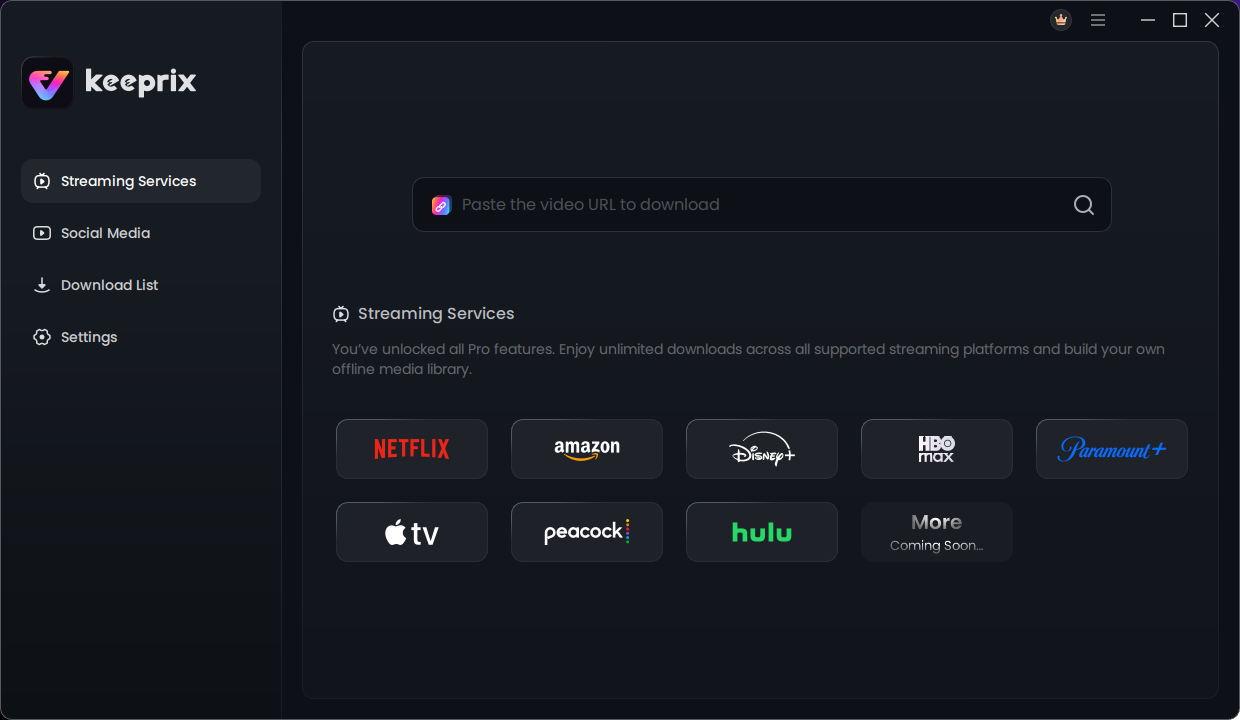
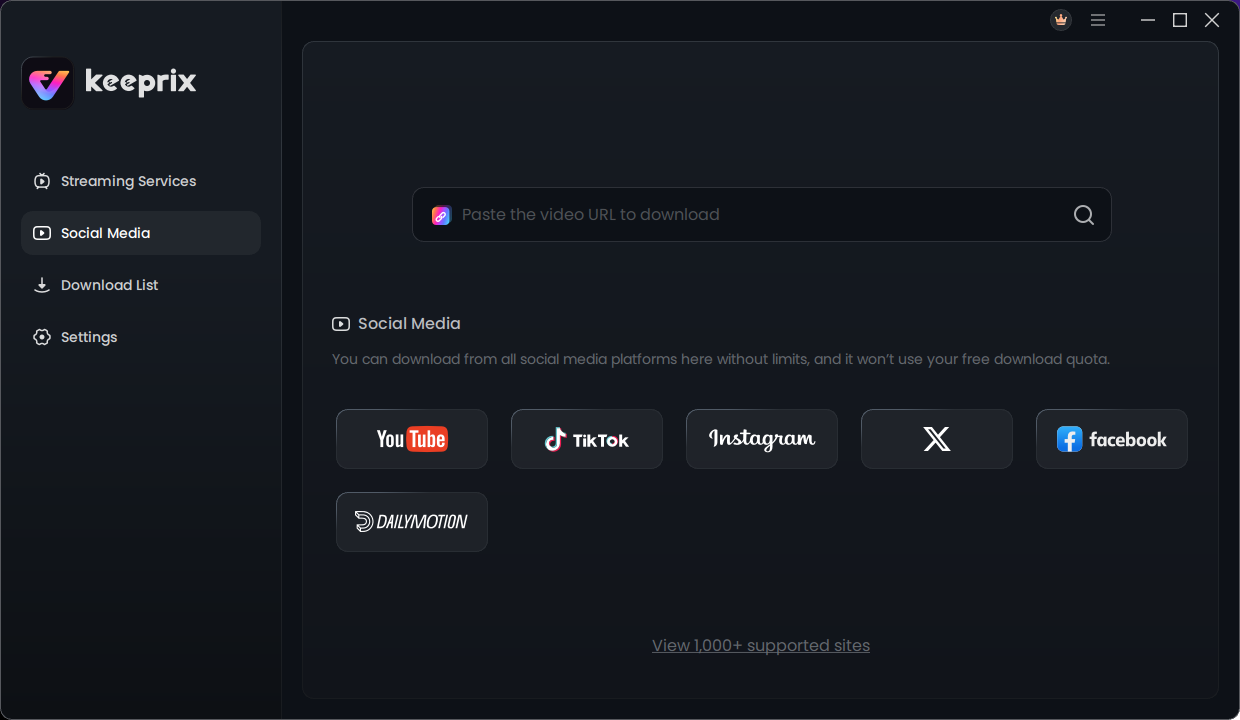
- Sign in using your own Netflix account and find a series you are authorized to access.
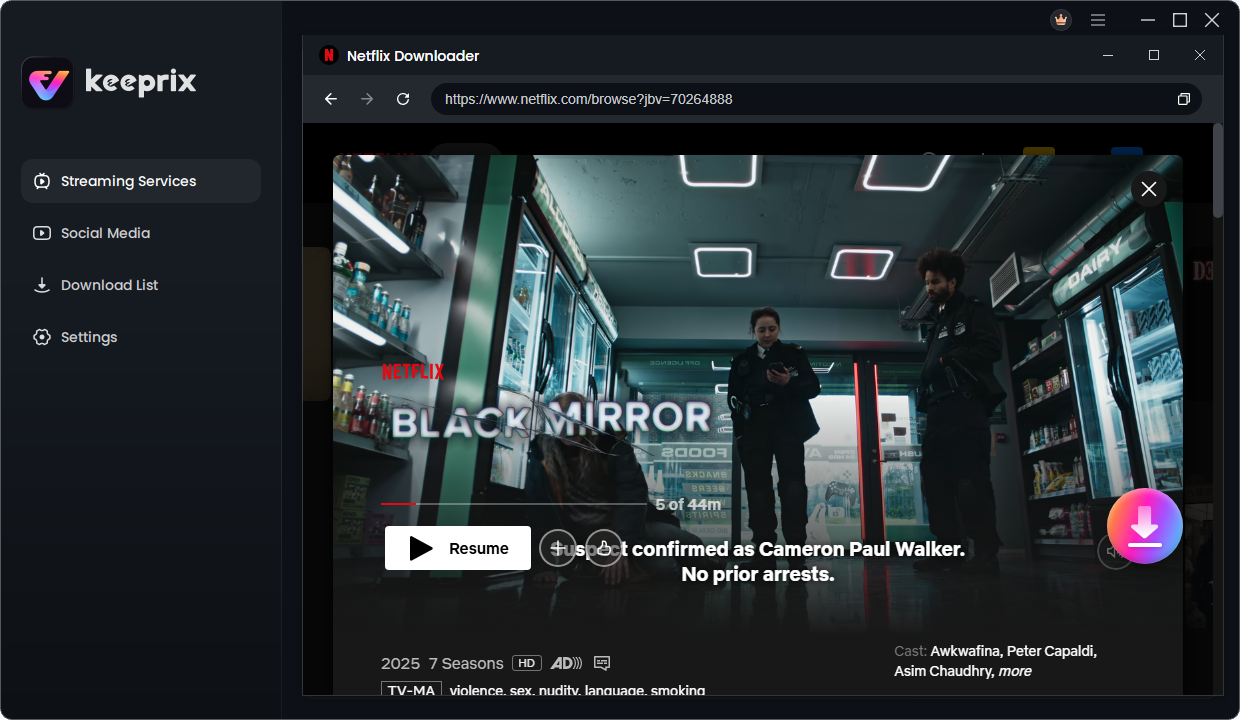
- Choose the episodes you want. Select MP4 as the output format, then review the available quality, audio and subtitle settings.
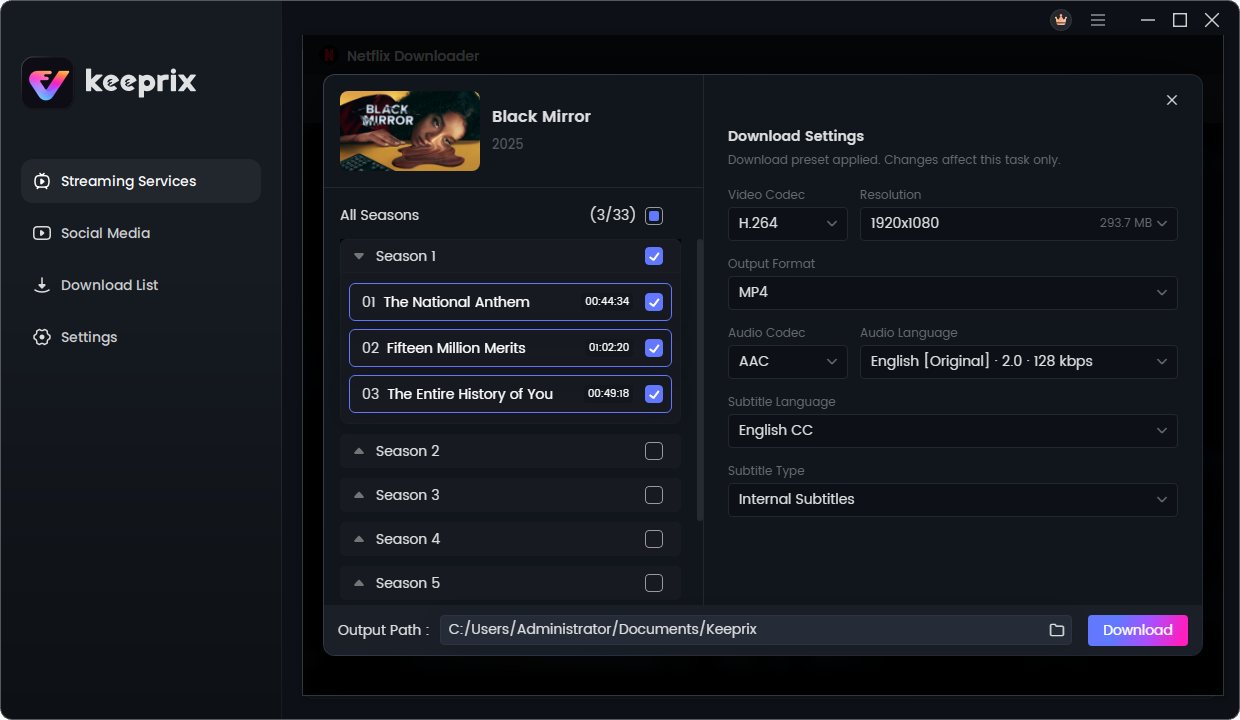
- Start the download and check the completed file in its output folder. Open a sample episode in your preferred media player before relying on it for a trip.
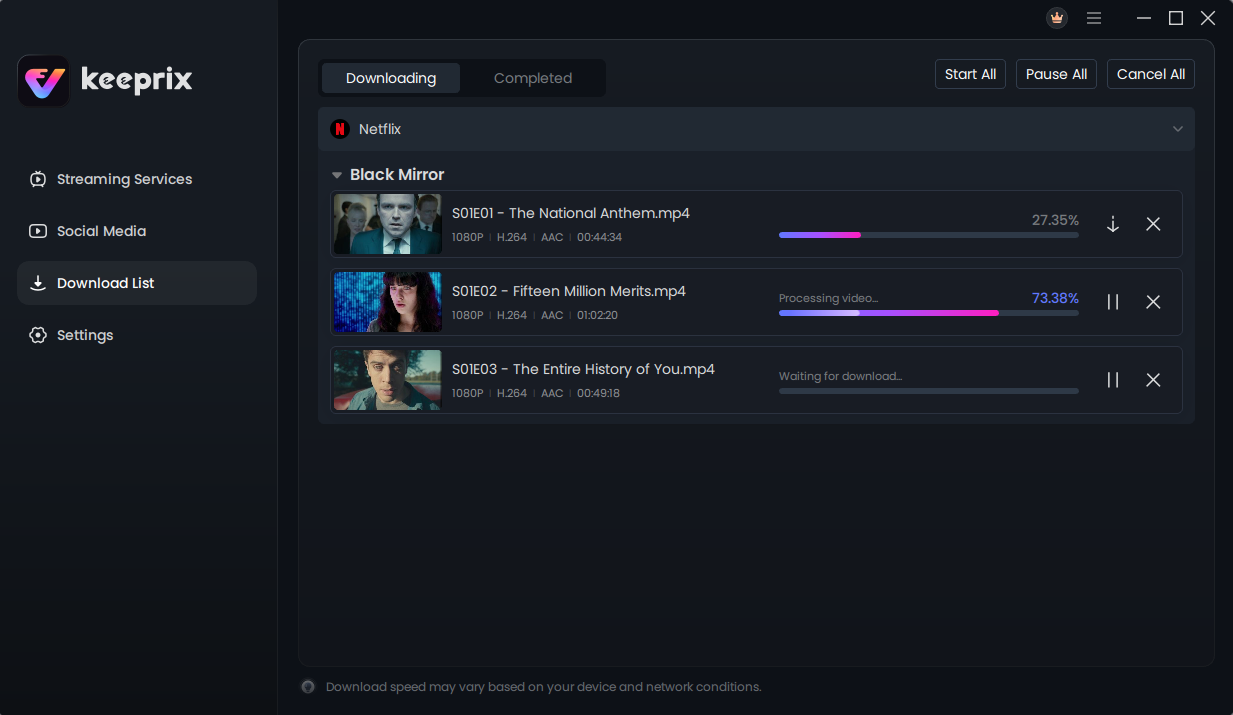
If you want a closer look at the format choices and workflow, this Netflix to MP4 guide walks through the process in more detail.
A few checks to make before travelling
- Test at least one complete episode, including subtitles, before you disconnect from Wi-Fi.
- Leave enough free storage for the number of episodes you plan to take.
- Confirm that your laptop or other playback device supports the selected file format.
- Use content you are permitted to access and save, and respect copyright law and Netflix’s terms.
The bottom line
If you only need a couple of episodes on your phone, the official Netflix mobile app may be enough. But if your plan is to watch a series on a Windows or Mac laptop, MP4 output and a desktop workflow are worth considering. Focus on actual file compatibility and a full-length test download, rather than promises that every title will work the same way.