
Video has become the default way to share ideas, promote products and tell stories. The good news is that you no longer need an expensive subscription to cut a clip, add captions or polish a tutorial. The less comfortable truth is that “free” can mean very different things depending on the tool. Some editors are genuinely free forever, some are trials in disguise, and some let you work for an hour before stamping a logo across your finished export.
This comparison looks at the main categories of free video editors, what each one realistically delivers, and where the hidden limits sit. The goal is to help you choose based on your actual project, not on a marketing page.
What “Free” Really Means in Video Editing
Before comparing individual tools, it helps to understand the three common meanings of free. The first is fully free software, where the developers do not charge for features at all. The second is the freemium model, where a basic version costs nothing but advanced features, higher resolutions or premium assets are locked behind a paid plan. The third is the trial, where everything works for a limited time and then stops.
For most creators, the deciding factor is whether the final export carries a watermark. A visible logo can spoil a client video, a school presentation or a business promotion. That is why a free video editor no watermark online deserves a place on your shortlist: it runs in the browser, needs no installation, and lets you download a clean file when you finish. Whichever tool you pick, export a short test clip first so you know exactly what the finished file will look like.
Desktop Editors That Offer Real Power
If you have a reasonably modern computer and want control, desktop editors remain the strongest free option. They process footage locally, so they handle long timelines and large files better than most web tools.
DaVinci Resolve is often the first name mentioned. Its free version includes professional grade editing, colour correction and audio tools. The trade off is a steep learning curve and demanding hardware requirements. Beginners may feel overwhelmed, but anyone willing to learn gets software used in real film and television workflows.
Shotcut and Kdenlive are open source projects with no watermarks and no paywalls. They support a wide range of formats, multiple tracks, filters and transitions. Their interfaces look less polished than commercial software, yet they are stable and steadily updated by active communities.
OpenShot sits at the friendlier end of the open source group. It offers a simple layout, easy trimming and basic effects, making it a sensible choice for classroom projects and family videos. It can slow down with very complex timelines, so it suits shorter productions best.
Browser Based Editors for Quick Projects
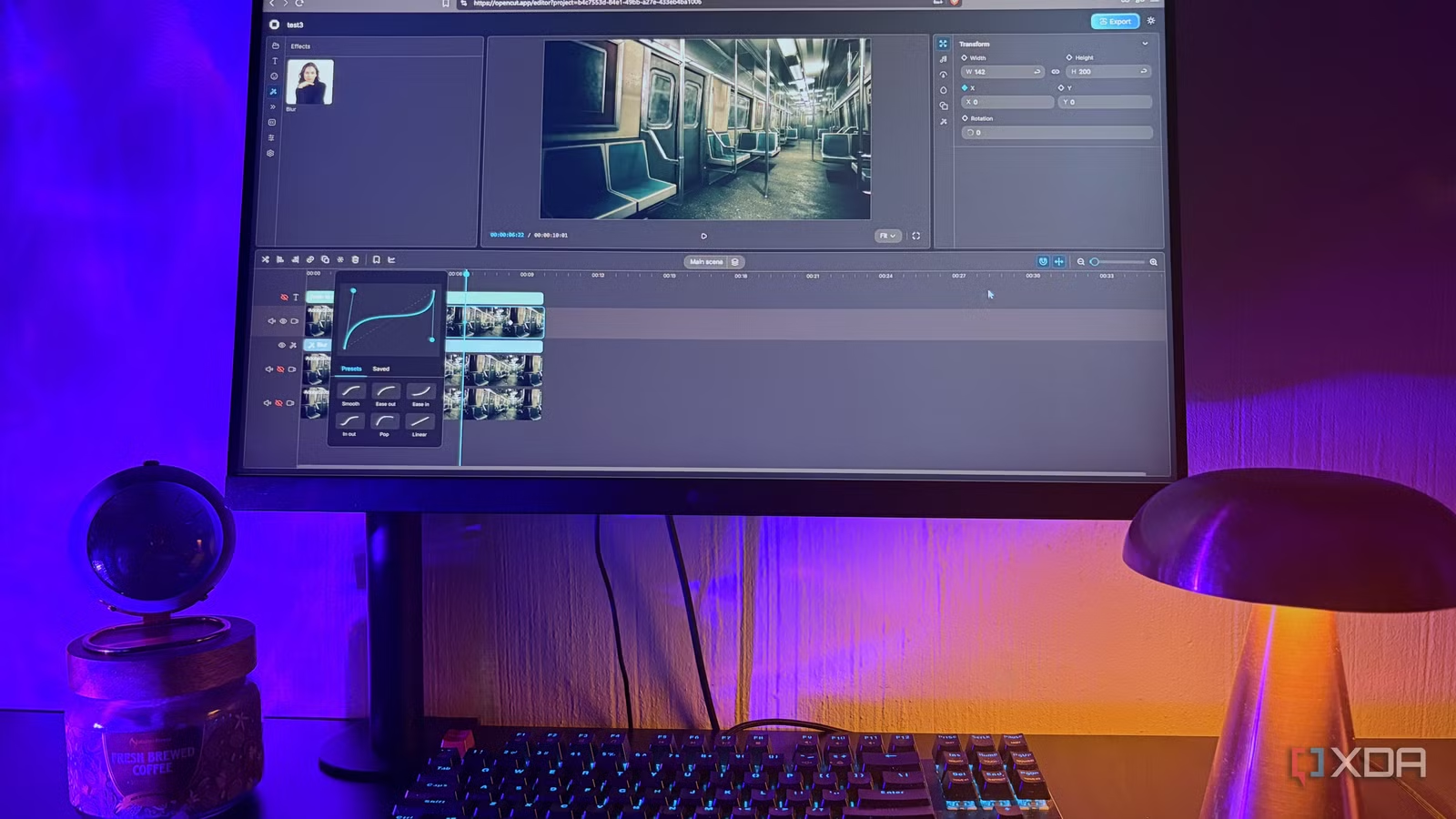
Web editors have improved rapidly. They require no installation, work on almost any computer and often include templates, stock media and automatic captions. For social media clips, short promotional videos and quick edits, they are hard to beat for convenience.
Clipchamp, which is built into recent versions of Windows, offers a clean timeline and a free tier that exports in standard high definition without a watermark. Canva includes a capable video editor within its design platform, which is handy if you already create graphics there. Other online editors provide trimming, resizing for different platforms and background removal with a few clicks.
The limitations are worth knowing. Browser editors depend on your internet connection, uploads can take time, and free plans often cap project length, storage or export resolution. Some reserve premium stock footage and music for paid accounts. For a three minute explainer, these limits rarely matter. For a forty minute interview, they quickly will.
Mobile Editors for Creators on the Move
Phone based editors have become serious tools because many creators shoot, edit and publish from the same device. CapCut is one of the most popular, with automatic captions, effects, templates and music syncing. InShot and VN Video Editor offer similar strengths, including simple multi track editing and speed controls.
Mobile apps are excellent for vertical video and fast turnaround. However, free versions sometimes include end cards, branded templates or advertisements, and some effects require a subscription. Always check the export screen before you spend hours on a project, and review the terms regarding how your content and data may be used.
Hidden Limits to Watch For
Across all categories, a handful of restrictions appear again and again. Knowing them in advance saves frustration.
Watermarks and end screens are the most visible. Some tools add them only to specific templates or premium effects, so a clean export is not always guaranteed, even in a tool that advertises one.
Resolution caps are another common limit. Many free plans export at 720p or 1080p, while 4K sits behind a paywall. For most social platforms this is perfectly adequate, but it matters if you plan to repurpose footage for large screens.
Export time and file size limits can also appear, particularly in web editors. Long videos may be blocked or queued behind paying users.
Asset licensing deserves attention too. Free stock music and footage can come with conditions, such as attribution requirements or restrictions on commercial use. If you publish for a business, read the licence rather than assuming everything is cleared.
Finally, consider performance and privacy. Desktop tools demand processing power, while online tools process your footage on someone else’s servers. If your material is sensitive, local software is the safer choice.
A Quick Look at Who Each Option Suits
Different creators need different things, and matching the tool to the person saves hours. Students and teachers usually benefit from OpenShot or a browser editor, because the learning curve is gentle and projects are short. Small business owners often prefer web tools with templates, since speed matters more than fine control. Aspiring filmmakers and YouTubers who plan to grow should consider DaVinci Resolve, Shotcut or Kdenlive, because these tools scale as skills improve. Social media creators who publish daily will likely lean on CapCut or a similar mobile app, where captions and effects are built in.
None of these groups is locked into a single choice. Many experienced editors use a mobile app for rough cuts, a desktop editor for final polish and a web tool for quick resizing. The real skill lies in knowing which tool to open for which job.
How to Choose the Right Free Editor
The best free editor is the one that matches your project, not the one with the longest feature list. A few practical questions can guide the decision.
How long is the video? Short clips suit web and mobile tools, while long or complex projects belong on a desktop editor. How much time can you spend learning? A simple interface gets you publishing sooner, while a professional tool pays off over months of practice. Where will the video be published? Vertical social content, classroom presentations and client deliverables each have different quality and branding needs. And how important is a clean export? If a watermark is unacceptable, test the output early.
A sensible approach is to keep two tools in your kit: a lightweight online or mobile editor for fast jobs, and a more capable desktop editor for bigger productions. This combination covers nearly every situation without costing anything.
Conclusion
Free video editors have reached a point where almost anyone can produce clean, professional looking content without paying. Desktop editors such as DaVinci Resolve, Shotcut and Kdenlive offer depth and reliability. Browser tools and mobile apps offer speed and convenience. What you really get for free depends on understanding the trade offs: learning curves, resolution caps, licensing terms and, above all, whether your export is branded.
For quick projects where you want to skip installation and still avoid a logo on your final file, a free video editor with no watermark online is a practical tool to keep alongside the desktop and mobile options above. Test each candidate with a short sample, read the fine print, and choose the combination that fits your workflow. With a little preparation, free tools can take you much further than most people expect.