• Send Us A Tip
  • Calling all Tech Writers
  • Advertise
Friday, June 19, 2026
  • Login
TechStory
  • News
  • Crypto
  • Gadgets
  • Memes
  • Gaming
  • Cars
  • AI
  • Startups
  • Markets
  • How to
No Result
View All Result
  • News
  • Crypto
  • Gadgets
  • Memes
  • Gaming
  • Cars
  • AI
  • Startups
  • Markets
  • How to
No Result
View All Result
TechStory
No Result
View All Result
Home Gadgets

How to make your own iPhone ringtones

by Arya Roy
July 31, 2021
in Gadgets, How to, Tech
Reading Time: 2 mins read
0
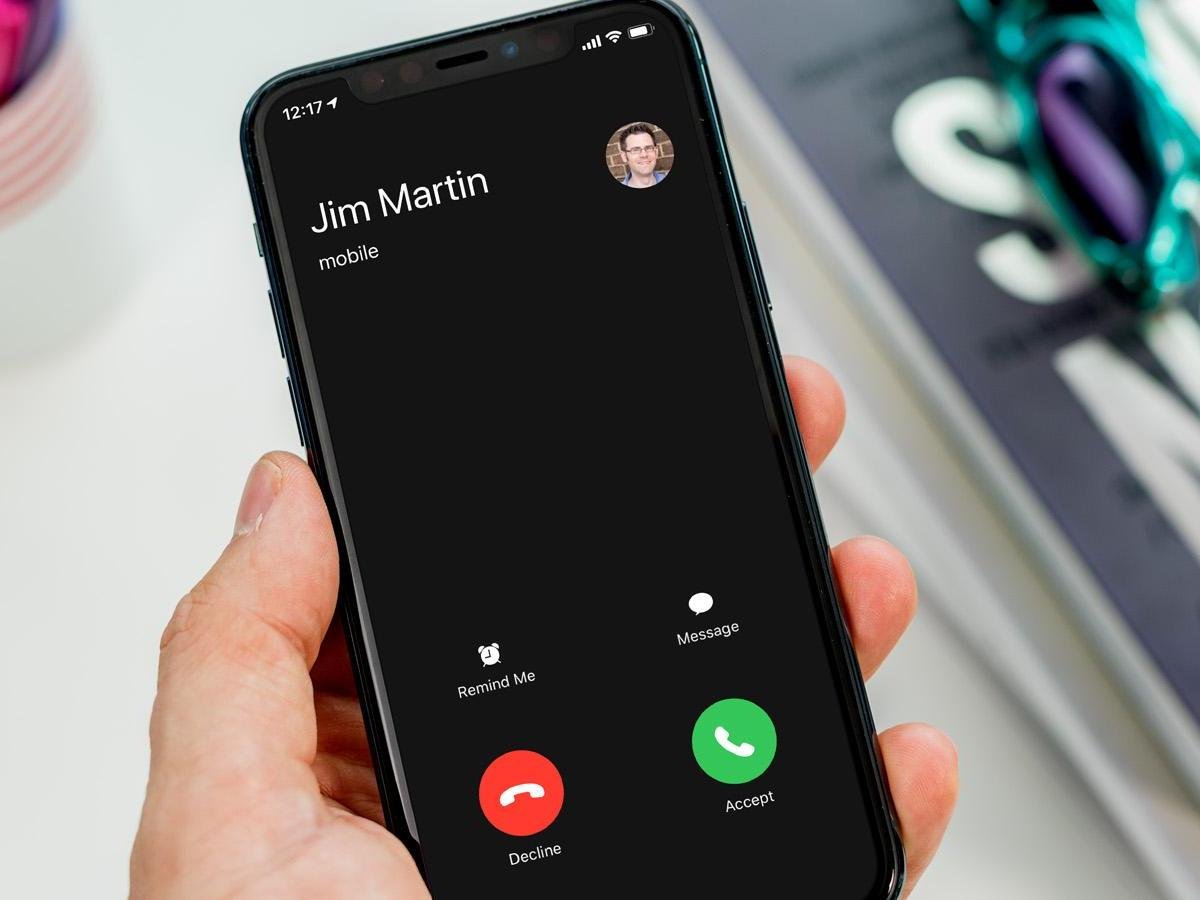
How to make your own iPhone ringtones

Source: https://www.techadvisor.com/how-to/apple/custom-ringtone-iphone-3622959/

TwitterWhatsappLinkedin

A familiar problem about ringtones is that no matter how many tones there might be in your, none of them feels quite right. But there is a solution. If you have an audio file, it is surprisingly easy to make it into your iPhone ringtone. All you need to have is the Music app (also known as iTunes on older Macs and on Windows PCs).
You might also like

How To Use Discord On Xbox

How To Change Your Roblox Username

How To Get Out Of Claude Design

Source: https://support.apple.com/en-au/HT207955

Before starting the process, you will have to ensure that the audio file you are planning to use is (a) on your computer and (b) is not an Apple Music track, which is, in other words, a song that you are streaming from Apple Music as part of your subscription. Apple will not allow you to convert those.

Step 1: Firstly, you have to select your song in the Music application. You cannot make a ringtone from either a streaming track or one that is stored in the cloud.

Step 2: This part may be a bit confusing, but if you want to export in the right format, you will need to change the import settings. In the menu bar, click on Music > Preferences > Files, and then click on the Import Settings button.

Step 3: Click on the Import Using drop-down menu and select the AAC Encoder option.

Step 4: Return to your song in the Music app and click on the three dots which can be found at the very right of the track. Choose Get Info > Options, and you should be able to see the screen shown here.  To make the song appropriate for a ringtone, you will need to trim it to 30 seconds.

Step 5: No matter which part of the song you decide to use, make sure that the tick boxes are checked and that you use colons to separate the minutes and seconds. Click on OK when you are done with this.

Step 6: Make sure your song is still selected and then click on File > Convert > Create AAC Version. If that option is not available it might be because you are trying to convert an Apple Music track as opposed to something you have personally downloaded. The conversion process happens almost immediately.

Step 7: When you look for your song or look at its enclosing album, you should now be able to see two different versions of it, and if you look over at the right-hand side, you will notice that one of them is 30 seconds long. This is the audio that you will be using as your ringtone. Right-click on it and choose the option that reads Show In Finder.

Step 8: Change the file extension from .m4a to .m4r. If you do not do this, your iPhone will not recognise the audio as a ringtone.

Step 9: Confirm your choice and plug in your iPhone to your Mac with a cable.

Step 10: Drag the newly renamed .m4r file over the Finder window.

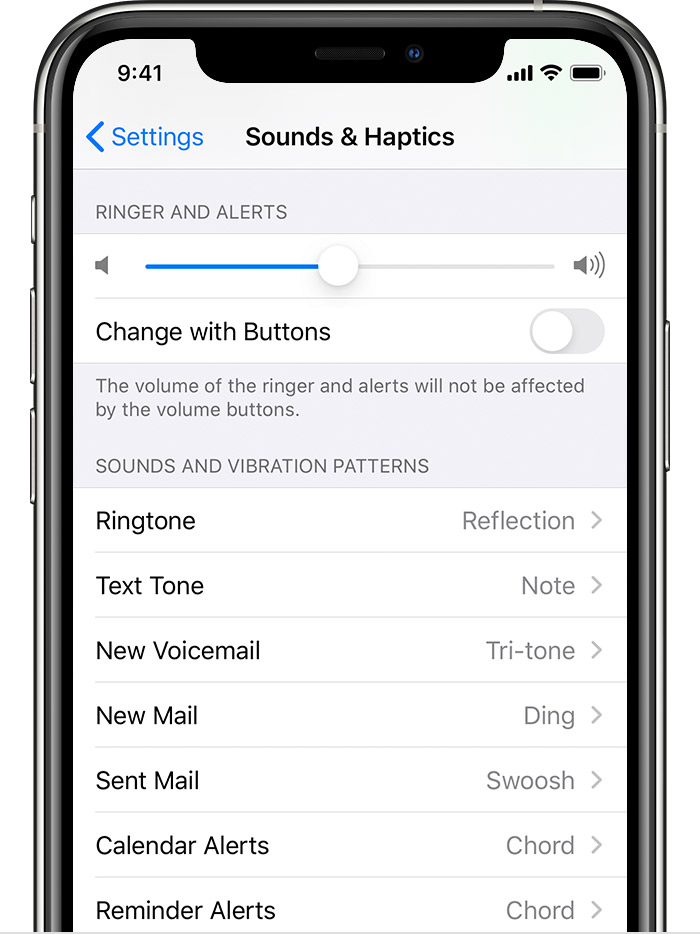
Step 11: Unlock your iPhone and head to Settings > Sounds & Haptics > Ringtone. From there, pick your ringtone.

Tags: iPhoneMac
Tweet55SendShare15
Previous Post

Ireland’s Central bank praises crypto, calls it secure and decentralized

Next Post

How to enable Tesla Autopilot

Arya Roy

Hi, this is Arya! Writing has always been a passion of mine, regardless of the topic I choose. Besides that, I am a huge foodie and music lover, whose interests range from world politics to horror films to everything in between.

Recommended For You

How To Use Discord On Xbox

by Khilav Jadav
June 19, 2026
0
How to Fix Discord Awaiting Endpoint 

Discord is one of the most popular communication platforms for gamers. Thanks to official support from Microsoft, Xbox players can now use Discord voice chat while playing their...

Read more

How To Change Your Roblox Username

by Khilav Jadav
June 19, 2026
0
How to Enchant in Prospecting

Changing your username in Roblox is a great way to refresh your identity and give your account a new look. Whether you created your account years ago or...

Read more

How To Get Out Of Claude Design

by Khilav Jadav
June 19, 2026
0
How To Get Out Of Claude Design

Claude Design is a new workspace inside Claude that allows users to create prototypes, presentations, and other visual projects. While many people enjoy using it, some users accidentally...

Read more
Next Post
How to enable Tesla Autopilot

How to enable Tesla Autopilot

Please login to join discussion

Techstory

Tech and Business News from around the world. Follow along for latest in the world of Tech, AI, Crypto, EVs, Business Personalities and more.
reach us at info@techstory.in

Advertise With Us

Reach out at - info@techstory.in

Aviator Game India 2026

BROWSE BY TAG

#Crypto #howto 2024 acquisition AI amazon Apple Artificial Intelligence bitcoin Business China cryptocurrency e-commerce electric vehicles Elon Musk Ethereum facebook funding Gaming Google India Instagram Investment ios iPhone IPO Market Markets Meta Microsoft News OpenAI samsung Social Media SpaceX startup startups tech technology Tesla TikTok trend trending twitter US

© 2025 Techstory.in

No Result
View All Result
  • News
  • Crypto
  • Gadgets
  • Memes
  • Gaming
  • Cars
  • AI
  • Startups
  • Markets
  • How to

© 2025 Techstory.in

Welcome Back!

Login to your account below

Forgotten Password?

Retrieve your password

Please enter your username or email address to reset your password.

Log In
Are you sure want to unlock this post?
Unlock left : 0
Are you sure want to cancel subscription?