Modding, short for modifying, allows players to customize and enhance their gaming experiences by altering or adding content to a game. In the case of “REPO,” a thrilling game where players burglarize abandoned homes haunted by monsters, mods can introduce new features, improve graphics, or tweak gameplay mechanics to suit individual preferences. This guide will walk you through the process of installing and managing mods for “REPO” to elevate your gaming experience.
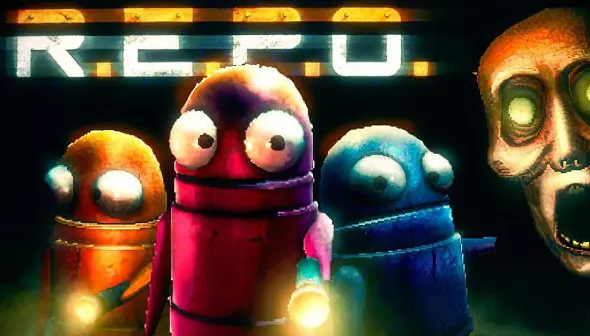
Mods are user-created content that can range from simple cosmetic changes to comprehensive overhauls of a game’s mechanics. By incorporating mods into “REPO,” you can:
- Enhance Visuals: Improve textures, lighting, and overall graphics.
- Add New Content: Introduce new characters, missions, or items.
- Customize Gameplay: Adjust difficulty levels, modify AI behavior, or change game rules.
Engaging with mods not only refreshes the game but also allows for a personalized experience tailored to your preferences.
Preparing Your System for Modding
Before diving into the world of mods, it’s essential to set up your system properly:
- Install the Base Game: Ensure that “REPO” is installed on your computer. Mods require the original game to function correctly.
- Backup Game Files: Before making any changes, create backups of your game files. This precaution allows you to restore the original state if something goes wrong during the modding process.
- Update Graphics Drivers: Outdated drivers can cause compatibility issues. Make sure your graphics drivers are up-to-date to support any graphical enhancements introduced by mods.
Installing Necessary Tools
To manage and install mods efficiently, you’ll need specific tools designed for “REPO.” One of the most recommended tools is the Thunderstore Mod Manager. Here’s how to set it up:
- Download Overwolf: Overwolf is a platform that hosts various gaming apps, including mod managers. Download and install Overwolf from its official website.
- Install Thunderstore Mod Manager: Within Overwolf, search for the Thunderstore Mod Manager and install it. This tool simplifies the process of browsing, installing, and managing mods for “REPO.”
Adding Mods to “REPO”
With the Thunderstore Mod Manager installed, follow these steps to add mods to your game:
- Launch Thunderstore Mod Manager: Open the application and locate “REPO” in the list of supported games. Select it to proceed.
- Create a Profile: Set up a new profile for your modded game. This feature allows you to maintain different mod configurations and switch between them easily.
- Install BepInEx Pack: Before adding other mods, install the BepInEx Pack. This framework is essential for most mods to function correctly in “REPO.”
- Browse and Install Mods: Navigate to the “Get Mods” section within the manager. Browse through the available mods, read descriptions, and select those that interest you. Click “Download” to install each mod.
Configuring the Game Directory
For the mods to work seamlessly, ensure that the Thunderstore Mod Manager is correctly linked to your “REPO” game directory:
- Access Settings: In the Thunderstore Mod Manager, go to the “Settings” tab.
- Set Game Directory: Click on “Change REPO Folder” and navigate to the folder where “REPO” is installed. The default path is typically C:Program Files (x86)SteamsteamappscommonREPO. Select this folder to set it as the game directory.
Launching the Modded Game
After installing and configuring your mods:
- Start the Game Through the Mod Manager: Always launch “REPO” using the Thunderstore Mod Manager to ensure that all installed mods are active.
- Verify Mod Functionality: Once the game launches, check that the mods are functioning as intended. Some mods may have in-game settings or interfaces for further customization.
Managing and Updating Mods
To keep your mods organized and up-to-date:
- Regularly Check for Updates: Mod developers often release updates to improve functionality or compatibility. Periodically check the Thunderstore Mod Manager for any available updates to your installed mods.
- Remove Unwanted Mods: If you no longer wish to use a particular mod, you can disable or uninstall it through the mod manager. This action helps maintain game stability and performance.
- Read Mod Descriptions: Always read the mod descriptions and user reviews before installing. This practice ensures you understand the mod’s features and any potential compatibility issues.
Troubleshooting Common Issues
Encountering issues is a common part of modding. Here are some tips to address common problems:
- Game Crashes or Fails to Launch: Ensure that all mods are compatible with the current version of “REPO.” Disable mods one by one to identify any that may be causing conflicts.
- Performance Drops: Some mods, especially graphical enhancements, can be resource-intensive. If you experience lag or frame rate drops, consider lowering in-game settings or removing certain mods.
- Mod Conflicts: Certain mods may not work well together. If you suspect a conflict, try running the game with each mod individually to identify the issue.