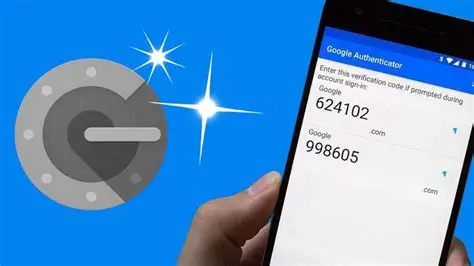
Do you want to set up Google Authenticator on your new Phone? Follow the guide to know how you can make it happen in a few steps and utilize the features well. So, let’s get started.
How does Google Authenticator work?
Google Authenticator basically works like a digital synchronized watch. Let us break it down. When you first link an account, the service provider creates a secret cryptographic master key and shares it with your phone. This is usually done through that initial QR code you scan. Now, both your phone and the company’s servers run this master key through an exact mathematical formula that uses the current time as its secondary input. Because the time changes every thirty seconds, the resulting six-digit output changes at that exact same interval too.
Since your phone and the server have the identical key and are tracking the same clock, they generate matching codes simultaneously, which is quite impressive, to be honest. When you type in the code, the server verifies it matches its own calculation, proving you possess the physical device. This is what Google Authenticator is for!
Steps to set up Google Authenticator on your new phone
If you want to set up the authenticator on your phone, here is how you can do it! Setting up Google Authenticator on a new phone is pretty straightforward and simple if you know exactly what to do.
- Just start by downloading and installing the official Google Authenticator app on your new device. You can use either the Apple App Store or Google Play Store to make that happen.
- Now open the app on your new phone and tap on the get started button. You will be prompted to sign in using the exact same Google email account that you used on your old phone.
- Have a look at the screen and check if you had cloud syncing enabled on your old device. This is because all of your two-factor authentication codes should immediately appear right there, and you can use them instantly.
- Remember that if your codes do not appear automatically, it only means you had cloud backup turned off for security. If that is the case, you can keep your old phone next to you and open the authenticator app on it.
- As the next step, just tap on the menu icon or your profile icon on the old phone and select the transfer accounts option. Then choose export accounts to proceed.
- Here you will be pushed to verify your identity on the old phone using your fingerprint or face identification. This will then generate a large QR code on that screen, and you can view it.
- Now, on your new phone, tap on the plus icon at the bottom and select scan a QR code.
- Finally, you just have to scan that code, and all your accounts will transfer over instantly without a sweat!