Efficiency in document management is crucial in today’s fast-paced digital environment. The adaptable PDF solution Wondershare HiPDF has proven a potent ally in this effort. This article aims to share a wealth of insider knowledge about HiPDF’s many valuable tips and techniques.
We explore the subtleties that can completely change how you work with PDF documents, from streamlined editing workflows to cutting-edge security measures. Join us on this exploration, and with this online PDF editor’s extensive toolkit, take your document management to new heights.
AI tools
AI-driven tools in Wondershare HiPDF significantly improve document processing. These tools use artificial intelligence to automatically recognize and manipulate different PDF elements like text, tables, and images. This makes performing tasks like exact text editing, fluid table extraction, and precise data recognition possible. The following three AI tools are available in this online PDF editor.
- Chat With PDF
This online PDF editor uses artificial technology to automate your work of PDF document analysis—hello, hassle-free, adequate document comprehension.
- AI Detector
Wondershare HiPDF performs intelligent PDF generation by AI detection. You can speed up the content review process, spot computer-generated text, and confirm the validity of your work using this online PDF editor.
- AI Read
This online PDF editor transforms the PDF experience by intelligently analyzing PDFs, summarizing, rewriting, explaining content, and asking questions.
Mastering Text and Formatting
The ability to format and edit text precisely is essential in document management. To guarantee that your documents exude professionalism and clarity, Wondershare HiPDF offers a complete toolkit. Here are some helpful hints and techniques for using HiPDF to master text and formatting:
1. Efficient Text Editing:
- Font Adjustments: Choose legible fonts that are easy to read. This online PDF editor offers a variety of font choices so you can select the best style and size for your document.
- Bold, Italics, and Underline: Use these features sparingly to draw attention to essential passages or headings in your text.
- Color Selection: To improve readability, use contrasting colors for the background and text. HiPDF makes it simple to adjust colors.

2. Alignment Techniques:
- Left, Center, Right Alignment: Aligning text to the specifications of your document will ensure a clean and organized appearance.
- Justify Text: Aligning the left and right margins will create a seamless text flow and give your document a professional appearance.
3. Maintaining Consistent Formatting:
- Apply Styles: To create a unified look and feel throughout your document, use HiPDF’s style options. This covers the body text, headings, and subheadings.
- Copy Formatting: To ensure uniformity, use the “Format Painter” tool to copy the formatting from one section to another.
4. Utilize Templates:
Utilize this online PDF editor’s pre-made templates to expedite the creation of your documents. These templates already have the formatting you need, saving you time and effort.
5. Review and Edit:
After making changes, go back and check your document to ensure all the text and formatting align with the presentation you had in mind.
These pointers and techniques will help you maximize Wondershare HiPDF’s text editing and formatting features. As a result, your documents will look better visually and communicate your point clearly and expertly.
Convert from PDF and Convert to PDF
You can easily convert to and from the PDF format using Wondershare HiPDF’s seamless conversion features. To do it, follow this quick instruction:
Convert from PDF
1. Convert PDF to Word:
- Open HiPDF and select the “PDF to Word” tool.
- Upload your PDF file.
- Click “Convert” to initiate the conversion process. Once completed, download the Word file.

2. Convert PDF to Excel:
- Choose the “PDF to Excel” tool.
- Upload your PDF file.
- Click “Convert” to transform the PDF data into an Excel spreadsheet.
3. Convert PDF to PowerPoint:
- Access the “PDF to PowerPoint” tool.
- Upload the PDF file you want to convert.
- Click “Convert” to generate a PowerPoint presentation.
4. Convert PDF to Image:
- Select the “PDF to Image” tool.
- Upload your PDF file.
- Click “Convert” to obtain individual image files.
Convert to PDF
1. Convert Word/Excel/PowerPoint to PDF:
- Choose the respective tool (Word to PDF, Excel to PDF, or PowerPoint to PDF).
- Upload the file you wish to convert.
- Click “Convert” to generate a PDF.
2. Convert Image to PDF:
- Select the “Image to PDF” tool.
- Upload one or more image files.
- Click “Convert” to create a PDF containing those images.
Organize PDF
Organizing PDFs is a breeze with Wondershare HiPDF. You can merge, split pdf, reorder, rotate, delete, add page numbers, and crop pages.
Image Tools
Images can significantly improve the impact and readability of PDF documents. Various solid image tools are available in Wondershare HiPDF to assist you in seamlessly integrating visuals. Here are some helpful hints and methods to master HiPDF’s image-handling features:
Resizing Images:
Proportional Resizing: To avoid distortion, keep images’ aspect ratios constant. HiPDF enables you to change the dimensions while maintaining the proportions.
Batch Resize: Resize multiple images simultaneously to save time and speed up projects involving lots of visuals.
Cropping Images:
Define Crop Area: Create a selection box around the area of the image you want to keep by using HiPDF’s cropping tool to eliminate unnecessary regions.
Inserting Images:
Drag and Drop Placement: Drag the image into the PDF file. HiPDF enables you to position it precisely to complement the content around it.
Layering Images: Put images above or below the text in the document to allow for creative organization and visual hierarchy.
Maintaining Quality:
High-Resolution Images: Start with clear and sharp images with a resolution suitable for print or digital viewing.
Check Compression Settings: If file size reduction is required, use compression carefully to prevent losing image quality.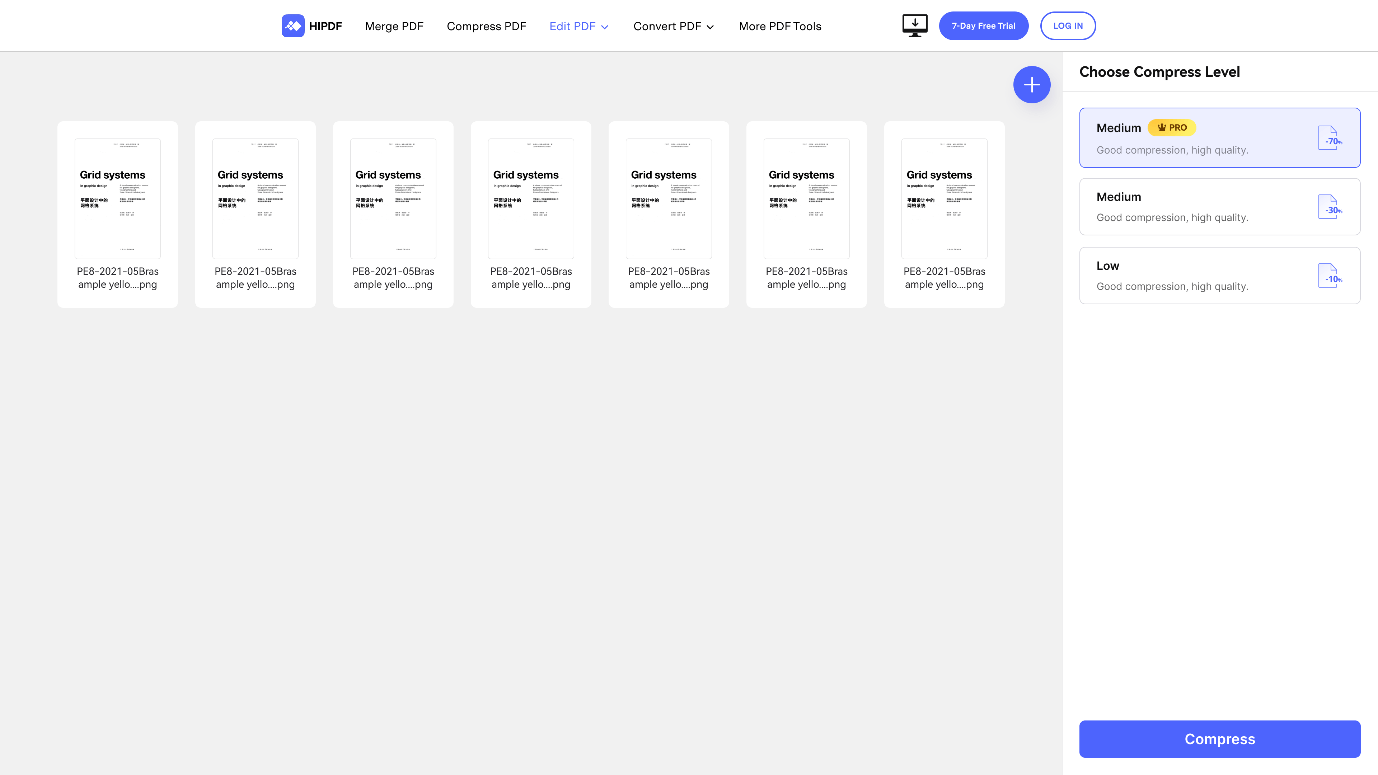
Conclusion
In this guide, we’ve looked at various tips and tricks to help you use Wondershare HiPDF to edit PDF files.
With this online PDF editor, you can improve your document management by applying these hints and techniques to your PDF editing tasks. You can expect streamlined processes, flawless presentations, and efficient communication. Take advantage of HiPDF’s power to advance your PDF editing skills!