Passwords have long been the first line of defense for protecting online accounts. However, they are no longer enough on their own. Data breaches, phishing attacks, and credential theft have made passwords increasingly vulnerable, even when they are strong and unique.
This is where security keys come in. These small physical devices provide one of the strongest forms of account protection available today. Unlike one-time passcodes sent via SMS or generated by authenticator apps, security keys rely on advanced cryptography and physical possession, making them extremely difficult for cybercriminals to compromise.
In this guide, we’ll explain what security keys are, how they work, their advantages and disadvantages, and why they’re becoming the gold standard for secure authentication.
Credits: DDC -Zendesk
What Is a Security Key?
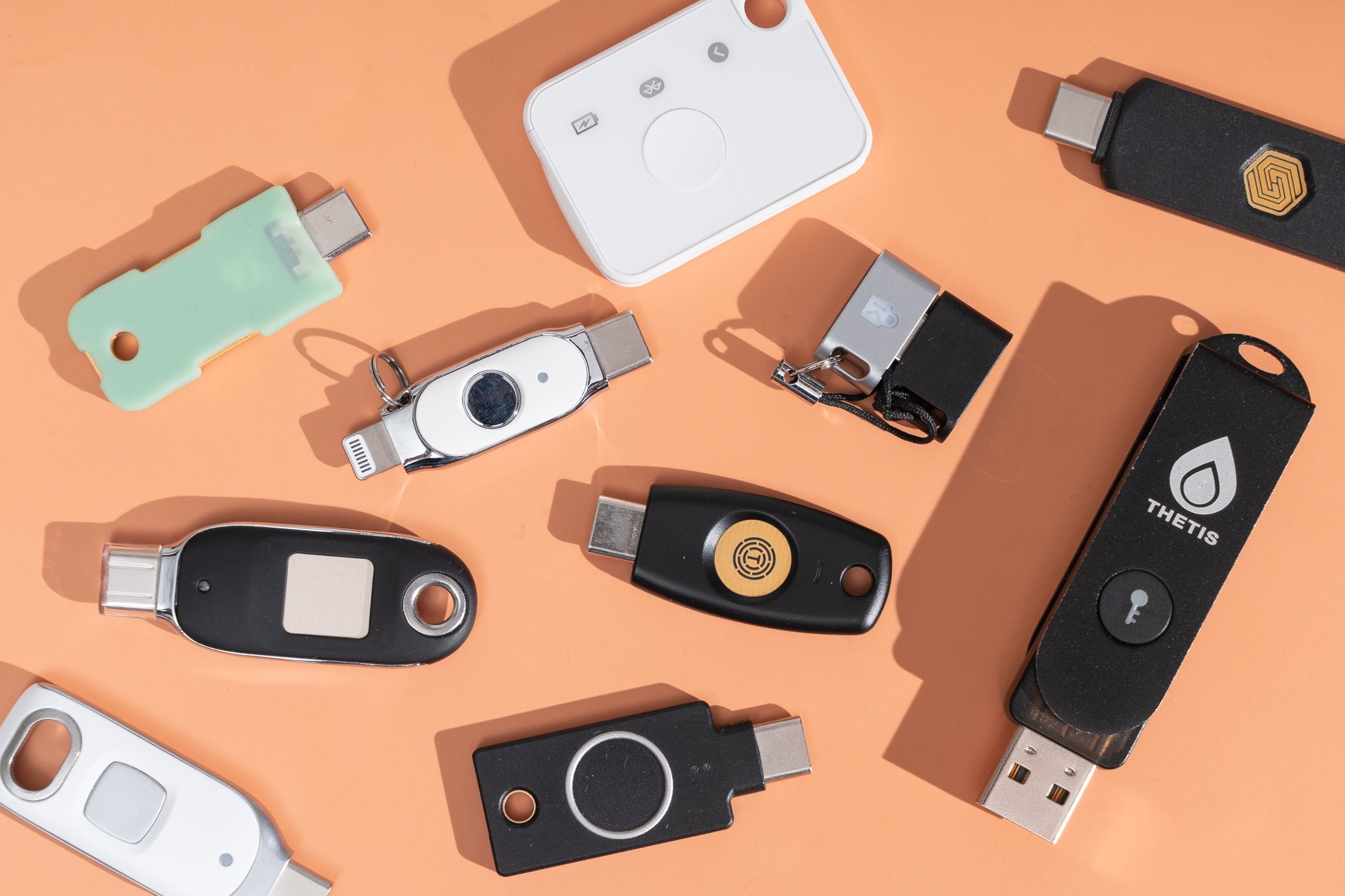
A security key is a physical authentication device used to verify your identity when signing in to websites, apps, or enterprise systems. It serves as an additional layer of security beyond your password and is commonly used for two-factor authentication (2FA) or multi-factor authentication (MFA).
Security keys typically resemble USB flash drives or small key fobs. Some plug directly into a USB port, while others work wirelessly through NFC (Near Field Communication) or Bluetooth.
What makes security keys so effective is that attackers cannot copy or steal them remotely. Even if someone learns your password, they still need physical access to your security key to complete the login process.
Why Are Security Keys Important?
Cybercriminals have become increasingly sophisticated at stealing passwords through phishing websites, malware, and data breaches. Even when users enable SMS-based two-factor authentication, attackers may bypass it using techniques like SIM swapping.
Security keys eliminate many of these risks because they:
- Require physical possession of the device
- Verify that you’re logging into the legitimate website
- Prevent phishing attacks by refusing to authenticate fake websites
- Never expose your private cryptographic keys online
As a result, many technology companies and cybersecurity experts consider hardware security keys the most secure authentication method available for everyday users.
Types of Security Keys
Security keys come in several different formats to support various devices.
USB-A Security Keys
These are the traditional security keys that connect to standard USB-A ports found on many desktop computers and older laptops.
They are widely compatible and remain one of the most common options for enterprise environments.
USB-C Security Keys
Modern laptops, tablets, and smartphones increasingly use USB-C ports. USB-C security keys are designed specifically for these newer devices and offer the same level of protection with improved compatibility.
NFC Security Keys
Near Field Communication (NFC) allows compatible smartphones and tablets to authenticate simply by tapping the security key against the device.
This eliminates the need for cables and makes authentication faster on mobile devices.
Bluetooth Security Keys
Bluetooth-enabled security keys connect wirelessly and are useful for devices that don’t have USB ports.
Although convenient, Bluetooth models typically require battery power and may involve slightly more setup than USB-based alternatives.
How Do Security Keys Work?
Security keys rely on public-key cryptography rather than shared secrets or one-time passwords.
Here’s how the authentication process works.
Step 1: Registering the Security Key
When you first enable a security key for an online service, the device creates two unique cryptographic keys:
- A public key
- A private key
The public key is stored by the website or service you’re using.
The private key never leaves the security key itself.
Step 2: Logging In
When signing in, you enter your username and password as usual.
Instead of requesting an SMS code or authenticator app code, the service asks you to insert, tap, or activate your security key.
Step 3: Challenge-Response Authentication
The website generates a unique cryptographic challenge and sends it to your security key.
The security key signs this challenge using its private key and sends the response back.
Step 4: Verification
The website verifies the signed response using the stored public key.
If the signature matches, authentication succeeds and you’re granted access.
Because the private key never leaves the hardware device, attackers cannot steal or duplicate it—even if they intercept network traffic.

Credits: Amazon
Security Standards Behind Hardware Keys
Most modern security keys support industry-standard authentication protocols, including:
- FIDO U2F (Universal 2nd Factor) – Adds phishing-resistant second-factor authentication.
- FIDO2 – Supports passwordless authentication and stronger login security.
- WebAuthn – A web standard that enables browsers and websites to communicate securely with authentication devices.
Together, these standards allow security keys to work across thousands of websites and applications while maintaining a high level of security.
Benefits of Using Security Keys
Excellent Protection Against Phishing
Unlike SMS codes or authenticator apps, security keys verify the legitimacy of the website requesting authentication.
If you accidentally visit a fake login page, the key simply refuses to authenticate.
Stronger Account Security
Since authentication requires physical possession of the key, attackers cannot gain access simply by stealing passwords.
This makes security keys extremely resistant to credential theft.
Quick and Convenient Login
After initial setup, authentication often requires nothing more than inserting the key or tapping it against your device.
Many users find this faster than typing six-digit verification codes.
Wide Compatibility
Most major online services now support hardware security keys, including:
- Microsoft
- Apple
- GitHub
- Dropbox
- X (formerly Twitter)
Enterprise identity platforms also increasingly support FIDO2 authentication.
Portable Design
Security keys are lightweight, durable, and small enough to fit on a keychain, making them easy to carry wherever you go.
Popular Security Keys
Several manufacturers produce reliable hardware authentication devices.
Some of the most widely used options include:
- YubiKey 5 NFC
- YubiKey 5 Nano
- Thetis FIDO U2F Security Key
- Google Titan Security Key
- Feitian Security Keys
Many of these support multiple authentication standards and work across desktops, laptops, tablets, and smartphones.
Potential Drawbacks
Although security keys offer outstanding protection, they aren’t perfect.
Risk of Loss
Because they’re physical devices, they can be misplaced or stolen.
Many experts recommend registering two security keys—one primary and one backup.
Initial Cost
Unlike free authenticator apps, security keys require purchasing hardware.
Prices typically range from $20 to $80 depending on features.
Service Compatibility
Although adoption continues to grow, not every website supports hardware security keys.
Some services still rely on SMS verification or authenticator apps.
Need to Carry the Device
If you forget your security key at home, logging in can become difficult unless you’ve configured backup authentication methods.
:max_bytes(150000):strip_icc()/what-is-a-network-security-key-and-how-do-you-find-it-4589025-2-5c885f1346e0fb0001431a62-3f0e8da71c7740c5a03df17aede9a4b1.jpg)
Credits: Lifewire
What Happens If You Lose Your Security Key?
Losing your security key doesn’t necessarily mean losing access to your accounts.
To recover access:
- Use any backup security key you’ve previously registered.
- Enter one of your saved recovery or backup codes.
- Use an alternative authentication method, such as an authenticator app or email verification, if available.
- Complete the service’s account recovery process.
- Remove the lost security key from your account’s security settings.
- Register a replacement security key as soon as possible.
Keeping backup authentication methods configured before you need them is one of the best ways to avoid being locked out.
Enterprise Use Cases
Organizations increasingly deploy security keys as part of zero-trust security strategies.
Common enterprise applications include:
- Secure VPN authentication
- Passwordless employee logins
- Cloud application access
- Remote workforce authentication
- Administrative account protection
- Compliance with security regulations
Many identity management platforms also integrate hardware security keys alongside self-service password management and single sign-on (SSO).
Best Practices for Using Security Keys
To get the most protection from your hardware security key:
- Register at least two security keys whenever possible.
- Store a backup key in a secure location.
- Save recovery codes offline.
- Remove lost or stolen keys immediately from your account settings.
- Enable hardware-key authentication for your most important accounts, such as email, banking, cloud storage, and password managers.
- Keep your operating system and browsers updated to ensure compatibility with the latest authentication standards.

Credits: The New York Times
Conclusion
Passwords alone are no longer enough to protect today’s digital identities. As phishing attacks, credential theft, and data breaches continue to increase, adding a hardware security key provides one of the strongest defenses available.
By combining physical possession with advanced cryptographic authentication, security keys virtually eliminate many of the weaknesses associated with traditional login methods. Although they require a small upfront investment and a bit of setup, the added protection is well worth it for anyone serious about securing their online accounts.
Whether you’re protecting personal information or safeguarding business systems, a security key is one of the most effective tools available for strengthening your digital security.