In this article, we will have a look at the process of how one can backup Android files in a hassle-free way with the help of services provided by Google.
In my opinion, Google Drive is one of the best companion apps that one can rely on to store every other file in the cloud. People can add any media files or folders with ease in the Google Drive app and maintain a backup of it.
How to back up any random files from your Android phone to Google Drive?
- Firstly, open Google Drive App on your device.
- Next, Tap on the ‘+’ button and upload files that you wish to have a backup of.
- That is all! Now, it will automatically start the backup process and store the data on your cloud storage, once the file upload is completed.
- Once the file upload process is completed, then you can directly refer to the files uploaded on your cloud storage, i.e. Google Drive from anywhere, just by logging in to your Gmail account and access your files instantly.
How to back up your Android phone’s photos to Google Photos?
To back up photos from your Android phone to Google Photos, first of all, you will need to download the Google Photos App from the Play Store.
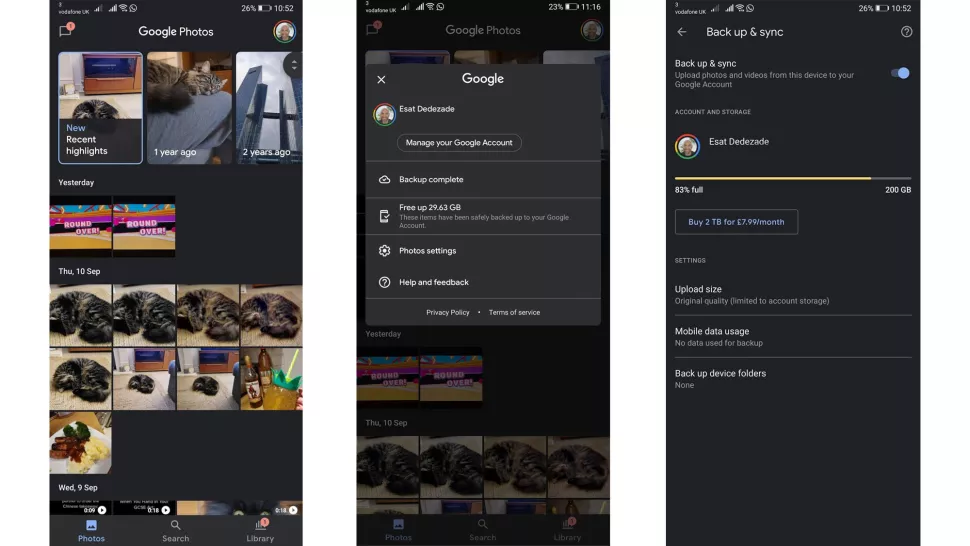
Once you are done with the installation process, then follow the below-listed steps which will allow you to automatically backup every photo present on your device to the cloud storage every single day :
-
- Open the Google Photos app.
- Select the profile picture icon on the top right cor
ner of your screen to open the menu, then tap on the ‘Photos Settings’ option. - Next,click the ‘Backup & sync’ option.Make sure that it is turned on before proceeding further.
- Hereafter, select the ‘Upload size’ option and verify the settings are updated according to your needs. Keep in mind that if you upload photos on high-quality settings, then it will require more space.
- You need to keep in mind that you need to set ‘Mobile data usage’ to off, so that backup of the files takes place only when you are connected to a Wi-Fi, else you will be left out with no mobile data soon.
- Google Photos also has an option called ‘Back up device folders’.This feature allows the users to select all other folders present on your device, apart from your camera folder that you want to back up manually every single day. WhatsApp Documents is a common example of other folders that you can select to backup if you need a backup of it.
How to back up your Android device’s contacts to Google Drive?
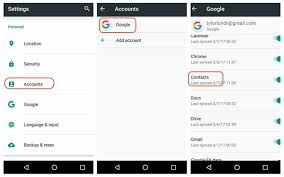
Contacts are one of the most precious things which one has in their devices. And yes, you would be surprised to know that making a backup of your contacts is extremely easy. The procedure which I am going to share with you will take care of the contacts saved on your phone. This is by regularly making a backup, including the new ones which you will add-in future.
- First of all, open Settings on your device.
- Next, tap on the ‘Accounts’ option.
- After that, select the Gmail account in which you want to store the backup of your contacts.
- Also, make sure that contacts sync is turned on so that contacts are automatically syncing every time.
How to back up your WhatsApp chats and media files to Google Drive?
WhatsApp has become the default messaging app for millions of smartphone users, and losing all of your conversations would be a nightmare, especially if they also include your important photos and video files.

But you need not worry as there is an easy and tested way out there which allows you to have a backup of your entire WhatsApp contents every single night automatically. So, you can be sure that nothing will ever be lost and remain safe in your cloud backup. Follow the below-mentioned steps are you are good to go then:
- First of all, open WhatsApp.
- Select the ‘Settings’ option.
- Next, select the ‘Chats’ option.
- After that, click on the ‘Chat backup’ option.
- Lastly, set the ‘Back up to Google Drive’ to Daily or weekly, according to your convenience.
Make sure that the ‘Back up over’ is set to Wi-Fi only. This will help you in saving your mobile data pack.
If you wish your videos to be backed up too in addition to your chats, groups, and photos, then you can tap on the ‘Include videos’ option displayed at the bottom of your screen.
I hope this article solved your problem. Stay tuned for the next updates! If you have any further doubts on the same, let us know in the comments below. Also, if you found our content helpful and share it with your friends.
Also Read: How to Transfer Data from Internal storage to SD Card?