• Send Us A Tip
  • Calling all Tech Writers
  • Advertise
Saturday, August 1, 2026
  • Login
TechStory
  • News
  • Crypto
  • Gadgets
  • Memes
  • Gaming
  • Cars
  • AI
  • Startups
  • Markets
  • How to
No Result
View All Result
  • News
  • Crypto
  • Gadgets
  • Memes
  • Gaming
  • Cars
  • AI
  • Startups
  • Markets
  • How to
No Result
View All Result
TechStory
No Result
View All Result
Home How to

How to screen record in Windows 10

by Arya Roy
June 2, 2021
in How to, Tech
Reading Time: 2 mins read
0
How to screen record in Windows 10

Source: https://in.pinterest.com/pin/545357836123011161/

TwitterWhatsappLinkedin

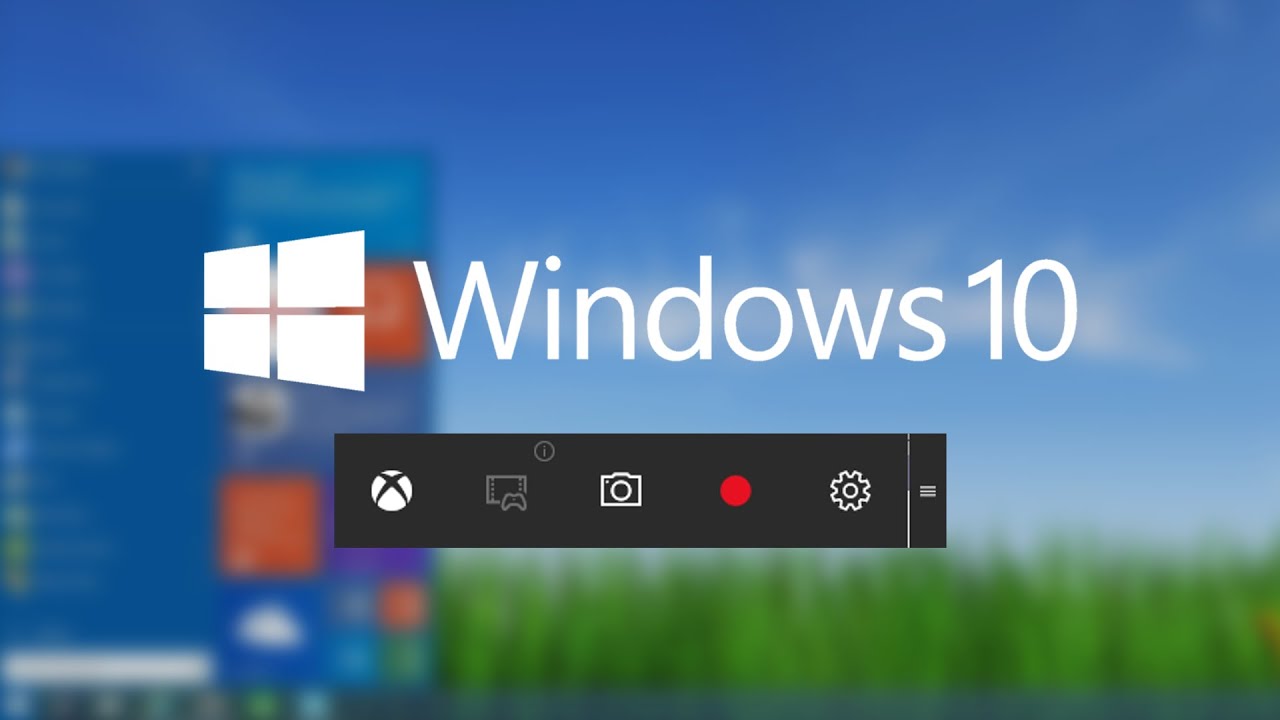
Windows 10 has a screen recording tool known as the Xbox Game Bar. By using this feature, you can record a video of your actions in just about any Windows app on your laptop, whether it is capturing your gameplay or creating a tutorial for someone who wants to learn how to use Microsoft Office. To make this process a bit more and easy and convenient for you, we have outlined a few simple steps on how to record your screen on a Windows 10 device.
You might also like

Inside The AI Hedge Fund That Rose 439% Before A Sudden $20 Billion Unwind

Wealth Erosion Zuckerberg Net Worth Drops $18 Billion Amid Meta AI Capex Backlash

How To Get John Wick Simpson Skin in Fortnite

Source: https://www.youtube.com/watch?v=OfPbr1mRDuo

The screen recording tool is part of the Xbox app that is already installed in the Windows 10 software and comes with the laptop. Recently, Xbox Game Bar received a few major updates to make it more simple to use, so you can now take screenshots and could even make memes.

  1. Open the app you want to screen record in. However, it is important to note that the screen recorder tool cannot capture some programs, such as File Manager, or on the entire desktop, but it does work in regular apps, whether they are from the Windows Store or desktop apps.
  2. To open the Game Bar dialogue, press the Windows key and the G alphabet key at the same time.
  3. To load the Game Bar, tick the checkbox that reads “Yes, this is a game”. This is the standard procedure, regardless of whether you are screen recording a game or another kind of app.
  4. Click on either the Start Recording button or Win + Alt + R – at the same time – to start capturing the video.
  5. You can end the recording by clicking on the red recording bar. This will be on the top right of the program window. If it disappears or for some reason you are unable to see it, press Win + G again to bring the Game Bar back onto the screen.
  6. You will find your recorded videos, which are MP4 files, in a folder called Captures. This folder itself will be in the Videos folder.

Tags: Windows 10
Tweet54SendShare15
Previous Post

Can Ethereum overtake Bitcoin in a few years?

Next Post

WarnerMedia and Discovery name their new merged entity “Warner Bros. Discovery”

Arya Roy

Hi, this is Arya! Writing has always been a passion of mine, regardless of the topic I choose. Besides that, I am a huge foodie and music lover, whose interests range from world politics to horror films to everything in between.

Recommended For You

Inside The AI Hedge Fund That Rose 439% Before A Sudden $20 Billion Unwind

by Thomas Babychan
August 1, 2026
0
Inside The AI Hedge Fund That Rose 439% Before A Sudden $20 Billion Unwind

For much of the past two years, few names in artificial intelligence investing attracted as much attention as Leopold Aschenbrenner. The former OpenAI researcher built a reputation after...

Read more

Wealth Erosion Zuckerberg Net Worth Drops $18 Billion Amid Meta AI Capex Backlash

by Anochie Esther
August 1, 2026
0
Zuckerberg net worth drops 18 billion

The volatile relationship between executive wealth, tech stock valuations, and massive capital expenditures has produced another high-stakes financial shift in Silicon Valley. For over a year, hyper-scale investments...

Read more

How To Get John Wick Simpson Skin in Fortnite

by Khilav Jadav
July 31, 2026
0
How To Get the John Wick Skin in Fortnite

The John Wick Simpson Skin is one of the most unusual cosmetic styles added to Fortnite. It combines the famous assassin with the iconic yellow cartoon look from...

Read more
Next Post
Warner Bros. Discovery

WarnerMedia and Discovery name their new merged entity “Warner Bros. Discovery”

Please login to join discussion

Techstory

Tech and Business News from around the world. Follow along for latest in the world of Tech, AI, Crypto, EVs, Business Personalities and more.
reach us at info@techstory.in

Advertise With Us

Reach out at - info@techstory.in

Aviator Game India 2026

BROWSE BY TAG

#Crypto #howto 2024 acquisition AI amazon Apple Artificial Intelligence bitcoin Business China cryptocurrency e-commerce electric vehicles Elon Musk Ethereum facebook funding Gaming Google India Instagram Investment ios iPhone IPO Market Markets Meta Microsoft News OpenAI samsung Social Media SpaceX startup startups tech technology Tesla TikTok trend trending twitter US

© 2025 Techstory.in

No Result
View All Result
  • News
  • Crypto
  • Gadgets
  • Memes
  • Gaming
  • Cars
  • AI
  • Startups
  • Markets
  • How to

© 2025 Techstory.in

Welcome Back!

Login to your account below

Forgotten Password?

Retrieve your password

Please enter your username or email address to reset your password.

Log In
Are you sure want to unlock this post?
Unlock left : 0
Are you sure want to cancel subscription?