• Send Us A Tip
  • Calling all Tech Writers
  • Advertise
Sunday, July 26, 2026
  • Login
TechStory
  • News
  • Crypto
  • Gadgets
  • Memes
  • Gaming
  • Cars
  • AI
  • Startups
  • Markets
  • How to
No Result
View All Result
  • News
  • Crypto
  • Gadgets
  • Memes
  • Gaming
  • Cars
  • AI
  • Startups
  • Markets
  • How to
No Result
View All Result
TechStory
No Result
View All Result
Home Design

How to use the magic wand tool in Photoshop

by Arya Roy
July 21, 2021
in Design, How to, Tech
Reading Time: 2 mins read
0
How to use the magic wand tool in Photoshop

Source: https://www.daraz.lk/products/adobe-photoshop-cc-2020-i112458936.html

TwitterWhatsappLinkedin

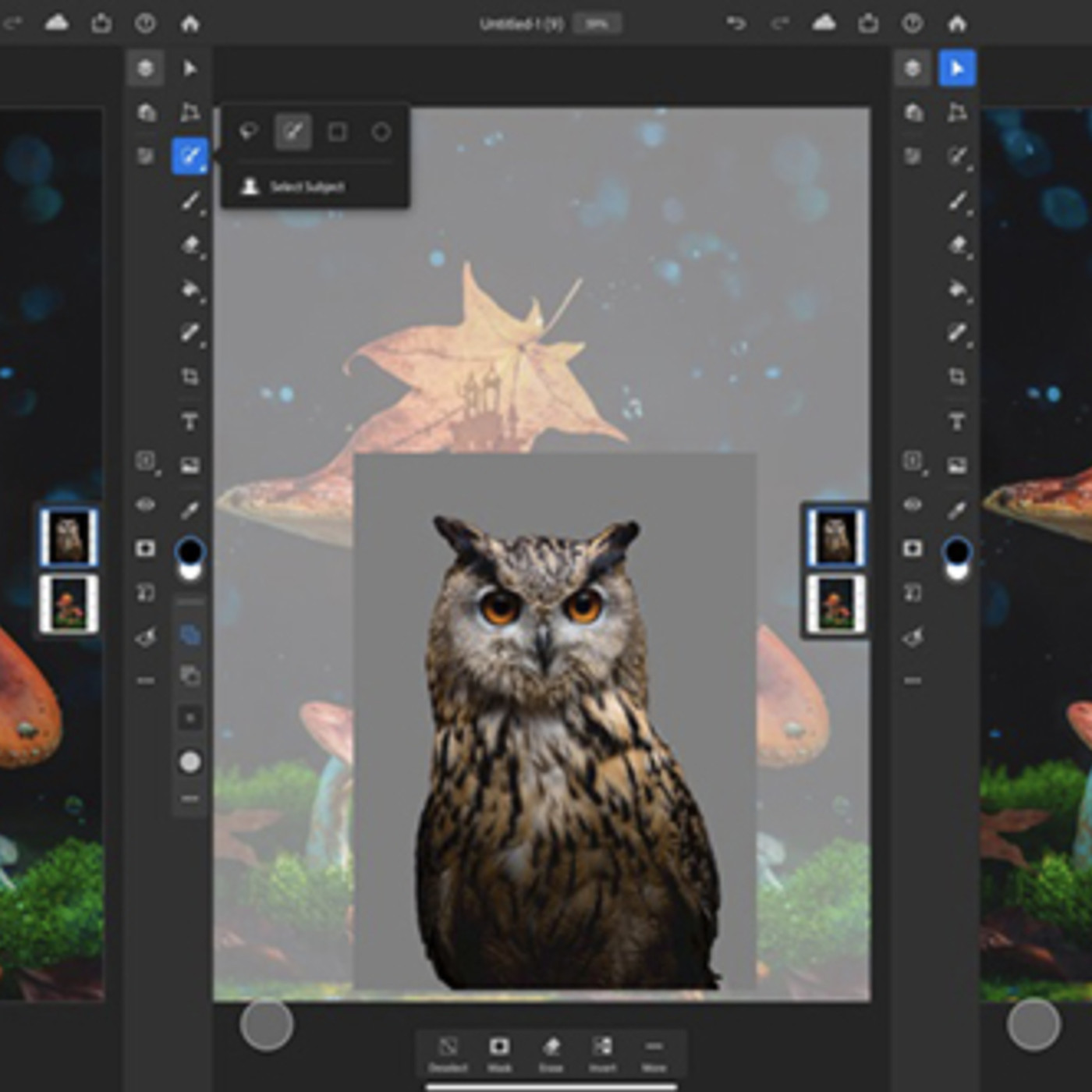
Here is a guide on how to use the magic wand tool in Photoshop, which works great with simple shapes and backgrounds.
You might also like

How to spot fake online stores?

How to keep credit card points from expiring?

How to verify information online?

Source: https://www.theverge.com/2019/12/16/20806997/adobe-photoshop-for-ipad-update-select-subject-tool

Step 1: Open your image in Photoshop.

Step 2: Duplicate the layer, which keeps a non-destructive version of the image available for reference. In the layer panel, left-click and drag your background image down to the Create a new layer icon. Click on the layer-visibility icon for the background layer. This will make the background layer hidden.

Step 3: Locate the magic wand tool in the tools panel on the left side. Note that depending on what workspace you are in, the organisation of the tools may look different. If you are a first-time, it is recommended to use the Essentials workspace, which is the Photoshop default. In this layout, the fourth tool down is where the magic wand is located. To find it, you may need to right-click to expand this tool submenu, then select Magic Wand.

Step 4: Now, make sure that you have selected your visible layer.

Step 5: Use the magic wand and click on the background that you want to remove. If your selection did not grab the full background, go to the top and use the tolerance setting to refine the tool selection abilities. This number will range depending on your image. Start with a lower tolerance number and work up by using the tool, unselecting by using command + D, adjusting tolerance, and then using the tool again. Repeat this until the background is fully selected.

Step 6: Once the tolerance is set accordingly, you can add additional selections as needed. For such elements, go to the magic wand menu at the top and click on Add to selection.

Step 7: Zoom in and click on the additional areas of the background that need to be removed.

Step 8: Now at the top, go to the Select drop-down menu.

Step 9: Go down and click on Select and Mask. This will open the select and mask workspace. A checkered background is transparent and is what is being removed or masked by your selection. If your background is showing and the object is missing, go to the right menu and click on Invert.

Step 10: Under the global refinements menu, you can make adjustments to your selection. Adjust shift edge and feather as needed to make a clean edge.

Step 11: Go down to Output Settings. Make sure that Output To has Layer Mask selected and click on OK. Your background is now removed and you can save this as a PNG file type, which keeps the background transparent and saves a cutout version of the image.


Tags: Photoshop
Tweet54SendShare15
Previous Post

Airy YouTube Downloader: The best YouTube Downloader for Mac and Windows

Next Post

J.P. Morgan’s strategist warns investors of the probable bull trap

Arya Roy

Hi, this is Arya! Writing has always been a passion of mine, regardless of the topic I choose. Besides that, I am a huge foodie and music lover, whose interests range from world politics to horror films to everything in between.

Recommended For You

How to spot fake online stores?

by Afeefa Ansari
July 26, 2026
0
onlinestores

So many stores online- ever wondered if all are authentic? We'll find out. Here is how you can figure out if an online store is legitimate. This is...

Read more

How to keep credit card points from expiring?

by Afeefa Ansari
July 26, 2026
0
Expiring points

Worried about credit card points expiring? Here is how you can save them from going to waste. Follow the guide to get started and save the points. How...

Read more

How to verify information online?

by Afeefa Ansari
July 26, 2026
0
Information

Do you believe everything you see on the internet? Well, sometimes we all do. But it is always important to verify the information to make out what the...

Read more
Next Post
blooomberg

J.P. Morgan's strategist warns investors of the probable bull trap

Please login to join discussion

Techstory

Tech and Business News from around the world. Follow along for latest in the world of Tech, AI, Crypto, EVs, Business Personalities and more.
reach us at info@techstory.in

Advertise With Us

Reach out at - info@techstory.in

Aviator Game India 2026

BROWSE BY TAG

#Crypto #howto 2024 acquisition AI amazon Apple Artificial Intelligence bitcoin Business China cryptocurrency e-commerce electric vehicles Elon Musk Ethereum facebook funding Gaming Google India Instagram Investment ios iPhone IPO Market Markets Meta Microsoft News OpenAI samsung Social Media SpaceX startup startups tech technology Tesla TikTok trend trending twitter US

© 2025 Techstory.in

No Result
View All Result
  • News
  • Crypto
  • Gadgets
  • Memes
  • Gaming
  • Cars
  • AI
  • Startups
  • Markets
  • How to

© 2025 Techstory.in

Welcome Back!

Login to your account below

Forgotten Password?

Retrieve your password

Please enter your username or email address to reset your password.

Log In
Are you sure want to unlock this post?
Unlock left : 0
Are you sure want to cancel subscription?