
• Send Us A Tip
  • Calling all Tech Writers
  • Advertise
Saturday, July 25, 2026
  • Login
TechStory
  • News
  • Crypto
  • Gadgets
  • Memes
  • Gaming
  • Cars
  • AI
  • Startups
  • Markets
  • How to
No Result
View All Result
  • News
  • Crypto
  • Gadgets
  • Memes
  • Gaming
  • Cars
  • AI
  • Startups
  • Markets
  • How to
No Result
View All Result
TechStory
No Result
View All Result
Home How to

How to use OBS

by Arya Roy
July 22, 2021
in How to, Tech, Videos
Reading Time: 2 mins read
0
How to use OBS

Source: https://www.dacast.com/blog/how-to-use-obs-professional-video-streaming/

TwitterWhatsappLinkedin

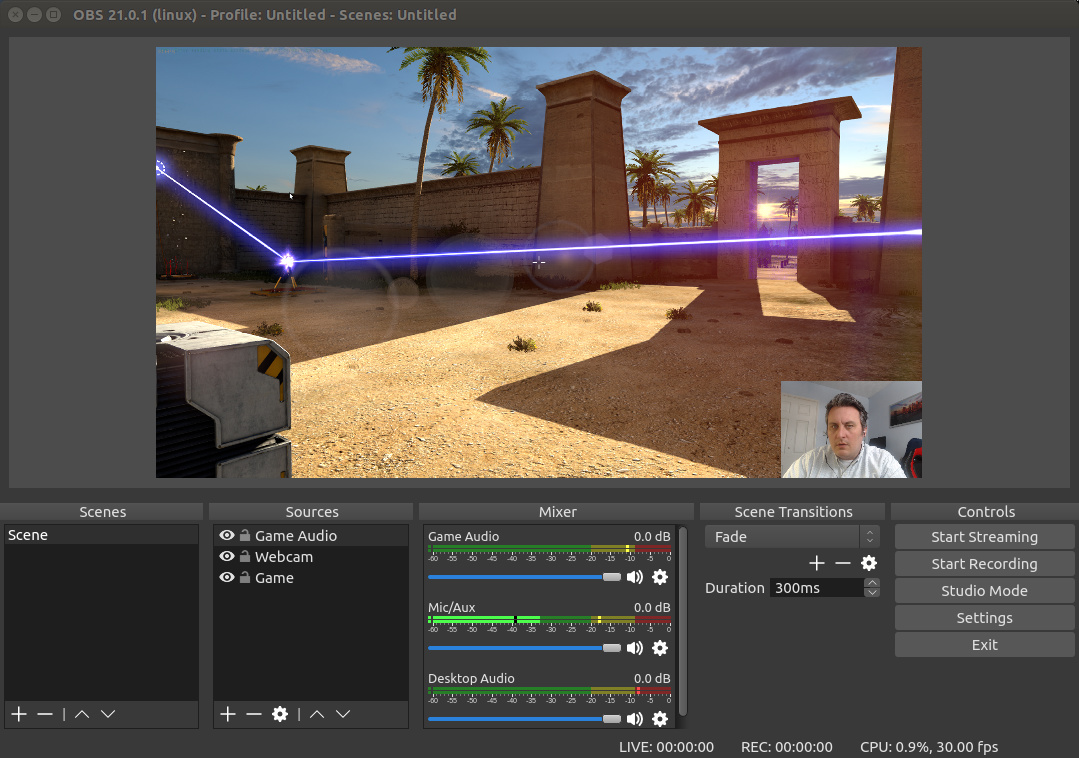
In this guide, we are going to tell you how to use OBS by going over display capture, setting up scenes, starting a recording, and we will also touch on audio and other settings. OBS is available on both Windows and Mac, and is almost identical on both operating systems.
You might also like

How to Beat Legendary Ships in Assassin’s Creed IV: Black Flag

How to Get Ancient Civilization Core in Palworld

How to Get Cube Sprites in Fortnite

Source: https://forum.snapcraft.io/t/call-for-testing-obs-studio-snap/4298

Display capture

  1. If this is your first time using OBS, your screen capture area should be black, which means that you need to set up a source. To do this, on the bottom, select the plus sign and choose what source you want to use.
  2. Display Capture will capture anything that is showing up on your display, Video Capture Device will show your webcam or a connected video-capture device, and Window Capture only captures what is currently in the window, like a video game or a web browser.
  3. For now, choose Display Capture, which is one of the most common choices. This is used to record your screen and save it as a file for editing later.
  4. Choose Display Capture, and you will have an option to label the source. Before you confirm, make sure that you choose Make source visible and then click on OK.
  5. If you have multiple monitors, click on Display and choose what monitor you are going to record.
  6. After you choose it, make sure to mark if you want your cursor to be captured by clicking on Capture Cursor and then on OK. You can also crop your recording area to your desire by adjusting the scale and dragging the corners.
  7. Another source example is Game Capture, which will only the game screen of your choice. Head over to Sources again and click on the plus button, then Game Capture.
  8. Click on Make source visible, and then OK. After this, choose what mode you would like, and then click on OK.

Scenes

Next to Sources, you will see Scenes. This is where you can create different combinations of sources that you can transition to during a live stream. For example, you can have one scene be a game-capture and a video-capture device. This is your basic video-game-streaming look.

Then, you can have another scene that is just a video-capture device, which can show your webcam full screen, for when you are not playing and you are interacting with your chat.

Audio Mixer

The Audio Mixer window shows the current audio inputs into OBS. Mac users will need to install a third-party app that allows OBS to capture the desktop audio.

If you want to change any audio settings, go to the Audio Mixer, click on Settings on the audio track that you want to adjust, and then click on Properties. Here, you can adjust the source of the audio.

Starting a stream or recording 

In Controls, you can choose to Start Streaming if you are about to play a game. Or, click on Start Recording if you want to record your screen. While you are recording your screen, it will say Stop Recording to end your screen recording.

Tags: MacOBSwindows
Tweet55SendShare15
Previous Post

ThisWin: The Best Online Betting Site in 2021

Next Post

Firms adamant on having employees come back to office may lose them

Arya Roy

Hi, this is Arya! Writing has always been a passion of mine, regardless of the topic I choose. Besides that, I am a huge foodie and music lover, whose interests range from world politics to horror films to everything in between.

Recommended For You

How to Beat Legendary Ships in Assassin’s Creed IV: Black Flag

by Khilav Jadav
July 25, 2026
0
How to Get Keys in Assassin’s Creed Shadows

The Legendary Ships are among the hardest naval challenges in Assassin’s Creed IV: Black Flag. There are four encounters, but one battle features two ships at once, giving...

Read more

How to Get Ancient Civilization Core in Palworld

by Khilav Jadav
July 25, 2026
0
How to Increase Inventory in Palworld

The Ancient Civilization Core is one of the most valuable late-game materials in Palworld. It is a Legendary crafting resource used for powerful equipment, advanced technology, and several...

Read more

How to Get Cube Sprites in Fortnite

by Khilav Jadav
July 25, 2026
0
How To Archive Items in Fortnite

Cube Sprites are a new collectible type added to Fortnite Chapter 7 Season 3. They are connected to the season’s cube-themed content and are based on the mysterious...

Read more
Next Post
Firms adamant on having employees come back to office may lose them

Firms adamant on having employees come back to office may lose them

Please login to join discussion

Techstory

Tech and Business News from around the world. Follow along for latest in the world of Tech, AI, Crypto, EVs, Business Personalities and more.
reach us at info@techstory.in

Advertise With Us

Reach out at - info@techstory.in

Aviator Game India 2026

BROWSE BY TAG

#Crypto #howto 2024 acquisition AI amazon Apple Artificial Intelligence bitcoin Business China cryptocurrency e-commerce electric vehicles Elon Musk Ethereum facebook funding Gaming Google India Instagram Investment ios iPhone IPO Market Markets Meta Microsoft News OpenAI samsung Social Media SpaceX startup startups tech technology Tesla TikTok trend trending twitter US

© 2025 Techstory.in

No Result
View All Result
  • News
  • Crypto
  • Gadgets
  • Memes
  • Gaming
  • Cars
  • AI
  • Startups
  • Markets
  • How to

© 2025 Techstory.in

Welcome Back!

Login to your account below

Forgotten Password?

Retrieve your password

Please enter your username or email address to reset your password.

Log In
Are you sure want to unlock this post?
Unlock left : 0
Are you sure want to cancel subscription?