• Send Us A Tip
  • Calling all Tech Writers
  • Advertise
Wednesday, June 24, 2026
  • Login
TechStory
  • News
  • Crypto
  • Gadgets
  • Memes
  • Gaming
  • Cars
  • AI
  • Startups
  • Markets
  • How to
No Result
View All Result
  • News
  • Crypto
  • Gadgets
  • Memes
  • Gaming
  • Cars
  • AI
  • Startups
  • Markets
  • How to
No Result
View All Result
TechStory
No Result
View All Result
Home How to

How to use the quick selection tool in Photoshop

by Arya Roy
July 23, 2021 - Updated On January 28, 2022
in How to, Tech
Reading Time: 2 mins read
0
How to use the quick selection tool in Photoshop

Source: https://www.daraz.lk/products/adobe-photoshop-cc-2020-i112458936.html

TwitterWhatsappLinkedin

Here is a guide on how you can use the quick selection tool in Photoshop. This tool is useful when you want to adjust or invert the colors of an object in the image or clone a certain part of the photo. The quick selection tool works best with objects or backgrounds that are a little more complex.
You might also like

How Long Do Chevy Silverados Last? What Owners Can Expect Beyond 200,000 Miles

Nissan Shareholders Invoke Carlos Ghosn as Boardroom Frustration Boils Over

What Is a Data Broker? The Hidden Industry That Knows More About You Than You Think

Source: https://www.businessinsider.in/tech/how-to/how-to-use-the-quick-selection-tool-in-photoshop-to-easily-remove-backgrounds-and-more/articleshow/80373471.cms

Step 1: First, duplicate the layer. This keeps a non-destructive version of the image available for reference. To do this, in the layers panel, left-click and drag your background image down to the Create a new layer icon.

Now, click on the layer-visibility icon for the background layer. This will make the background layer hidden.

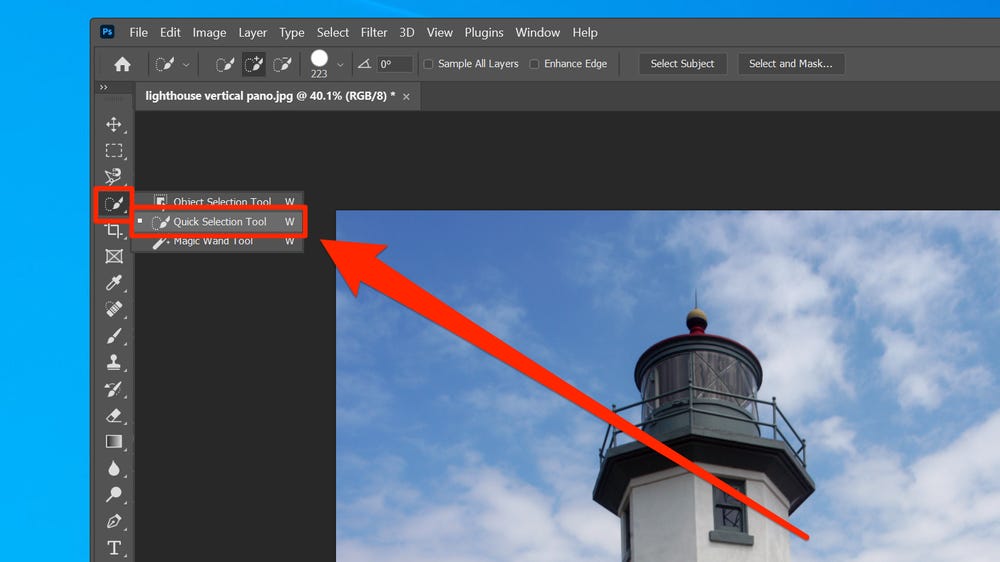
Locate the quick selection tool in the tools panel on the left side. Depending on what workspace you are in, the organisation of the tools may look slightly different. It is recommended to use the Essentials workspace, which is Photoshop’s default.

The fourth tool down is where the quick selection tool is located. To find it, you may need to right-click to expand this tool submenu. Then, select Quick Selection Tool.

Adjust your quick selection brush size to something smaller than your background but not too large.

Use the left and right bracket keys to adjust the size or the pull-down menu at the top.

Make sure that you have selected your visible layer and start selecting parts of your background until the background is fully selected.

If the selection has extended beyond the background, you can refine that, as well. To add or remove some of the selection, use the tools at the top labelled Add to selection and Subtract from selection. Depending on what you need to do, use your bracket keys or the drop-down menu to adjust the selection tool size. Use a brush size that is smaller than the size of the selection area that you are removing.

Now, click in the area where you want to add/remove the selection that has expanded past the background. Repeat this with any discrepancies with the entire selection.

Go to the Select drop-down menu and click on Select and Mask. This will open up the Select and Mask workspace, where you make adjustments to your selection to refine it. Adding a slight feather is always a good starting point and will help make your image more seamless with any background you put behind it.

Go down to Output Settings, and make sure that Output To has Layer Mask selected. Click on OK. Your background is now removed and you can save this as a PNG file type, which keeps the background transparent and saves a cutout version of the image.


Tags: AdobePhotoshop
Tweet54SendShare15
Previous Post

Realme launches Buds Wireless 2, Wireless 2 Neo, And Buds Q2 Neo in India

Next Post

Uber interfered with privacy of over 1 million Australian users

Arya Roy

Hi, this is Arya! Writing has always been a passion of mine, regardless of the topic I choose. Besides that, I am a huge foodie and music lover, whose interests range from world politics to horror films to everything in between.

Recommended For You

How Long Do Chevy Silverados Last? What Owners Can Expect Beyond 200,000 Miles

by Samir Gautam
June 24, 2026
0
How Long Do Chevy Silverados Last? Mileage, and Maintenance

A Chevrolet Silverado is built for work, towing, and long highway miles, which is why many buyers ask one practical question before signing the papers: how long will...

Read more

Nissan Shareholders Invoke Carlos Ghosn as Boardroom Frustration Boils Over

by Samir Gautam
June 24, 2026
0
Nissan shareholder meeting turmoil

Nissan’s latest annual shareholder meeting turned into a sharp public display of investor frustration, with one attendee suggesting that former chairman Carlos Ghosn should return to lead the...

Read more

What Is a Data Broker? The Hidden Industry That Knows More About You Than You Think

by Ishaan Negi
June 24, 2026
0
What Is a Data Broker? The Hidden Industry That Knows More About You Than You Think

Every time you browse the internet, shop online, sign up for a loyalty program, or even use a mobile app, you leave behind digital footprints. Most people assume...

Read more
Next Post
Uber

Uber interfered with privacy of over 1 million Australian users

Please login to join discussion

Techstory

Tech and Business News from around the world. Follow along for latest in the world of Tech, AI, Crypto, EVs, Business Personalities and more.
reach us at info@techstory.in

Advertise With Us

Reach out at - info@techstory.in

Aviator Game India 2026

BROWSE BY TAG

#Crypto #howto 2024 acquisition AI amazon Apple Artificial Intelligence bitcoin Business China cryptocurrency e-commerce electric vehicles Elon Musk Ethereum facebook funding Gaming Google India Instagram Investment ios iPhone IPO Market Markets Meta Microsoft News OpenAI samsung Social Media SpaceX startup startups tech technology Tesla TikTok trend trending twitter US

© 2025 Techstory.in

No Result
View All Result
  • News
  • Crypto
  • Gadgets
  • Memes
  • Gaming
  • Cars
  • AI
  • Startups
  • Markets
  • How to

© 2025 Techstory.in

Welcome Back!

Login to your account below

Forgotten Password?

Retrieve your password

Please enter your username or email address to reset your password.

Log In
Are you sure want to unlock this post?
Unlock left : 0
Are you sure want to cancel subscription?