

• Send Us A Tip
  • Calling all Tech Writers
  • Advertise
Tuesday, September 15, 2026
  • Login
TechStory
  • News
  • Crypto
  • Gadgets
  • Memes
  • Gaming
  • Cars
  • AI
  • Startups
  • Markets
  • How to
No Result
View All Result
  • News
  • Crypto
  • Gadgets
  • Memes
  • Gaming
  • Cars
  • AI
  • Startups
  • Markets
  • How to
No Result
View All Result
TechStory
No Result
View All Result
Home How to

How to export in Premiere Pro CC

by Arya Roy
July 27, 2021
in How to, Tech
Reading Time: 2 mins read
0
How to export in Premiere Pro CC

Source: https://www.indiamart.com/proddetail/adobe-premiere-pro-cc-2020-22637369662.html

TwitterWhatsappLinkedin

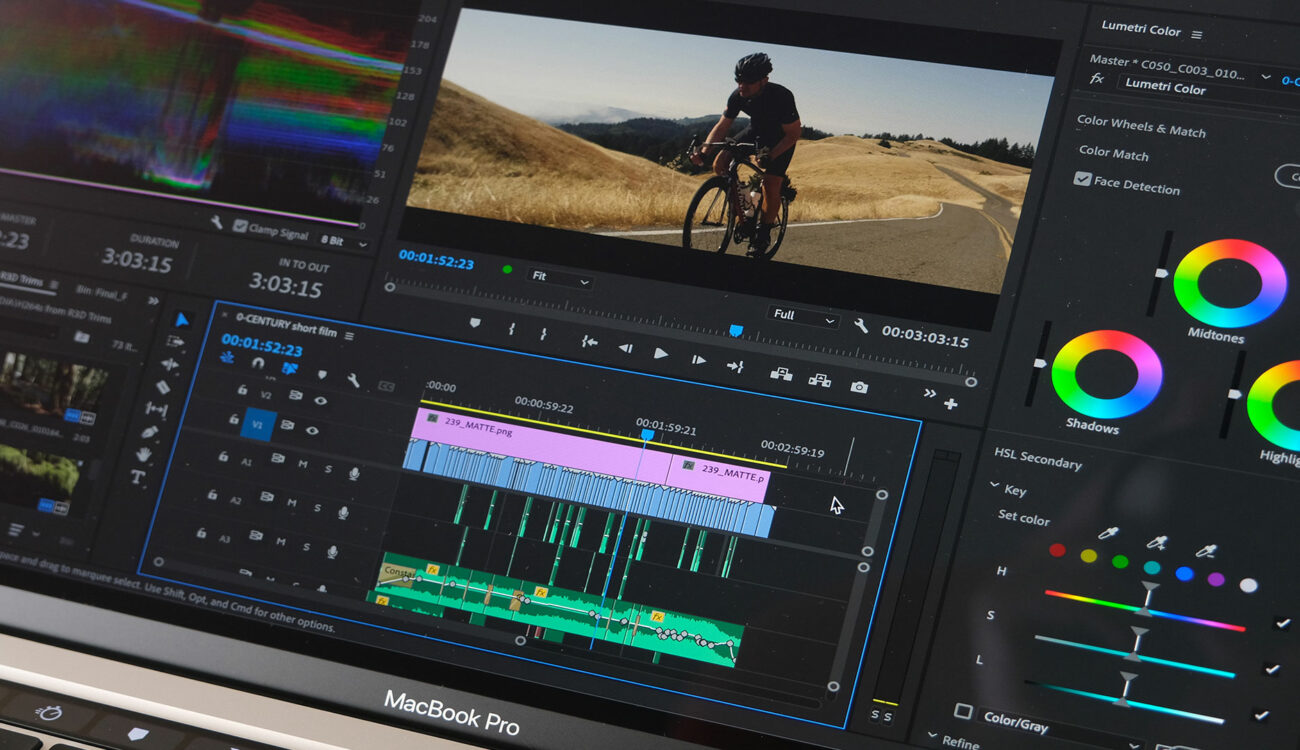
In this guide, you are going to be shown how to export a video in Adobe Premiere Pro CC. To start, open your completed edit in Premiere Pro.
You might also like

Quntis Monitor Light Bar Focus Dual-Control 41 cm Review: The Smartest Upgrade for Anyone Working Long Hours at a Screen

How to Beat Bonemass in Valheim 1.0

How to Get the Wolf Fur Cape in Valheim

Source: https://www.cined.com/upcoming-adobe-premiere-pro-version-for-apple-m1-macs-to-be-80-faster/

Rendering your timeline

  1. To render your timeline, go to where you want your exported video to start, such as right at the beginning of your timeline.
  2. Make sure that your playhead is at the beginning and press I. This will be your in point.
  3. Now move your playhead to where you want to end your exported video.
  4. Press O. This will be your out point. Premiere will render everything that is in between your in and out points.

Export settings 

  1. Open up your export window and click on File > Export > Media.
  2. You can start by choosing a format and selecting a preset under that format to match your video-export needs. H.264 is a very common and popular choice and is an MP4 file type. H.264 is used for high-resolution video that is packaged in smaller file sizes.
  3. Under the presets tab, you can find optimised settings for social-media applications like Facebook, Twitter, Vimeo, and YouTube. Other popular formats can be QuickTime, which is a .mov file type, or MP3, which is a great way to export an audio-only version of your video for something like a podcast.
  4. The next export setting is output name. Simply click on the output name, name the file, choose the save location, and click on Save.
  5. Down one more, we have choices to export- or audio-only versions, and below that is a summary of your current output location, settings, and source.
  6. At the bottom, there is an effects tab, which you can use to add a watermark to the video.
  7. The video tab is where you can refine the output video settings, like width and height and coding settings and bitrate.
  8. The publish tab gives you the ability to upload directly from Premiere to sites like Facebook, Vimeo, and YouTube.
  9. At the bottom, you can see your estimated file size based on the settings you have chosen.

To export your file, click on Export to begin the exporting process inside Premiere, and save the finished file in your desired location.


Tags: Premiere Pro CC
Tweet54SendShare15
Previous Post

How to defend goals and defeat them: Pokémon Unite

Next Post

Tesla’s net income multiplies tenfold from last year

Arya Roy

Hi, this is Arya! Writing has always been a passion of mine, regardless of the topic I choose. Besides that, I am a huge foodie and music lover, whose interests range from world politics to horror films to everything in between.

Recommended For You

Quntis Monitor Light Bar Focus Dual-Control 41 cm Review: The Smartest Upgrade for Anyone Working Long Hours at a Screen

by Rohan Mathawan
September 15, 2026
0
Quntis Monitor Light Bar Focus Dual-Control 41 cm Review: The Smartest Upgrade for Anyone Working Long Hours at a Screen

If you spend eight-plus hours a day staring at a screen, you already know the drill: dry eyes, that dull headache by evening, and a desk lamp that...

Read more

How to Beat Bonemass in Valheim 1.0

by Khilav Jadav
September 14, 2026
0
How To Get More XP in Assassin’s Creed Valhalla

Bonemass is the third Forsaken boss in Valheim. With the right food, armor, weapon, and strategy, however, the fight becomes much more manageable. The key is not raw...

Read more

How to Get the Wolf Fur Cape in Valheim

by Khilav Jadav
September 14, 2026
0
How To Get More XP in Assassin’s Creed Valhalla

The Wolf Fur Cape is one of the most useful early Mountain items in Valheim. It gives your Viking protection against frost, allowing you to explore the Mountain...

Read more
Next Post
milestones

Tesla's net income multiplies tenfold from last year

Please login to join discussion

Techstory

Tech and Business News from around the world. Follow along for latest in the world of Tech, AI, Crypto, EVs, Business Personalities and more.
reach us at info@techstory.in

Advertise With Us

Reach out at - info@techstory.in

Aviator Game India 2026

BROWSE BY TAG

#Crypto #howto 2024 acquisition AI amazon Apple Artificial Intelligence bitcoin Business China cryptocurrency e-commerce electric vehicles Elon Musk Ethereum facebook funding Gaming Google India Instagram Investment iPhone IPO Market Markets Meta Microsoft News OpenAI samsung Social Media SpaceX startup startups tech Tech news technology Tesla TikTok trend trending twitter US

© 2025 Techstory.in

No Result
View All Result
  • News
  • Crypto
  • Gadgets
  • Memes
  • Gaming
  • Cars
  • AI
  • Startups
  • Markets
  • How to

© 2025 Techstory.in

Welcome Back!

Login to your account below

Forgotten Password?

Retrieve your password

Please enter your username or email address to reset your password.

Log In
Are you sure want to unlock this post?
Unlock left : 0
Are you sure want to cancel subscription?