• Send Us A Tip
  • Calling all Tech Writers
  • Advertise
Wednesday, September 30, 2026
  • Login
TechStory
  • News
  • Crypto
  • Gadgets
  • Memes
  • Gaming
  • Cars
  • AI
  • Startups
  • Markets
  • How to
No Result
View All Result
  • News
  • Crypto
  • Gadgets
  • Memes
  • Gaming
  • Cars
  • AI
  • Startups
  • Markets
  • How to
No Result
View All Result
TechStory
No Result
View All Result
Home How to

How to reset Xfinity remote

by Srestha Roy
October 24, 2021 - Updated On April 6, 2022
in How to
Reading Time: 2 mins read
0
How to reset Xfinity remote
TwitterWhatsappLinkedin

If you’ve noticed that some of the buttons on your Xfinity remote aren’t functioning, you’re having trouble pairing it with your TV, or the remote isn’t working at all, you might believe it’s time to replace it.

You might also like

How to Get Hellfire Torch in Diablo 4

How To Make Steel In RuneScape: Dragonwilds

How To Get The Witcher 3: Wild Hunt Remastered

Before you go out and spend the money on a new remote, consider doing a factory reset first.

A factory reset basically erases all of your remote’s settings and pairings, returning it to its factory defaults as if you had just gotten it out of the box.

Although a factory reset may appear to be more difficult than simply purchasing a new remote, it may save you money and effort in the long run.

Before resetting the remote, ensure sure the batteries are in excellent working order and the remote does not appear to be damaged in any way that would prevent it from operating. You can test if the battery is operating by clicking a few buttons and looking at the LED light.

If the LED does not light up when you touch the buttons, you should first replace the batteries. If it doesn’t work and it doesn’t appear to be broken, you can attempt a factory reset.

You’re probably asking how to reset Xfinity remote if you’ve determined that a reset is the best solution. It’s a rather straightforward procedure.

The Xfinity remote comes in a variety of variants, ranging from the older XR1, XR2, and XR5 devices to the voice-activated XR11 and XR15. The first step in the factory reset procedure is to figure out which remote you have, as the process may change significantly depending on which remote you’re resetting.

  • The reset method for the XR11, XR5, and XR2 is identical, and you may use the same four steps.
  • The first thing you should do is find the setup button.
  • Once you’ve found the setup button, press it and look at the LED light on the front of the remote while holding it down. Keep pressing the button until the LED light turns green. You can let off of the button after the light has turned green.
  • Then, while still staring at the LED light, you’ll type the code 9-8-1. If it lights green twice, you were successful in resetting your Xfinity remote.
  • After you’ve completed your Xfinity remote reset, you’ll need to re-pair it with your devices.

If you’re using the newest Xfinity remote, the XR15, you’ll notice that it lacks a setup button and that you’ll have to go through a series of steps to perform a factory reset.

  • You must use the buttons labelled A and D to initiate the factory reset instead of a setup button.
    Once you’ve discovered the A and D buttons, press them both at the same time for roughly 3 seconds while staring at the LED light at the top of the remote. Release the buttons once the light changes.
    After that, you’ll need to enter the code 9-8-1. The colour of the LED light should change from green to blue. This indicates that the remote has been successfully reset to its factory default settings.

Tags: XfinityXfinity remote
Tweet55SendShare15
Previous Post

Lyft admits to receiving 4000 sexual assault complaints between 2017-19

Next Post

Rarefied Club of Billionaire Indian Women to Grow With Nykaa IPO

Srestha Roy

Recommended For You

How to Get Hellfire Torch in Diablo 4

by Khilav Jadav
September 29, 2026
0
How to Get the Deathmask of Nirmitruq in Diablo 4

The Hellfire Torch is a sought-after hidden reward in Diablo IV Season 15. This Mythic Unique Charm is tied to a secret journey through Tristram and a difficult...

Read more

How To Make Steel In RuneScape: Dragonwilds

by Khilav Jadav
September 29, 2026
0
How to Get Greater Runes in Path of Exile 2

Steel is one of the most useful mid-game materials in RuneScape: Dragonwilds. It is needed for stronger weapons, armour, and tools, but you cannot make it in the...

Read more

How To Get The Witcher 3: Wild Hunt Remastered

by Khilav Jadav
September 29, 2026
0
How to Repair Your Sword and Other Weapons in The Witcher 3

The Witcher 3: Wild Hunt Remastered is now available, giving players a refreshed way to experience Geralt of Rivia’s massive open-world adventure. Released on September 29, 2026, the...

Read more
Next Post
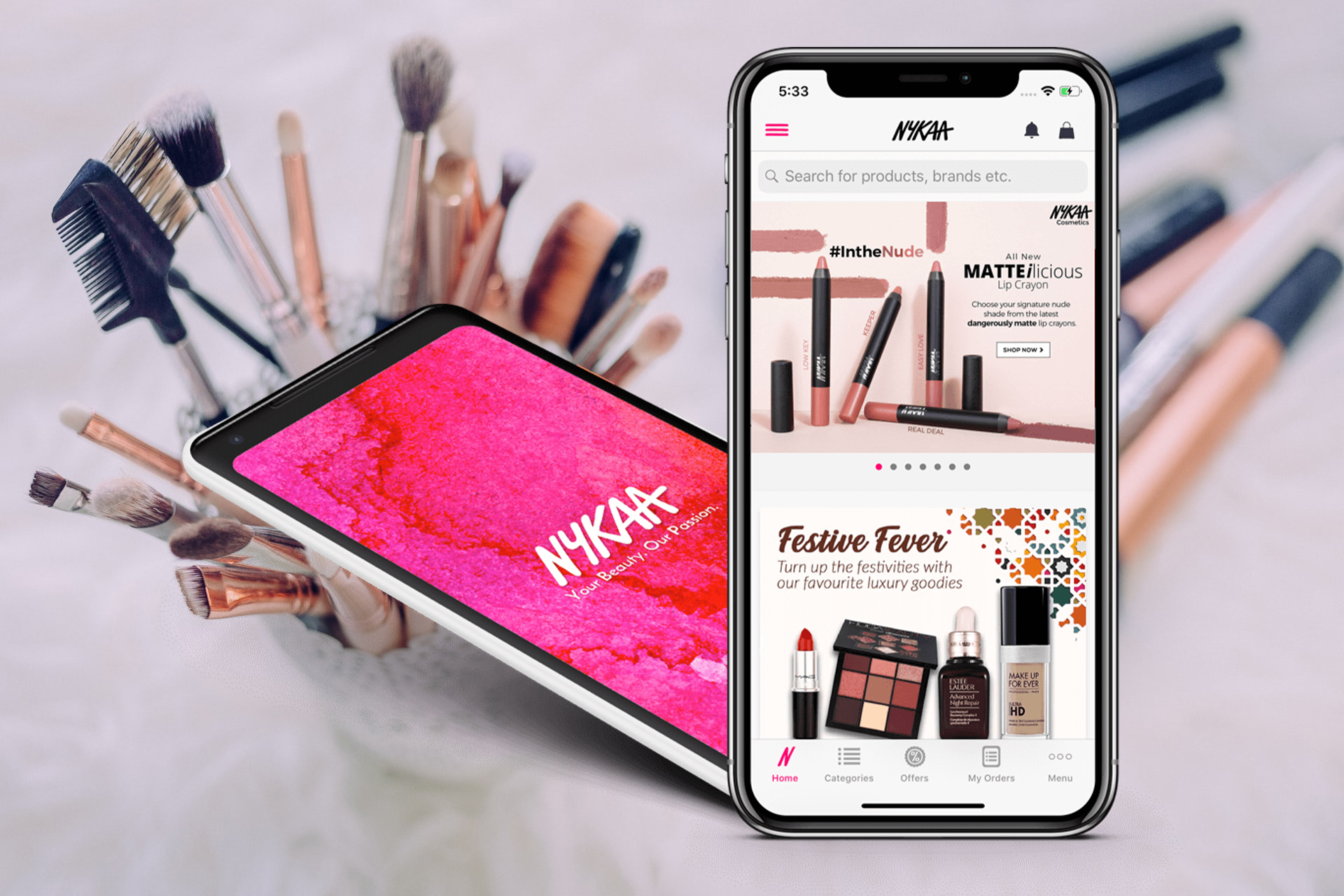
Nykaa Logo and App screenshot on cosmetic background

Rarefied Club of Billionaire Indian Women to Grow With Nykaa IPO

Please login to join discussion

Techstory

Tech and Business News from around the world. Follow along for latest in the world of Tech, AI, Crypto, EVs, Business Personalities and more.
reach us at info@techstory.in

Advertise With Us

Reach out at - info@techstory.in

Aviator Game India 2026

BROWSE BY TAG

#Crypto #howto 2024 acquisition AI amazon Apple Artificial Intelligence bitcoin Business China cryptocurrency e-commerce electric vehicles Elon Musk Ethereum facebook funding Gaming Google India Instagram Investment iPhone IPO Market Markets Meta Microsoft News OpenAI samsung Social Media SpaceX startup startups tech Tech news technology Tesla TikTok trend trending twitter US

© 2025 Techstory.in

No Result
View All Result
  • News
  • Crypto
  • Gadgets
  • Memes
  • Gaming
  • Cars
  • AI
  • Startups
  • Markets
  • How to

© 2025 Techstory.in

Welcome Back!

Login to your account below

Forgotten Password?

Retrieve your password

Please enter your username or email address to reset your password.

Log In
Are you sure want to unlock this post?
Unlock left : 0
Are you sure want to cancel subscription?