

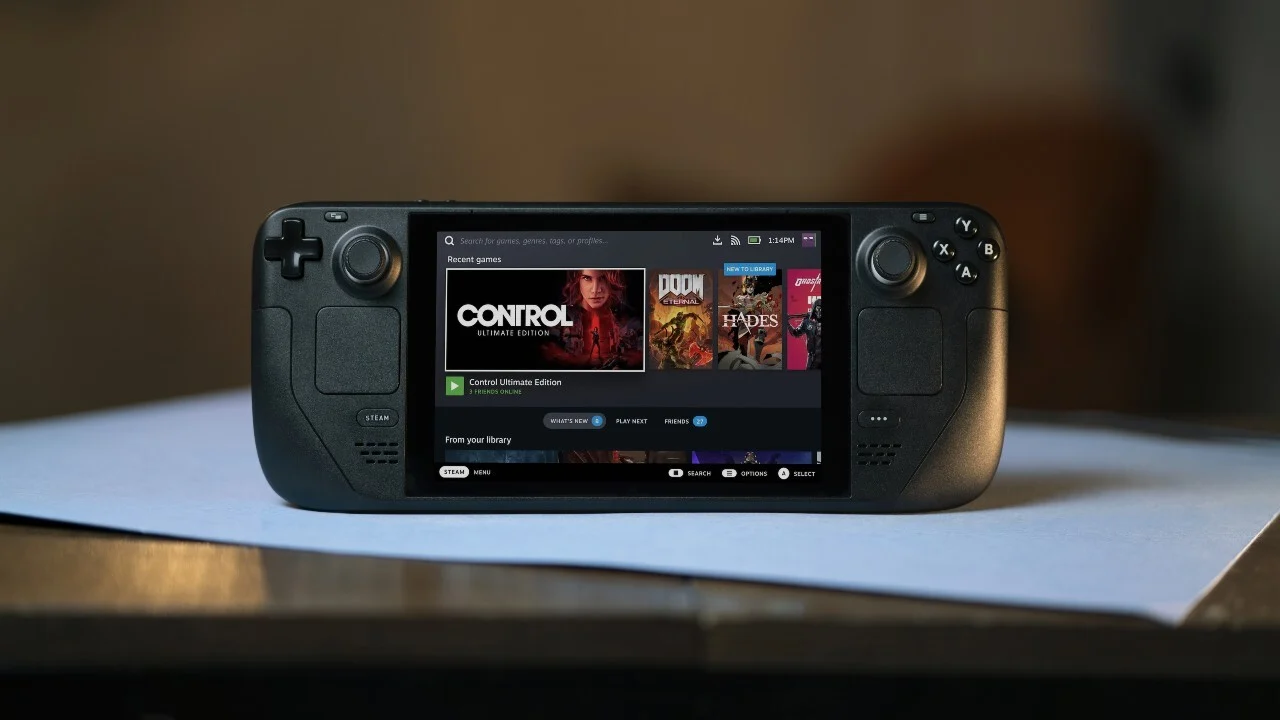
The Steam Deck, developed by Valve, has revolutionized portable gaming by allowing players to access their Steam library on the go. However, many gamers are curious about extending its capabilities to other platforms, such as Sony’s PlayStation Plus (PS Plus) service. While the Steam Deck doesn’t natively support PS Plus, there are methods to access and enjoy PlayStation games on this handheld device. This guide will walk you through the steps to set up PS Plus on your Steam Deck, ensuring a seamless gaming experience.
Understanding PlayStation Plus and Its Compatibility
PlayStation Plus is Sony’s subscription service that offers a vast library of games, online multiplayer access, and exclusive discounts. With the introduction of cloud streaming, PS Plus allows subscribers to play a wide range of PlayStation titles without the need for a console. However, the PS Plus app is primarily designed for Windows PCs, posing a challenge for Steam Deck users running SteamOS, a Linux-based operating system.
Method 1: Installing Windows on the Steam Deck
One approach to accessing PS Plus on your Steam Deck is by installing Windows. This method involves replacing or dual-booting your device with Windows, allowing you to run the PS Plus app natively.
Steps to Install Windows:
- Backup Your Data: Before making any changes, ensure all your important data is backed up.
- Create a Windows Installation Media: Use a USB drive to create a bootable Windows installer.
- Boot from USB: Connect the USB drive to your Steam Deck and boot into the installer.
- Install Windows: Follow the on-screen instructions to install Windows on your device.
- Install Drivers: After installation, ensure all necessary drivers are updated for optimal performance.
Pros:
- Full compatibility with the PS Plus app.
- Access to other Windows-exclusive applications.
Cons:
- Potential loss of SteamOS features.
- Requires significant storage space.
- May void warranty or cause system instability.
Method 2: Using PlayStation Plus via Cloud Streaming on SteamOS
For those who prefer to retain SteamOS, it’s possible to access PS Plus through cloud streaming. This method leverages the Steam Deck’s capabilities without altering its operating system.
Steps to Set Up Cloud Streaming:
- Switch to Desktop Mode: Press the Steam button, navigate to “Power,” and select “Switch to Desktop.”
- Install a Web Browser: Open the Discover Software Center and install a compatible web browser like Firefox or Chrome.
- Access PS Plus: Navigate to the official PlayStation Plus website and log in to your account.
- Launch Games: Browse the available titles and start streaming directly from your browser.
Pros:
- No need to alter the Steam Deck’s operating system.
- Quick and straightforward setup.
Cons:
- Dependent on a stable and fast internet connection.
- Potential input lag due to streaming.
Method 3: Utilizing Third-Party Applications
Some developers have created third-party applications to bridge the gap between different gaming platforms. Tools like “Chiaki” allow users to stream games from their PlayStation consoles to other devices, including the Steam Deck.
Steps to Use Chiaki:
- Install Chiaki: In Desktop Mode, open the Discover Software Center and search for Chiaki. Install the application.
- Register Your PlayStation: Launch Chiaki and enter your PlayStation Network credentials to register your console.
- Start Streaming: Once registered, you can stream games from your PlayStation console to your Steam Deck.
Pros:
- Access your existing PlayStation library.
- No need to install Windows or alter the Steam Deck’s OS.
Cons:
- Requires an existing PlayStation console.
- Setup can be complex for some users.
Optimizing Your Gaming Experience
Regardless of the method chosen, consider the following tips to enhance your gaming experience:
- Stable Internet Connection: For cloud streaming, ensure you have a high-speed and stable internet connection to minimize latency and buffering.
- Use a Compatible Controller: While the Steam Deck has built-in controls, some PlayStation games might offer a better experience with a DualShock or DualSense controller.
- Adjust Graphics Settings: Depending on the game’s requirements and your chosen method, you might need to tweak graphics settings for optimal performance.




