• Send Us A Tip
  • Calling all Tech Writers
  • Advertise
Friday, September 11, 2026
  • Login
TechStory
  • News
  • Crypto
  • Gadgets
  • Memes
  • Gaming
  • Cars
  • AI
  • Startups
  • Markets
  • How to
No Result
View All Result
  • News
  • Crypto
  • Gadgets
  • Memes
  • Gaming
  • Cars
  • AI
  • Startups
  • Markets
  • How to
No Result
View All Result
TechStory
No Result
View All Result
Home How to

How to unpair an Apple watch from an old iPhone?

by Afeefa Ansari
April 20, 2025
in How to
Reading Time: 2 mins read
0
Apple watch

Credits - superwatches.com

TwitterWhatsappLinkedin

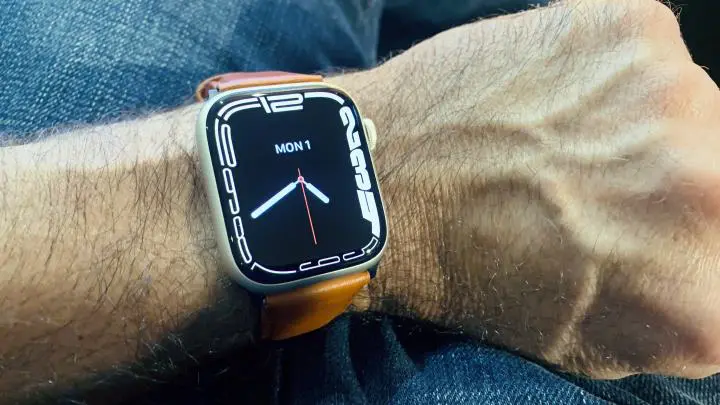
Do you want to unpair your Apple Watch from your old iPhone? Then this is the guide that you just need. Here we will discuss how one can unpair their Apple watch under two cases. These would be with or without the iPhone at your hand. Besides this, we will also cover the important notes and tips on the concerned matter. Let us begin.

You might also like

How To Pre Order iPhone 18 Pro Max

How To Get Klombo Sprite in Fortnite

How to Summon Eikthyr in Valheim

What does it mean to unpair an Apple watch from an iPhone?

Unpairing an Apple Watch from an iPhone is a simple phenomenon, and it means disconnecting the two devices, effectively ending their synced relationship that previously existed. When you unpair the watch, the iPhone creates a backup of the watch’s data, which allows you to restore it later if you pair it again or switch to a new device. This process also removes the Activation Lock, in case you’re using the same Apple ID, which is important if you’re planning to sell or give away the watch. Unpairing resets the Apple Watch to its factory settings, erasing all content and settings from the device, and making it ready for a new user or fresh setup. It is sometimes an optional thing, but mandatory at times, especially when you lose one of the two linked devices.

How to unpair an Apple watch from an old iPhone?

If you want to unpair an Apple watch from an old iPhone, then you will be required to consider these two conditions –

If you have the iPhone with you

  • Make sure that the two devices are kept in close proximity to each other.
  • Now open the Apple watch app on your iPhone and visit ‘My Watch Tab’ to open ‘All Watches’.
  • Tap on the info icon on the next to the name of the watch that you would like to unpair.
  • Click on ‘Unpair Apple Watch’.
  • Tap on ‘Unpair’ and then think about keeping or removing the data plan.
  • Disable Activation Lock with the help of Apple Account Password. With this done, you will finally have it unpaired.

When you do this, your Apple Watch will be unpaired easily.

If you don’t have the iPhone with you

  • Get your Apple watch and then go to ‘Settings’ Moving ahead, find ‘Erase all Content and Settings’.
  • Now enter your password if you are asked for it at any point in time.
  • If your model is GPS + Cellular, then you can also look for the options to remove or keep your cellular data plans as per your needs.
  • Now you need to click on ‘Erase All’ to finally confirm your choice.
  • After you do this, your Apple Watch settings will be changed to the factory settings.

It is really easy to pair and unpair an Apple watch from an apple device, but it takes a password in either case. Therefore, keep a secure password, yet good enough that you remember it anytime the need props up. We hope that the guide has been of help to you and you can now unpair an Apple watch easily.


Tags: #howtoApple watchhow to pair an apple watchhow to unpair an apple watchiPhones
Tweet55SendShare15
Previous Post

Judge Blocks Mass Layoffs at Consumer Watchdog Agency

Next Post

How to turn USB flash drive into a secure login for your Laptop/PC?

Afeefa Ansari

Recommended For You

How To Pre Order iPhone 18 Pro Max

by Khilav Jadav
September 10, 2026
0
How To Watch Apple’s ‘Scary Fast’ Mac Event

Apple has officially announced the iPhone 18 Pro Max, and buyers in India will not have to wait long to place an order. Pre-orders begin on September 12...

Read more

How To Get Klombo Sprite in Fortnite

by Khilav Jadav
September 10, 2026
0
How To Archive Items in Fortnite

The Klombo Sprite is one of the rarest collectibles in Fortnite Chapter 7 Season 4, also known as Fortnite: Override. Unlike many other Sprites, Klombo is not something...

Read more

How to Summon Eikthyr in Valheim

by Khilav Jadav
September 10, 2026
0
How To Get More XP in Assassin’s Creed Valhalla

Eikthyr is the first boss you can summon in Valheim, and defeating him is an important step in early progression. The main requirement is simple: you need two...

Read more
Next Post
USB drive

How to turn USB flash drive into a secure login for your Laptop/PC?

Please login to join discussion

Techstory

Tech and Business News from around the world. Follow along for latest in the world of Tech, AI, Crypto, EVs, Business Personalities and more.
reach us at info@techstory.in

Advertise With Us

Reach out at - info@techstory.in

Aviator Game India 2026

BROWSE BY TAG

#Crypto #howto 2024 acquisition AI amazon Apple Artificial Intelligence bitcoin Business China cryptocurrency e-commerce electric vehicles Elon Musk Ethereum facebook funding Gaming Google India Instagram Investment iPhone IPO Market Markets Meta Microsoft News OpenAI samsung Social Media SpaceX startup startups tech Tech news technology Tesla TikTok trend trending twitter US

© 2025 Techstory.in

No Result
View All Result
  • News
  • Crypto
  • Gadgets
  • Memes
  • Gaming
  • Cars
  • AI
  • Startups
  • Markets
  • How to

© 2025 Techstory.in

Welcome Back!

Login to your account below

Forgotten Password?

Retrieve your password

Please enter your username or email address to reset your password.

Log In
Are you sure want to unlock this post?
Unlock left : 0
Are you sure want to cancel subscription?