

• Send Us A Tip
  • Calling all Tech Writers
  • Advertise
Thursday, July 23, 2026
  • Login
TechStory
  • News
  • Crypto
  • Gadgets
  • Memes
  • Gaming
  • Cars
  • AI
  • Startups
  • Markets
  • How to
No Result
View All Result
  • News
  • Crypto
  • Gadgets
  • Memes
  • Gaming
  • Cars
  • AI
  • Startups
  • Markets
  • How to
No Result
View All Result
TechStory
No Result
View All Result
Home How to

How to change home address on an iPhone?

by Afeefa Ansari
May 24, 2025
in How to
Reading Time: 2 mins read
0
address

Credits - telegra.ph

TwitterWhatsappLinkedin

Do you want to change the home address on your Apple or Google Maps or contacts? Then this is the guide that you need! Here we will discuss all about changing the home address on an iPhone and an Apple device. We shall also discuss when and why you need to change your home address on a phone. Let us begin with our guide and understand things better.

You might also like

How to find unclaimed money in your name?

How to choose a password manager?

How to use equipment reroll in Anime Expeditions?

Why does the iPhone store our home address?

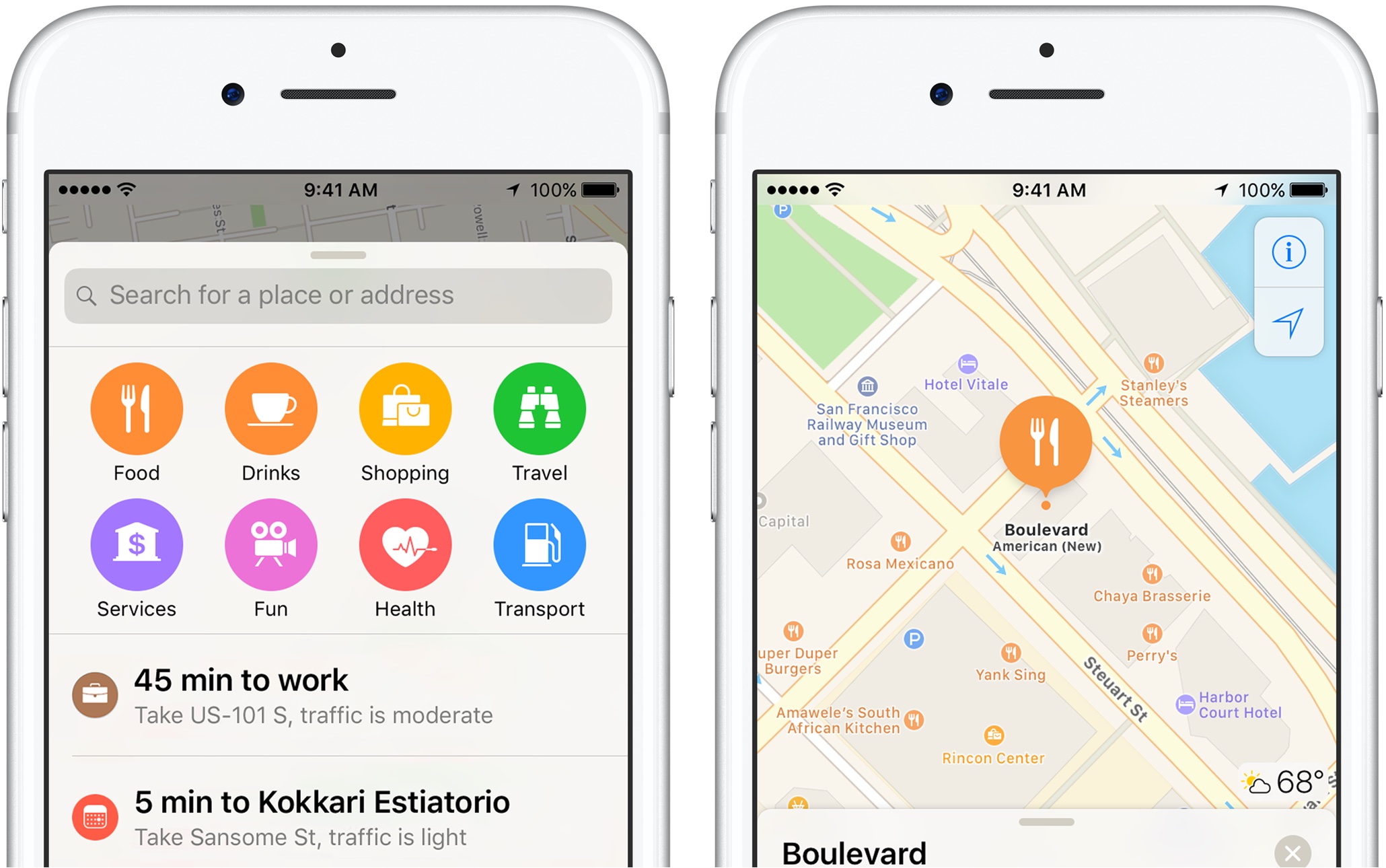
Your iPhone stores your home address for several convenient and practical reasons, primarily to enhance your user experience and streamline various functions across Apple’s ecosystem. By knowing your home address, Apple Maps and other navigation apps like Google Maps can provide quick directions home, real-time traffic updates for your commute, and estimated travel times. Also, Siri works better if your home location is updated. It makes it easier for things around you to be updated on your phone as well.

How to change home addresses on Apple?

If you want to change your home address on your Apple device for any reason, then this is what you can do –

In Contacts

  • Open your phone app or your Contacts app to begin.
  • Now click on ‘Contacts’ usually found at the bottom of the screen that opens up.
  • If you have added your card, it will be shown here. If you haven’t, you’ll be asked for it. Click on ‘My Card’ to move ahead.
  • Click on ‘Edit’. After doing this, you will be allowed to edit your information there.
  • If you already have a home address mentioned there and need to change it, then change it. If it isn’t there, you can choose to add it.
  • Click on ‘Done’ to finalize your edits and save.

Now this information will also be updated on Google Maps in a while, but you can go check on Google Maps to add it manually if you feel like it.

In Google Maps

  • Open Google Maps on your iPhone or Apple device.
  • Find the option of ‘Saved’ at the bottom of your screen that looks like a bookmark.
  • Click on ‘Labeled’. This is marked by a blue flag, and you’ll recognize it on the page with the title as well as the color.
  • Now click on the three dots next to ‘Home’. If you haven’t saved the home address, there yet then also click on it simply.
  • Here you can click on ‘Edit Home’ to move on with the next steps.
  • Now enter the new or the changed address that you want to mention. After entering it, it will be saved, and your work will be done here!

That is all you need to do, and your Google Maps will store your progress. Now this home address will be used by Siri and other apps (if you allow the permission) to guide and assist you in things you want to know, places you want to go, and more. Therefore, entering the correct home address is sometimes really necessary as it helps us only at the end of the day.


Tags: #howtoapple guidechange home addressedit addressOnline guide
Tweet55SendShare15
Previous Post

JOIN SAVVY MINING AND EARN $18,700 A DAY WITH XRP, DOGE AND OTHER CRYPTOCURRENCIES

Next Post

Weekly Startup Funding News: Indian startups raised $232 Mn this week; from CloudSEK to Mythik

Afeefa Ansari

Recommended For You

How to find unclaimed money in your name?

by Afeefa Ansari
July 23, 2026
0
Unclaimed money

Do you think you have some unclaimed money in your name that you're yet to find and cash out? Follow the guide to know how you can find...

Read more

How to choose a password manager?

by Afeefa Ansari
July 23, 2026
0
Password manager

Wanting a password manager for your device and the passwords it contains? We've got you. Follow the guide to learn how you can pick the right password manager...

Read more

How to use equipment reroll in Anime Expeditions?

by Afeefa Ansari
July 23, 2026
0
anime_expeditions

Follow the guide to learn how you can make this work and randomize the stats like a pro. So, let's get started and do it. What is equipment...

Read more
Next Post
Weekly Startup Funding News: Indian startups raised $196 Mn this week; from Emiza to Leap

Weekly Startup Funding News: Indian startups raised $232 Mn this week; from CloudSEK to Mythik

Please login to join discussion

Techstory

Tech and Business News from around the world. Follow along for latest in the world of Tech, AI, Crypto, EVs, Business Personalities and more.
reach us at info@techstory.in

Advertise With Us

Reach out at - info@techstory.in

Aviator Game India 2026

BROWSE BY TAG

#Crypto #howto 2024 acquisition AI amazon Apple Artificial Intelligence bitcoin Business China cryptocurrency e-commerce electric vehicles Elon Musk Ethereum facebook funding Gaming Google India Instagram Investment ios iPhone IPO Market Markets Meta Microsoft News OpenAI samsung Social Media SpaceX startup startups tech technology Tesla TikTok trend trending twitter US

© 2025 Techstory.in

No Result
View All Result
  • News
  • Crypto
  • Gadgets
  • Memes
  • Gaming
  • Cars
  • AI
  • Startups
  • Markets
  • How to

© 2025 Techstory.in

Welcome Back!

Login to your account below

Forgotten Password?

Retrieve your password

Please enter your username or email address to reset your password.

Log In
Are you sure want to unlock this post?
Unlock left : 0
Are you sure want to cancel subscription?
