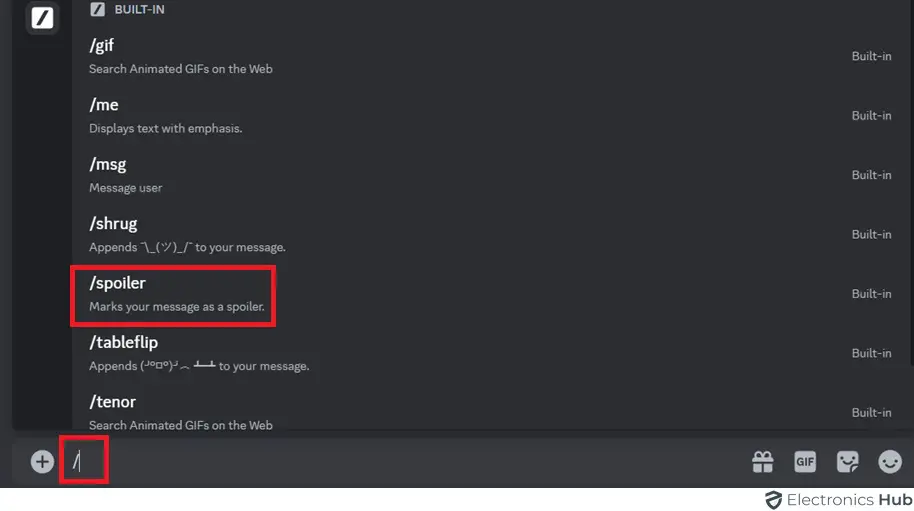
Do you want to convey a secret message on Discord? Learn to hide the text you’re sending. Let’s see how we can do that and how you can send any message that you want. So, let us begin.
What does it mean to hide a text on Discord?
Hiding text on Discord refers to using the spoiler tag. It is a feature that lets you cover up a sentence or image so people only see it if they choose to click or tap on it. It is like an alert message that lets the viewers see that they are being alarmed by a hidden message, and their discretion is needed to proceed. You can do this by typing two vertical bars on both sides of your message, like ||this||. We shall cover this in detail next time.
It is an amazing help if you want to share something that may be a spoiler. It is also something that would let people know that something private is being shared, and they can choose to view it if they want. Instead of ruining the surprise or making someone uncomfortable, you put a door over it. It keeps the chat friendly for everyone, giving them a choice of revealing the text.
Steps to hide text on Discord
If you want to hide text on Discord, then these are the steps you need to follow.
- Tap on the text box where you normally write your messages. This doesn’t change.
- You can write your message and, around it, type two vertical bars on your keyboard. These simply look like straight lines, and you can find them on the keyboard. It is really simple, as you can proceed to type out the exact secret or message you want to hide right after those bars. Do not put a space between the bars and your first word, as it doesn’t count.
- After this, you can simply close the message by typing two more vertical bars at the very end, again without leaving a space before them.
- Now, just click on send. You will immediately notice your message is covered by a dark, solid block in the chat.
The above steps are for using a phone. But if you are on a computer, an even faster trick is to type your message normally, highlight the specific text with your mouse, and then click on the small eye icon that pops up in the floating menu. This automatically does the work.