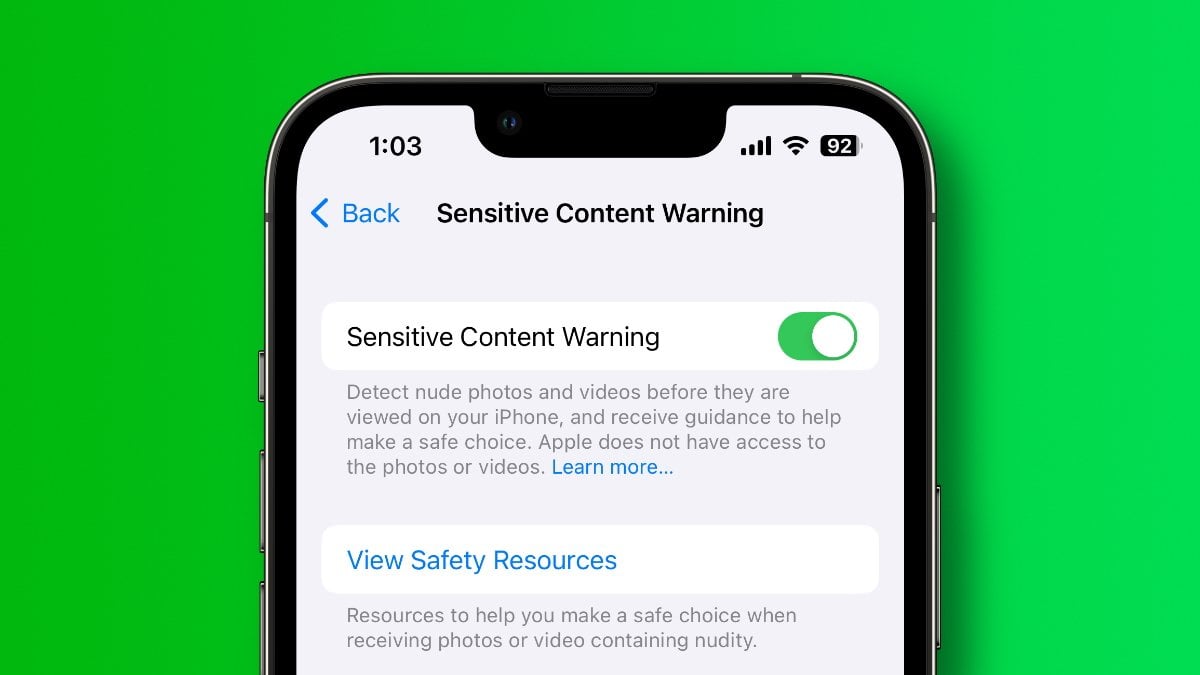
Do you want to turn off sensitive content on an iPhone? Follow the guide to know how you can turn it off in a few simple steps. We shall discuss how this sensitive content works and how you can fix it on your iPhone. Let’s get started.
What does it mean to turn off sensitive content on an iPhone?
Turning off the sensitive content warning on an iPhone means you are telling your device to stop scanning for and blurring explicit media that it used to blur earlier. It means that the screen that was present before will no longer be visible now. When this safety feature is active, your iPhone uses built-in AI to detect unsolicited nudity in incoming files to alert you about it. It can be anything that comes in an AirDrop transfer, a text message, or a FaceTime clip. It automatically covers the image with a blur, so you are not caught off guard, forcing you to tap a reveal button if you actually want to see it.
Disabling it turns off this automated shield and brings you immediately to that very screen. Media will appear instantly and clearly the moment it arrives on your screen, exactly as it used to before Apple introduced this privacy tool and started using it on your phone.
Steps to turn off sensitive content on an iPhone
If you want to turn off sensitive content on an iPhone, then these are the steps that you can follow.
- To start, you can just get your iPhone and tap on the Settings app.
- In the menu that opens next on your screen, you just have to look for the option that says – Privacy and Security, then tap on it to open it.
- In the next menu, easily swipe down near the bottom of the screen to find the section called Sensitive Content Warning and select it.
- Here, you must look for the toggle switch right at the very top next to the Sensitive Content Warning.
- Tap on that main switch to turn it off. This is a toggle, and the moment you do so, it will change the toggle from green to gray. If the color doesn’t change, click on it again.
- If you do not want to disable the feature entirely, you can leave that main switch green and instead scroll down to the App Protection section to toggle off warnings for specific apps like Messages, AirDrop, or FaceTime individually. You can now exit the screen and work as usual.
- And this is how you can turn off your sensitive content on your iPhone.