It’s an exciting fact packed in here! Did we tell you that you can now automatically change your iPhone’s wallpaper? Oh yes, you can have your cake now and eat it too. Without further ado, we’d like to tell you that with the help of the most recent iOS update, i.e. iOS 14.3, your Shortcuts app now comes to the feature using which you can now change your iPhone’s wallpaper automatically. Go through with the easy-peasy lemon squeezy guide and know How to Automatically Change Your iPhone’s Wallpaper with simple steps.
iPhone: How to change wallpaper automatically
Just like how we stated above, using the later update of your iPhone you can now Automatically Change Your iPhone’s Wallpaper. For that, first things first. You must make certain that your iPhone is updated with the latest version of iOS, i.e. iOS 14.3. Once you have taken care of your update, you’re all set to follow these steps-
- The very first step is to download the app of ‘Shortcuts’ on your iPhone from the app store.
- After you have downloaded the Shortcuts app, you have to head straight to the Settings section of your iPhone. Later, tap on ‘Shortcuts’ following which you have to enable the option of ‘Allow untrusted Shortcuts’.
- Your next step is to navigate through your web browser and then downloading the shortcut of ‘Auto wall’.
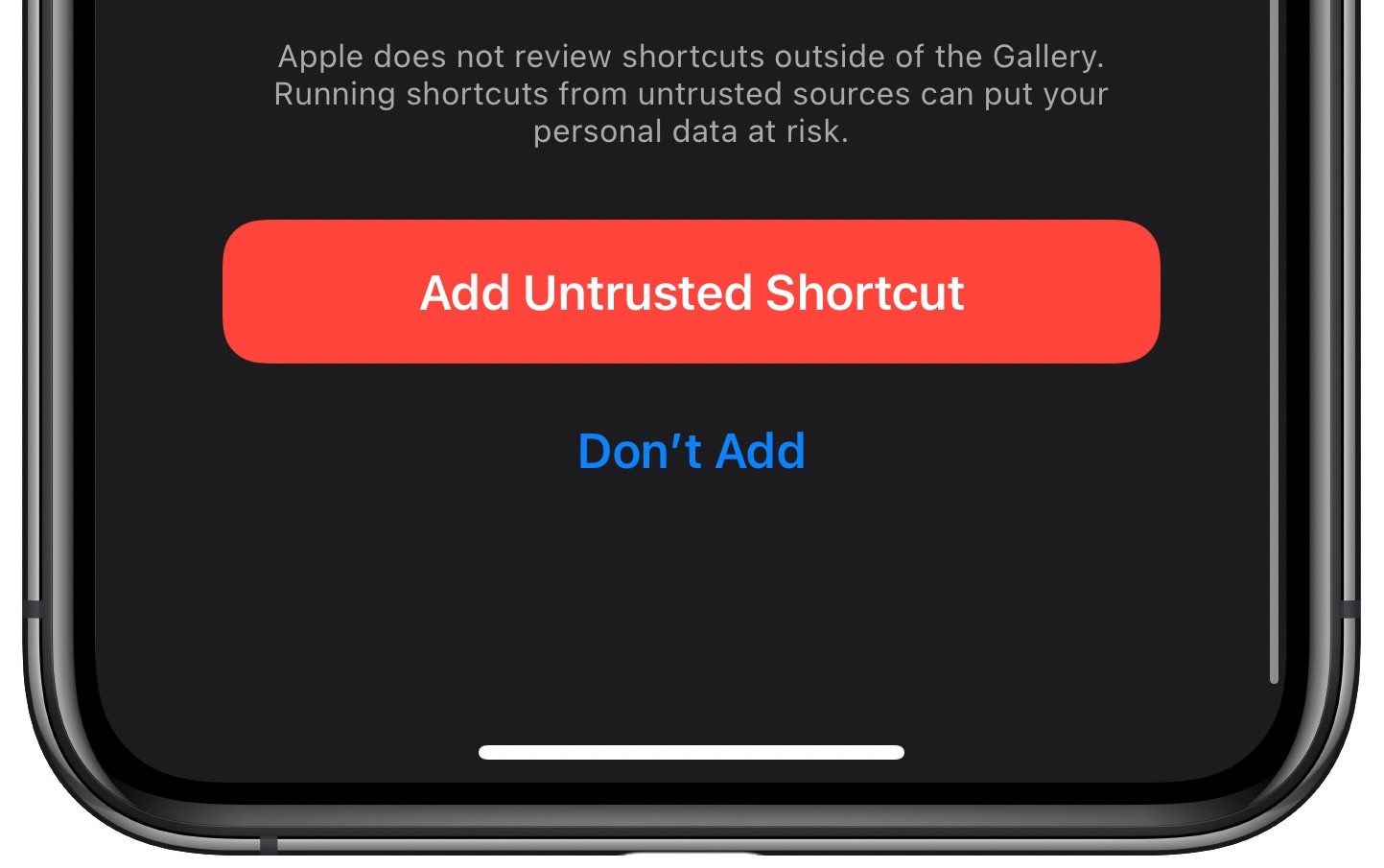
- After you have loaded the website on your phone, you have to select the option of ‘Get Shortcut’. When you will tap on that option you will be redirected to the Shortcut app on your iPhone. Keep scrolling down until you find the option of ‘Add Untrusted Shortcut’ and then tap on it.
- After doing the above mentioned, you will have to head to My Shortcuts and then tap on the three-dots which will be present on the AutoWall shortcut.
- Later this step, select the option of Allow Access and then later make sure you tap on ‘OK’. It will allow AutoWall to access and use all your photos.
- The next step is selecting the pictures which you want your wallpapers to repeat. You can do so by choosing any folder, which will be present, next to Album. Thankfully, you can choose any of the pictures that you like from the Photos app on your iPhone.
- It is after that you are done selecting the desired folder, make sure to tap on ‘Done’. This will save the Shortcut.
After you have done all these steps, know that you are over with finishing with setting up the shortcut. However, the task is yet not complete. The next process is to get done with the automation process. To complete the automation process with which you can finally Automatically Change Your iPhone’s Wallpaper, follow these steps-
- Launch the shortcuts app on your iPhone which you download in the earlier process. Head straight to the option of ‘Automation, and then select the option of ‘Create Personal Automation’.
- Your next step is to choose the option of ‘Time of Day’.
- When the next screen appears, work with the time and frequency you would like in your wallpaper automation.
- Later this step, select the option of ‘Next’ and keep moving forward by choosing the option of ‘Add Action’ when the next screen appears.
- Explore for the option of ‘Run Shortcut’ action and then tap on it once you find it.
- From the list of options available look for ‘Shortcut’ and tap on it. You will again get a number of options from which you have to choose ‘AutoWall’ by tapping on it.
- To almost finish, Tap Next. To make sure that the wallpaper automation is triggered automatically be sure to tap on Ask Before Running
- The last and final step is to tap on Done.