• Send Us A Tip
  • Calling all Tech Writers
  • Advertise
Saturday, June 20, 2026
  • Login
TechStory
  • News
  • Crypto
  • Gadgets
  • Memes
  • Gaming
  • Cars
  • AI
  • Startups
  • Markets
  • How to
No Result
View All Result
  • News
  • Crypto
  • Gadgets
  • Memes
  • Gaming
  • Cars
  • AI
  • Startups
  • Markets
  • How to
No Result
View All Result
TechStory
No Result
View All Result
Home How to

How to block notifications from websites

by Arya Roy
July 4, 2021 - Updated On October 17, 2021
in How to, Tech
Reading Time: 2 mins read
0
How to block notifications from websites

Source: https://thenextscoop.com/push-notifications-websites-different-mobile-apps-push-notifications/

TwitterWhatsappLinkedin

Sometimes, when we try to search for something very important on the Internet, we might get bombarded with unnecessary notifications from other websites.

You might also like

How to pre-order GTA 6?

How Long Do Toyota Camrys Last? New Data Shows Why the Sedan Refuses to Quit

2027 GMC Sierra 1500 Teased Ahead of Debut With Bold New Design and Next-Gen V8 Power

When you visit a website for the first time, you are required to agree to the website’s cookie policy, then decline notification access and close the requests to send regular newsletters.

Notifications may initially seem cool and informative, but soon rapidly become annoying and pestering, especially when it is coming from a website on a desktop. As soon as you visit a new website for the first time, there are a few hurdles you need to cross and one of them is opting in and out of push notifications directly from the website.

If you happen to be looking for a one-stop solution to block websites that are asking to push notifications,  here is a guide guide to completely block the notifications that most websites ask for as soon as you begin to consume their content.

Chrome desktop 

  1. Open a tab on the Chrome browser.
  2. Click on the More button, which is shown as three dots in the top right corner of your screen.
  3. Click on Settings.
  4. On the left, choose the  ‘Privacy and security’ option.
  5. Click on Site Settings.
  6. Choose the ‘Notifications’ option.
  7. Use the toggle to turn off the ‘Sites can ask to send notifications’ option.

Firefox desktop 

  1. Open a tab on the Firefox browser.
  2. Click on the More button, which is shown as three dots in the top right corner of your screen.
  3. On the left, choose the ‘Privacy and security’ option.
  4. Scroll down the menu to reach the permission section
  5. Choose the Settings option, which can be found next to the notification. For this, a new window will open.
  6. Click on the check box which read ‘Block new requests asking to allow notifications.’
  7. Click on the option to save all the changes made.

Microsoft Edge browser 

  1. Open a tab on the Microsoft Edge browser.
  2. Click on the More button, which is shown as three dots in the top right corner of your screen.
  3. Choose the ‘Cookies and site permissions’ option.
  4. Scroll down to the notifications control section.
  5. Use the toggle to turn off the option that says ‘Ask before sending (recommended).’
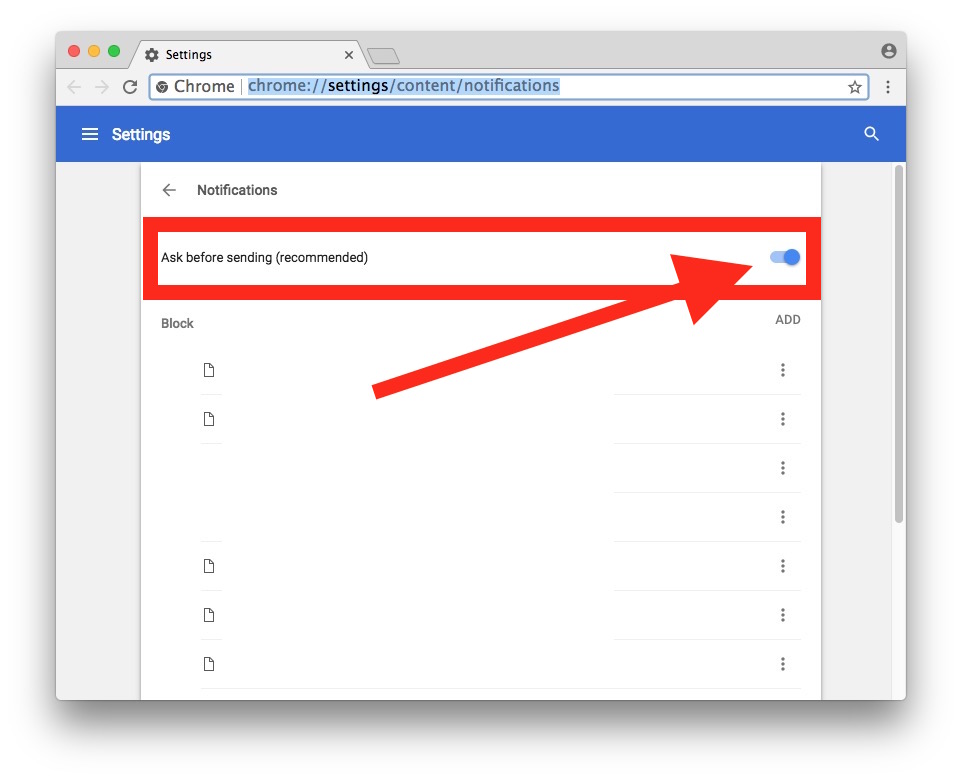
Source: https://osxdaily.com/2018/01/16/disable-web-show-notification-requests-chrome/

Safari

  1. Open a tab on the Safari browser.
  2. Click on Safari, which can be found on the menu bar.
  3. Choose the ‘Preferences’ option, which will open the Settings tab.
  4. Click on Website on the top bar and choose notifications on the left side of your screen.
  5. Click on the check box to uncheck the option that reads ‘Allow websites to ask for permission to send notifications.’

Tags: ChromeFirefoxMicrosoft EdgeSafari
Tweet54SendShare15
Previous Post

Ransomware hack at IT provider Kaseya hits clients worldwide

Next Post

Netherlands gives go-ahead for privacy litigation against FB

Arya Roy

Hi, this is Arya! Writing has always been a passion of mine, regardless of the topic I choose. Besides that, I am a huge foodie and music lover, whose interests range from world politics to horror films to everything in between.

Recommended For You

How to pre-order GTA 6?

by Afeefa Ansari
June 20, 2026
0
GTA 6

Waiting for GTA 6? Here is how you can pre-order the game and keep it with you to play as soon as you want! Let us see when's...

Read more

How Long Do Toyota Camrys Last? New Data Shows Why the Sedan Refuses to Quit

by Samir Gautam
June 19, 2026
0
Toyota Camry lifespan guide

For decades, the Toyota Camry has built a reputation that few mainstream sedans can match. While many vehicles begin showing their age after a decade on the road,...

Read more

2027 GMC Sierra 1500 Teased Ahead of Debut With Bold New Design and Next-Gen V8 Power

by Samir Gautam
June 19, 2026
0
2027 GMC Sierra 1500 Teased

General Motors has officially started building anticipation for the next-generation 2027 GMC Sierra 1500, releasing the first teaser image of the redesigned pickup and confirming that its debut...

Read more
Next Post
Facebook

Netherlands gives go-ahead for privacy litigation against FB

Please login to join discussion

Techstory

Tech and Business News from around the world. Follow along for latest in the world of Tech, AI, Crypto, EVs, Business Personalities and more.
reach us at info@techstory.in

Advertise With Us

Reach out at - info@techstory.in

Aviator Game India 2026

BROWSE BY TAG

#Crypto #howto 2024 acquisition AI amazon Apple Artificial Intelligence bitcoin Business China cryptocurrency e-commerce electric vehicles Elon Musk Ethereum facebook funding Gaming Google India Instagram Investment ios iPhone IPO Market Markets Meta Microsoft News OpenAI samsung Social Media SpaceX startup startups tech technology Tesla TikTok trend trending twitter US

© 2025 Techstory.in

No Result
View All Result
  • News
  • Crypto
  • Gadgets
  • Memes
  • Gaming
  • Cars
  • AI
  • Startups
  • Markets
  • How to

© 2025 Techstory.in

Welcome Back!

Login to your account below

Forgotten Password?

Retrieve your password

Please enter your username or email address to reset your password.

Log In
Are you sure want to unlock this post?
Unlock left : 0
Are you sure want to cancel subscription?