Introduction:
In today’s digital age, privacy has become a valuable commodity. With smartphones at the forefront of our daily lives, it’s important to protect sensitive information from prying eyes. One way to enhance your privacy on an iPhone is by hiding notifications on the lock screen. In this article, we will explore the steps to achieve this and provide you with a comprehensive guide on maintaining your personal information securely.
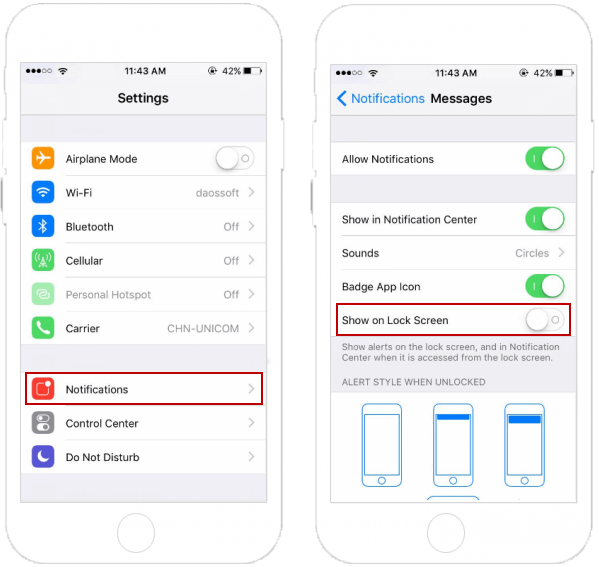
Step 1: Accessing the Settings Menu
To begin, unlock your iPhone and locate the “Settings” app on the home screen. It is represented by a gear icon and is usually found on the first page or within a folder named “Utilities.”
Step 2: Navigating to the “Notifications” Section
Scroll through the list of options within the Settings menu and select “Notifications.” This section allows you to customize the notification settings for all the apps installed on your iPhone.
Step 3: Configuring Individual App Settings
Inside the “Notifications” menu, you will find a list of all the applications installed on your device. Tap on the app for which you want to hide notifications on the lock screen.
Step 4: Customizing Notification Style
Within the app’s settings, you will see various options to customize its notification behavior. This will prevent the app’s notifications from appearing when your iPhone is locked.
Step 5: Repeat for Other Apps
Repeat steps 3 and 4 for each app you wish to hide notifications from on the lock screen. By individually customizing the settings, you can have better control over the information displayed.
Step 6: Utilizing “Hide Sensitive Content” Option
To further protect your privacy, you can enable the “Hide Sensitive Content” option. By enabling this setting, your notifications will still appear on the lock screen, but their content will remain concealed until your iPhone is unlocked.
To activate this feature, navigate back to the main “Notifications” menu and scroll down to the “Lock Screen” section. Select “Show Previews” and choose the “When Unlocked” or “Never” option depending on your preference.
Step 7: Disabling “Notification Preview”
For utmost privacy, you may want to disable the “Notification Preview” feature entirely. This will prevent any app notifications from appearing on the lock screen, regardless of their sensitivity.
To accomplish this, go back to the “Notifications” menu and scroll to the “Lock Screen” section. Toggle off the “Notification Preview” option. This will hide all notification content from the lock screen.
We will now explore the reasons why hiding notifications on the lock screen is a beneficial practice for iPhone users.
Protecting Personal Privacy
Our smartphones often contain sensitive information, from personal messages to emails and social media notifications. By hiding notifications on the lock screen, iPhone users can prevent prying eyes from glimpsing their personal communications. This adds an extra layer of privacy and ensures that your personal information remains confidential. Whether you’re in a crowded public place or have nosy friends or colleagues, hiding notifications on the lock screen helps to maintain your privacy.
Preventing Unauthorized Access
One of the primary purposes of a lock screen is to prevent unauthorized access to your device. By hiding notifications, you minimize the risk of someone casually glancing at your screen and gaining insights into your personal or professional life. This is particularly crucial when your iPhone is left unattended or misplaced. The less information visible on the lock screen, the more secure your device becomes.
Reducing Distractions
Hiding notifications allows you to control the interruptions you receive throughout the day. By limiting the visual distractions on your lock screen, you can stay focused on important tasks without constantly checking your phone.
Enhancing Professionalism
By keeping your notifications private, you prevent colleagues or clients from viewing potentially confidential or sensitive information.
Preserving Battery Life
By hiding notifications on the lock screen, you reduce the number of times your device activates the display, ultimately preserving battery life.
Preventing Spoilers
By hiding notifications, you can avoid accidentally stumbling upon spoilers and enjoy your favorite shows and sports events without any unwanted revelations.
Conclusion:
In an era where digital privacy is of utmost importance, learning how to hide notifications on the lock screen of your iPhone is a fundamental step in safeguarding your personal information. By following the steps outlined in this article, you can maintain better control over what information is displayed on your iPhone’s lock screen, minimizing the risk of unauthorized access to your sensitive data.
Remember to individually customize the notification settings for each app and consider enabling the “Hide Sensitive Content” or disabling the “Notification Preview” feature based on your desired level of privacy. By implementing these measures, you can enjoy a more secure and private smartphone experience.
Always prioritize your digital well-being and remain vigilant in protecting your personal information from prying eyes. Your iPhone is a powerful tool, and with the right settings, you can ensure that your notifications remain discreet and accessible only to you.