
Undoubtedly, video content has become one of the main storytelling tools for market professionals, brands, content creators, educators, and others. This is because an effective clip can keep viewers engaged with your products, services, and entertaining shots.
But, sometimes a walking animal or uninvited people in the background can affect the overall purpose of your film. Of course, you can use video editor to remove objects from a video, but the old process is time-consuming and costly.
So what to do?
Well, there is an AI-powered object remover that can quickly erase people from your video. The best part is that you can use such a tool on any device, be it your phone, system, or browser. In this article, we will help you with the top AI tools for removing things from video on various devices.
Part 1: How to Erase Objects from Video on PC
Many times, we work on a PC when at the office or at home, and you can easily remove object video on a PC with the help of the following tools or apps.
Wondershare Filmora (Best Overall Choice)
Filmora is one of the best AI object removers that anyone can use with ease. Using this powerful tool, you can erase people, text, logos, or background distractions from your clips. The best part is that you don’t need any skills, knowledge, or training to use it to remove a person from video. Also, it doesn’t affect the quality of the original clip and is best for 4K or HD videos.
Its smart AI technology identifies the specific object you want to remove and maintains the consistency across frames. There are features like Smart Cutout and motion tracking, which can easily track moving objects in real time to remove them efficiently without leaving visible traces. It is best for beginners and professional video editors.
How to use
- Launch Filmora and import video from which you want to remove the object.
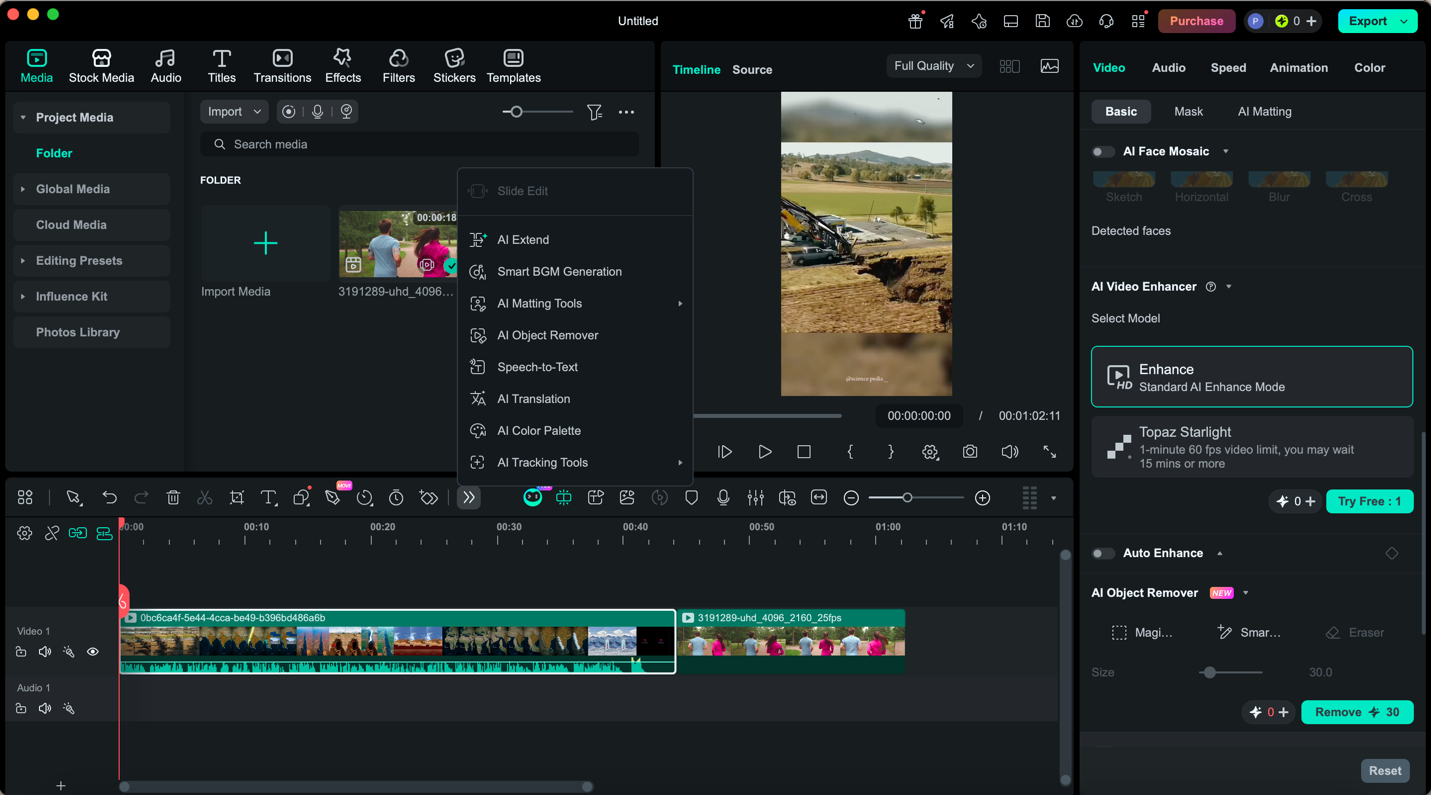
- Select AI Object Remover from the tools and use Smart Brush or Magic Box to choose the object.
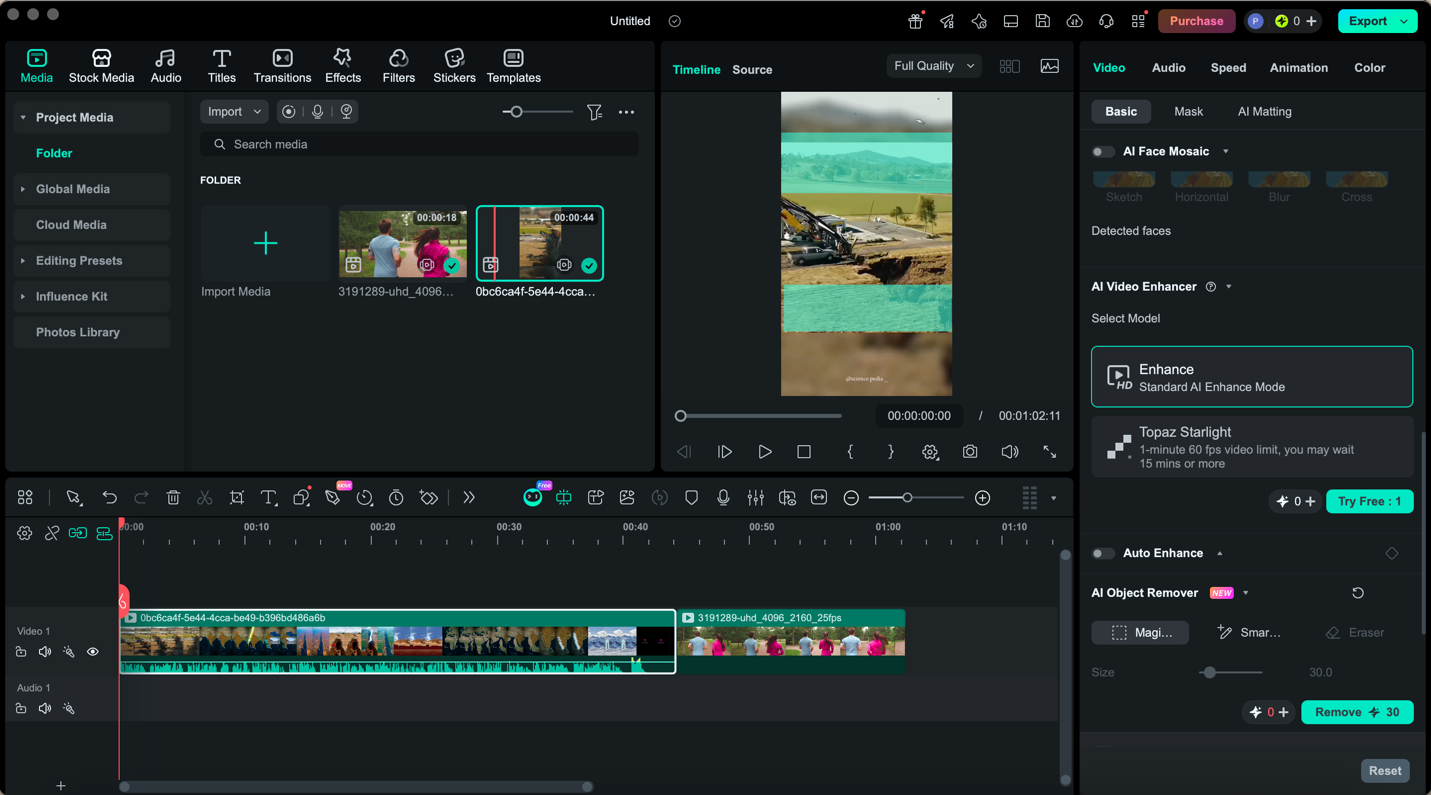
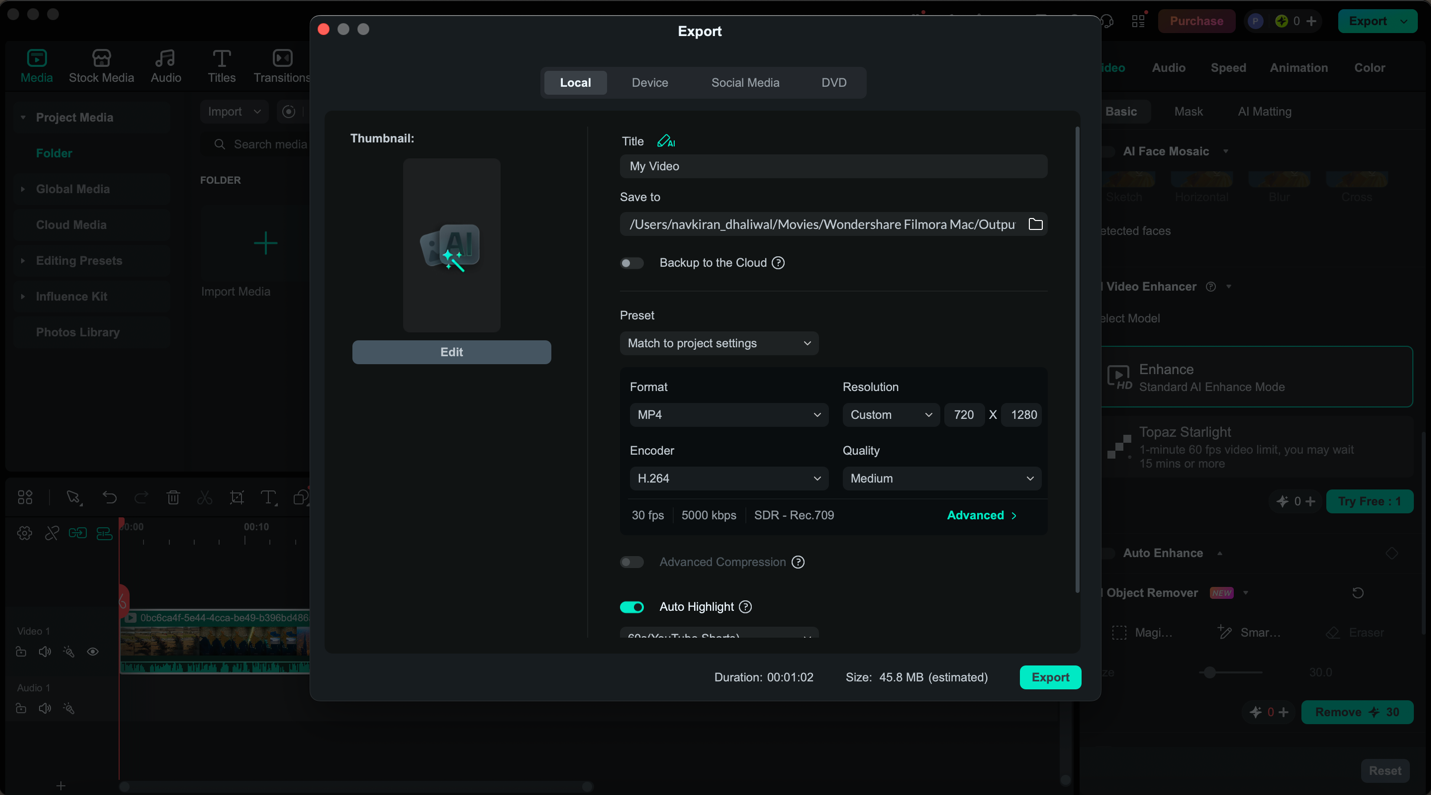
- Finally, review the edits and export the video in the desired resolution. You can also edit video for sharpness, effects, and other improvements.
Pros
- Extremely easy to use for beginners
- Fast and reliable AI processing
- Suitable for all video sizes
- Supports multiple formats
- Safe and secure to use
Cons
- Some advanced features require a paid version
- Need a decent PC or laptop to use it
Adobe After Effects (Professional-Level Editing)
Adobe After Effects is a professional-grade tool that you can use to remove people from video. Its Content-Aware Fill for Video feature uses advanced AI to remove unwanted people, objects, or distractions. When removing unwanted objects from video, it intelligentally fill the space without leaving any errors. For professional editors, it is a top choice.
Also, this video editing software offers great masking and rotoscoping tools, allowing you to manually refine selections. But the only issue with it is that it has a deep learning curve. Novices like you or me can struggle to use it to remove objects from the background without training or previous editing skills.
How to use
- Open After Effects and create a new composition
- Import your video file
- Use the Pen Tool to draw a mask around the object
- Open the Content-Aware Fill panel
- For the Fill Method, select Object if it moves or select the range you want to fix
- Click Generate Fill Layer
- Let the software analyze and fill in the background
- Review and refine if needed
Pros
- Extremely precise results
- Full creative control
- Handles complex motion well
Cons
- Steep learning curve
- Expensive subscription
- Requires high-performance hardware
DaVinci Resolve (Free Professional Tool)
DaVinci Resolve is a powerful video editing tool that also offers advanced capabilities for removing unwanted objects from videos. While it is widely known for editing and color grading, its Fusion tab provides professional tools that allow users to clean up footage and remove distractions with high precision. It is especially popular among users looking for a free yet professional-grade solution.
The software uses a node-based editing system, which gives more control over how object removal is applied. With clone and paint tools, users can manually remove objects by blending surrounding areas into the scene.
How to use
- Open tool and import your video into the timeline
- Go to the Fusion tab and add a Paint node
- Use the clone tool to paint over unwanted objects
- Apply motion tracking to follow movement
- Export the output in the format you want and save
Pros
- Free version available
- Professional-grade features
- No watermark
Cons
- Complex interface
- Difficult to use for beginners
- Requires time to learn
Part 2: How to Remove Objects from Video on Your Phone
here few ways you can use to erase objects from videos on your phone.
Filmora Mobile (Best Mobile Solution)
Filmora Mobile is an easy, trustworthy, and reliable solution to remove object from video directly from your smartphone. Designed for quick video editing, its AI feature allows you to erase any kind of distractions from videos without the need for a PC. Therefore, it can be your best friend to edit and post videos on social media directly from your phone. Moreover, for your official work, you can use it for on-the-go edits.
With real-time preview and mobile-optimized controls, Filmora Mobile can make video editing process seamless for you. It is a great choice for anyone looking to perform efficient object removal anytime, anywhere, without compromising on quality.
How to use
- Open the app, tap on AI remover and import video from which you want to remove object.
- Select the quick brush or brush and hover over the object to remove in video.
- Tap Process Now and export the output. If you want, you can make more edits to the video using the same tool.
Pros
- Easy to use
- Fast processing
- Portable editing
Cons
- Limited precision compared to PC
- Some features are premium
Picsart (AI Object Removal for Mobile)
Picsart is an effective mobile app to erase objects from videos directly on your Android or iOS device. Its AI object removal functionality lets you erase unwanted people, logos, or objects from videos without a PC.
It’s great for social media creators, vloggers, or anyone requiring quick, clean edits on the go. In addition to removing objects, Picsart includes filters, text, music, and other video editing too.
How to use
- Open Picsart and tap + to import your video.
- Select Remove Object under videos and tap Remove.
- Brush over the object or person you want to remove.
- Tap Apply and let the AI process the removal.
- Export the video in your desired quality.
Pros
- AI-powered removal for fast editing
- Easy-to-use interface for beginners
- Works on both Android & iOS
- Compatible with all video formats
Cons
- Large or complex backgrounds may reduce accuracy
- Advanced features may require a subscription
- watermark on output of the free version
InShot
InShot is a versatile mobile video editor that allows manual object removal using cutout, PIP, or chroma key tools. While it doesn’t have an automatic AI object remover, it works best for isolating subjects or removing backgrounds, especially when videos are shot with a green screen or simple backgrounds.
InShot also provides transitions, text, music, and other video editing features, making it a reliable mobile editing app.
How to use
- Open InShot and import your video.
- Use the Cutout tool and choose Croma option background is a solid color.
- Select the object you want to remove
- Preview the video and export it in your preferred format.
Pros
- Great for background removal and subject isolation
- Includes a full suite of editing tools
- Beginner-friendly interface
Cons
- No automatic AI object removal
- Manual masking requires more effort
- Works best with simple or green-screen backgrounds
Part 3: How to Remove Objects From Videos Online
Below are some popular tools that you can use in a browser to remove objects from video.
Media.io (Online Watermark Remover)
Media.io is a web-based method to eliminate unwanted objects from videos. The best part is that it does not require you to download any apps. The whole process works online, so you can upload your video and start editing from anywhere on any device.
It uses AI object detection to recognize and delete features in uploaded videos, such as watermarks, logos, or extra items. Also, there is a brush selection tool that allows you to manually select areas you want to erase, resulting in more control over the end product. This online tool supports several video formats, even though it may not be the most flexible service for specific kinds of content.
How to use
- Open Media.io and select AI Tools.
- Select Video Object Remover and upload your video
- Hover over the brush on the object you want to delete from the video
- Download your output
Pros
- No installation required
- Easy to use for begineers
- Works on all devices
- Best for basic editing
Cons
- Requires internet
- Limited file size in the free version
Kapwing
Kapwing is another powerful cloud-based video editor featured with the ability to remove unwanted objects from videos directly in your browser. With the AI support tools, you can easily remove people, logos, or other distractions without having to install any software. It is simple enough for beginners while providing features to meet professional creators’ needs.
More than just an object removal solution, Kapwing also includes the complete toolbox of editing tools we expect to find in any kind of video editor, including trimming, resizing, captions & filters, and so much more, but it’s all there in a single online platform.
How to use
- Open Kapwing in your browser (works on Android, iOS, or PC).
- Click Start Editing and upload your video.
- Use the brush tool to highlight the object you want to remove.
- Click Erase and let Kapwing’s AI process the removal.
- Click Export Video to download your edited video.
Pros
- No software installation required, works in any browser
- AI-assisted object removal for quick and precise edits
- Supports multiple video formats
- Additional tools for captions, trimming, resizing, and effects
Cons
- Free plan includes watermark on exports
- Processing may be slower for long or high-resolution videos
- Advanced features require a paid subscription
Unscreen – Online Video Background & Object Remover
Unscreen is an easy-to-use web app that instantly removes any unwanted objects, background, or moving content from your videos. With the help of AI-backed video analysis, it can zap out distractions like people, logos, or scenery and extract subjects without needing to know complicated editing skills.
This web-based tool (compatible with MP4, GIF, and WebM) runs entirely in your browser so you can marry any device. Unscreen is perfect for creators, marketers, and educators who want to create high-quality videos quickly and effortlessly.
Pros
- Fully cloud-based, no software installation required
- AI-driven object and background removal for fast results
- Supports various video formats and resolutions
- Works on any device with a browser
Cons
- Free version adds a watermark
- Limited customization for fine-tuning object removal
- Processing time may increase for longer videos
Part 4: Quick Comparison for Video Object Removers
| Tool | Platform | AI Power | Best For |
| Filmora | PC | High | All users |
| Adobe After Effects | PC | Very High | Professionals |
| DaVinci Resolve | PC | Medium | Advanced users |
| Filmora Mobile | Android & iOS | High | Quick edits |
| Picsart | Android & iOS | High | Social media & quick edits |
| InShot | Android & iOS | Low | Background removal & masking |
| Media.io | Online | High | Beginners |
| Kapwing | Online | Medium | Teams & collaborative edits |
| Unscreen | Online | Medium | Quick background & object removal |
Part 5: Tips for Removing Objects From Videos
Here are some tips for you to effectively remove objects from videos:
- Use the best AI tool: Make sure you use the best and most reliable AI object remover that maintains video quality and erases unwanted elements with clean output. Check reviews of other users about a tool and then use it.
- Avoid watermark in edited video: It is better to use a tool that doesn’t put any watermark on your final video. It is because a clip with a watermark is of no use to you.
- Be clear with what you want to erase: Carefully select the only objects you want to erase from your video. If in any case you accidentally erase the needed subject, then undo the editing and try again.
- Preview before final export: Always watch the edit to ensure that the removal is smooth and natural.
- Apply removal in passes: If the object is complex or in motion, two passes can yield better results than one.
AI-powered tools make removing unwanted objects from videos quick and easy on any device. For PC users, Filmora offers the best balance of power and simplicity. On mobile, Filmora Mobile or Picsart excel. Online options like Media.io work without installation. Choose based on your device, skill level, and budget.
FAQs
Will removing objects reduce my video quality?
No, if you use tools like Filmora AI object remover or Media.io , it will not affect the resolution or frame rate of your video.
Do free online tools leave watermarks?
Many free tools add watermarks. To avoid them, either use paid plans or select free tools that explicitly offer watermark-free exports.
Which file formats AI object remover support?
Popular online video editors like Filmora support MP4, MOV, AVI, and GIF formats.
Can I use Filmora to remove multiple objects at once?
Yes, you can use Filmora to remove multiple objects from a video at once. Simply, select the elements you want to delete and click Remove. But, if your scenes are complex, we suggest you delete unwanted objects one by one for cleaner results.
How long does it take to remove objects from a video?
Processing time depends on video length, resolution, and complexity. Short clips may take a few seconds, while longer high-resolution videos may take several minutes.