• Send Us A Tip
  • Calling all Tech Writers
  • Advertise
Sunday, June 14, 2026
  • Login
TechStory
  • News
  • Crypto
  • Gadgets
  • Memes
  • Gaming
  • Cars
  • AI
  • Startups
  • Markets
  • How to
No Result
View All Result
  • News
  • Crypto
  • Gadgets
  • Memes
  • Gaming
  • Cars
  • AI
  • Startups
  • Markets
  • How to
No Result
View All Result
TechStory
No Result
View All Result
Home Tech

How to Rotate Text in Microsoft PowerPoint

by Priyanka Chaubey
January 2, 2021
in Tech
Reading Time: 2 mins read
0
How to Rotate Text in Microsoft PowerPoint
TwitterWhatsappLinkedin

Know How to Rotate Text in Microsoft PowerPoint in quick and easy steps- 

You might also like

Hyundai Edges Closer to Record U.S. Market Share as Hybrid Sales Surge

Europe’s AI Sovereign Fight Mistral Eyes Massive Valuation Double in New Funding Round

Retail Frenzy on Wall Street Robinhood Experiences Record-Breaking Influx on SpaceX Debut Day

From school/college life to work-life many things change. But what remains the same is the utility of Powerpoint presentations. Whether you have to make a group project for a class assignment or give a presentation about your ideas to your boss- Powerpoints and its tools always get you extra marks.

Since the use of Powerpoint lands so often and is super dynamic, learning a trick or two about Mircosoft Powerpoint and its tools. Before starting, we’d like to brush you up with a fact that you can Rotate Text in Microsoft PowerPoint. As per your needs and preference you can rotate your text by entering a particular degree or even with a free hand.
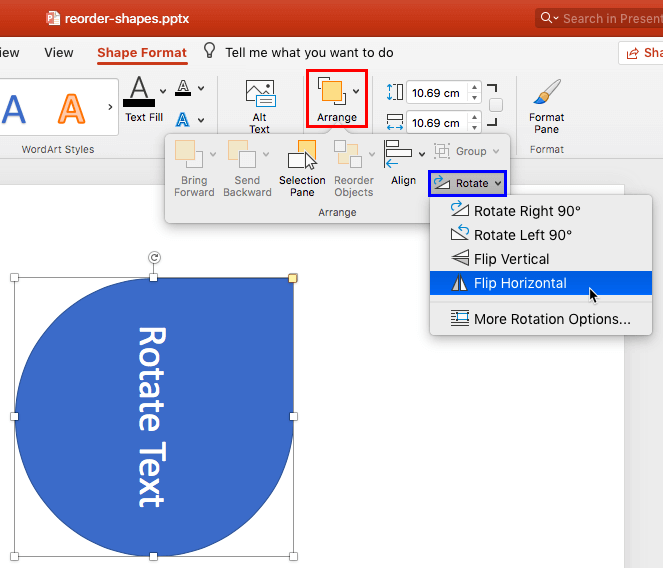
rotate text in microsoft powepoint
credits- Indezine


Know How to Rotate Text in Microsoft PowerPoint

  1. Your first step of all will be to of course open Microsoft Powerpoint and start working on your presentation. Then all you have to do is navigate to the Insert bar and then look for the option of ‘Text Box’ under the header of “Text”. When you will click on the Text Box option you will insert a text box in your PowePoint Presentation.
  2. Type your text in the text box and then drag the curved arrow above the text box to rotate text in Microsoft PowerPoint.
  3. With this method, you work with the rotation of text in your PowerPoint presentation with a free hand which is actually a pretty great way if you know how to put the text at an exact angle. If there is a case in which you want the text to rotate at a specific angle but you can’t do it this way, you can also specify the number.
  4. If you wish to rotate your text to a specific angle you will have to follow another step. The first thing to do is to select the text box whose text you wish to rotate. Once you highlight the text box, head to the Format tab, and then select the option of ‘Rotate’. You will find the option of Rotate under the ‘Arrange’ group.
  5. After you click on the option of Rotate, a drop-down menu will appear on your screen. The drop-down menu will come bearing options with which you will be able to Rotate Text in Microsoft PowerPoint. The first two options you see in the drop-down menu will assist you with rotating the text box right or left by 90 degrees from its current position Other options will flip the text box vertically or horizontally.
  6. Enter the degrees at which you will like to Rotate your text and just like that you will be done!

Tags: Rotate Text in Microsoft PowerPoint
Tweet55SendShare15
Previous Post

How to disable Siri Suggestions in Spotlight Search on iPhone and iPad?

Next Post

PlayStation India announces PS5 release date in India

Priyanka Chaubey

Recommended For You

Hyundai Edges Closer to Record U.S. Market Share as Hybrid Sales Surge

by Samir Gautam
June 14, 2026
0
Hyundai Edges Closer to Record U.S. Market Share as Hybrid Sales Surge

Hyundai Motor Group is enjoying one of its strongest years yet in the United States. Backed by growing demand for hybrid vehicles, Hyundai and Kia are steadily increasing...

Read more

Europe’s AI Sovereign Fight Mistral Eyes Massive Valuation Double in New Funding Round

by Anochie Esther
June 14, 2026
0
Mistral AI multi-billion funding

A massive financial escalation is unfolding across the European technology landscape as the race for artificial intelligence supremacy intensifies. On June 12, 2026, insider sources confirmed that Paris-based...

Read more

Retail Frenzy on Wall Street Robinhood Experiences Record-Breaking Influx on SpaceX Debut Day

by Anochie Esther
June 14, 2026
0
record-breaking traffic surge

The public markets have officially entered a historic new era. On Friday, June 12, 2026, the retail trading community unleashed an unprecedented wave of capital that tested the...

Read more
Next Post
Sony PS5 completely out of stock: India launch delayed further!

PlayStation India announces PS5 release date in India

Please login to join discussion

Techstory

Tech and Business News from around the world. Follow along for latest in the world of Tech, AI, Crypto, EVs, Business Personalities and more.
reach us at info@techstory.in

Advertise With Us

Reach out at - info@techstory.in

Aviator Game India 2026

BROWSE BY TAG

#Crypto #howto 2024 acquisition AI amazon Apple Artificial Intelligence bitcoin Business China cryptocurrency e-commerce electric vehicles Elon Musk Ethereum facebook funding Gaming Google India Instagram Investment ios iPhone IPO Market Markets Meta Microsoft News OpenAI samsung Social Media SpaceX startup startups tech technology Tesla TikTok trend trending twitter US

© 2025 Techstory.in

No Result
View All Result
  • News
  • Crypto
  • Gadgets
  • Memes
  • Gaming
  • Cars
  • AI
  • Startups
  • Markets
  • How to

© 2025 Techstory.in

Welcome Back!

Login to your account below

Forgotten Password?

Retrieve your password

Please enter your username or email address to reset your password.

Log In
Are you sure want to unlock this post?
Unlock left : 0
Are you sure want to cancel subscription?