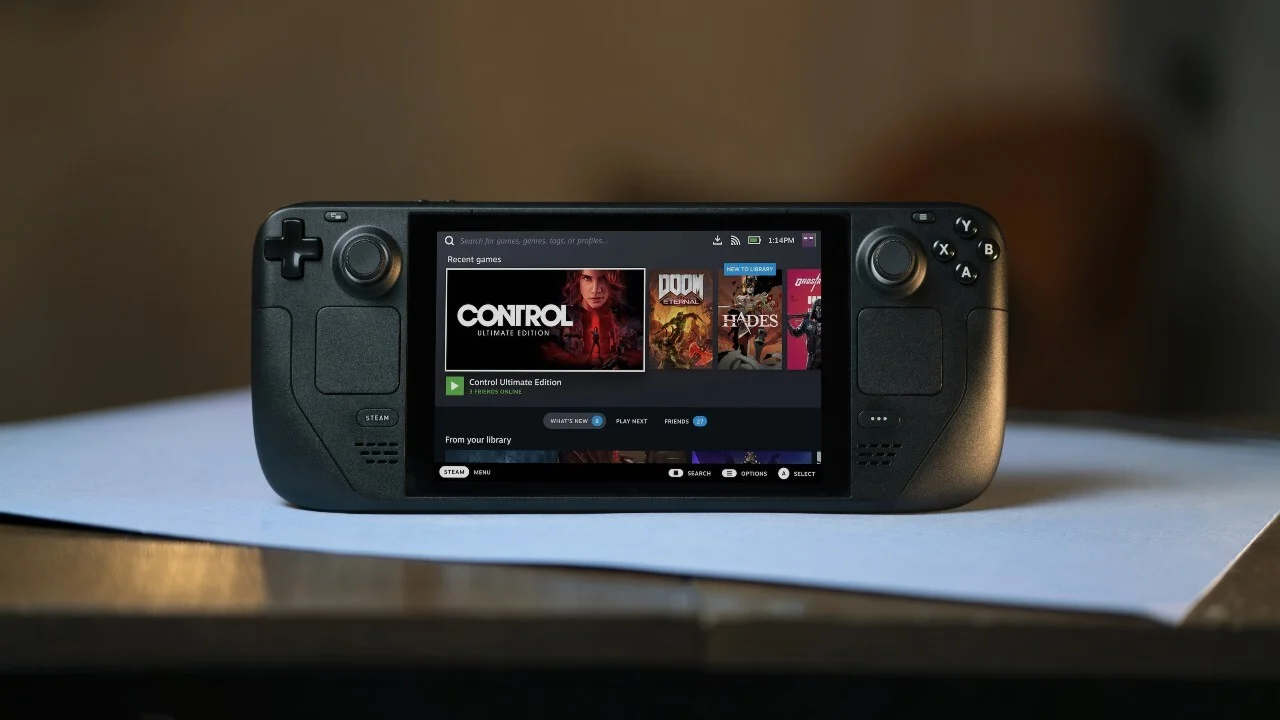
The Steam Deck, Valve’s handheld gaming device, offers a versatile platform for both modern and classic gaming. For enthusiasts eager to revisit Sega Master System titles, the Steam Deck provides a seamless experience through emulation. This guide will walk you through the steps to set up and play Sega Master System games on your Steam Deck.
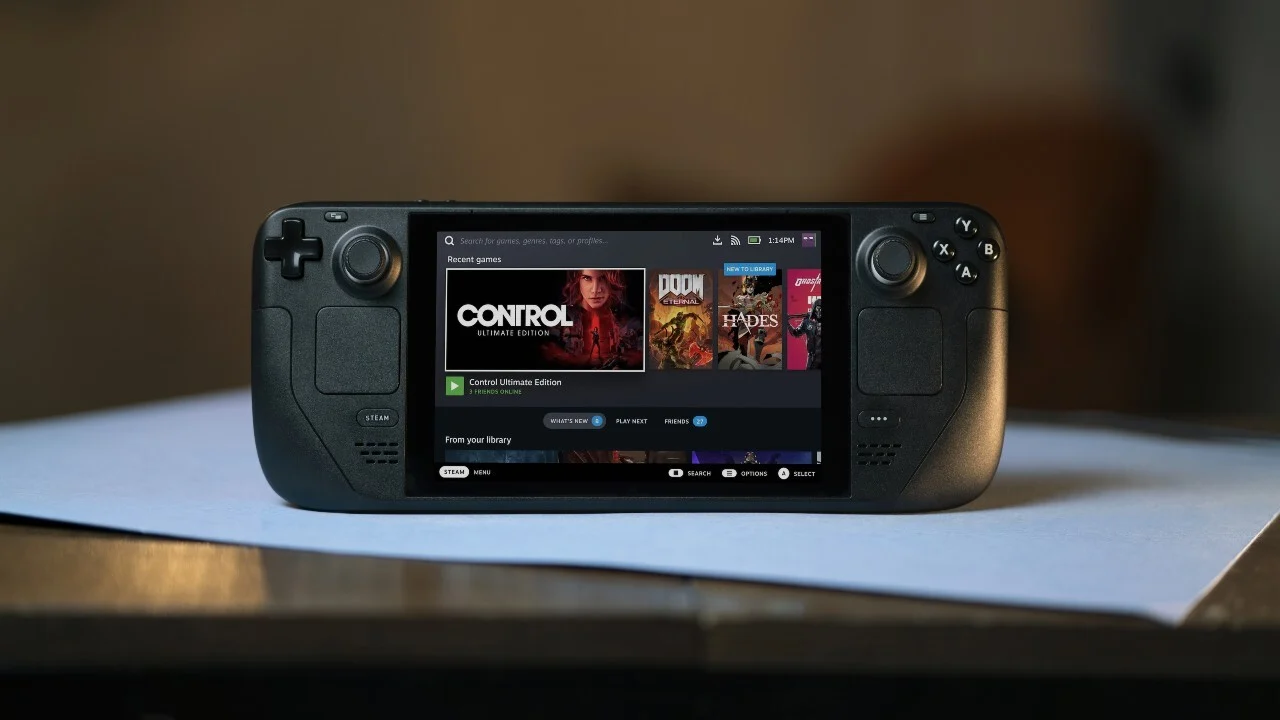
Before diving into emulation, ensure your Steam Deck is ready:
- Charge Your Device: Make sure the Steam Deck is fully charged or connected to a power source to prevent interruptions during setup.
- High-Speed MicroSD Card: Utilize a high-speed microSD card to store your game files. This approach safeguards the internal storage and allows for easy game management.
- Input Devices: While the Steam Deck’s touchscreen and trackpads are functional, connecting a keyboard and mouse can simplify the setup process.
Activating Developer Mode
To enhance compatibility and performance, enable Developer Mode:
- Press the Steam button to open the main menu.
- Navigate to Settings > System.
- Toggle Enable Developer Mode to the “on” position.
- A new Developer menu will appear at the bottom of the settings list.
- Within the Developer menu, activate CEF Remote Debugging.
- Restart your Steam Deck to apply these changes.
Installing EmuDeck
EmuDeck is a comprehensive tool that simplifies emulator installation on the Steam Deck:
- Switch your Steam Deck to Desktop Mode:
- Press the Steam button, select Power, then choose Switch to Desktop.
- Open a web browser and navigate to the EmuDeck website.
- Download the EmuDeck installer.
- Locate the downloaded file and run the installer.
- Follow the on-screen prompts, selecting the appropriate options for your setup.
- Upon completion, EmuDeck will configure the necessary emulators and create relevant folders.
Transferring Sega Master System ROMs
With EmuDeck set up, transfer your legally obtained Sega Master System ROMs:
- Insert your microSD card into the Steam Deck.
- Open the Dolphin File Manager from the desktop.
- In the left panel, under Removable Devices, select your microSD card labeled Primary.
- Navigate to Emulation > roms > mastersystem.
- Copy your ROM files (with the .sms extension) into this folder.
Integrating Games into Steam Library
To access your games directly from the Steam interface:
- Launch EmuDeck in Desktop Mode.
- Open Steam ROM Manager.
- On the Parsers screen, disable all parsers except for Sega Master System.
- Click Preview, then Parse.
- Ensure your games and their artwork are correctly displayed.
- Select Save to Steam to finalize the integration.
Managing Game Artwork
If any game covers are missing or incorrect:
- In Steam ROM Manager, locate the game with the missing artwork.
- Click on the cover frame and select Search for game.
- Enter the game’s title and choose the appropriate cover from the results.
- If no suitable cover is found, manually upload one:
- Download the desired artwork to your Steam Deck.
- In the cover frame, select Upload, navigate to the saved image, and set it as the cover.
Launching Your Games
With everything set up:
- Switch back to Gaming Mode on your Steam Deck.
- Press the Steam button and navigate to your Library.
- Under the Collections tab, find and select Sega Master System.
- Choose a game and start playing.
Optimizing Performance
For smoother gameplay:
- While in-game, press the Quick Access Menu (QAM) button located below the right trackpad.
- Navigate to the Performance section.
- Enable Use per-game profile.
- Set the Frame Limit to 60 FPS.
- Activate Half Rate Shading to enhance performance.