

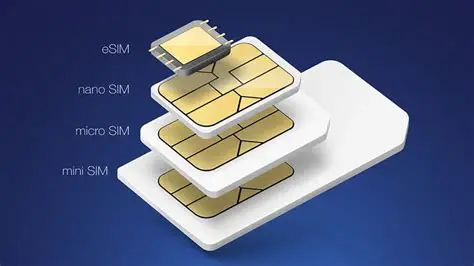
Do you have an e-SIM you want to transfer to a new phone? Here is how you can do that! Follow the guide to know how you can transfer your e-SIM in a few steps. So, let’s get started.
Steps to transfer an e-SIM to a new phone
If you want to transfer an e-SIM to a new phone, this is what you should do.
- To begin, we have to first make sure both of your phones are connected to a strong Wi-Fi network and have Bluetooth turned on. You will also have to ensure that both devices are updated to their latest software versions, as the outdated versions often trigger glitches.
- If you are moving from an old iPhone to a new one, or between two Android devices, the process is built right into the setup assistant, and that is pretty much where you find everything. During the initial setup of your new phone, you can choose the option to transfer data from your nearby old device. When prompted about your cellular plan, you can simply select your phone number and follow the on-screen prompts to confirm the transfer on your old phone.
- But particularly if you are switching brands, you will likely need to scan a QR code provided by your carrier. This is important, and one cannot dodge this step. So, log in to your carrier app or website on a computer or your old phone, find the eSIM section, and request a transfer. This will generate a new QR code. On your new phone, go to settings, networks, and select the option to add an eSIM or mobile network, then scan that code.
What happens after we transfer the e-SIM?
What happens is rather straightforward. Once the transfer finishes, your old phone will instantly lose its cellular signal. It will not use the mobile data anymore, and you can pretty much use it for Wi-Fi.
On your new phone, it might take a couple of minutes for the new eSIM to activate, and when it does, you can access everything. Your screen will notify you that there’s a signal and that you can connect to the mobile data. Also, it is usually a good idea to restart your new phone right after the transfer to make sure everything registers correctly and starts anew. Once that is done, try making a quick phone call and turning off Wi-Fi to test that your mobile data is working perfectly. Otherwise, you can restart.



