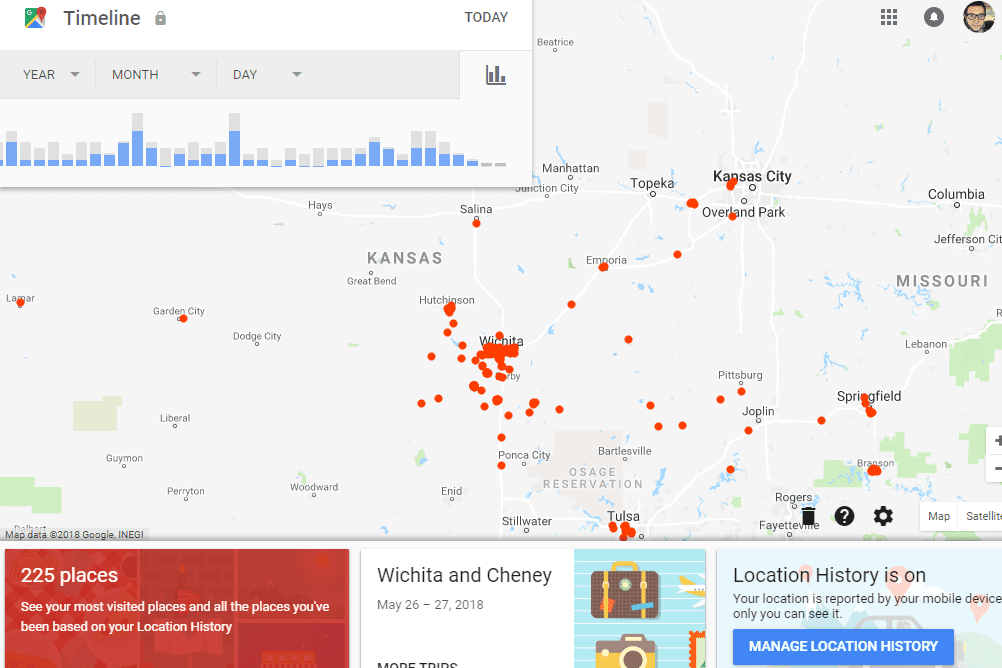
Feel like you’re being tracked with your Google location history on? Here is how you can turn off your history and get this burden off your back. So, let’s jump in and see what happens when someone does so, and what does it mean. Let’s jump in.
What does Google location history mean?
Google Location History, which is mostly called Timeline, is a feature that saves where you go with your devices. It is like moving in a desert and leaving footprints behind you wherever you go. You can have a look back and see where you have been. When you turn it on, Google runs a background check using GPS, Wi-Fi, and mobile networks to pin down your location.
It creates a private, digital record of your daily routes, trips, and visited places that you can revisit and even mark on the map for reference anytime in the future. This helps Google give you personalized recommendations, like automated commute predictions, better restaurant and cafe suggestions, along with a visual map of your past travels. Originally, this data was saved to your Google Account cloud, but Google has shifted to keeping this history stored directly on your specific device. The best part about it is that at any point in time, you can turn it off, edit entries, or even delete your entire history whenever you want.
Steps to turn off Google location history
If you want to turn off Google location history, then these are the steps you need to follow.
- Open your web browser and just go to your Google Account settings page. You can also choose to simply open the Google app on your smartphone. The second one is often the easiest.
- Next, just tap on your profile picture or initials in the top right corner of the screen to open the main account menu. This is where the settings will be located for further action.
- Now select the option that says Manage your Google Account.
- Here, we have to look at the navigation menu, which can be anywhere on the screen depending on the device that you are using, and just click on Data and privacy.
- After this, scroll down until you find the section that says History settings.
- Here, you must look for Timeline or Location History in this list and click on it.
- Next up, you will see a button that says Turn off. Click on that button.
- When you choose to do that, a pop-up screen will appear explaining what happens when you pause the feature. Listen to it and confirm. Scroll to the bottom of this message and tap Pause to confirm your choice.