

• Send Us A Tip
  • Calling all Tech Writers
  • Advertise
Tuesday, November 3, 2026
  • Login
TechStory
  • News
  • Crypto
  • Gadgets
  • Memes
  • Gaming
  • Cars
  • AI
  • Startups
  • Markets
  • How to
No Result
View All Result
  • News
  • Crypto
  • Gadgets
  • Memes
  • Gaming
  • Cars
  • AI
  • Startups
  • Markets
  • How to
No Result
View All Result
TechStory
No Result
View All Result
Home Gadgets

HOW TO UPGRADE RAM IN A DESKTOP COMPUTER?

by Chhavideep Singh
October 23, 2020
in Gadgets, Tech
Reading Time: 2 mins read
0
HOW TO UPGRADE RAM IN A DESKTOP COMPUTER?
TwitterWhatsappLinkedin

RAM stands for Random Access Memory if you are new to the computing world. It is a basic component which can bring a drastic change in responsiveness, speed and overall performance of your desktop system. Having an increased RAM can make multitasking smooth and almost seamless.

You might also like

Google Acquires 56 Hectares in Finland Amid Muhos Tree-Felling Controversy as Data Centre Projects Expand

Apple Reportedly Preparing Three New iPad Models for Early 2027: OLED iPad Air, M6 iPad Pro Expected

Logistics And Supply Companies Are Competing For Local Map Placement Too

Well, here are some necessary precautions which you should take before making any changes in your RAM, avoid risking your precious personal data by following the steps and keeping the precautions in mind.


PRECAUTIONS TO TAKE BEFORE INSTALLING RAM:

In terms of science, any static electricity can damage the components in your computer system and the human body has a natural tendency of a moving static current. In order to avoid damaging any of your CPUs components, touch any unpainted metal surface on the outer frame of your computer to neutralise the static current flowing in your body. Another method is to buy and wear an ESD wrist strap which will do the same thing without damaging any sensitive computer component.

To avoid damaging your RAM, DO NOT hold your RAM from the gold pins. ALWAYS grip the RAM from either top or sides, but never from the gold pins.

Follow these precautions and you are good to go.
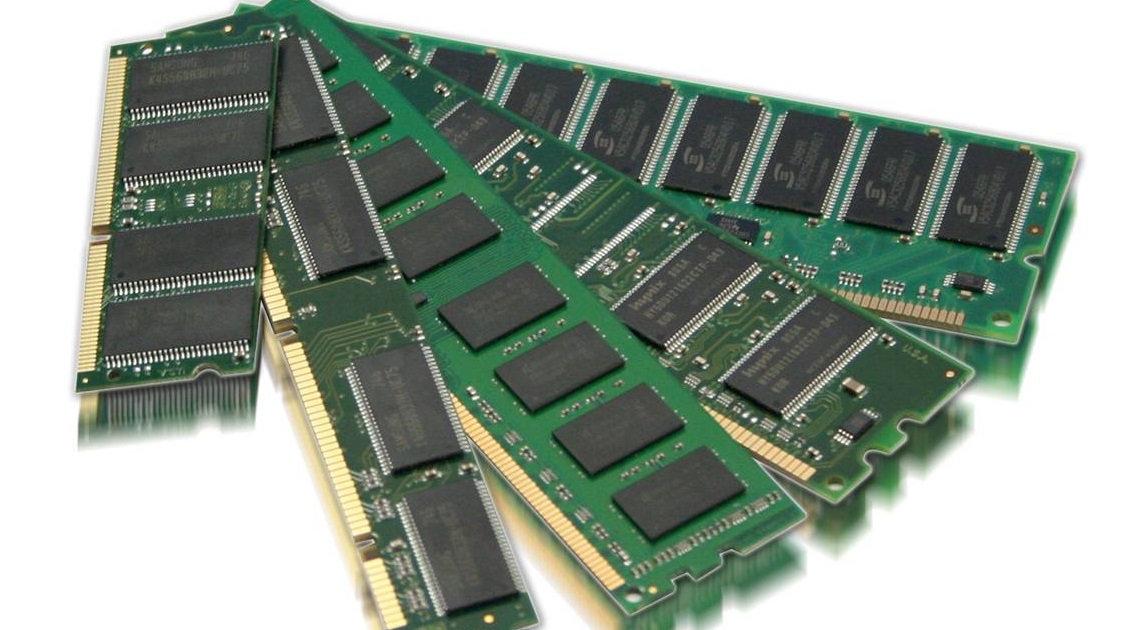
Credits: https://rb.gy/lqjk6q

10 STEPS TO INSTALL RAM IN YOUR DESKTOP COMPUTER

Here are ten steps following which you can also increase your computer’s RAM and enjoy the instant benefits:


1. Gather all Supplies before Starting:

Make sure that you are working in a static electricity-free environment. Follow the precautions, clear the area off any plastic bags or papers. Collect the following supplies:

  • Desktop CPU
  • RAM (to be installed)
  • Screwdriver
  • Manual for Installation

2. Shut down your PC:

Shut down your PC in order to avoid any data loss. Although your personal files are saved on the Hard Disk and not RAM but just to be safe, follow this step.

3. Unplug the Power Cable:

Unplug the power cable to detach the system from any type of faulty electric current that may be flowing. This is an important step considering, the components in your desktop are highly sensitive to unwelcomed electricity.


4. Press and hold the Power Button for 5 Seconds:

This step will discharge any remaining electrical charge in the system.


5. Open your CPU Shell:

To follow this step, you may want to refer to the manual. If you know your tech, just remember which cable fits where and you will be good to go.


6. Ground your body:

Touch any unpainted metal surface from the shell of your CPU to earth your body off any static electric charges. It is a precautionary but very crucial step.


7. Remove existing RAM:

When you recognise the RAM, dig through the wires (if any), press the clip sitting right next to each RAM module. The moment you press the clip, RAM will pop right out of its shell.


8. Install new RAM:

Grip the RAM modules from the side and press the RAM modules into their dedicated slots. You may apply a little pressure and make sure that they are fitted perfectly and sitting firmly.


9. Close the CPU Shell:

Plug in all the wires and plugs that you removed earlier and close the CPU’s shell using screwdrivers.


10. Plug the Power cable back:

Plug-in your Power cable and boot your device.
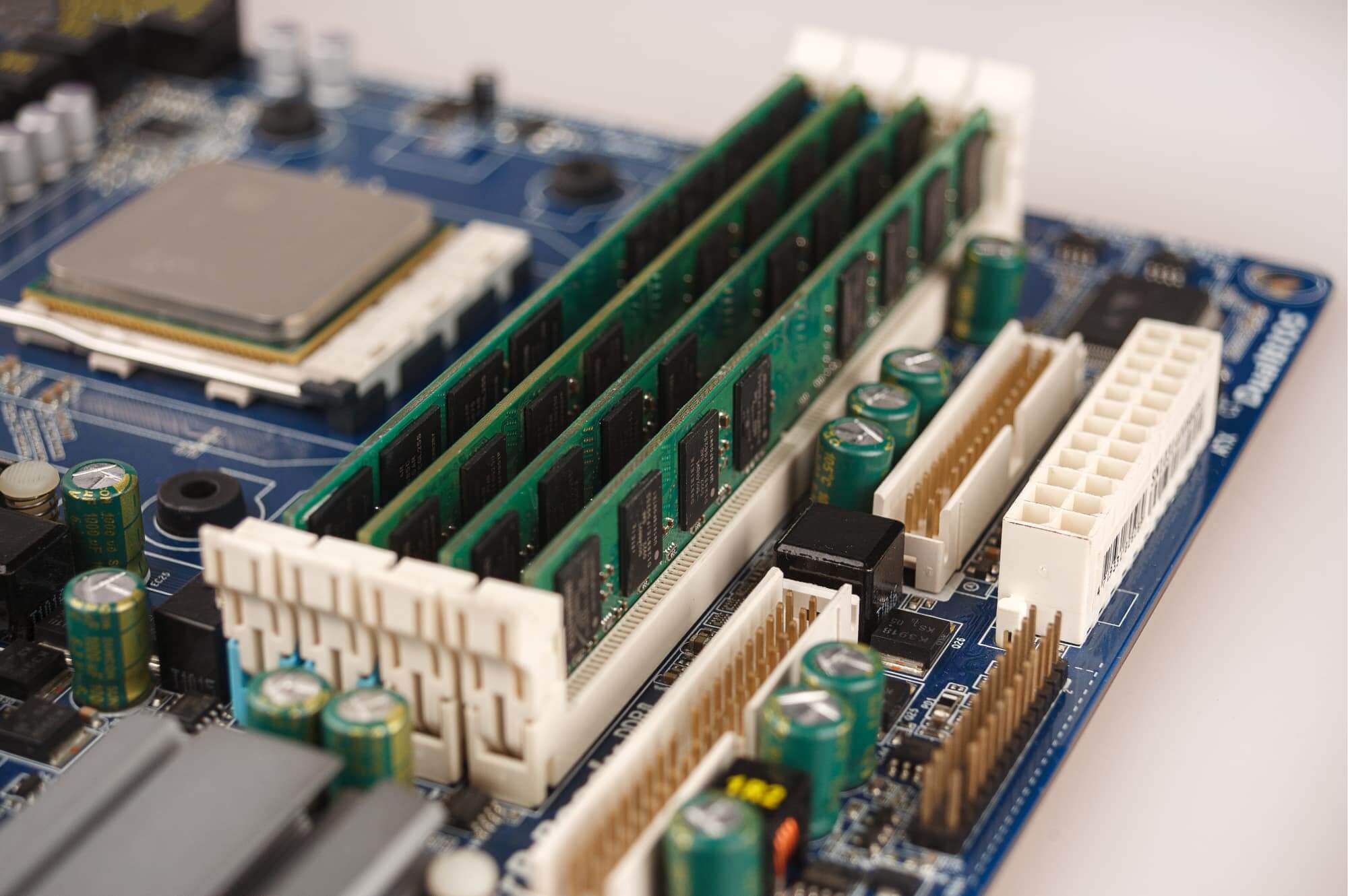
Credits: https://rb.gy/mouguo

CONGRATULATIONS, YOUR RAM HAS BEEN UPGRADED!

 

Tags: componentComputerRAMRandom Access Memory
Tweet55SendShare15
Previous Post

EzeRx secured Rs 1.75 cr in seed funding round

Next Post

AhaGuru secured series a funding led by Anand Mahindra Family office

Chhavideep Singh

Hi! I'm Chhavideep, If you like reading about technology, business and start-ups, you've come to the right place. Catch me: chhavideep@connasys.com

Recommended For You

Google Acquires 56 Hectares in Finland Amid Muhos Tree-Felling Controversy as Data Centre Projects Expand

by Shailja Jha
November 2, 2026
0
Google Acquires 56 Hectares in Finland Amid Muhos Tree-Felling Controversy as Data Centre Projects Expand

Google has acquired approximately 56 hectares of additional land in Hamina, Finland, for the potential expansion of its existing data centre operations, highlighting the technology giant's continued investment...

Read more

Apple Reportedly Preparing Three New iPad Models for Early 2027: OLED iPad Air, M6 iPad Pro Expected

by Ishaan Negi
November 2, 2026
0
Apple Reportedly Preparing Three New iPad Models for Early 2027: OLED iPad Air, M6 iPad Pro Expected

Apple is reportedly preparing a major refresh of its iPad lineup, with three new models expected to arrive in the first half of 2027. The upcoming launches could...

Read more

Logistics And Supply Companies Are Competing For Local Map Placement Too

by Rohan Mathawan
November 2, 2026
0
Photo by Vinicius Brasil on Unsplash

Most people think local search maps are only important for neighborhood coffee shops and pizza places. The truth is that commercial supply chains and regional freight providers now...

Read more
Next Post
Ahaguru

AhaGuru secured series a funding led by Anand Mahindra Family office

Please login to join discussion

Techstory

Tech and Business News from around the world. Follow along for latest in the world of Tech, AI, Crypto, EVs, Business Personalities and more.
reach us at info@techstory.in

Advertise With Us

Reach out at - info@techstory.in

Aviator Game India 2026

BROWSE BY TAG

#Crypto #howto 2024 acquisition AI amazon Apple Artificial Intelligence bitcoin Business China cryptocurrency e-commerce electric vehicles Elon Musk Ethereum facebook funding Gaming Google India Instagram Investment iPhone IPO Market Markets Meta Microsoft News OpenAI samsung Social Media SpaceX startup startups tech Tech news technology Tesla TikTok trend trending twitter US

© 2025 Techstory.in

No Result
View All Result
  • News
  • Crypto
  • Gadgets
  • Memes
  • Gaming
  • Cars
  • AI
  • Startups
  • Markets
  • How to

© 2025 Techstory.in

Welcome Back!

Login to your account below

Forgotten Password?

Retrieve your password

Please enter your username or email address to reset your password.

Log In
Are you sure want to unlock this post?
Unlock left : 0
Are you sure want to cancel subscription?