• Send Us A Tip
  • Calling all Tech Writers
  • Advertise
Friday, September 25, 2026
  • Login
TechStory
  • News
  • Crypto
  • Gadgets
  • Memes
  • Gaming
  • Cars
  • AI
  • Startups
  • Markets
  • How to
No Result
View All Result
  • News
  • Crypto
  • Gadgets
  • Memes
  • Gaming
  • Cars
  • AI
  • Startups
  • Markets
  • How to
No Result
View All Result
TechStory
No Result
View All Result
Home Story

How to update a Windows computer manually or stop windows from updating so your PC won’t restart.

by Priyanka Chaubey
November 25, 2020
in Story, Tech
Reading Time: 2 mins read
0
How to enable Administrator account in Windows 10
TwitterWhatsappLinkedin
  • Update Windows manually with “Update & Security” section present in  your computer’s Settings app.
  • It is for default that the Windows  10 downloads and installs updates automatically. However you can suit yourself to check for updates manually as well.
  • If you do not want Windows to make updates for you,  you can pause updates but only for a month at one time. 

If you flashback to the old days you will recall how updating your Windows was a tedious task. No matter how much you final check everything, something will still seem missing. And not to forget your computer was always prone to viruses.

You might also like

Australia Investigates OpenAI AI Agent After Unauthorised Medicare Portal Access

Praxis Plans $1 Bn AI and Crypto-Powered Community in Uruguay

UI Design Company vs Local Product Design Firms

The problem solved with Windows 10 launch. Windows 10 automatically downloads and updates updates on its own and all that will be left for you to do is to restart your computer. In case you are fearing that you are missing an update, you can head straight to check for Windows 10 updates manually.

Update your windows manually-
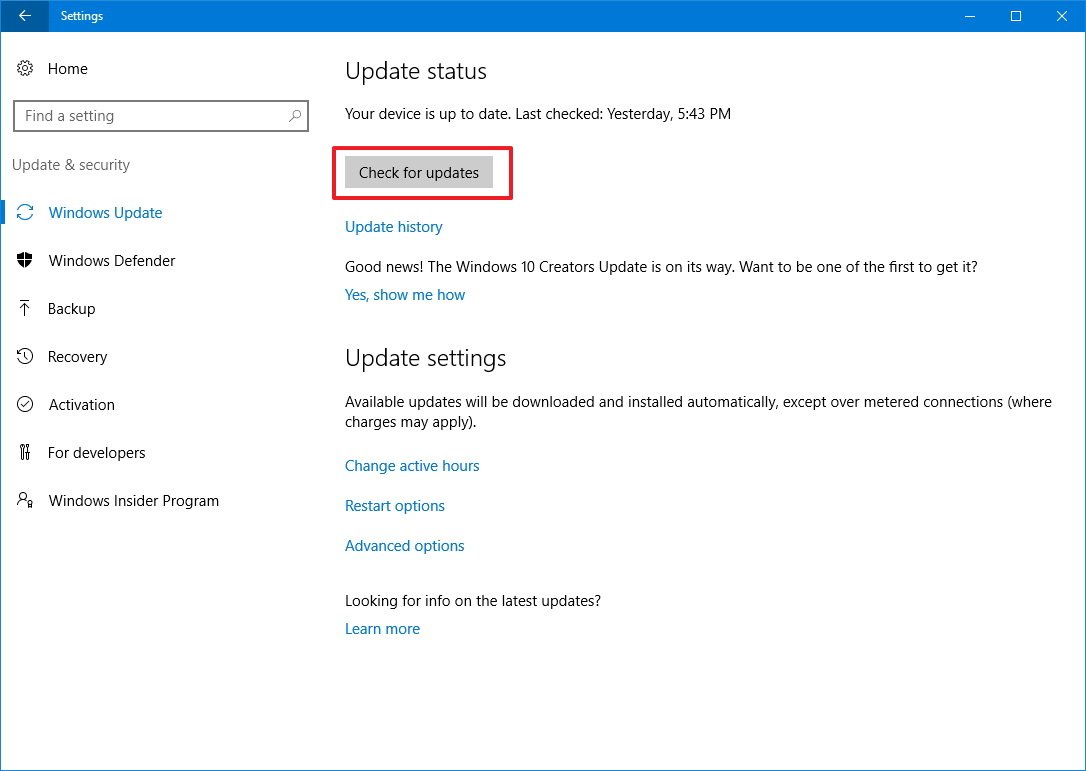
Update windows manually
Source- Windows Central

Like mentioned before, Windows 10 already provides automatic updates. Even with this feature if you think you have an update missing, you can check for updates and make update Windows manually right away.

This can come in handy if you need a new feature that’s in an optional update, or if you’re troubleshooting a problem with Windows and the latest update might resolve the issue.

1. Click Start (or press the Windows key) and then click “Settings.”

2. In the Settings window, click “Update & Security.”

3. To check for an update, click “Check for updates.”

4. If there ‘s an update ready to install, it should appear under the “Check for updates” button. Click “Download and install.”


You’ll need to restart your computer to install any update, so make sure all your work is saved before installing.


How to stop Windows from updating

Windows updates are turned on by default, and it’s not possible to “permanently” disable Windows updates in Windows 10 without disabling important system settings.

But it is possible to disable automatic updates temporarily, for up to about a month at a time, if you need to prevent updates from happening for some reason.

1. Click Start (or press the Windows key) and then click “Settings.”

2. In the Settings window, click “Update & Security.”

3. Click “Advanced options.

4. Scroll down to the Pause updates section. Click “Select date” and choose the date you want to resume automatic updates.


 

Tags: stop windows from updatingupdate windows manually
Tweet54SendShare15
Previous Post

WhiteHat Jr on fire! Defamation suit filed against Angel Investor Aniruddha Malpani after critic Pradeep Poonia

Next Post

SpaceX successfully launches a Falcon9 booster for a record seventh time

Priyanka Chaubey

Recommended For You

Australia Investigates OpenAI AI Agent After Unauthorised Medicare Portal Access

by Ishaan Negi
September 24, 2026
0
Australia Investigates OpenAI AI Agent After Unauthorised Medicare Portal Access

An OpenAI artificial intelligence agent gained unauthorised access to an Australian Government Medicare statistics portal in June, accessing both public and non-public files and prompting an urgent investigation...

Read more

Praxis Plans $1 Bn AI and Crypto-Powered Community in Uruguay

by Ishaan Negi
September 24, 2026
0
Praxis Plans $1 Bn AI and Crypto-Powered Community in Uruguay

Praxis, a technology-focused company building around artificial intelligence, cryptocurrency and internet-native communities, has announced plans to develop a new tech-oriented enclave in Uruguay. The first phase of the...

Read more

UI Design Company vs Local Product Design Firms

by Rohan Mathawan
September 24, 2026
0
UI Design Company vs Local Product Design Firms

One option sells depth in interface craft. The other sells breadth and easy access. The right choice depends on which gap your team can't cover itself. Two proposals...

Read more
Next Post
Elon Musk hints super-fast ‘Starlink’ satellite internet connectivity in India by 2021

SpaceX successfully launches a Falcon9 booster for a record seventh time

Please login to join discussion

Techstory

Tech and Business News from around the world. Follow along for latest in the world of Tech, AI, Crypto, EVs, Business Personalities and more.
reach us at info@techstory.in

Advertise With Us

Reach out at - info@techstory.in

Aviator Game India 2026

BROWSE BY TAG

#Crypto #howto 2024 acquisition AI amazon Apple Artificial Intelligence bitcoin Business China cryptocurrency e-commerce electric vehicles Elon Musk Ethereum facebook funding Gaming Google India Instagram Investment iPhone IPO Market Markets Meta Microsoft News OpenAI samsung Social Media SpaceX startup startups tech Tech news technology Tesla TikTok trend trending twitter US

© 2025 Techstory.in

No Result
View All Result
  • News
  • Crypto
  • Gadgets
  • Memes
  • Gaming
  • Cars
  • AI
  • Startups
  • Markets
  • How to

© 2025 Techstory.in

Welcome Back!

Login to your account below

Forgotten Password?

Retrieve your password

Please enter your username or email address to reset your password.

Log In
Are you sure want to unlock this post?
Unlock left : 0
Are you sure want to cancel subscription?