
• Send Us A Tip
  • Calling all Tech Writers
  • Advertise
Saturday, July 11, 2026
  • Login
TechStory
  • News
  • Crypto
  • Gadgets
  • Memes
  • Gaming
  • Cars
  • AI
  • Startups
  • Markets
  • How to
No Result
View All Result
  • News
  • Crypto
  • Gadgets
  • Memes
  • Gaming
  • Cars
  • AI
  • Startups
  • Markets
  • How to
No Result
View All Result
TechStory
No Result
View All Result
Home How to

How to set up a VPN

by Arya Roy
June 11, 2021 - Updated On August 9, 2021
in How to, Tech
Reading Time: 2 mins read
0
How to set up a VPN

Source: https://www.kaspersky.com/resource-center/definitions/what-is-a-vpn

TwitterWhatsappLinkedin

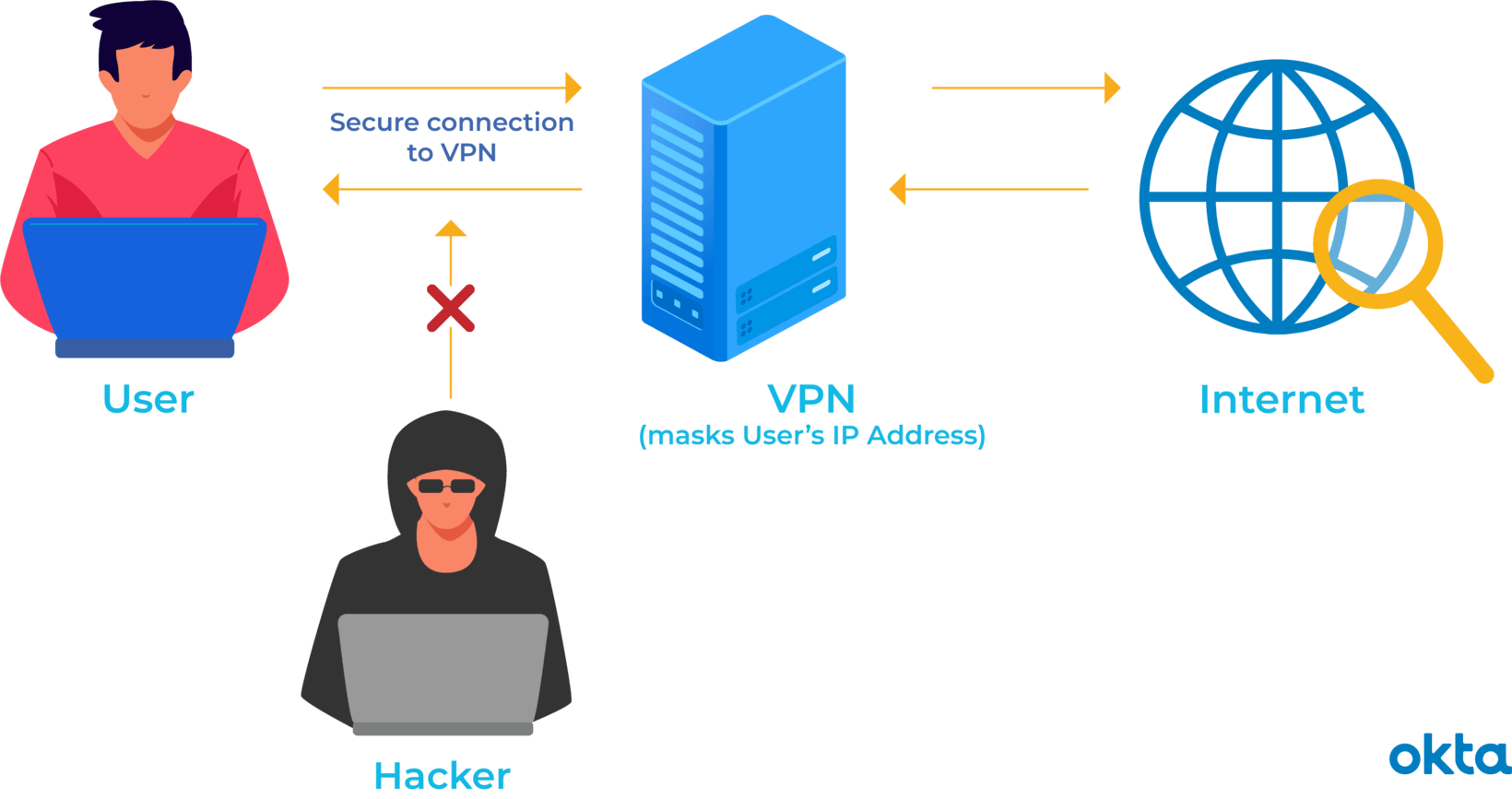
Virtual private networks, more commonly referred to as VPNs, can provide users with an additional layer of security and privacy for their online activity. Whether you are using a public Wi-Fi network and want to escape prying eyes, or if you are simply worried about privacy in general, a VPN can offer a lot of benefits, as it establishes a secure and encrypted connection between your device and a private server, which hides your traffic from others. With the VPN settings for android free internet, you can connect to the internet anywhere and anytime without any cost.
You might also like

The Wireless Waveform Rebuilt Bluetooth LE Audio Explained

The Dynamic Crystal LTPO Display Explained

How to breed Carillong on Magical Sanctum?

Source: https://www.okta.com/identity-101/what-is-a-vpn/

VPN in Windows 10 

  1. Create a VPN profile. Fill it out with details from your particular VPN service.
  2. Click on the Windows button, and go to “Settings” > “Network & Internet” > “VPN.” Click on the option that reads “Add a VPN connection.”
  3. In the fields on the menu, choose “Windows (built-in)” for your VPN provider. Name your VPN under “Connection name.” Enter the name or address of the server, the type, of VPN and the type of sign-in info, including username and password. Save these details by clicking on “Save”.
  4. In order to connect to your VPN, go back to “Settings” > “Network & Internet” > “VPN” and click on your VPN name.
  5. Choose “Connect” and enter a password.

VPN in Chrome OS

  1. Click on the time, and then click on “Settings.”
  2. Click on “Add connection”, after which you have to click on “OpenVPN / L2TP.”
  3. Type in all of the necessary information. This might include username, password, service name, server hostname, provider type, and pre-shared key. You can also save your identity and password if you want to. When finished with this, click on “Connect.”

VPN in macOS

  1. Go to “System Preferences” and select “Network.”
  2. Click the Plus-symbol button on the bottom-left corner, and use the Interface drop-down menu to select your VPN. You will need to have the details from your VPN to type in “VPN Type” and “Service Name.”
  3. Press “Create.” Enter the server address, remote ID, and local ID in the appropriate fields. After this, click on “Authentication Settings.”
  4. Enter the username and password of your VPN, which you can set via your VPN app.
  5. Click on “OK” and then click on “Connect.”

 VPN in iOS

  1. Go to “Settings” and tap on “General.”
  2. Scroll down to choose “VPN.”
  3. Click on “Add VPN Configuration” and then press “Type” to choose a security protocol.
  4. Go back to “Add Configuration”, where you will add the VPN’s information.
  5. Type in the username and password.
  6. Tap on “Done” and toggle the “Status” switch it to on.

Tags: #macosChrome OSiosVPNWindows 10
Tweet54SendShare15
Previous Post

Vitalik Buterin slams Craig Wright, calls him a scammer

Next Post

Starz slams Disney Star+ with trademark infringement suit

Arya Roy

Hi, this is Arya! Writing has always been a passion of mine, regardless of the topic I choose. Besides that, I am a huge foodie and music lover, whose interests range from world politics to horror films to everything in between.

Recommended For You

The Wireless Waveform Rebuilt Bluetooth LE Audio Explained

by Anochie Esther
July 11, 2026
0
The Wireless Waveform Rebuilt Bluetooth LE Audio Explained

The global consumer wireless market has operated for over two decades on a foundational blueprint known as Bluetooth Classic. When consumers pull true wireless earbuds from a charging...

Read more

The Dynamic Crystal LTPO Display Explained

by Anochie Esther
July 11, 2026
0
LTPO Display Explained

The multi-billion-dollar mobile phone and wearable display industry operates on a relentless battle for efficiency. As consumer demand shifts toward massive, pixel-dense screens that boast vibrant color spaces,...

Read more

How to breed Carillong on Magical Sanctum?

by Afeefa Ansari
July 11, 2026
0
Carillong

Do you want to breed Carillong on Magical Sanctum? Follow the guide to know how you can do that in a few simple steps. This is a monster...

Read more
Next Post
Starz slams Disney Star+ with trademark infringement suit

Starz slams Disney Star+ with trademark infringement suit

Please login to join discussion

Techstory

Tech and Business News from around the world. Follow along for latest in the world of Tech, AI, Crypto, EVs, Business Personalities and more.
reach us at info@techstory.in

Advertise With Us

Reach out at - info@techstory.in

Aviator Game India 2026

BROWSE BY TAG

#Crypto #howto 2024 acquisition AI amazon Apple Artificial Intelligence bitcoin Business China cryptocurrency e-commerce electric vehicles Elon Musk Ethereum facebook funding Gaming Google India Instagram Investment ios iPhone IPO Market Markets Meta Microsoft News OpenAI samsung Social Media SpaceX startup startups tech technology Tesla TikTok trend trending twitter US

© 2025 Techstory.in

No Result
View All Result
  • News
  • Crypto
  • Gadgets
  • Memes
  • Gaming
  • Cars
  • AI
  • Startups
  • Markets
  • How to

© 2025 Techstory.in

Welcome Back!

Login to your account below

Forgotten Password?

Retrieve your password

Please enter your username or email address to reset your password.

Log In
Are you sure want to unlock this post?
Unlock left : 0
Are you sure want to cancel subscription?