• Send Us A Tip
  • Calling all Tech Writers
  • Advertise
Tuesday, June 23, 2026
  • Login
TechStory
  • News
  • Crypto
  • Gadgets
  • Memes
  • Gaming
  • Cars
  • AI
  • Startups
  • Markets
  • How to
No Result
View All Result
  • News
  • Crypto
  • Gadgets
  • Memes
  • Gaming
  • Cars
  • AI
  • Startups
  • Markets
  • How to
No Result
View All Result
TechStory
No Result
View All Result
Home Gadgets

How to use Google Assistant to watch TV

by Arya Roy
July 12, 2021
in Gadgets, How to, Tech
Reading Time: 2 mins read
0
How to use Google Assistant to watch TV

Source: https://www.cnet.com/tech/mobile/how-to-get-all-google-assistants-new-voices-right-now/

TwitterWhatsappLinkedin

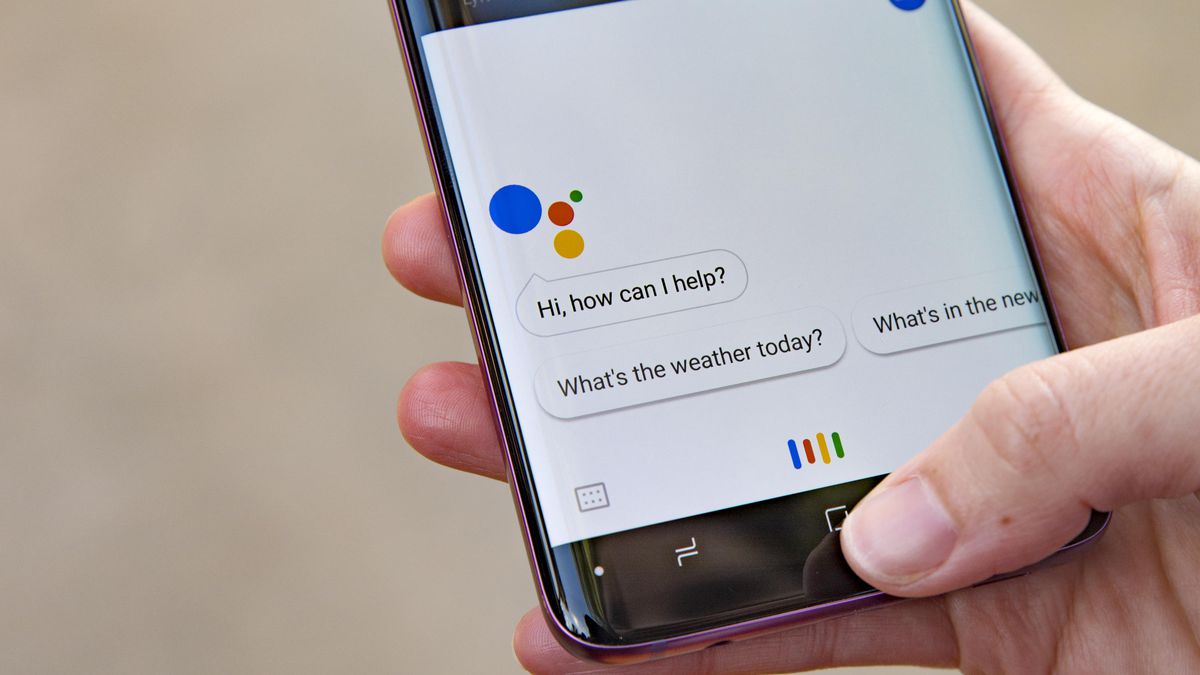
If you happen to want to use Google Assistant to watch TV, this guide will help you tell what you need to know about watching TV with Google’s smart assistant.

You might also like

How to use passkeys instead of passwords?

How to Protect Yourself from Deepfake Scams?

Satellite Messaging Explained: How Communication Works Beyond Cellular Networks

Currently, the streaming platforms that work with Google Assistant are Netflix, Hulu, CBS All Access, the CW, YouTube TV, HBO TV, Sling TV, STARZ, Viki, Red Bull, Crackle, and Google Play Movies & TV.

Android TV

One of the most used methods to use Google Assistant to watch TV is through an Android TV. It is very simple because the Android TV has Google Assistant built right into it, so you do not have to buy additional devices, such as Google Chromecast.

Depending on which model you are using, you should be able to speak directly into your remote control to give Google Assistant commands. If, for some reason, your remote control does not have a microphone, you will have to give these commands to the Google Assistant that is built into your smartphone. A Google Home speaker will also work.

Not only can you tell your remote what to play on your Android TV, but you can also turn your Android TV both on and off, open streaming apps like Netflix and YouTube, and play, pause, resume, and stop the playback on your screen.

Source: https://www.android.com/intl/en_in/tv/

Google Chromecast

The second method is to use Google Chromecast, which will work by hooking directly into the HDMI port on the back of your TV, drawing power from its USB port, and then acting as a receiver for streaming video links sent from your phone or tablet.

When you press the Google Cast button built into most streaming video apps, it will send a link to the Chromecast and immediately start streaming. It is a very intuitive system when you use it, and eliminates the need for a discrete remote control.

Chromecast also works really well with Google Home speakers. By simply saying something along the lines with you “OK Google, play the latest episode of Orange Is The New Black on Chromecast”, you will be able to watch the show that you want to.

However, you must keep in mind that you will not be able to request specific episodes with Chromecast. For example, you can say “OK Google, watch The Crown on TV” or “Watch The Crown on Netflix on TV”, but you cannot say “Play episode 1 of The Crown on TV”.

Tags: Android TVChromeCastgoogle assistantNetflix
Tweet54SendShare15
Previous Post

Sony Corp to embrace robots to cut costs, boost digitalization

Next Post

How to delete all the photos from your iPhone or iPad

Arya Roy

Hi, this is Arya! Writing has always been a passion of mine, regardless of the topic I choose. Besides that, I am a huge foodie and music lover, whose interests range from world politics to horror films to everything in between.

Recommended For You

How to use passkeys instead of passwords?

by Afeefa Ansari
June 23, 2026
0
Passkeys

Ever heard that your passwords aren't as safe? Try using passkeys instead. Here is how you can use passkeys instead of your passwords. Let us see how it...

Read more

How to Protect Yourself from Deepfake Scams?

by Afeefa Ansari
June 23, 2026
0
Deepfake scams

Want to keep yourself safe from Deepfake Scams? Then these are the steps that you need to follow. We shall discuss what the threats are and how one...

Read more

Satellite Messaging Explained: How Communication Works Beyond Cellular Networks

by Ishaan Negi
June 23, 2026
0
Satellite Messaging Explained: How Communication Works Beyond Cellular Networks

For decades, staying connected has depended largely on one thing: cellular networks. Whether sending a text, making a call, or accessing the internet, most communication relies on a...

Read more
Next Post
How to delete all the photos from your iPhone or iPad

How to delete all the photos from your iPhone or iPad

Please login to join discussion

Techstory

Tech and Business News from around the world. Follow along for latest in the world of Tech, AI, Crypto, EVs, Business Personalities and more.
reach us at info@techstory.in

Advertise With Us

Reach out at - info@techstory.in

Aviator Game India 2026

BROWSE BY TAG

#Crypto #howto 2024 acquisition AI amazon Apple Artificial Intelligence bitcoin Business China cryptocurrency e-commerce electric vehicles Elon Musk Ethereum facebook funding Gaming Google India Instagram Investment ios iPhone IPO Market Markets Meta Microsoft News OpenAI samsung Social Media SpaceX startup startups tech technology Tesla TikTok trend trending twitter US

© 2025 Techstory.in

No Result
View All Result
  • News
  • Crypto
  • Gadgets
  • Memes
  • Gaming
  • Cars
  • AI
  • Startups
  • Markets
  • How to

© 2025 Techstory.in

Welcome Back!

Login to your account below

Forgotten Password?

Retrieve your password

Please enter your username or email address to reset your password.

Log In
Are you sure want to unlock this post?
Unlock left : 0
Are you sure want to cancel subscription?