• Send Us A Tip
  • Calling all Tech Writers
  • Advertise
Saturday, July 4, 2026
  • Login
TechStory
  • News
  • Crypto
  • Gadgets
  • Memes
  • Gaming
  • Cars
  • AI
  • Startups
  • Markets
  • How to
No Result
View All Result
  • News
  • Crypto
  • Gadgets
  • Memes
  • Gaming
  • Cars
  • AI
  • Startups
  • Markets
  • How to
No Result
View All Result
TechStory
No Result
View All Result
Home Gadgets

How to use the iPhone flashlight

by Arya Roy
July 15, 2021 - Updated On April 21, 2022
in Gadgets, How to, Tech
Reading Time: 2 mins read
0
How to use the iPhone flashlight

Source: https://appleinsider.com/articles/21/01/15/flashlight-on-iphone---everything-you-need-to-know

TwitterWhatsappLinkedin

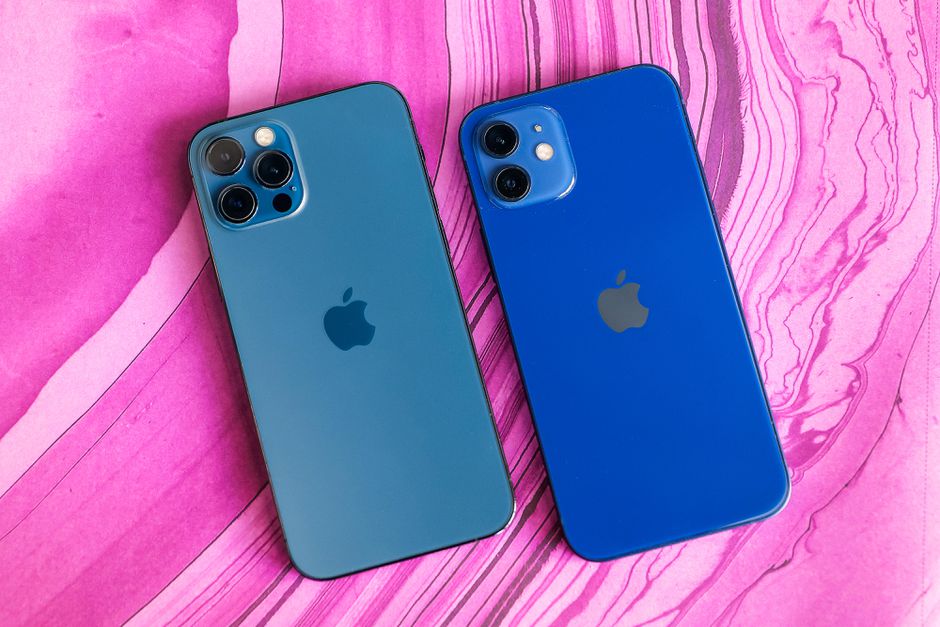
The iPhone’s LED flashlight can be very useful in the situation of power outages, midnight trips to the toilet, or even for checking for monsters under the bed. Depending on whether your iPhone has a home button or Face ID – which itself depends on the model of your phone – there are different shortcuts for toggling your flashlight. Here is a guide on how you can easily do this.

You might also like

How to secure your home Wi-Fi network?

How do digital wallets work?

Vertical Integration Anthropic Explores Custom AI Chip Collaboration with Samsung

Using your iPhone flashlight via Control Center

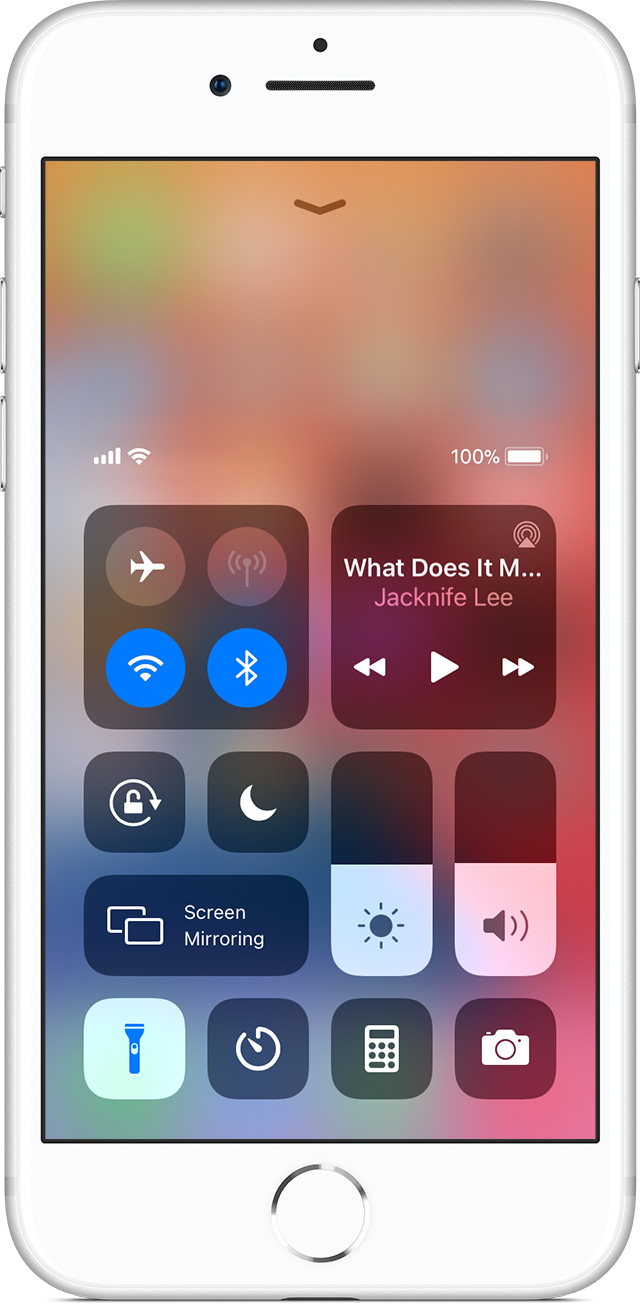
If you have a newer phone with Face ID, beginning with the 2017 iPhone X, swipe your finger downward from the top-right corner of the display, which can be found next to the camera notch. The Command Center will be made visible, with the Flashlight button on the bottom left of the screen as of the iOS 14 software.

On older phones that have a Home button, swipe upwards from the bottom of the phone screen to make the Command Center pop up and appear. Use the toggle to switch the Flashlight button on.
Source: https://support.apple.com/en-us/HT207281

Increasing or decreasing the brightness of your iPhone flashlight

By default, the iPhone flashlight is automatically in the perfect place between too bright and too dim. But for moments when you need extra light or do not wish to blind yourself in pitch darkness, you can very easily adjust the LED brightness on your iPhone.
From the Command Center (make it visible using the methods mentioned above), tap on and hold on to the Flashlight icon. You should be able to see a new menu with four different brightness levels, along with an option to simply switch the flashlight off. Once you have selected your preference, tap on your screen but outside of the menu so that you can return to the Command Center.
Your iPhone will remember which setting you had chosen and will make it the default radiance until you manually change it.
Tags: iPhone
Tweet54SendShare15
Previous Post

Johnson and Johnson recalls Neutrogena, Aveeno spray sunscreens

Next Post

How to delete contacts on an iPhone

Arya Roy

Hi, this is Arya! Writing has always been a passion of mine, regardless of the topic I choose. Besides that, I am a huge foodie and music lover, whose interests range from world politics to horror films to everything in between.

Recommended For You

How to secure your home Wi-Fi network?

by Afeefa Ansari
July 4, 2026
0
WiFi security

Do you wish to secure your Wi-Fi at home? Follow the guide to know the methods and the steps that will help you secure the network back home....

Read more

How do digital wallets work?

by Afeefa Ansari
July 4, 2026
0
Digital wallet

Ever wondered how digital wallets work? Follow the guide to know how these wallets work and how you can understand them. Let's dive in and get started. What...

Read more

Vertical Integration Anthropic Explores Custom AI Chip Collaboration with Samsung

by Anochie Esther
July 4, 2026
0
in-house AI chip project

The hyper-competitive frontier of artificial intelligence has officially moved past algorithmic tweaks into a high-stakes race for custom hardware ownership. For the past several years, elite Silicon Valley...

Read more
Next Post
How to delete contacts on an iPhone

How to delete contacts on an iPhone

Please login to join discussion

Techstory

Tech and Business News from around the world. Follow along for latest in the world of Tech, AI, Crypto, EVs, Business Personalities and more.
reach us at info@techstory.in

Advertise With Us

Reach out at - info@techstory.in

Aviator Game India 2026

BROWSE BY TAG

#Crypto #howto 2024 acquisition AI amazon Apple Artificial Intelligence bitcoin Business China cryptocurrency e-commerce electric vehicles Elon Musk Ethereum facebook funding Gaming Google India Instagram Investment ios iPhone IPO Market Markets Meta Microsoft News OpenAI samsung Social Media SpaceX startup startups tech technology Tesla TikTok trend trending twitter US

© 2025 Techstory.in

No Result
View All Result
  • News
  • Crypto
  • Gadgets
  • Memes
  • Gaming
  • Cars
  • AI
  • Startups
  • Markets
  • How to

© 2025 Techstory.in

Welcome Back!

Login to your account below

Forgotten Password?

Retrieve your password

Please enter your username or email address to reset your password.

Log In
Are you sure want to unlock this post?
Unlock left : 0
Are you sure want to cancel subscription?