• Send Us A Tip
  • Calling all Tech Writers
  • Advertise
Saturday, July 18, 2026
  • Login
TechStory
  • News
  • Crypto
  • Gadgets
  • Memes
  • Gaming
  • Cars
  • AI
  • Startups
  • Markets
  • How to
No Result
View All Result
  • News
  • Crypto
  • Gadgets
  • Memes
  • Gaming
  • Cars
  • AI
  • Startups
  • Markets
  • How to
No Result
View All Result
TechStory
No Result
View All Result
Home How to

How to use Canva

by Arya Roy
July 20, 2021
in How to, Tech
Reading Time: 2 mins read
0
How to use Canva

Source: https://hostingtribunal.com/reviews/canva/

TwitterWhatsappLinkedin

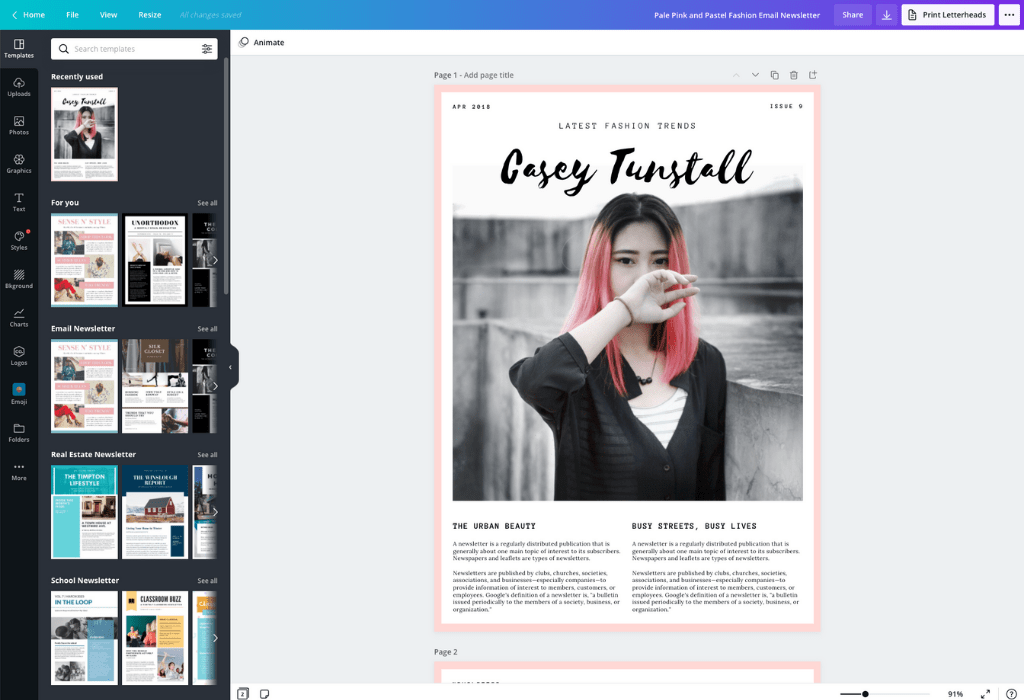
This guide will show you the basics of using Canva, such as how to create a design, add photos, elements, text, music, and video.
You might also like

NTSB: Tesla Driver Overrode Full Self-Driving Before Fatal Texas Crash

Honda to Exit U.S. EV Market in 2027 as Prologue Production Ends

Apple Widens OpenAI Trade Secret Fight With Preservation Letters To 40 Former Staff As Lawsuit Targets Hardware Theft

Source: https://www.canva.com/create/newsletters/

Creating a design

  1. Select the type of design you want to make from the given options.
  2. To design something with specific dimensions, click on Custom size, and then add them in the boxes.
  3. Click on Create new design to start.
  4. To use one of Canva’s templates, click on the one you want from the template window.
  5. You can edit each of the elements within the template by clicking on them and using the edit functions that appear above. Resize elements by clicking and dragging the corner boxes. Click and drag an element to move it.

Photos 

Canva provides a lot of photos that you can use in your designs, either for free or for a royalty fee.

  1. Click on the Photos tab on the left and you will see them appear in the window.
  2. Find the one you want and click on it add it to your Canva.
  3. To add your own photo, click on the Upload button on the left.
  4. Choose your file and click on Open and it will appear on your uploads window.
  5. Click on it to add it to your design. You can also copy and paste an image straight onto your page.
  6. Once your photo is on your Canva, you can edit it using the edit tools in the top right.

Elements

Canva offers millions of elements, such as still and animated graphics.

  1. Click on the Elements tab on the left to pull up the window.
  2. Browse the elements and then click to add one onto the timeline. There are many free options.
  3. Canva allows you to edit the individual colours of an element. Click on an element and select one of its colours in the editing bar above to change it to the colour scheme that you want.
  4. Click and drag to move the element or click and drag the corners to resize. A

Text 

  1. Click on the Text tab on the left.
  2. Browse through the text designs.
  3. To find out what font a design is, hover over it and click on the three dots.
  4. Click on a text design to add it. You can also search for a particular font in the search bar above.
  5. Your text design will be broken down into separate elements. You can remove one by clicking and deleting.
  6. Replace the text by highlighting and typing. Change other formatting by using the editing toolbar. that appears above.

Music 

  1. Click on the Music tab on the left.
  2. Browse the music on offer or use the search tab.
  3. With the track highlighted on your design, you can edit it using the editing bar above.

Video 

  1. Click on the video tab on the left.
  2. Browse the free and paid videos or use the search tab.
  3. Click on a video to add it to your Canva page.
  4. Click on the video and trim or edit using the editing bar above.

Tags: canva
Tweet55SendShare15
Previous Post

Facebook poised to spread anti-vaxx misinformation?

Next Post

Live: Watch Jeff Bezos’s rocket taking civilian crew 100km away from earth to space

Arya Roy

Hi, this is Arya! Writing has always been a passion of mine, regardless of the topic I choose. Besides that, I am a huge foodie and music lover, whose interests range from world politics to horror films to everything in between.

Recommended For You

NTSB: Tesla Driver Overrode Full Self-Driving Before Fatal Texas Crash

by Samir Gautam
July 18, 2026
0
NTSB: Tesla Driver Overrode Full Self-Driving Before Fatal Texas Crash

New details released by the National Transportation Safety Board (NTSB) have shed fresh light on a fatal Tesla crash in Katy, Texas, suggesting that the vehicle's Full Self-Driving...

Read more

Honda to Exit U.S. EV Market in 2027 as Prologue Production Ends

by Samir Gautam
July 18, 2026
0
Honda to Exit U.S. EV Market in 2027 as Prologue Production Ends

Honda's electric vehicle journey in the United States is about to hit an unexpected pause. The automaker has confirmed that the Honda Prologue, its only fully electric model...

Read more

Apple Widens OpenAI Trade Secret Fight With Preservation Letters To 40 Former Staff As Lawsuit Targets Hardware Theft

by Rounak Majumdar
July 18, 2026
0
Apple Widens OpenAI Trade Secret Fight With Preservation Letters To 40 Former Staff As Lawsuit Targets Hardware Theft

Apple is not done with its legal offensive against OpenAI. One week after filing a blockbuster lawsuit in the Northern District of California accusing OpenAI and two former...

Read more
Next Post
Live: Watch Jeff Bezos’s rocket taking civilian crew 100km away from earth to space

Live: Watch Jeff Bezos's rocket taking civilian crew 100km away from earth to space

Please login to join discussion

Techstory

Tech and Business News from around the world. Follow along for latest in the world of Tech, AI, Crypto, EVs, Business Personalities and more.
reach us at info@techstory.in

Advertise With Us

Reach out at - info@techstory.in

Aviator Game India 2026

BROWSE BY TAG

#Crypto #howto 2024 acquisition AI amazon Apple Artificial Intelligence bitcoin Business China cryptocurrency e-commerce electric vehicles Elon Musk Ethereum facebook funding Gaming Google India Instagram Investment ios iPhone IPO Market Markets Meta Microsoft News OpenAI samsung Social Media SpaceX startup startups tech technology Tesla TikTok trend trending twitter US

© 2025 Techstory.in

No Result
View All Result
  • News
  • Crypto
  • Gadgets
  • Memes
  • Gaming
  • Cars
  • AI
  • Startups
  • Markets
  • How to

© 2025 Techstory.in

Welcome Back!

Login to your account below

Forgotten Password?

Retrieve your password

Please enter your username or email address to reset your password.

Log In
Are you sure want to unlock this post?
Unlock left : 0
Are you sure want to cancel subscription?