• Send Us A Tip
  • Calling all Tech Writers
  • Advertise
Thursday, August 20, 2026
  • Login
TechStory
  • News
  • Crypto
  • Gadgets
  • Memes
  • Gaming
  • Cars
  • AI
  • Startups
  • Markets
  • How to
No Result
View All Result
  • News
  • Crypto
  • Gadgets
  • Memes
  • Gaming
  • Cars
  • AI
  • Startups
  • Markets
  • How to
No Result
View All Result
TechStory
No Result
View All Result
Home Gadgets

How to connect a laptop to a monitor

by Arya Roy
July 23, 2021
in Gadgets, How to, Tech
Reading Time: 2 mins read
0
How to connect a laptop to a monitor

Source: https://www.youtube.com/watch?v=IOJNNrnXC7s

TwitterWhatsappLinkedin

This guide will show you how to connect your laptop to a monitor on both Windows and Mac.

You might also like

Why You Don’t Always Need an App for Instagram Video Download

Google Pays $10 Million for 100 Million Spirit Airlines Emails and 500 Million Teams Chats to Train AI

ABC Files First Amendment Lawsuit Against FCC, Accusing Agency of Retaliation

Windows 10

  1. Monitors connect via USB, HDMI, or VGA cables. Check which your laptop and monitor have and use that cable to connect the monitor to your laptop.
  2. Turn on the laptop.
  3. At the bottom left of the screen, click on the Windows logo and type in “display settings.”
  4. Click on Ease of Access display settings, and then click on Additional display settings.
  5. The numbered boxes indicate the number of monitors that you have. Monitor no.1 is your laptop and Monitor no. 2 is your additional monitor. Click and drag to move them and make sure that they are in the right position in relation to each other.
  6. Click on Apply
  7. Scroll down and find the Multiple displays option. If you want your screens to show different things, select the Extend these displays option. If you want to share the same image on both screens, select the Duplicate this display option.

Mac

  1. Connect the second monitor to your MacBook. Current Mac models will have USB-C ports. Earlier models will have a Thunderbolt connection.
  2. Connect your second monitor’s USB, HDMI, or VGA port if you have the cable that you need. If you do not, you will need to use a Thunderbolt or USB-C extension. Now, you will be able to plug your monitor into your MacBook.
  3. Turn on your monitor and start your computer.
  4. From the top left corner, click on the Apple logo and then System Preferences from the drop-down menu.
  5. Choose Displays from the menu, and then click on the Arrangement tab.
  6. You will see both monitors shown as rectangles. Your laptop monitor will have a tab on the top of the rectangle. Your additional monitor will not. Click and drag to move them into the position that corresponds with your monitor layout.
  7. If you want your monitors to display the same thing, click on the checkmark to mirror the display. You will now be able to move your mouse and applications across both monitors.

Tags: MacWindows 10
Tweet54SendShare15
Previous Post

Anil Ambani and ex-CBI chief Alok Verma are among the possible victims of Pegasus spyware

Next Post

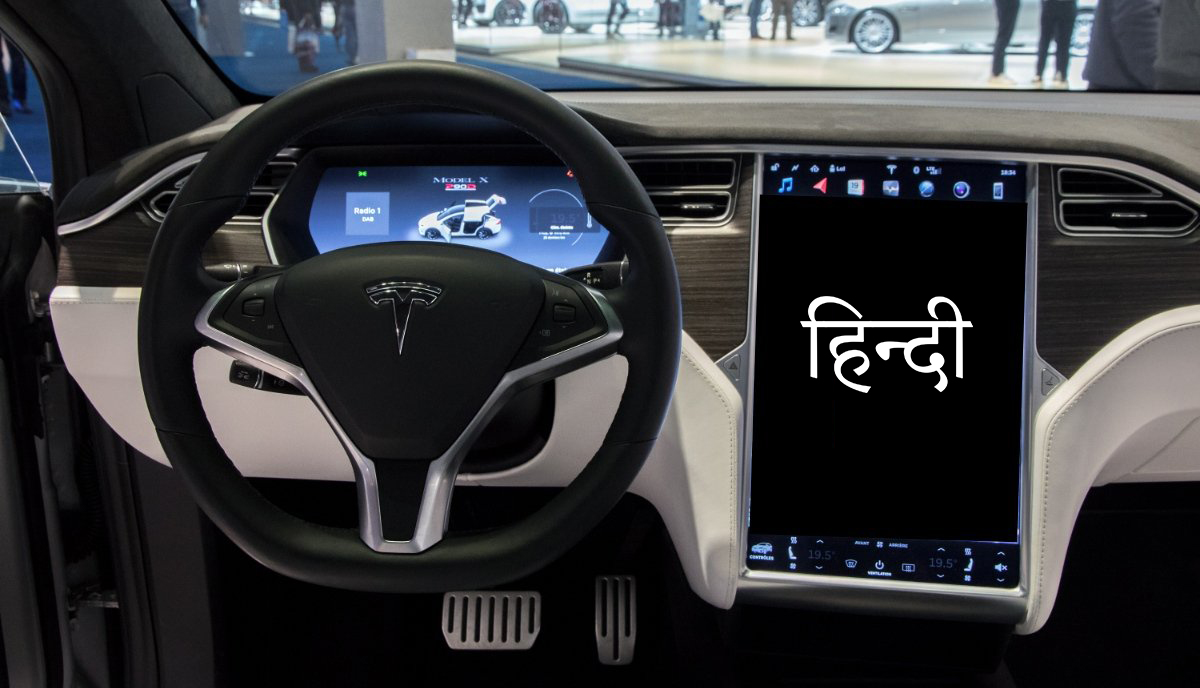
Tesla adds Hindi to its Infotainment UI, Is India launch on the horizon?

Arya Roy

Hi, this is Arya! Writing has always been a passion of mine, regardless of the topic I choose. Besides that, I am a huge foodie and music lover, whose interests range from world politics to horror films to everything in between.

Recommended For You

Why You Don’t Always Need an App for Instagram Video Download

by Rohan Mathawan
August 19, 2026
0
Photo by Solen Feyissa on Unsplash

Instagram is built around quick, visual content, but saving videos for later use is not always as straightforward as watching them. While dedicated mobile apps can provide download...

Read more

Google Pays $10 Million for 100 Million Spirit Airlines Emails and 500 Million Teams Chats to Train AI

by Shailja Jha
August 19, 2026
0
Google Pays $10 Million for 100 Million Spirit Airlines Emails and 500 Million Teams Chats to Train AI

Google is reportedly paying $10 million for a massive collection of internal data from Spirit Airlines, including approximately 100 million emails and 500 million Microsoft Teams messages, as...

Read more

ABC Files First Amendment Lawsuit Against FCC, Accusing Agency of Retaliation

by Shailja Jha
August 19, 2026
0
ABC Files First Amendment Lawsuit Against FCC, Accusing Agency of Retaliation

ABC has filed a First Amendment lawsuit against the Federal Communications Commission, escalating an increasingly contentious battle between the television network and the Trump administration over broadcast regulation,...

Read more
Next Post
Tesla Infotainment UI Hindi Update

Tesla adds Hindi to its Infotainment UI, Is India launch on the horizon?

Please login to join discussion

Techstory

Tech and Business News from around the world. Follow along for latest in the world of Tech, AI, Crypto, EVs, Business Personalities and more.
reach us at info@techstory.in

Advertise With Us

Reach out at - info@techstory.in

Aviator Game India 2026

BROWSE BY TAG

#Crypto #howto 2024 acquisition AI amazon Apple Artificial Intelligence bitcoin Business China cryptocurrency e-commerce electric vehicles Elon Musk Ethereum facebook funding Gaming Google India Instagram Investment ios iPhone IPO Market Markets Meta Microsoft News OpenAI samsung Social Media SpaceX startup startups tech technology Tesla TikTok trend trending twitter US

© 2025 Techstory.in

No Result
View All Result
  • News
  • Crypto
  • Gadgets
  • Memes
  • Gaming
  • Cars
  • AI
  • Startups
  • Markets
  • How to

© 2025 Techstory.in

Welcome Back!

Login to your account below

Forgotten Password?

Retrieve your password

Please enter your username or email address to reset your password.

Log In
Are you sure want to unlock this post?
Unlock left : 0
Are you sure want to cancel subscription?