• Send Us A Tip
  • Calling all Tech Writers
  • Advertise
Sunday, July 12, 2026
  • Login
TechStory
  • News
  • Crypto
  • Gadgets
  • Memes
  • Gaming
  • Cars
  • AI
  • Startups
  • Markets
  • How to
No Result
View All Result
  • News
  • Crypto
  • Gadgets
  • Memes
  • Gaming
  • Cars
  • AI
  • Startups
  • Markets
  • How to
No Result
View All Result
TechStory
No Result
View All Result
Home Gadgets

How to hide and delete hidden apps on iPhone

by Keziah George
July 27, 2021
in Gadgets, How to, Tech
Reading Time: 2 mins read
0
How to hide and delete hidden apps on iPhone
TwitterWhatsappLinkedin

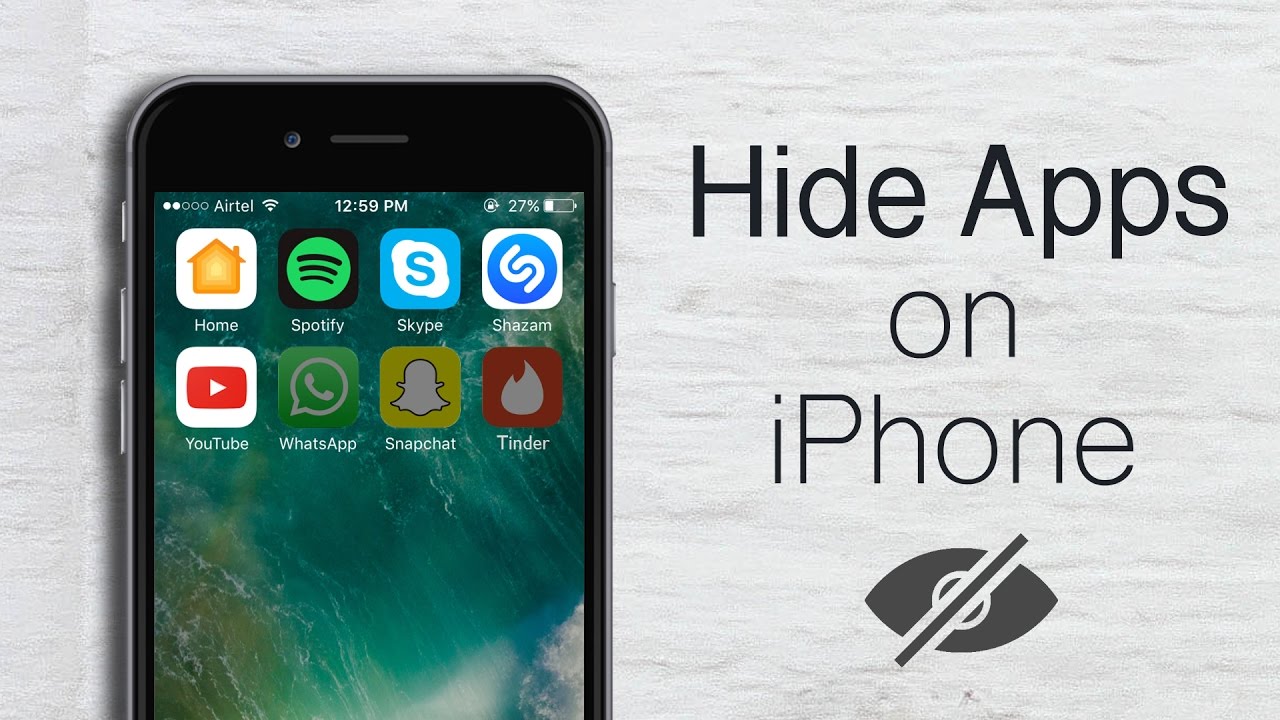
You don’t have to scroll through endless pages to stumble upon your app, you can now find it all in one location. Easily store all your apps in one location in the App Library in iOS 14. The App library helps you store all your apps in one single location instead of randomly across pages. Customize your phone to make it user-friendly and accessible. Know how to hide apps on your iOS 14 devices and higher, read further to know more.
You might also like

How to beat Mega Mewtwo X in Pokémon Go?

How to delete a TikTok account?

How to get Zeraora in Pokémon Go?

How to hide apps in iOS 14

  1.  Press and hold your home screen until you see apps move in their place
  2. Tap on the app you would like to remove from the page
  3. Press Remove app
  4. You will see a pop-up mentioning whether you want to Move (name of the app) to the library or delete the app
  5. Tap Move to App Library

Now that we have cleared how to hide apps let’s see how to delete hidden apps. After you’ve edited your app page, you’ll be alerted and new downloads will show up in the Recently Added section of the App Library. For now, the default is for new app downloads to also show up on your home screen which you can change in the Settings app.

Neat little iOS 14 feature…

You can hide/unhide different pages on your iPhone

Means you could have a page full of work apps which you hide on weekends and replace with ‘weekend apps’ pic.twitter.com/h3cGWkSrZ9

— Matt Navarra (@MattNavarra) June 24, 2020

How to delete Hidden apps from the App Library

  1.  Again press and hold your home screen until the apps move in place
  2. Click on the app you wish to delete
  3. Press Remove app
  4. Now when you see the pop-up mentioning whether you want to move to the library or delete press delete.
  5. Finally, you will have successfully removed the app.

If you would like to know how to download apps to your App Library on your iOS 14 devices, read further.

How to download apps to your App Library

  1. Go to Settings
  2. Press your home screen
  3. Press App library
  4. If you would like to receive notifications and alerts just toggle on, Show in App Library under the Notification Badges option.

Keep your iPhone organized and clutter-free. Nobody wants their phone display or home screen to be an eyesore put all the necessary apps in an App Library. Know more on how to declutter your phone and more by clicking here.




Tags: Apple iPhone 14How totech
Tweet54SendShare15
Previous Post

Hide your caller ID on iPhone and Android devices

Next Post

How to defend goals and defeat them: Pokémon Unite

Keziah George

Recommended For You

How to beat Mega Mewtwo X in Pokémon Go?

by Afeefa Ansari
July 12, 2026
0
Pokemon-Go-Mega-Mewtwo X

Want to beat Mega Mewtwo X in Pokémon Go? Follow the guide to know how you can make it happen and knock out this strong Pokémon. So, let's...

Read more

How to delete a TikTok account?

by Afeefa Ansari
July 12, 2026
0
TikTok

Do you have a TikTok account you would like to delete? That happens. Let's help you do so and get one thing off your mind. It will be...

Read more

How to get Zeraora in Pokémon Go?

by Afeefa Ansari
July 12, 2026
0
Zeraora

Are you looking for Zeraora in Pokémon Go? Here is all you need to know about it, along with the steps that can help you find one. So,...

Read more
Next Post
How to defend goals and defeat them: Pokémon Unite

How to defend goals and defeat them: Pokémon Unite

Please login to join discussion

Techstory

Tech and Business News from around the world. Follow along for latest in the world of Tech, AI, Crypto, EVs, Business Personalities and more.
reach us at info@techstory.in

Advertise With Us

Reach out at - info@techstory.in

Aviator Game India 2026

BROWSE BY TAG

#Crypto #howto 2024 acquisition AI amazon Apple Artificial Intelligence bitcoin Business China cryptocurrency e-commerce electric vehicles Elon Musk Ethereum facebook funding Gaming Google India Instagram Investment ios iPhone IPO Market Markets Meta Microsoft News OpenAI samsung Social Media SpaceX startup startups tech technology Tesla TikTok trend trending twitter US

© 2025 Techstory.in

No Result
View All Result
  • News
  • Crypto
  • Gadgets
  • Memes
  • Gaming
  • Cars
  • AI
  • Startups
  • Markets
  • How to

© 2025 Techstory.in

Welcome Back!

Login to your account below

Forgotten Password?

Retrieve your password

Please enter your username or email address to reset your password.

Log In
Are you sure want to unlock this post?
Unlock left : 0
Are you sure want to cancel subscription?